Association Scoping Rules
Association Scoping Rules allow certain associations to be triggered conditionally in a task.
An association will be in scope for a task if:
- the association meets the conditions configured in the Association Scoping Rule.
- the category of the Association scoping rule is selected in Task Configuration.
Association Scoping Conditions Selection
The following tasks support Association Scoping Rules:
- Automated Credit Screening
- Manual Credit Screening
- Financial Analysis Capture
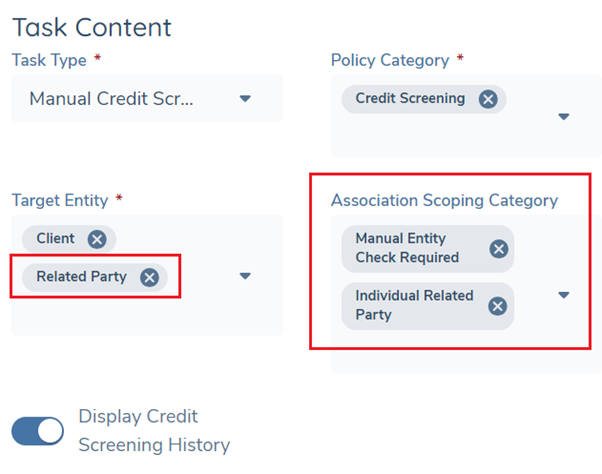
For the Scoping Rules to be triggered, the user needs to select the category for required association scoping rules in the task metadata.
The Association Scoping Rules only apply to a task having Related Party selected as the target entity selected. The Client entity is excluded from the evaluation process by default, and it will always be in-scope if selected.
Once a single or multiple association scoping categories have been selected, the association scoping conditions with the same categories will be applied and associations in scope will be triggered conditionally in the task.
If no “Association Scoping Category” is selected, then all related parties will be in-scope for the task.
Example: Association Scoping Overview
Entities:
- Main Entity: Jack the Clipper – Company
- Associations:
- Jack London – Shareholder – Individual (automated screening results received)
- London Barber – Subsidiary – Company ("No Results Found" in automated screening)
Scoping Categories:
| Association Scoping Category | Entities In Scope |
|---|---|
| Manual Entity Check Required | Jack the Clipper, London Barber |
| Individual Related Party | Jack the Clipper, Jack London |
| Manual Entity Check Required & Individual Related Party | Jack the Clipper, Jack London, London Barber |
Configuring the Association Scoping Rules
Association Scoping Rules can be configured to automatically determine which entities in the association hierarchy should be in scope in the task according to a client’s configuration. We use the Logic Engine that is used in other areas of the system to support this. For general information on how to configure rules using the Logic Engine please refer to the Logic Engine User Guide in Policy.
The Scoping Rules Configuration area can be accessed by navigating to Association Scoping Rules within the Management menu. The user needs to have relevant Credit Policy Configuration permissions enabled to start the configuration.
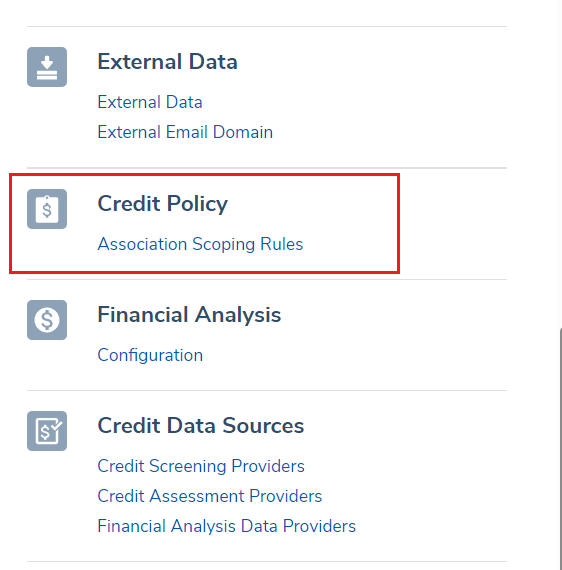
From the Association Scoping Rules page a user can add new Scoping Rule Sets, and access any existing Rule Sets.
To create a new Scoping Rule Set, click on the Add button. From this screen, the user can name their Rule Set and enter the description for the rule set. Each Rule Set that is created requires users to capture a minimum dataset including Rule Set Name, Description, Association Entity and Association Scoping Category.
- Association Entity: Association Entities, excluding the main entity, will be conditionally triggered for the selected task based on the scoping rules. Currently, “Related Party” is the only entity type supported for Association Scoping Condition Rules
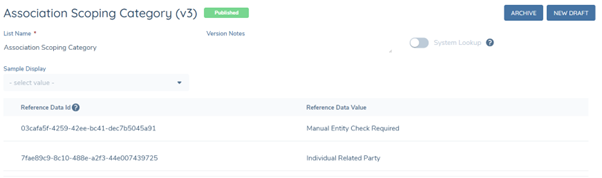
- Association Scoping Category: These values are used to tell the system what association scoping rules should be triggered in the task. This is a key reference that links the Association Scoping Rules to the Task and defines what scoping rules will be triggered. It is populated by the “Association Scoping Category” lookup. Each scoping rule set can only be mapped to one scoping category.
Once a draft Rule Set has been created, the user can start adding Scoping Rules. For general information on how to configure rules using the Logic Engine please refer to the Logic Engine User Guide in Policy.
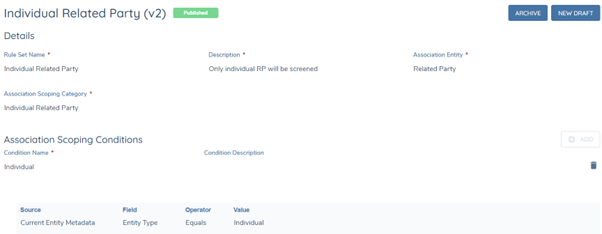
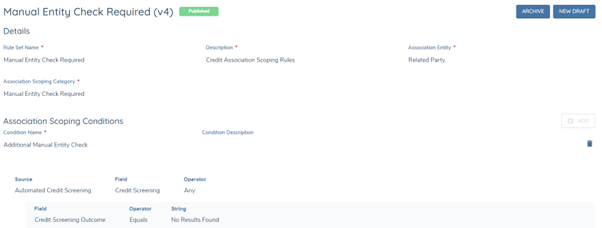
The following Sources of data can be selected from:
- Current Entity: Evaluates each entity in the association hierarchy to determine if they meet the condition. All Entity Data attributes configured in Policy are available to choose from.
- Current Entity Metadata: Evaluates each entity in the hierarchy to determine if they meet the condition. User can select Entity Type from this entity metadata field.
- Automated Credit Screening: Evaluates the automated credit screening data for each association in the hierarchy to determine if they meet the condition. The following Automated Credit Screening fields are available: a. Credit Screening Outcome b. Provider Internal Identifier.
- Credit Screening Outcome is a field mapped in the adapter schema with the datakey “creditScreeningOutcome”.
- Provider Internal Identifier is configured in Credit Screening Providers page, and each provider must have one unique Internal Identifier.
- If a scoping condition includes both fields, that means an association will only be triggered if the credit screening outcome meets the condition in the response from that specific provider.
- Manual Credit Screening: Evaluates the manual credit screening data for each association in the hierarchy to determine if they meet the condition. The following Manual Credit Screening fields are available: a. Data groups b. Credit Screening Outcome field c. Screening Task Datakey
- All data groups configured in Policy are available to choose from
- Credit Screening Outcome is a field with datakey “creditScreeningOutcome” configured in Policy
- Screening Task Datakey isconfigured in the Task Details Tab in Journey Builder.
If no Scoping Rules are in scope, all verified and in-flight associated entities will be in-scope. The scoping rules only apply to the associated entities and the main entity is excluded from the evaluation process by default.