ETL Investment and Bank Accounts
The investment account serves to capture the relationship between an investor and a fund for a specific holding. The investment account allows users to capture and manage multiple investment accounts, seamlessly linking an investor to a fund and the applicable fund share class (share classes must be captured as products). The bank account is used to associate bank account details with an investor (i.e. an entity). If bank accounts are captured against the investor, then they may be linked directly to an investment account. Combining the capture of bank and investment accounts, for an investor, delivers enhanced comprehension and visualisation of the investment account providing users with a more insightful and intuitive experience. The following user guides covers transferring investment and bank account data into Fenergo using ETL (Extract Transfer and Load).
ETL Investment Account Capabilities
The ETL tool supports the migration of investment account and bank account data into Fenergo. Supported Use Cases
- "I want to create an investment account using the ETL tool with a unique identifier alternateId from the source system."
- "I want to create an bank account using the ETL tool with a unique identifier alternateID from the source system."
- "I want to update an existing investment account or bank account, using the alternateID from the source system or an existing ID in Fenergo fenXID." Please refer to ETL Prerequisites for Create Vs Update logic and how the unique identifiers are handled in ETL. The relationships between investment and bank accounts and the investor are handled separately please refer to the ETL Associations User guide for additional details on preparing your files and loading associations between Investment and Bank Accounts.
Creating Migration Policies Investment and Bank Account
A separate migration policy must be created for investment accounts and bank accounts, as they cannot be migrated within the same ETL project. Each must be handled with its own distinct policy. This requirement exists because both account types are classified under the same entity type 'Other' with a target entity of 'Related Party'. Currently, there are no defining attributes within the migration policy that distinguish an investment account from a bank account. As a result, when ETL attempts to retrieve policy fields for mapping and validation, it cannot determine which fields belong to which account type. To ensure correct field mapping, validation, and successful data migration, a dedicated migration policy must be created for each account type and they must be migrated in separate projects. All fields that listed in the Prerequisites supported fields are supported with investment and bank accounts.
Creating an ETL project with Investment and Bank Accounts
Map System fields
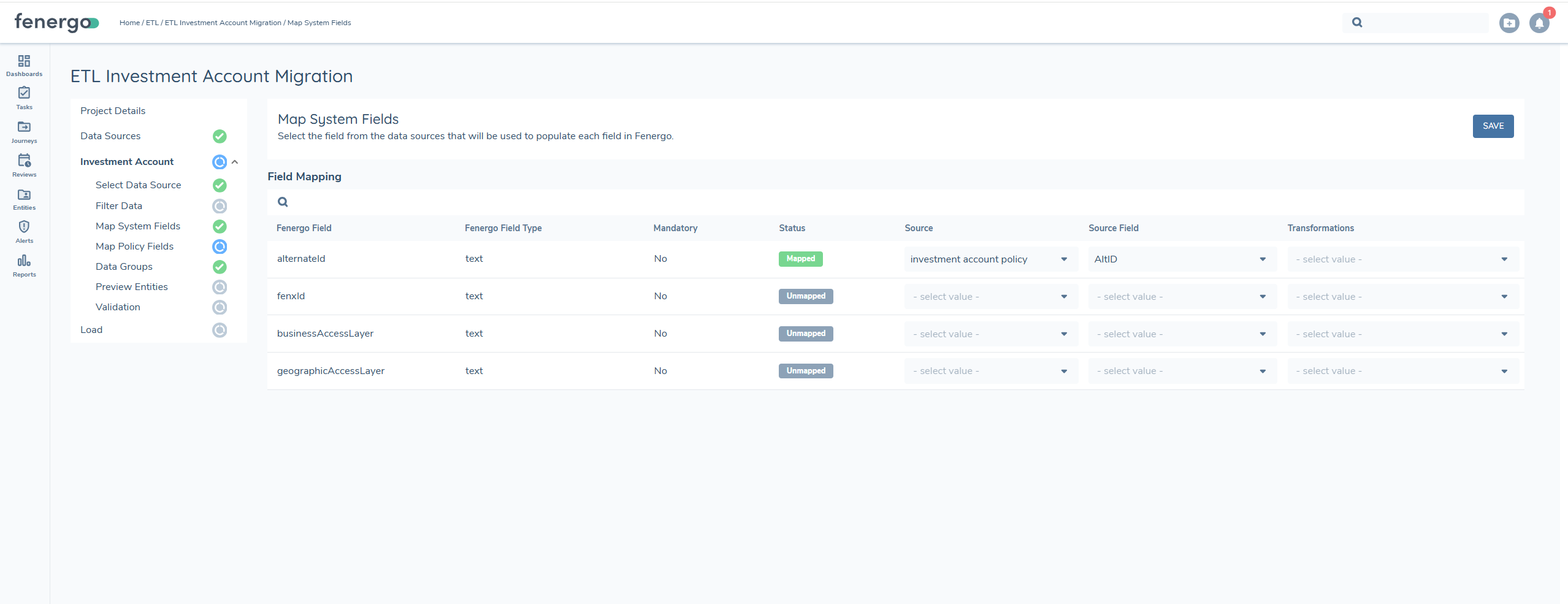
- alternateId: unique identifier in the source system for the investment account or bank account.
- fenxid: the unique identifier in Fenergo for the investment account or bank account.
Map Policy Fields
In this step, you'll map fields from your source file to the corresponding policy fields. This ensures your data is correctly understood and validated based on the structure defined in your selected policy.
All fields will be available for mapping with be those fields with an Entity Type of 'Other' and Target Entity of 'Related Party'. It is important to create two separate migration policies and projects, one for investment accounts and one for bank accounts and only include those fields relevant to each when migrating.
A separate migration project is required for investment accounts and bank accounts.
Data Groups
Data Groups allow you to include structured sub-sections of investment or bank account related data. Each data group is added as a separate tab in the upload file and requires both 'System Fields' and 'Policy Fields' to be mapped. To configure a data group:
- Select the primary data source that contains the data group content
- Map the system fields, such as parentFenxId or parentAlternateId, to link the data group to the appropriate investment or bank accounts in your source file.
- Map all required policy fields as defined in your selected policy.
When updating an investment or bank accounts data group, the new data will replace any existing entries in Fenergo. If only one new entry is included and existing entries are omitted, only the new entry will be retained. To prevent data loss, always include all current and new data group entries for each account in the file.
Preview
Once all mapping is complete, you can preview how investment account or bank account records will appear once loaded into Fenergo using the current configuration. You can either:
- Select an investment account or bank account record from the 'View Sample Entities' table, or
- Enter a specific ID to preview how that record will be processed. This step allows you to confirm field mappings and data formatting before running the 'Validation' and 'Load' processes.
Use this preview to confirm required fields are populated, transformations are correctly applied and lookup values align with your reference data.
Validation
Validation checks each record in the data source using the project configuration. Any entities that would fail are identified and listed below, or once the validation is complete you can download the validation report. Please see details in the ETL Validation Stage
Load
Once all validation issues are resolved and every entity in the migration project has been successfully validated, the 'Load' option becomes available.
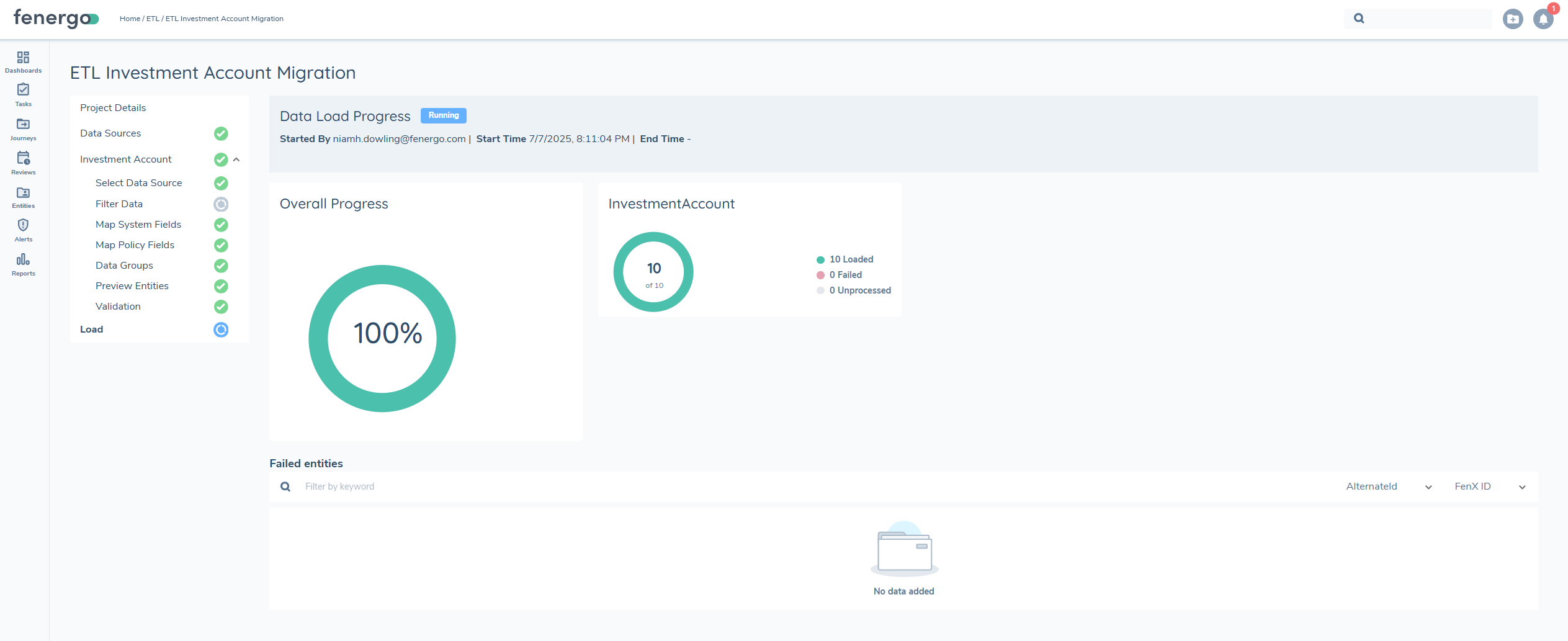 During the load process, the system determines whether each record is an UPDATE or a CREATE based on the presence of a FENXID or ALTERNATEID. A progress ellipsis will display and track the status of the load process.
Once the Load is complete a reconciliation report is available. Please refer to the UI User guide for additional details on load and reconciliation report.
During the load process, the system determines whether each record is an UPDATE or a CREATE based on the presence of a FENXID or ALTERNATEID. A progress ellipsis will display and track the status of the load process.
Once the Load is complete a reconciliation report is available. Please refer to the UI User guide for additional details on load and reconciliation report.