ETL Associations
An important activity within Client Lifecycle Management is capturing / unwrapping their clients ownership and control Hierarchy. To correctly risk asses and work with clients in a compliant way, institutions conduct this activity under the heading of KYC (Know Your Customer).
Regulatory and Compliance Rules differ from jurisdiction to jurisdiction, depending on the location of a Company or Related Party (such as a Shareholder, Director etc...) different data points or documents may be required to meet local regulations for that given jurisdiction.
The first step in this process is actually the relationships and entities that exist in the Hierarchy. In FenX this is done via associations. Fenergo clients who have existing data residing in legacy systems can migrate those associations into FenX via ETL additionally they can update some of the relationship properties of the association itself.
ETL Association Capability
When it comes to creating associations between Entities using the ETL tool, users will have the following options:
- Create associations between Entities in the ETL Project
- Create associations between an Entity in the ETL Project and an Entity in Fenergo SaaS
- Create associations between two Entities in Fenergo SaaS
The following use cases can be achieved:
- "I want to associate an existing entity (sourceFenxId) with a to-be-created entity (targetAlternateId)";
- "I want to associate a to-be-created entity (sourceAlternateId) with a to-be-created entity (targetAlternateId)"
- "I want to associate an existing entity (sourceFenxId) with an existing entity (targetFenXId)"
- "I want to associate a to-be-created entity (sourceAlternateId) with an existing entity (targetAlternateId)"
- "I want to update the relationship properties of an association in ETL."
Only one sourceID (either sourceFenxId or sourceAlternateId) and one Target ID (Either targetFenXId or targetAlternateId) can be mapped in each project and system controls are in place for this.
The uniqueness of the relationship's Alternate ID is not maintained during ETL. If you intend to update associations, you should use the relationship's FenXID. Only the attributes of the relationship can be updated, not the relationship itself.
Understanding Association Structures
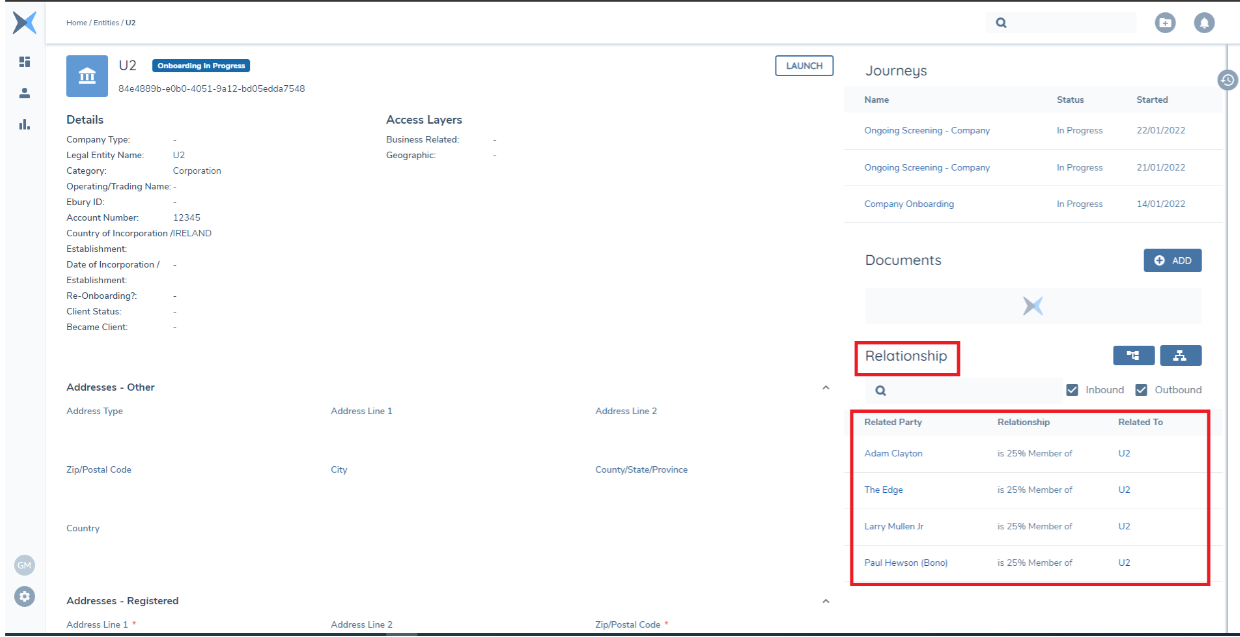
In the Example below a Simple "Root Legal Entity" representing the band U2 can be seen with relationships to the four band members. These are known as Inbound relationships and can verbalized as "The Edge is a 25% Member of U2".
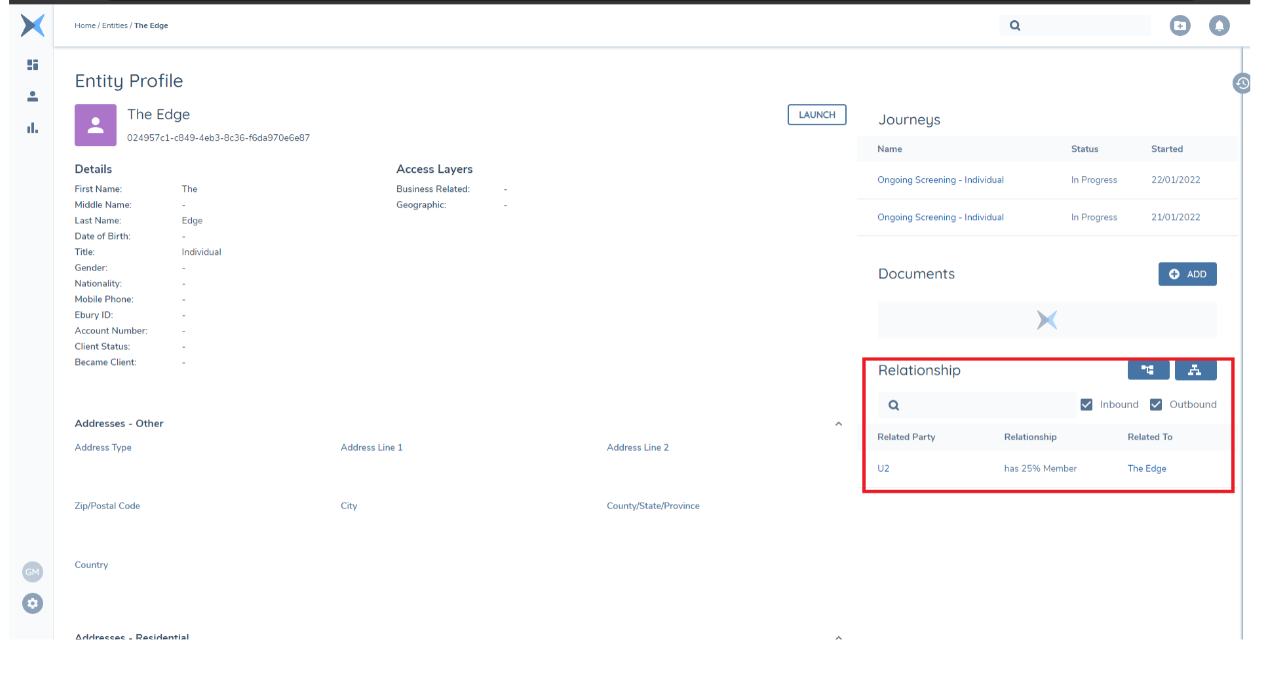
This relationship also exists in the Opposite direction and navigating to the related Party, the relationship is described as an "Outbound" relationship and can be verbalized as "U2 has a 25% Member called The Edge".
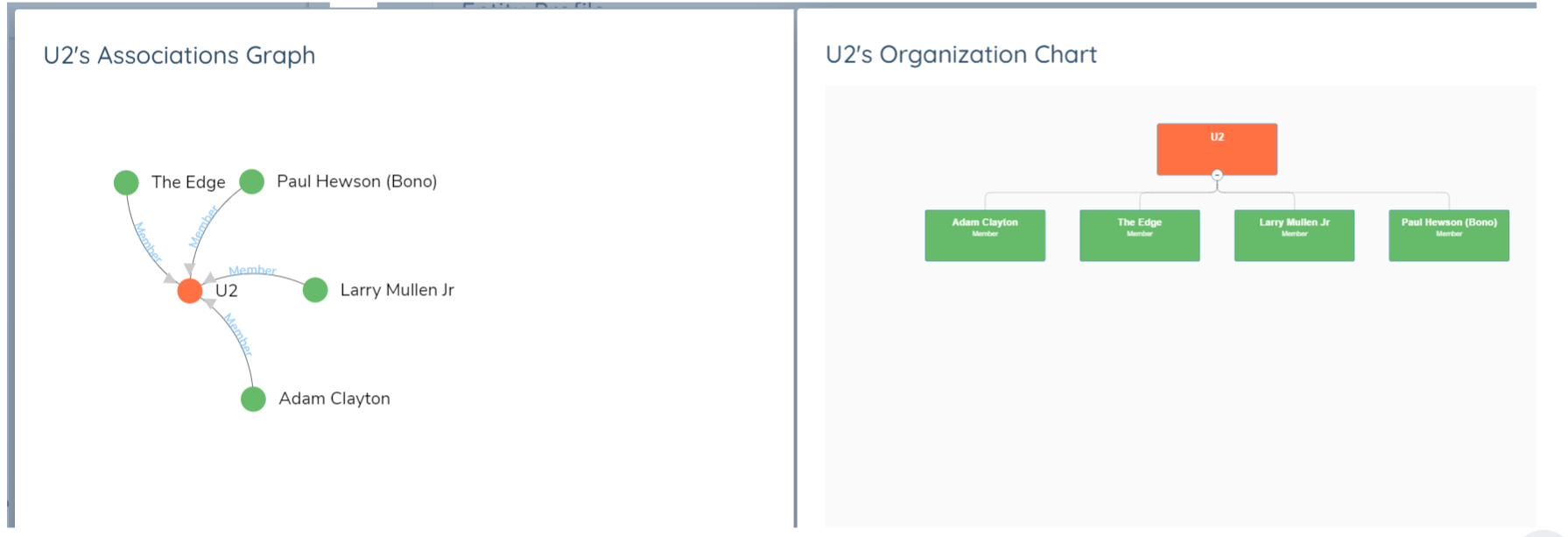
The Difference is the direction in which the association is established and who is the actual client being focused on. These hierarchies might be required to get quite detailed and granular depending on the regulatory requirements being satisfied. The structures can be visualized in the FenX UI from the Hierarchy Panel as an Associations Graph or an Organization Chart.
Prequisites to creating an association
Some standard configuration in policy is required to create an association in FenX. The policy being used for the data transfer must be configured with some specific fields. Once completed clients can upload their datasources and complete their mapping through the UI.
For individual and company there are three mandatory fields per entity type required (6 in total), the fields must be placed in the correct category and with the correct target entity. These fields are listed below:
- relationship - Category: Relationship Details | Target Entity: Related Party | Lookup Reference: Relationships
- controlPercentage - Category: Relationship Details | Target Entity: Related Party | Data Type: Number
- ownershipPercentage - Category: Relationship Details | Target Entity: Related Party | Data Type: Number
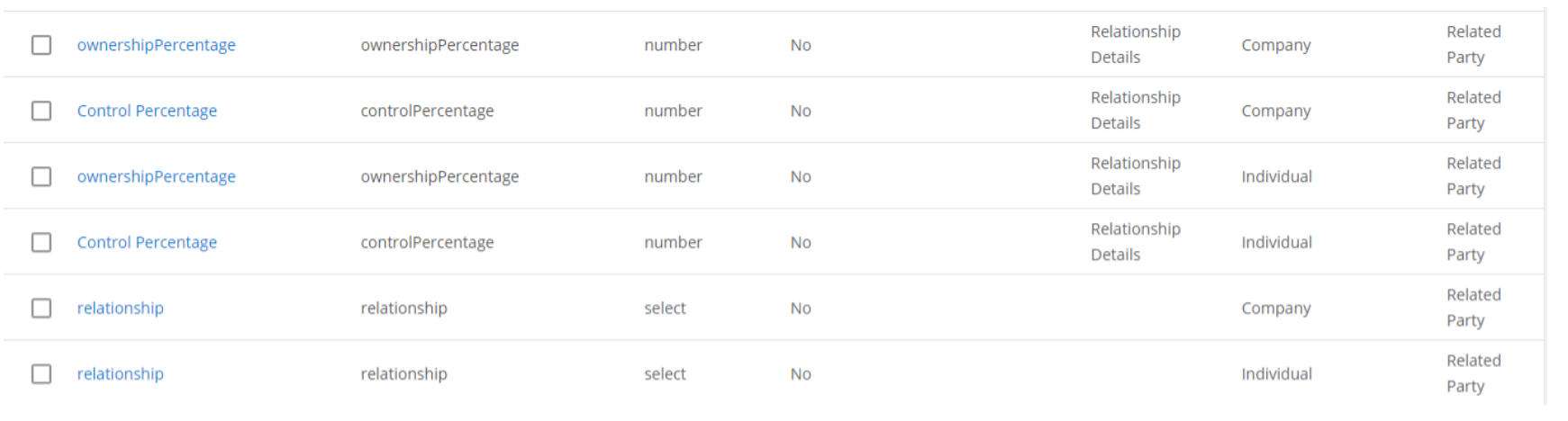
Relationship properties are validated against policy. Different lookup lists must not be used for the same relationship data requirement across entity types (Individual, Company, and Other), as this is unsupported and will lead to inconsistent values in the lookup mapping.
Create Versus Update
An association is created if a combination of source/target/relationshiptype, do not already exist in FenX. If a relationship with the same source, target, and type is found, only its attributes are updated.
Associations UI
In order to achieve the above scenarios, a new entity for Associations is availble from the ETL UI. This can be included as part of any ETL project or they can be selected as their own as an entity
Map System Fields
The following fields are requried for Associations to be mapped in ETL so that the association is created.
- alternateId the unique identifier of the association from the source system
- fenxId - the Id of the association itself from FenX.
- sourceAlternateId - the Related Party in the migration project datasource we are adding to the Client Entity
- targetAlternateId - the Client Entity in the migration project datasource that we are adding the Related Party to
- sourceFenxId - the Related Party in Fenergo SaaS we are adding to the Client Entity
- targetFenxId - the Client Entity in Fenergo SaaS that we are adding the Related Party to
- sourceEntityType - the entity type of the related party we are adding to the client entity. This will drive the properties requried in the policy fields and will use.
Only one source and one target field can be mapped in each project.
Map Policy Fields
Any fields defined in the ETL policy for the Relationship Details category-such as ownershippercentage, controlpercentage, and any other attributes captured in the relationship-will be available for mapping to the corresponding datasource fields. These fields can be populated from the uploaded data source. In some cases, a single column in the data source may map to the same column in the datasource for both the Company and Individual categories. In addition the relationshipType field will display, this is a mandatory field. The same relationship list should be used for company and individual.
When mapping Invesment Account and Bank Account an additional field called subtype will need to be configured as described above.
When defining associations between two entities in the datasource, only one relationship type can be specified per row. The relationship type field does not support multiple selections. If multiple relationships exist between the same entities, you must create a separate row in the datasource for each relationship.
All fields in this section will be validated against policy.
During data aggregation in the preview stage, the source entity's type determines which relationship attributes are available. For example, if the source entity is an individual, there may be different attributes available in the relationship in the Map Policy Fields.
Preview Associations
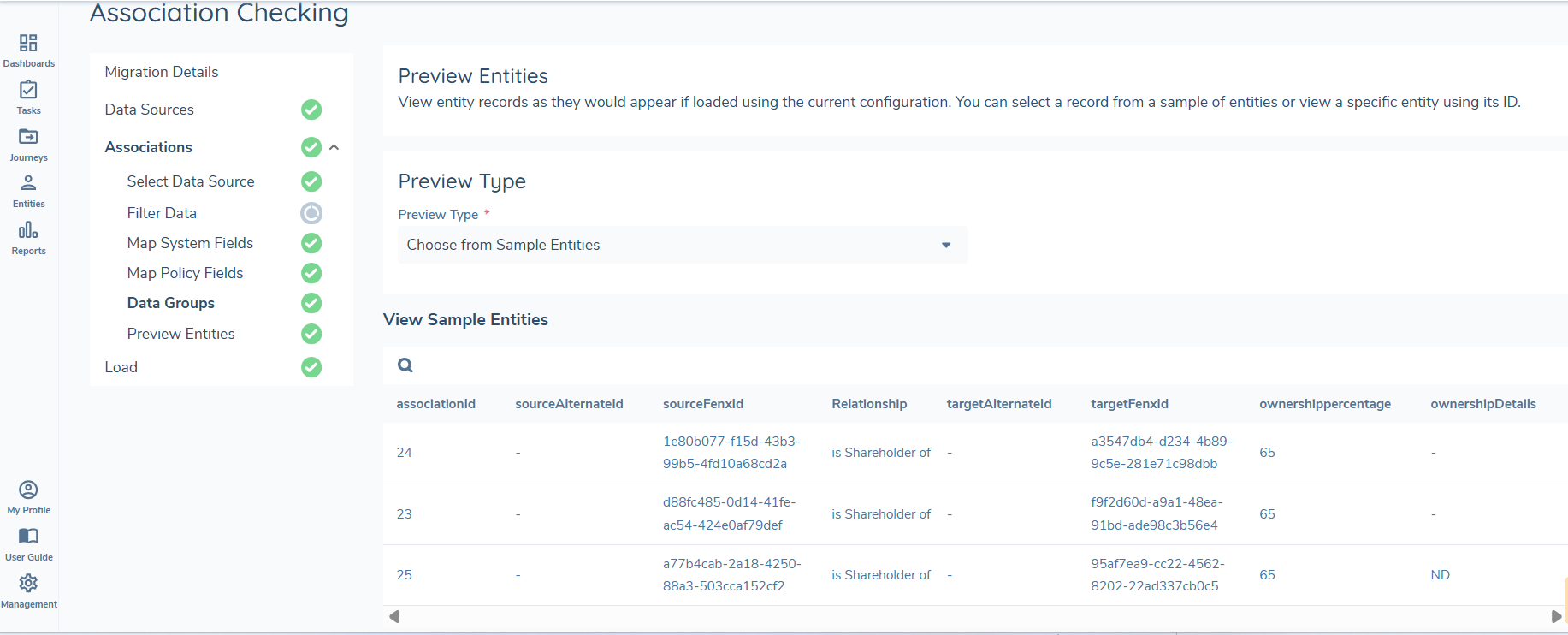
During the preview stage data is aggregrated and prepared for load. The association preview will display in a grid with the following attributes:
- alternateId the unique identifier of the association from the source system
- fenxId - the Id of the association itself from FenX.
- sourceAlternateId - the Related Party in the migration project datasource we are adding to the Client Entity.
- targetAlternateId - the Client Entity in the migration project datasource that we are adding the Related Party to
- sourceFenxId - the Related Party in Fenergo SaaS we are adding to the Client Entity.
- targetFenxId the Client Entity in Fenergo SaaS that we are adding the Related Party to
- relationshipType the relationship between the two properties represented as the 'Inbound' relationship.
- sourceEntityType the entity type of the related party we are adding to the client entity.
Load Associations
In FenX Associations can only be created using valid FenX entity IDs. If an ETL project includes multiple entity types, the load sequence is structured so that associations are created last. This ensures that the required FenxID exists before any association is formed.
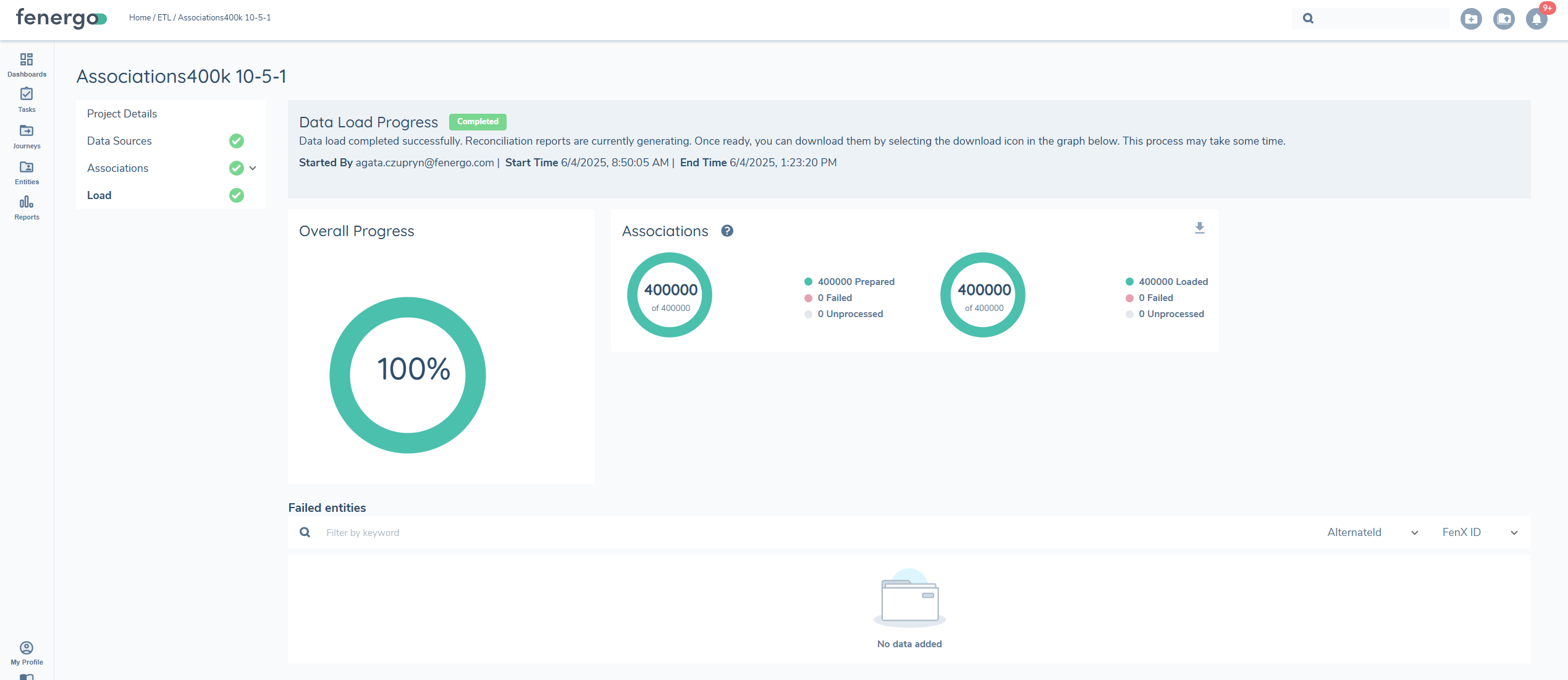
During the loading step, the system verifies any IDs provided in the file. If a FenxID is provided, it is validated in the initial step. If an AlternateID is provided instead, the system retrieves the corresponding FenxID before proceeding with the association creation. This represents the first progress bar. The second progress bar corresponds to the actual loading of the associations themselves.
If during the load process the system cannot find the corresponding entity ID or the relationship defined does not exist, the load process for associations will fail. The user will need to create a new ETL project for associations, resolve the issue in FenX, and re-load.
The same occurs if there are any failures during the load step. Any relationships that failed to create will appear on the reconcilation report.
Associations Investment and Bank Accounts
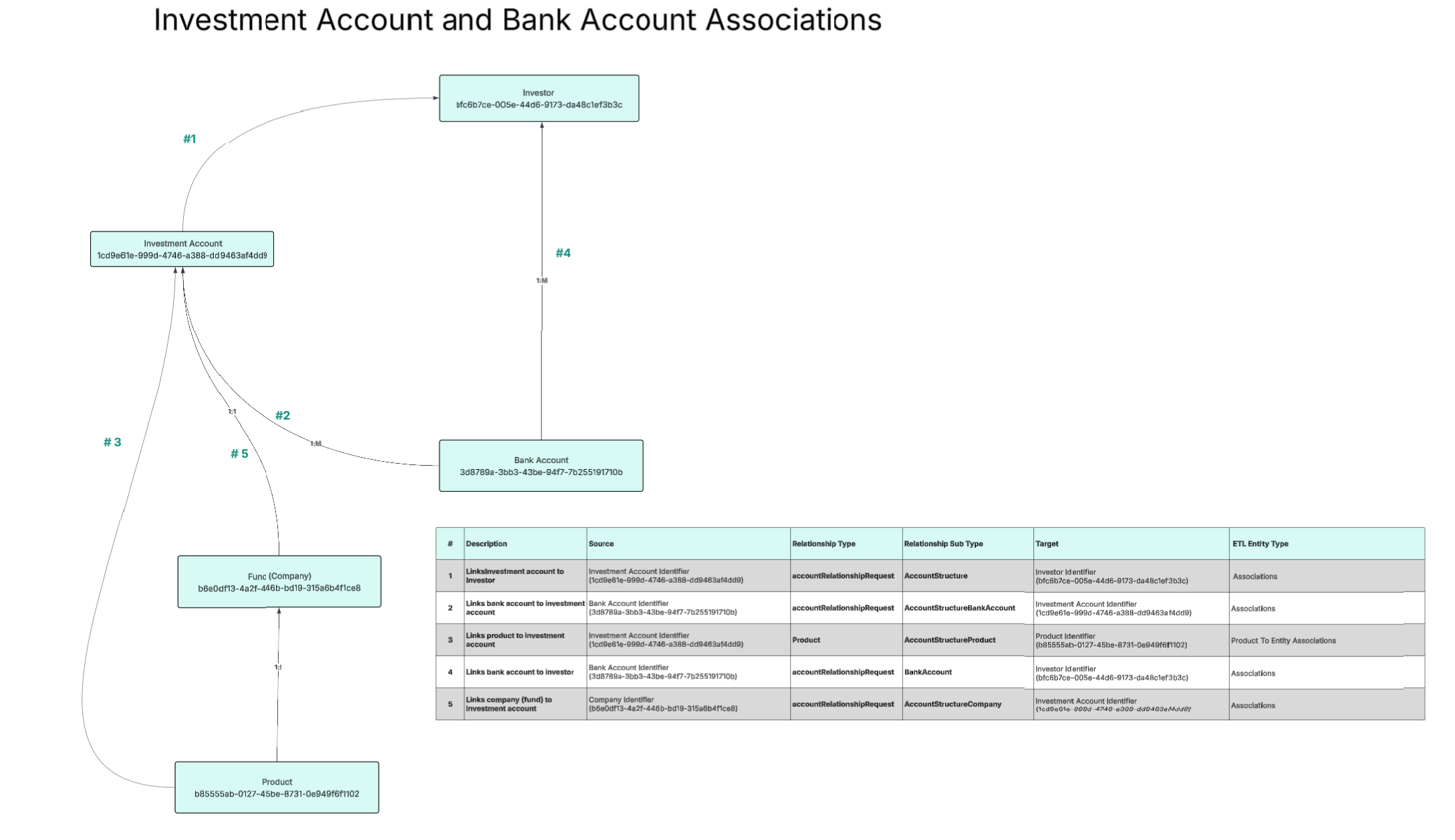
The associations between the Investor, Investment Account, Bank Account, and the Fund are created or updated using different entity types in ETL. The associations between the Investor, Investment Account, and Bank Account are managed through the Associations option in ETL. In contrast, the associations between the Product and the Investment Account are created and maintained through the Product to Entity Association option in ETL. The below diagram represents these associations. This section describes the additional policy fields and additional attributes that you need to add in the lookups to successfully migrate Investment and Bank account associations.
Creating a Policy
To ensure the ETL process correctly creates associations between investment and bank accounts, the migration policy must be properly configured with additional values in the relationship dropdown linked to the relationship data requirement and an additional subtype field must be configured. The relationship field should include additional values from a specified lookup list, and the subtype field must be linked to a reference list with predefined values. These configurations enable the system to automatically and accurately establish the necessary links between entities during migration.
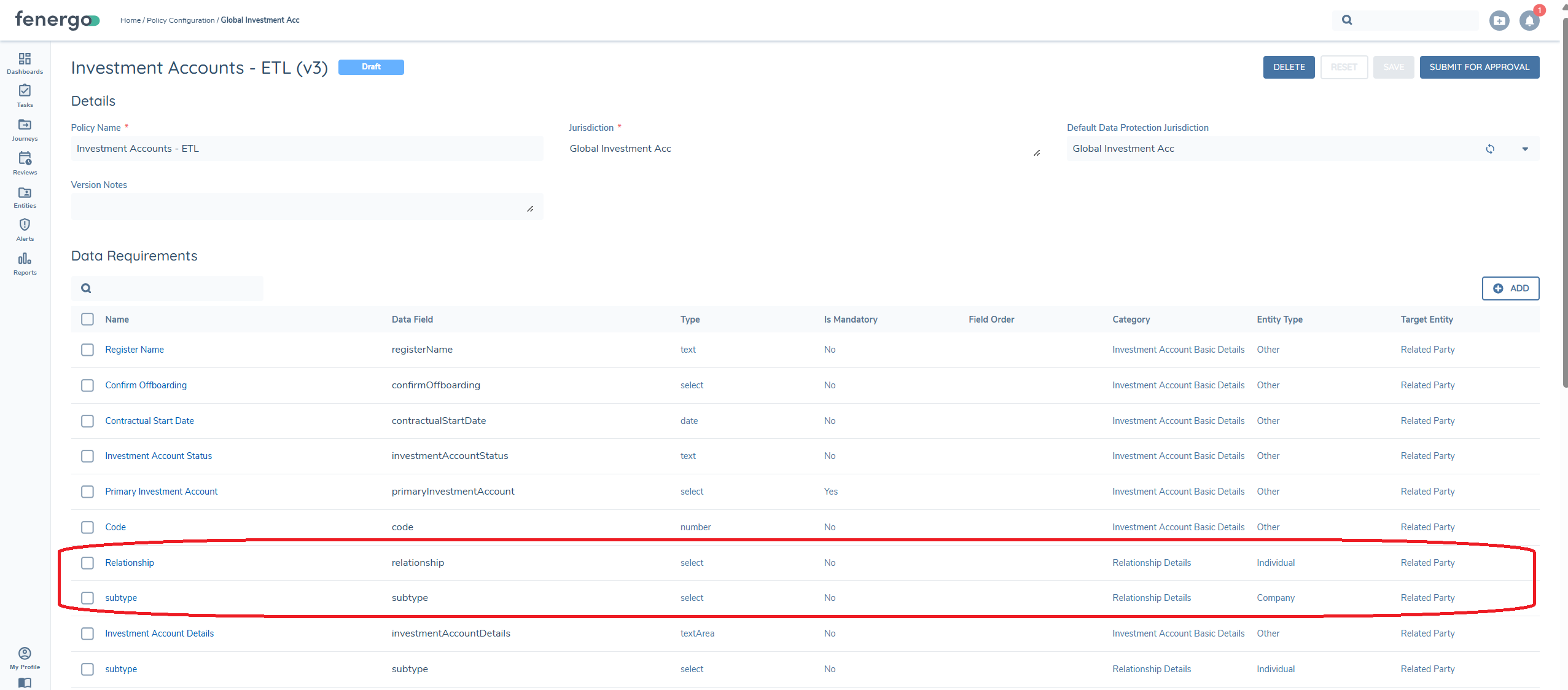 These configurations are required because certain relationships require additional attributes or metadata that are not intended to be visible or editable through the user interface. By defining separate lookup lists for relationship and subtype, you ensure that relationships are created cleanly and consistently without impacting the UI or manual data entry flows.
- relationship - Category: Relationship Details | Target Entity: Related Party | Lookup Reference: migrationRelationships
- subtype - Category: Relationship Details | Target Entity: Related Party | Lookup Reference: migrationsubtype
Relationship data requirement:
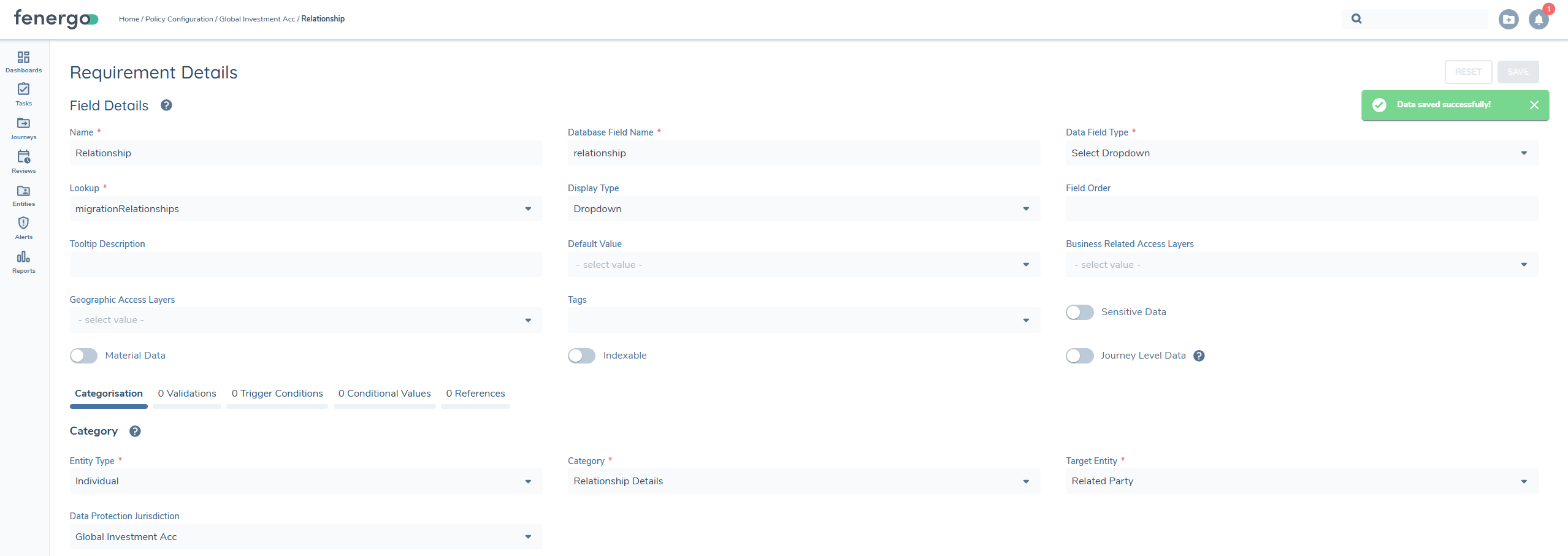
This data requirement should be linked to a migration-specific relationship dropdown that is configured solely for migration purposes. It does not need to be named explicitly, but it must be a separate dropdown from the one used by the UI, as we do not want values like 'accountRelationshipRequest' to appear in the user interface. This lookup list needs to be configured with the following additional field accountRelationshipRequest and then this value needs to be set in the datasource and that column mapped to the relationship field in ETL.

Subtype data requirement:
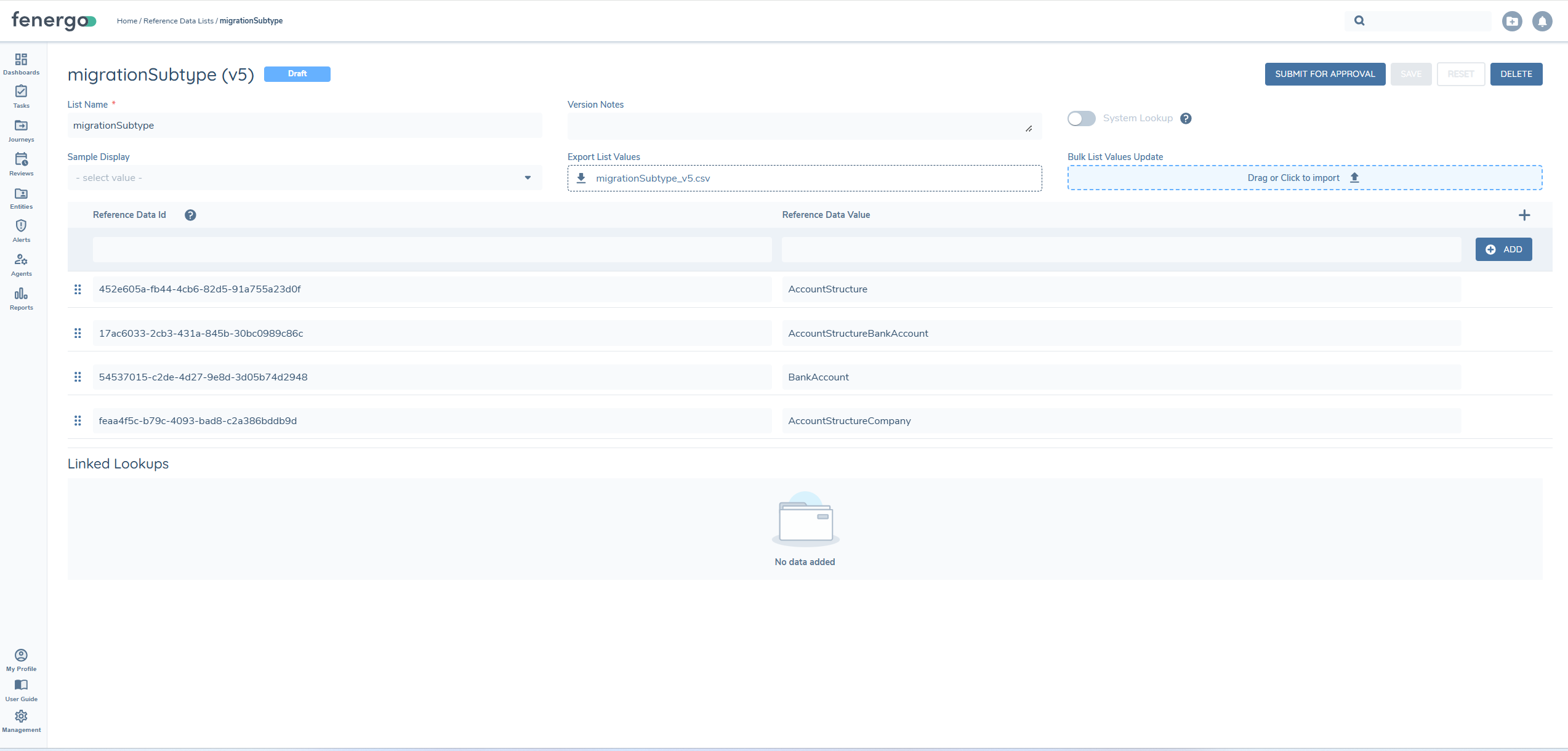
The relationship subtype field needs to have the following additional attributes accountStructureBankAccount, accountStructure, accountStructureCompany, and BankAccount .
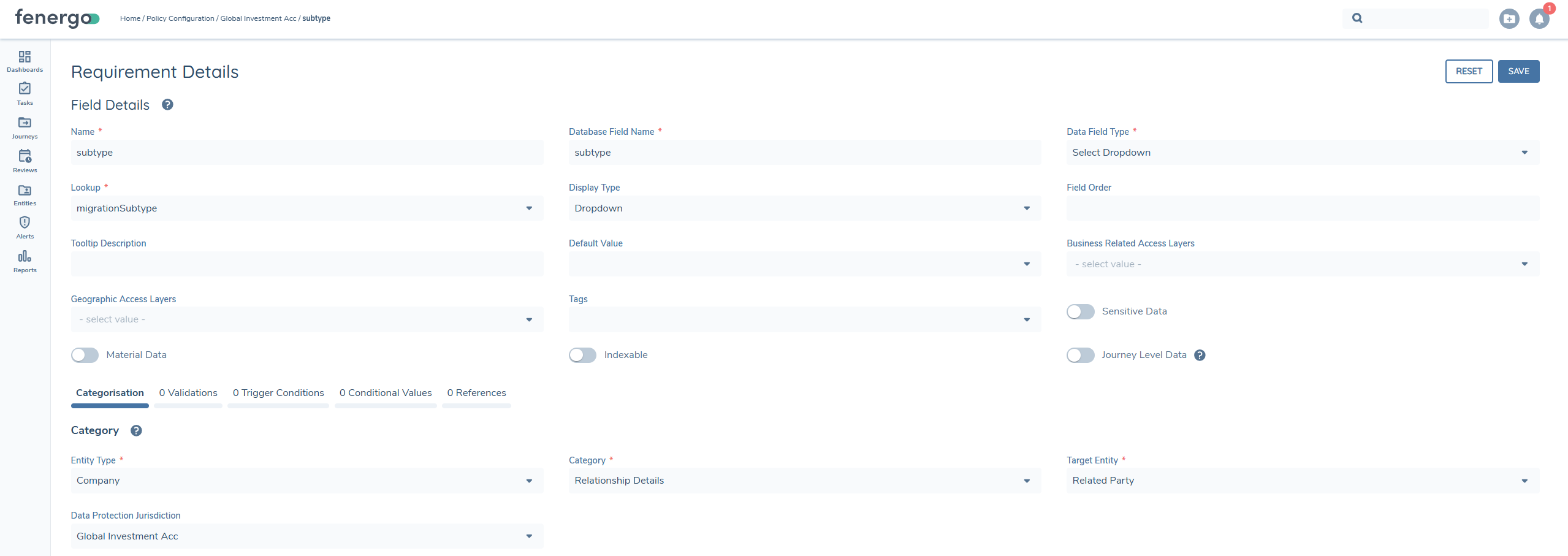
This is linked to the following dropdown migrationsubtype dropdown that is configured specifically for the migration.
In the map policy fields section in the data source below are the attributes that will need to be set in the data source for relationship type and sub type fields.
| Description | Source | Relationship Type | Relationship Sub Type | Target |
|---|---|---|---|---|
| Links investor to investment account | Investment Account Identifier | accountRelationshipRequest | AccountStructure | Investor Identifier |
| Links bank account to investment account | Bank Account | accountRelationshipRequest | AccountStructureBankAccount | Investment Account |
| Links company (fund) with investment account | Company | accountRelationshipRequest | AccountStructureCompany | Investment Account |
| Links bank account to investor | Bank Account | accountRelationshipRequest | BankAccount | Investor |
Product to Investment Account associations must be created using the Product to Entity Association entity type in ETL. Because product associations the 'Product Relationship maps to the 'subtype' field an additional value AccountStructureProduct needs to be added to the Product Relationship dropdown.
Product to Entity Associations
To create the Product to Entity Associations via ETL, the migration policy must be properly configured with additional data requirements Product Relationship. The Product Relationship field should include values from a specified lookup list with predefined roles. This configuration enables the system to automatically and accurately establish the necessary links between Products and Entities during migration.
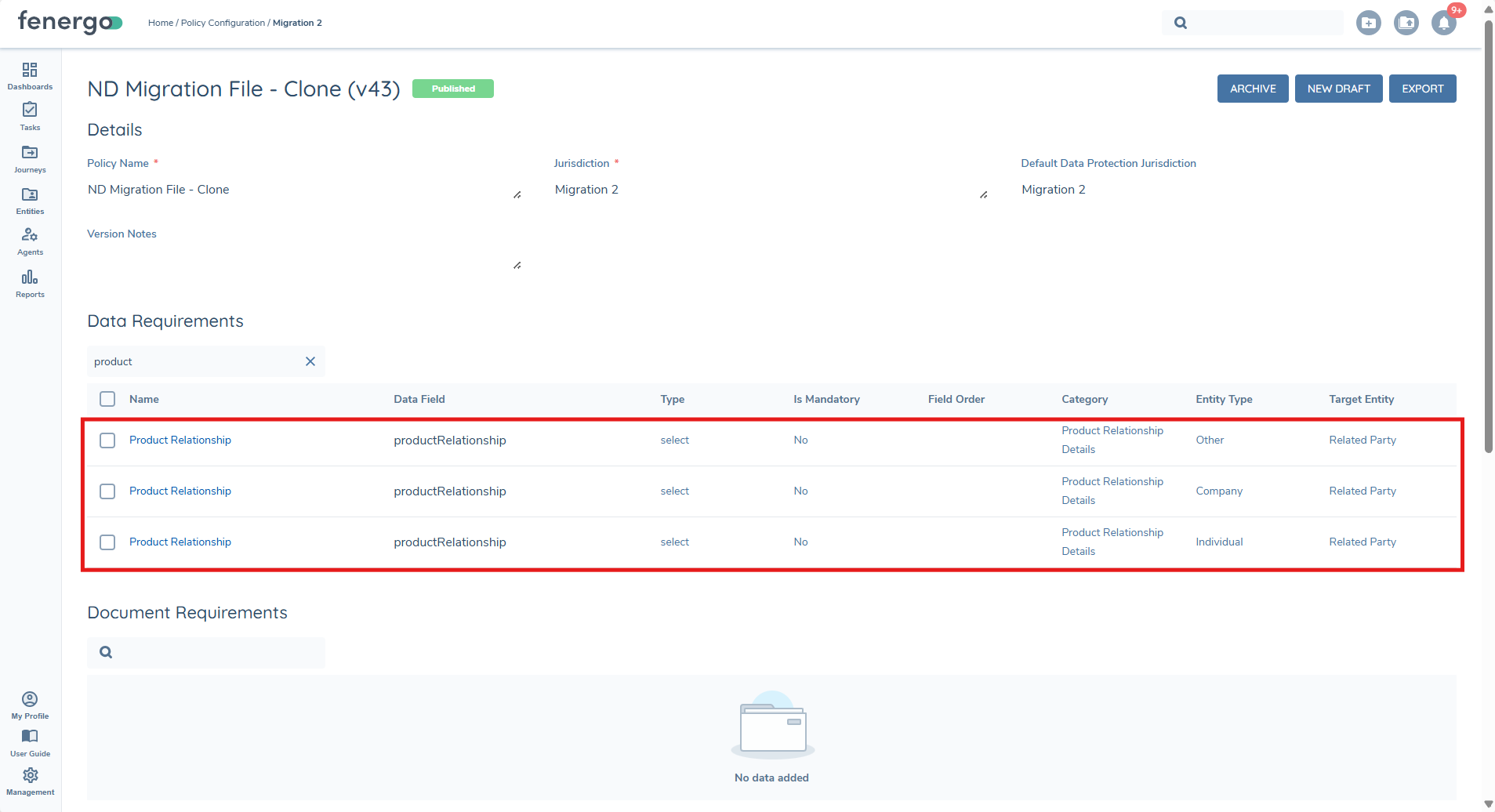
This configuration is required so that the relationship between the Product and its related parties can be visible through the user interface. By defining the lookup list for Product Relationship, you ensure that associations are created cleanly and consistently.
Product Relationship – Category: Product Relationship Details | Target Entity: Related Party | Lookup Reference: Product Relationships
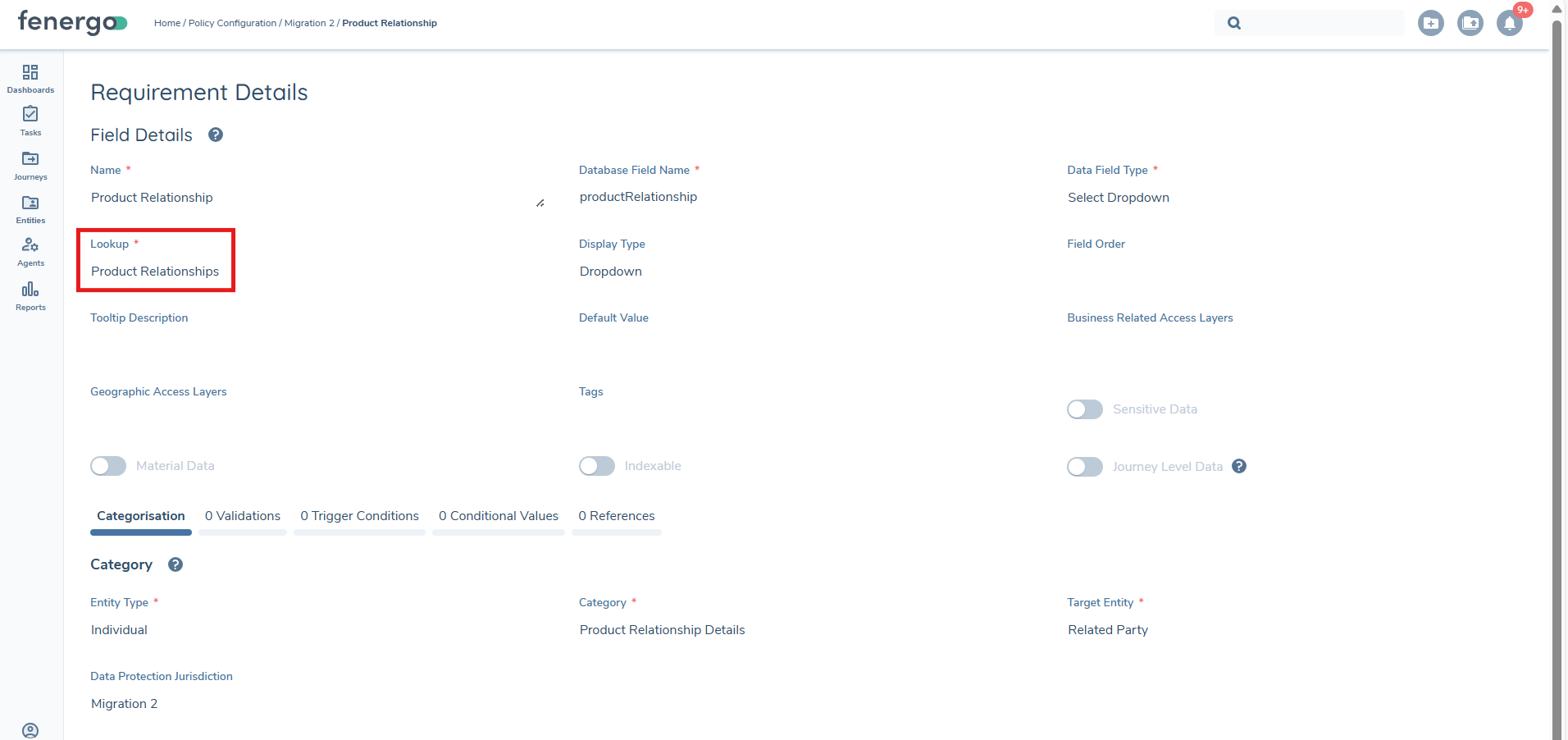
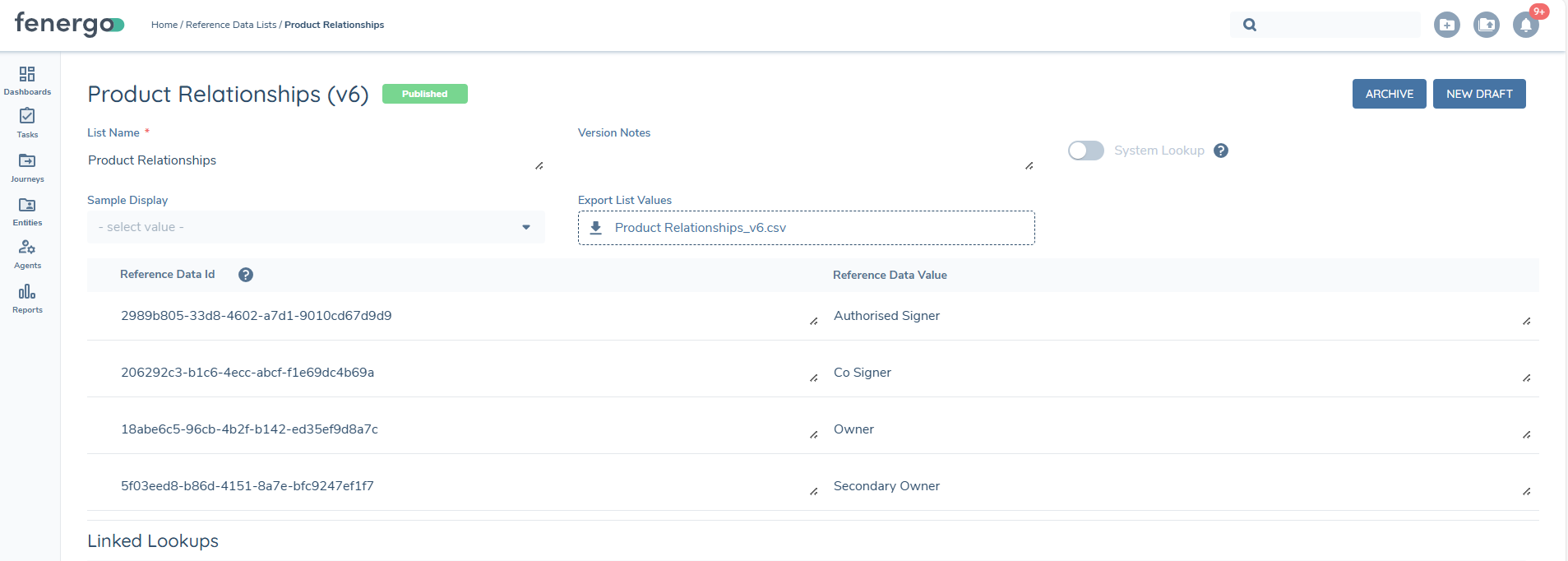
The data requirements within the policy should be linked to the Product Relationship lookup, which contains predefined values available for Product to Entity Associations. Different lookup lists must not be used for the same Product relationship data requirement across entity types (Individual, Company, and Other), as this is unsupported and will lead to inconsistent values in the lookup mapping.
Data source – Product to Entity Associations
An example data source for associations is shown below:

In the map policy fields section of the data source, the following attributes should be set for Product Relationship:
| Description | Source | Product Relationship | Target |
|---|---|---|---|
| Links Guarantor to Product | Entity Identifier | Guarantor | Product Identifier |
| Links Joint Owner to Product | Entity Identifier | Joint Owner | Product Identifier |
| Links Power of Attorney to Product | Entity Identifier | Power of Attorney | Product Identifier |
Entity Group Associations
ETL can solve for the mass creation of either Entity Parent or Entity Child associations to an Entity Group. This follows the same flow as what a User would do within the "Manage Group Information" Task in the application. To add either of these Group-specific associations, a particular format needs to be adhered to:
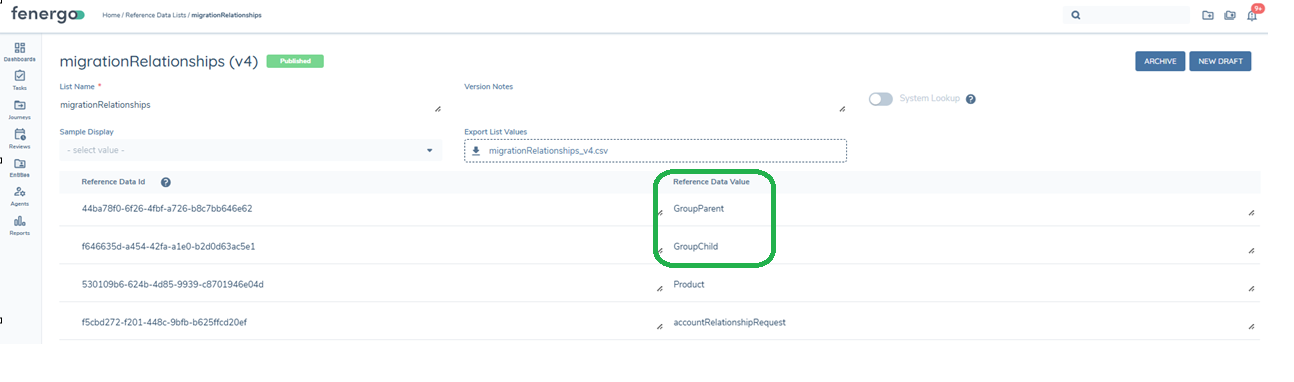
To create an Entity Grouping association of Child Entity, a User will enter GroupChild in the "Type" column of their datasource. To create an Entity Grouping association of Parent Entity, a User will enter GroupParent in the "Type" column of their datasource.

The relationship data requirement should be created in policy:
This data requirement should be linked to a migration-specific relationship dropdown that is configured solely for migration purposes. It does not need to be named explicitly, but it must be a separate dropdown from the one used by the UI, as we do not want values like 'GroupChild' to appear in the user interface. This lookup list needs to be configured with the following additional field GroupChild and GroupParent and then this value needs to be set in the datasource and that column mapped to the relationship field in ETL.
Associations Recap
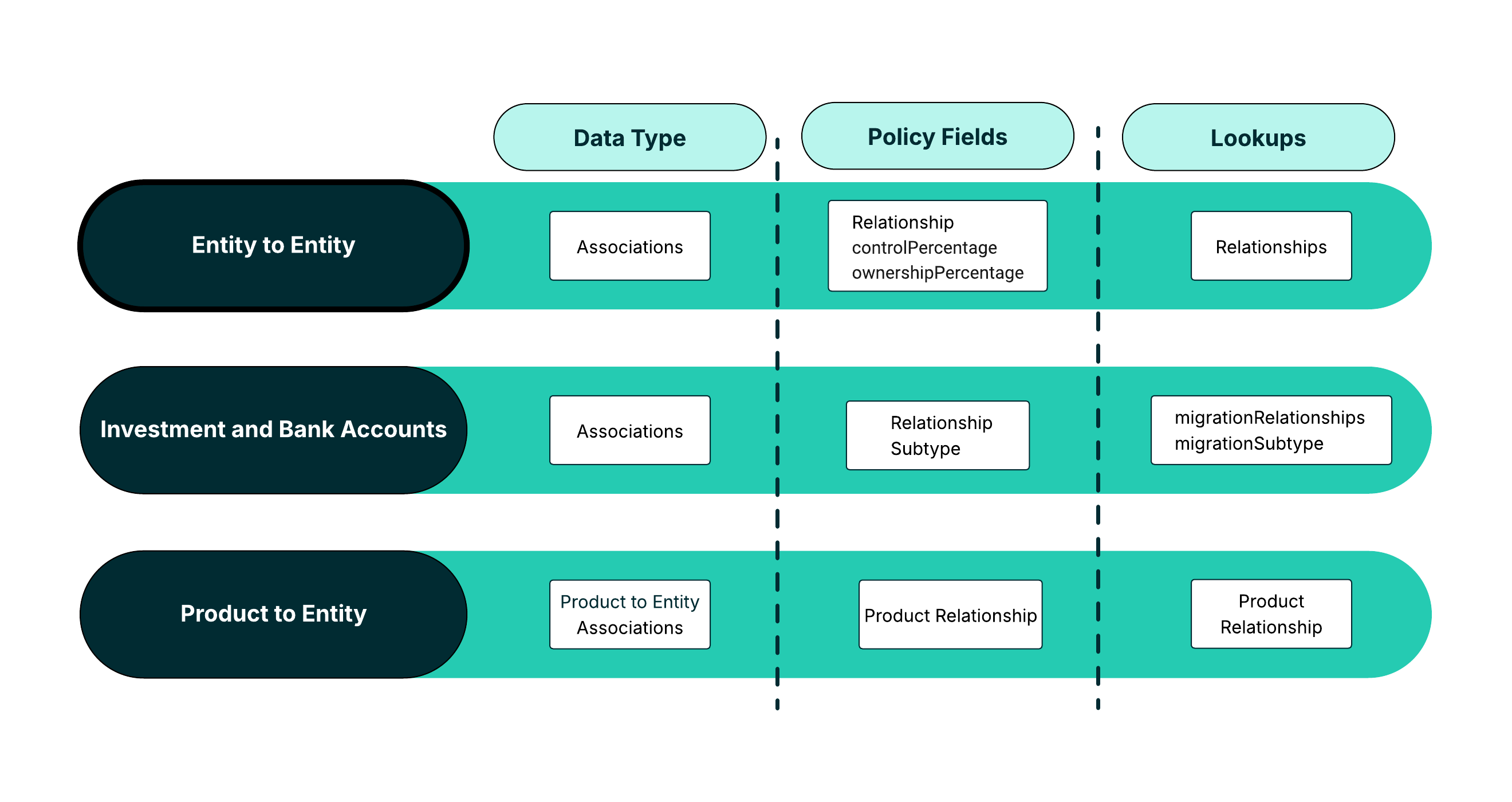
The diagram below provides a consolidated view of how associations are created and configured in ETL. It highlights the three main Association Types, the Data Types used to represent them, the Policy Fields required for mapping, and the corresponding Lookup lists.
Entity to Entity uses the Associations data type with relationship, ownershipPercentage, and controlPercentage policy fields, with the Relationship data requirement mapped to the Relationships lookup.
Investment and Bank Accounts also use the Associations data type, but require both relationship and subtype policy fields. These are mapped to migrationRelationships and migrationSubtype lookup.
Product to Entity relies on the Product to Entity Associations data type, with the productRelationship field linked to the Product Relationships lookup to capture roles such as Guarantor, Joint Owner, or Power of Attorney.
Entity Group Associations also use the Associations data type, but requires additional values added to the relationships lookup.