Entity Checks
Entity Checks provide a way to identify entities within the system that meet very specific (configurable) criteria and a process managed on the system to take specific actions in order to manage these entities. Entity Checks have been introduced into Fenergo SaaS to act as a system control and backstop to ensure that Data Protection obligations are being met. The first Entity Check introduced in Fenergo SaaS is the Orphan Entity check.
Orphan Entity
An Orphan Entity is defined as an entity in the system that is NOT a client and is not connected to any clients within the system - it represents and entity that likely should be flagged for eventual deletion. The Entity check feature allows a client to define the specific criteria in Fenergo SaaS to identify Orphan Entities in the system so that they can be put through Offboarding in order to have a "Data Deletion Process" created for them (putting those entities in run-off for eventual data deletion).
Data Protection Dashboard
A new Dashboard has been introduced to help users manage entities that were processed via an Entity Check. The new "Data Protection Dashboard" can be found in the Dashboard Shelf. Access to this dashboard is controlled via the "Data Protection Dashboard Access" permission.
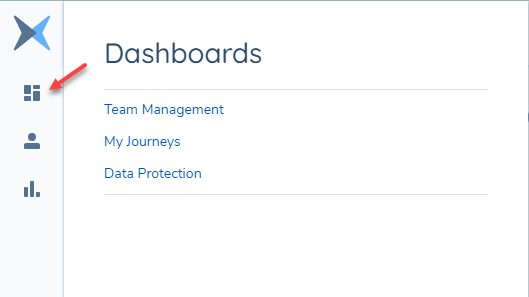
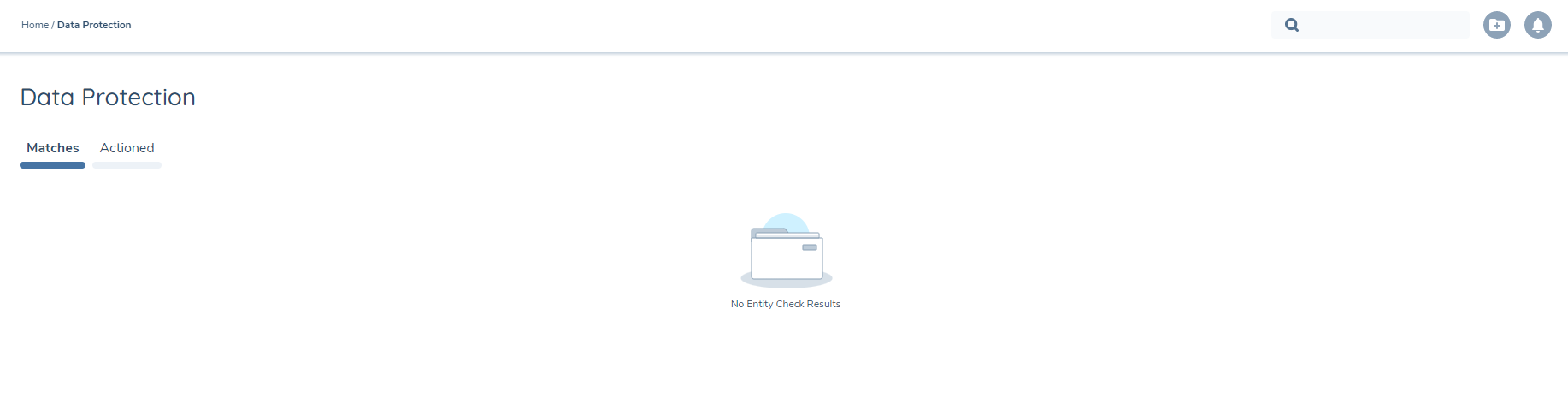
The "Data Protection Dashboard" has two sections:
- Matches: Displays entities that meet the Entity Check Criteria when the 'Action' specified is "Show Entities on Dashboard"
- Actioned: Displays entities that have been actioned for Data Protection (this includes entities that meet the Entity Check Criteria when the 'Action' specified is "Initiate Full Offboarding" and entities that are actioned from the Matches dashboard
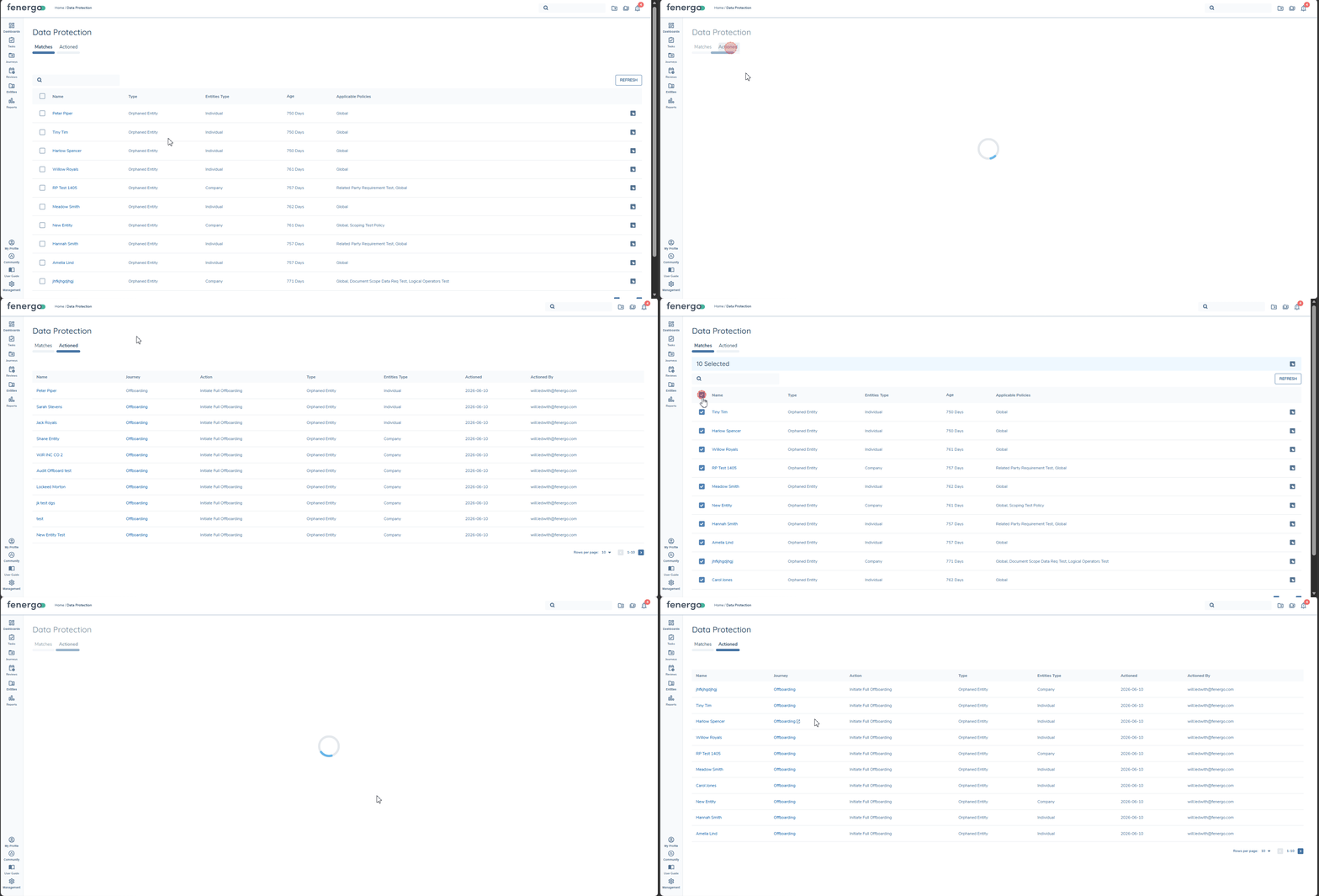
Entities listed on the Matches tab can be actioned to initiate a Full Offboarding journey. Users can action an individual entity directly, or select multiple entities using the checkboxes available on each row and initiate offboarding for all selected records in a single action. Offboarding journeys are initiated for all eligible selected entities, which are then removed from the Matches tab and moved to the Actioned tab, which includes a link to their Offboarding journey.
Configuring Entity Checks
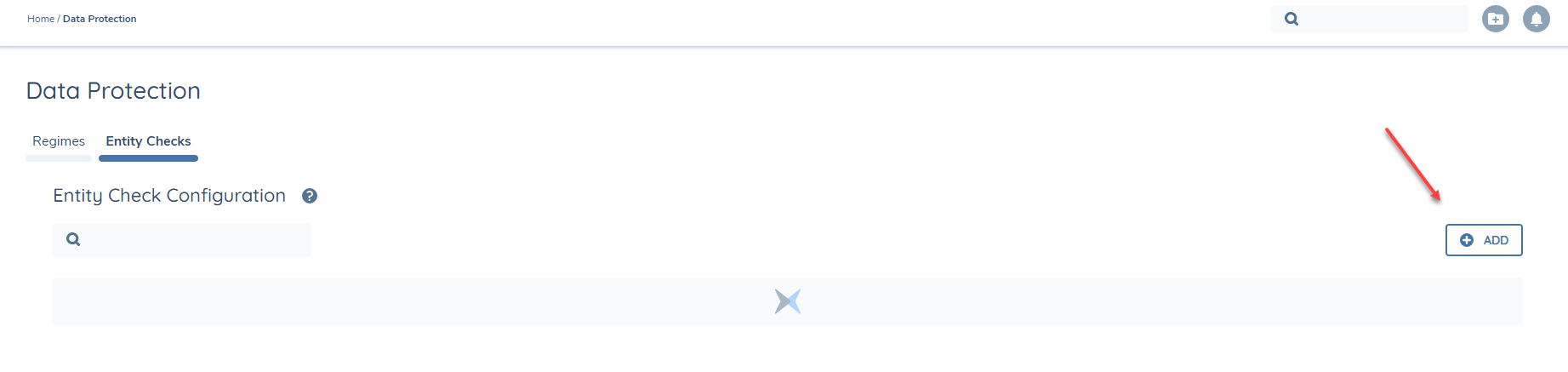
Within the Data Protection domain, the user can to navigate to the "Entity Checks" page.
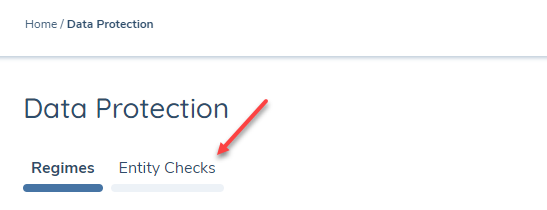
From the "Entity Checks" page, the user can interact with the "Add" button to create a new Entity Check. At this time, on ONE entity check configuration can exist per tenant (given that only one Entity Check 'type' currently exists).
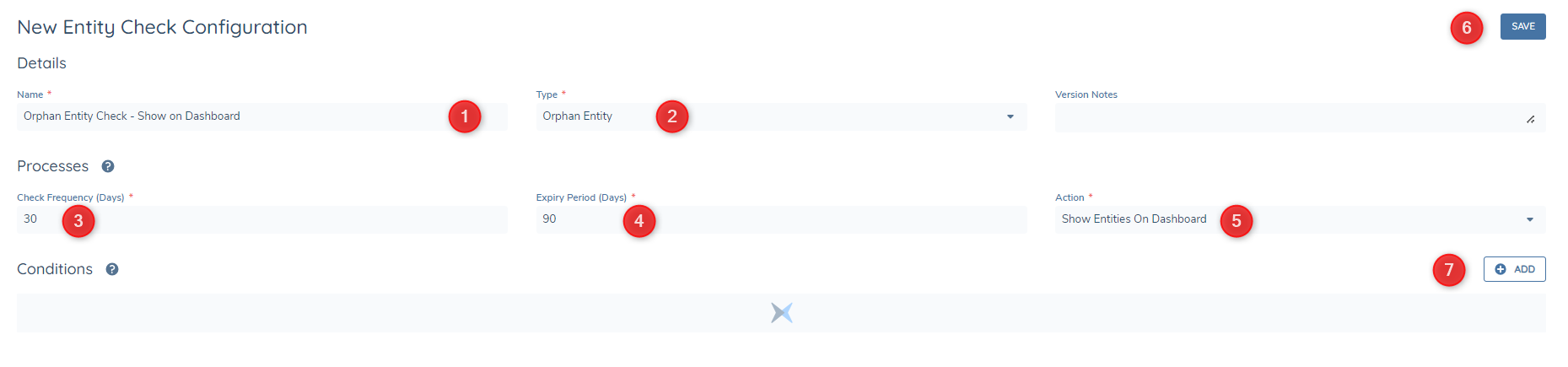
The user creates the Entity Check by specifying the key information:
- Name: The name of the Entity Check
- Type: The type of the Entity Check (Presently, only one value exists - "Orphan Entity")
- Check Frequency: The frequency that the system will execute the Entity Check against the specified conditions/criteria
- Expiry Period: How long an actioned (offboarded) Entity Check should display on the 'Actioned' tab of the Data Protection dashboard
- Action: The type of action that the system will take when identifying entities:
- Initiate Full Offboarding - this will result in all of the entities identified through the Entity Check to have a Full Offboarding Journey automatically initiated for them
- Show Entities on Dashboard - this will result in all of the entities identified through the Entity Check to be added to the Data Protection dashboard for review and actioning by an operational system user
- Save: Saving the configuration
- Add: Adding conditions to the configuration
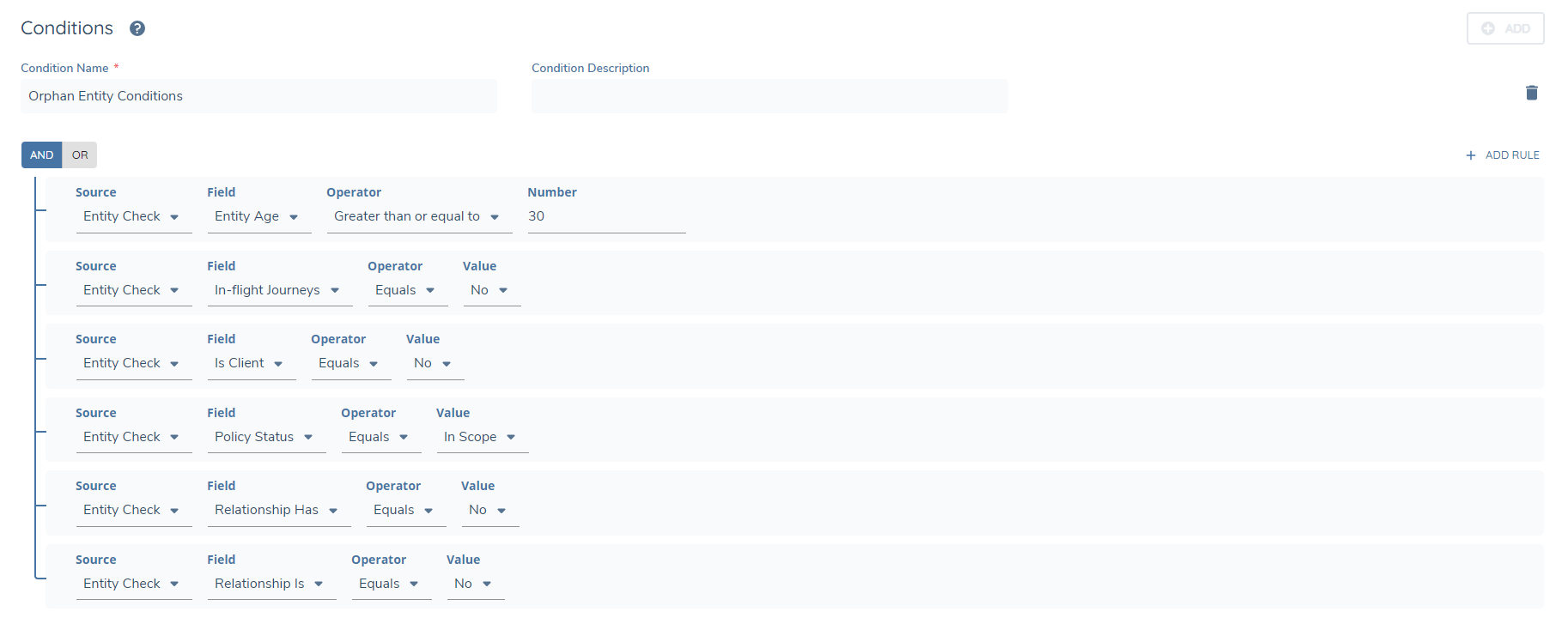
Entity Check Condition
The Entity Check feature allows the user to select from specific fields that are tied to the "Source" Entity Check that were specifically introduced to help identify an entity that could be considered an "Orphan" in the system. The following attributes have been included:
- Entity Age: Sets the age threshold for an entity to qualify as a potential orpphan. This value miust be set relative to your longest journey durations. Entity Check Rules can be prematurely satisfied because a prospect is not yet a 'Client' and RP associations are not yet verified.
- In-Flight Journeys: to identify entities that do not have any in-flight journeys
- Is Client: to identify if the entity is a Client
- Policy Status: to identify if the entity has any In-Scope Policies
- Relationship Has: to identify entities that do not have any "Has" (Inbound) Related Party association
- Relationship Is: to identify entities that do not have any "Is" (Outbound) Related Party association
Entity Check rules evaluate Relationship Is/Has conditions from the perspective of the entity being evaluated:
- 'Client A' Has a beneficial owner 'Related Party B' (Inbound to 'Client A' - the Target in the association)
- 'Related Party B' Is a beneficial owner of 'Client A' (Outbound from 'Related Party B' - the Source in the association)
If Entity Check evaluates 'Client A':
- Relationship IS = "No" -> True
- Relationship HAS = "No" -> False
If Entity Check evaluates 'Related Party B':
- Relationship IS = "No" -> False
- Relationship HAS = "No" -> True
When testing the rule and validating against the Entity Profile page, it's recommended to use the 'Inbound' (HAS) or 'Outbound' (IS) tickboxes on Related Parties card to check relationships. The 'Relationship' column in the Related Parties card could cause confusion because it descirbes the relationship from the perspective of the Related Party only, not the current entity i.e. "Related Party A has Beneficial Owner Current Entity" or "Related Party B is Beneficial Owner of Current Entity". This could cause confusion because of the different perspective to describe vs evaluate relationships.