Reporting in Fenergo
The Fenergo SaaS reporting solution offers basic information about your tenant in a .csv format.
Fenergo SaaS supports 5 canned reports:
- Entities Created
- Entities Last Updated
- Journeys Started
- Journeys Completed
- Journeys Last Updated
The reporting page can be accessed at app.fenergox.com/reporting, or by clicking on the “Reports” icon on the left-hand navigation (refer to Permissions for more information on accessing this feature).

Permissions
Users will need to be given “Reporting Access” before they can view and use the reporting feature.
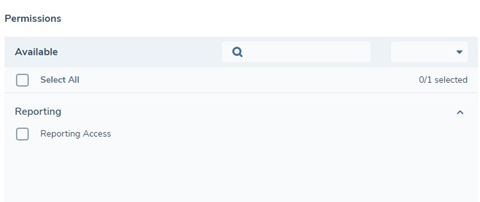
Users without this permission will not be able to access app.fenergox.com/reporting or run a report using the Fenergo SaaS APIs.
It is important to note that we cannot prevent one user downloading a .csv report and sending it to another user without reporting permissions.
Running a Report
To run a report, select the report type from the dropdown menu.
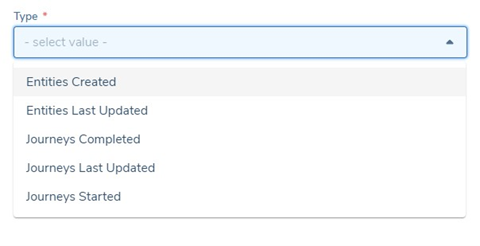
The date range allows you to filter your results down to specific days. Select a date range using the “Date From” and “Date To” fields.

If you wanted to retrieve “all journeys that were started in the month of November”, the input would be:
- Type: Journeys Started
- Date From: 01/11/2022
- Date To: 30/11/2022
The results will include everything from 00:00:00 on “Date From” until 23:59:59 on “Date To”. If the “Date To” is today’s date, it will retrieve all journeys up to the time the report is run.
Click the “export” button to run the report.
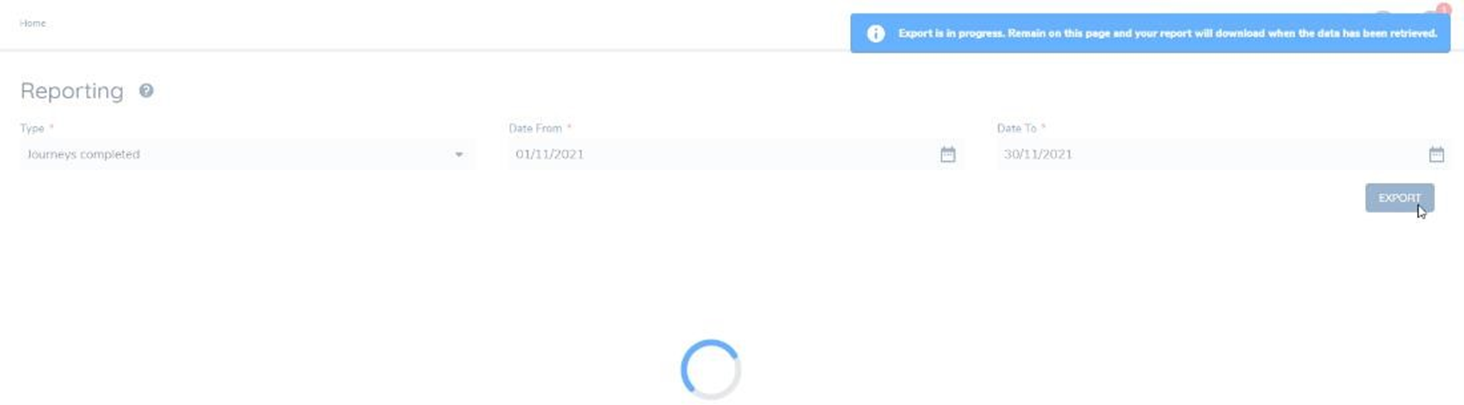
You must stay on the page to receive the report. If you navigate away before it is complete, you will lose your progress.
When the report is ready, you will receive a prompt to save to file or it will auto-download. You may receive a pop-up blocker warning that you will have to disable and try again. The .csv file will then auto download.

If your browser has blocked auto download, you can use the link that has appeared beside the export button:

- Click the download icon on the left to reattempt the download
Or
- Click the copy to clipboard icon on the right to copy the link and access the file URL manually. This link is active for 10 minutes after which time it will no longer result in the report being downloaded.
After a successful download, the file becomes available on your machine ready to view.
Journeys Completed Report
The Journeys Completed report returns all journeys completed in the tenant over the given time period.
- Completed Time: The timestamp this journey was completed. All these timestamps will fall between the date range given when running the report.
- Started Time: The timestamp this journey was started.
- Duration: Time elapsed from start to finish (in seconds). This can be converted into whatever time format is most meaningful for analysis purposes.
- Journey ID: The unique GUID of the journey.
- Journey Type: Type of journey, for example “Client Onboarding” or “Regular Review”.
- Journey Schema ID: GUID of the journey schema. This can be used to determine the journey version and type.
- Legal Entity ID: The Legal Entity involved in this journey.
- Business Related Access Layers: Business Access Layers applied to the journey, for example “Enterprise”.
- Geographic Access Layers: Geographic Access Layers applied to the journey, for example “Global”, “Singapore”.
Examples of questions this report can answer:
- How many journeys did we complete in April?
- How long did our journeys take on average?
- How many entities did we onboard with v4 of our onboarding journey?
- How many journeys were completed in the Singapore region in November?
- How many journeys did we complete for Legal Entity ID 1234?
Journeys Started Report
The Journeys Started report returns all journeys started in the tenant over the given time period.
- Started Time: The timestamp this journey was started. All these timestamps will fall between the date range given when running the report.
- Journey ID: the unique GUID of the journey.
- Journey Type: Type of journey, for example “Client Onboarding” or “Regular Review”.
- Current Journey Status: The current status of the journey on the day the report is run. For example, the journey was started in June 2021. The report is run in December 2021, and the journey is now “Completed”.
- Journey Schema ID: GUID of the journey schema. This can be used to determine the journey version and type.
- Legal Entity ID: The Legal Entity involved in this journey.
- Business Related Access Layers: Business Access Layers applied to the journey, for example “Enterprise”.
- Geographic Access Layers: Geographic Access Layers applied to the journey, for example “Global”, “Singapore”.
Examples of questions this report can answer:
- How many journeys did we start in 2021?
- How many journeys did we start using v10 of our Regular Review journey?
- How many journeys were started last month that are now cancelled?
- How many journeys were started in the North America region in June?
- How many journeys did we start for Legal Entity ID 1234?
Journeys Last Updated Report
The Journeys Last Updated report returns all journeys that were last updated in the tenant over the given time period.
- Updated Time: The timestamp this journey was last updated. All these timestamps will fall between the date range given when running the report.
- Event Type: The type of update that was performed. The following events are considered updates:
- task completed
- task reopened o journey started o journey cancelled o journey completed
- Journey ID: The unique GUID of the journey.
- Journey Type: Type of journey, for example “Client Onboarding” or “Regular Review”.
- Current Journey Status: The current status of the journey on the day the report is run. For example, the journey was last updated in June 2021 with a “task reopened” event. The report is run in December 2021, and the journey is still “In Progress”.
- Journey Schema ID: GUID of the journey schema. This can be used to determine the journey version and type.
- Legal Entity ID: The Legal Entity involved in this journey.
- Business Related Access Layers: Business Access Layers applied to the journey, for example “Enterprise”.
- Geographic Access Layers: Geographic Access Layers applied to the journey, for example “Global”, “Singapore”.
Examples of questions this report can answer:
- How many journeys were last updated in January 2021?
- How many dormant journeys do we have in total?
- How many journeys were cancelled in March 2020?
- Do we have any dormant journeys using v10 of our Regular Review journey?
- How many journeys are paused on a “Task Reopen” event?
- How many dormant journeys do we have in the EMEA region?
Entities Created Report
The Entities Created report returns all entities created in the tenant over the given time period.
- Created Time: The timestamp this entity was created. All these timestamps will fall between the date range given when running the report.
- Legal Entity ID: The unique GUID of the entity.
- Legal Entity Name: The name of the legal entity. This is the latest verified Legal Entity Name, the same as in the entity profile and search.
- Legal Entity Type: Type of legal entity, for example “Company” or “Individual”
- Current Legal Entity Status: The current status of the legal entity on the day the report is run. For example, the legal entity was created in June 2021. The report is run in December 2021, and the legal entity is now “Compliant”.
- Business Related Access Layers: Business Access Layers applied to the legal entity, for example “Enterprise”.
- Geographic Access Layers: Geographic Access Layers applied to the legal entity, for example “Global”, “Singapore”.
Examples of questions this report can answer:
- How many legal entities did we create last month?
- How many individuals did we create in 2021?
- How many legal entities were created last month that are now compliant?
- How many companies were started in the North America region in March?
- How many legal entities were created last year that are now pending offboarding?
Entities Last Updated Report
The Entities Last Updated report returns all entities that were last updated in the tenant over the given time period.
-
Updated Time: The timestamp this entity was last updated. All these timestamps will fall between the date range given when running the report.
-
Event Type: The type of update that was performed. The following events are considered updates: o entityCreated o entityDraftVerified o entityDraftupdated o entityDraftupdatedV o entityAccessLayersUpdated o entityDraftAccessLayersUpdated o entityMigrated o entityMigratedUpdated
-
Entity Created Date: The timestamp this entity was created.
-
Legal Entity ID: The unique GUID of the entity.
-
Legal Entity Name: The name of the legal entity. This is the latest verified Legal Entity Name, the same as in the entity profile and search.
-
Legal Entity Type: Type of legal entity, for example “Company” or “Individual”.
-
Current Legal Entity Status: The current status of the legal entity on the day the report is run. For example, the legal entity was last updated in June 2021 with an “entity migrated” event. The report is run in December 2021, and the legal entity is now “Compliant”.
-
Entity Draft ID: The GUID of the entity draft.
-
Business Related Access Layers: Business Access Layers applied to the legal entity, for example “Enterprise”.
-
Geographic Access Layers: Geographic Access Layers applied to the legal entity, for example “Global”, “Singapore”.
Examples of questions this report can answer:
- How many entities were last updated in January 2021?
- How many dormant entities do we have in total?
- How many entities were migrated in 2020?
- How many entities are paused on an “entity draft updated” event and are not “Compliant”?
- How many dormant entities do we have in the APAC region?
Access Layers
It is important to note that users will only receive results that match their access layers. For example,
- A user does not have the “Singapore - Geographic – Journey" access layer.
- A tenant completed 100 journeys in April: 80 with the global access layer, and 20 with the Singapore access layer.
- The user runs a “Journeys Completed” report for April.
- They will only see 80 journeys in the report, when there was actually 100 completed in the tenant that month.
We have included the access layers as columns in the report to help illustrate what data the user is receiving. To get a holistic view and accurate numbers for all events in a tenant, a user with all access layers must run the report.