KYRA:Policy User Guide
KYRA:Policy
KYRA:Policy is an automation agent for policy requirement extraction and comparison. It analyses an uploaded PDF, extracts data and document requirements, and compares them against existing Fenergo Policy configuration — presenting the results in a structured, exportable format for analyst review.
Like all Fenergo Digital Agents, KYRA:Policy is designed with full explainability and human-in-the-loop governance. Every extracted requirement includes the Agent's reasoning, a confidence level, and a direct reference to the source document so analysts can validate results at any point.
KYRA:Policy offers:
- Automated Requirement Extraction — Analyses uploaded policy PDFs and extracts data, document, ownership, and related party requirements — classified by entity type, field type, and confidence level.
- Source Transparency — Every extracted requirement includes a confidence level, a natural language explanation of why it was identified, a page reference, and the supporting text snippet from the original document.
- Fenergo Policy Comparison — Compares extracted requirements against existing Fenergo Policy configuration with an AI-generated comparison summary for each requirement.
- Structured Export — Results from both the Extracted Requirements and Comparison screens can be exported to Excel for offline review, audit, or internal sign-off.
- Requirements Review — Accept, amend, map or switch each requirement on the Comparison screen before it goes into a policy.
- Publish to Workspace — Push approved requirements into a new draft in a Policy workspace without leaving KYRA:Policy. Publish to Workspace is available to all customers using KYRA:Policy.
- History and Audit Trail — Maintains a complete record of every analysis run, with status tracking and user attribution.
Using KYRA:Policy
KYRA:Policy must be enabled for your Fenergo tenant before it can be used. Policy v2 is required, but enabling Policy v2 does not automatically enable KYRA:Policy — it must be activated separately per tenant. KYRA:Policy can only be enabled on one tenant at a time. Users must also have the appropriate permissions to access KYRA:Policy. Contact your Fenergo representative to have KYRA:Policy enabled on your tenant.
1. Upload a Policy Document
Navigate to KYRA:Policy from the Policy Configuration screen. KYRA:Policy opens as a chat-style interface and introduces itself:
“Hello! I’m KYRA:Policy. I can help you turn policy documents into structured, actionable policies. Upload your documents below to get started. Currently supports PDF format only.”
Upload a PDF policy document using the upload area in the interface. The uploaded file is displayed as a card in the chat, confirming receipt before analysis begins.
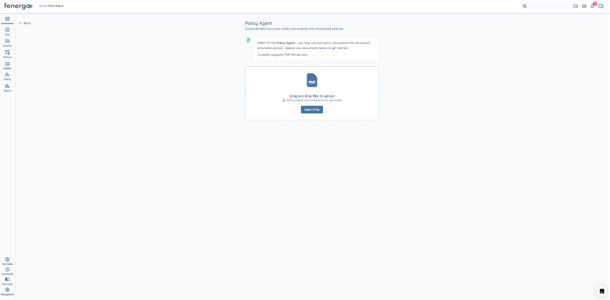
Only PDF format is supported. One document can be uploaded per analysis session. Documents must be 150 pages or fewer in length.
2. Monitor the Analysis
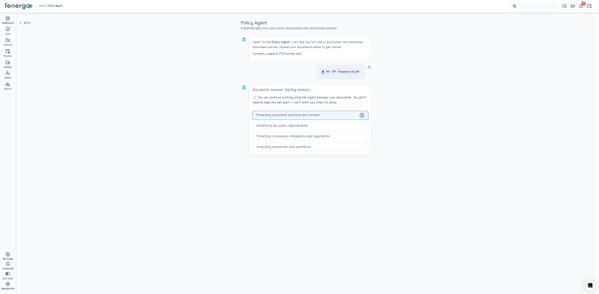
Once the document is uploaded, the Agent confirms receipt and begins analysis immediately:
“Documents received. Starting analysis…”
The interface displays a set of progress steps showing exactly what the Agent is doing in real time:
- Extracting document structure and content
- Identifying key policy requirements
- Extracting compliance obligations and regulations
- Analyzing procedures and workflows
The active step is highlighted as it runs. You do not need to keep the tab open — the Agent will notify you when the analysis is complete.
3. Review Extracted Policy Requirements
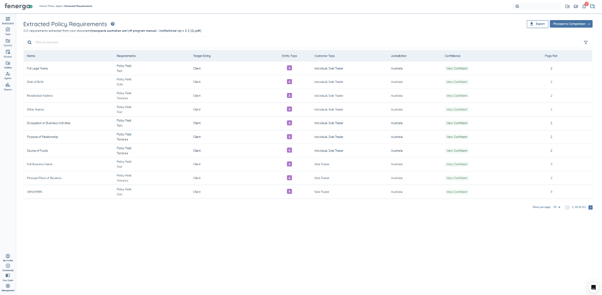
Once analysis is complete, the Extracted Policy Requirements screen displays the full list of requirements identified by the Agent. The screen shows a count of total requirements extracted along with the source document name. Each row represents a single requirement.
The following columns are displayed:
- Name — the requirement identified by the Agent.
- Requirements — the requirement type (e.g. Policy Field) and the field type (e.g. Text, Date).
- Target Entity — the entity the requirement targets, such as Client or Related Party.
- Entity Type — the type of legal entity the requirement applies to, such as Individual or Company.
- Customer Type — the customer classification associated with the requirement, such as Individual or Sole Trader.
- Jurisdiction — the applicable jurisdiction.
- Confidence — the Agent's confidence level: Very Confident, Confident, or Requires Review.
- Page Ref. — the page number in the source document where the requirement was found.
Use the Filter by keyword search bar or the filter icon to narrow results. Duplicate requirements identified across the document are automatically de-duplicated.
Requirement detail panel
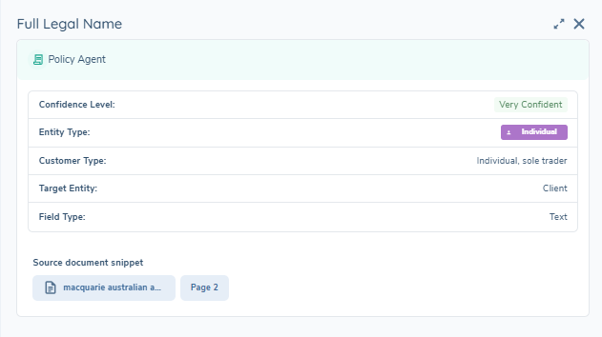
Select any row to open a side panel showing the full detail for that requirement: Confidence Level, Entity Type, Customer Type, Target Entity, Field Type, and a Source document snippet showing the document name and page reference.
Confidence levels
The Confidence column indicates how certain the Agent is about each extracted requirement:
- Very Confident — the requirement is unlikely to need correction.
- Confident — a quick check is recommended.
- Requires Review — the Agent has flagged uncertainty. These requirements should always be validated against the source document before proceeding.
Exporting extracted requirements
Select the Export button at the top right of the screen to download the full list as an Excel file. Select Proceed to Comparison to move to the next step.
4. Review the Policy Comparison
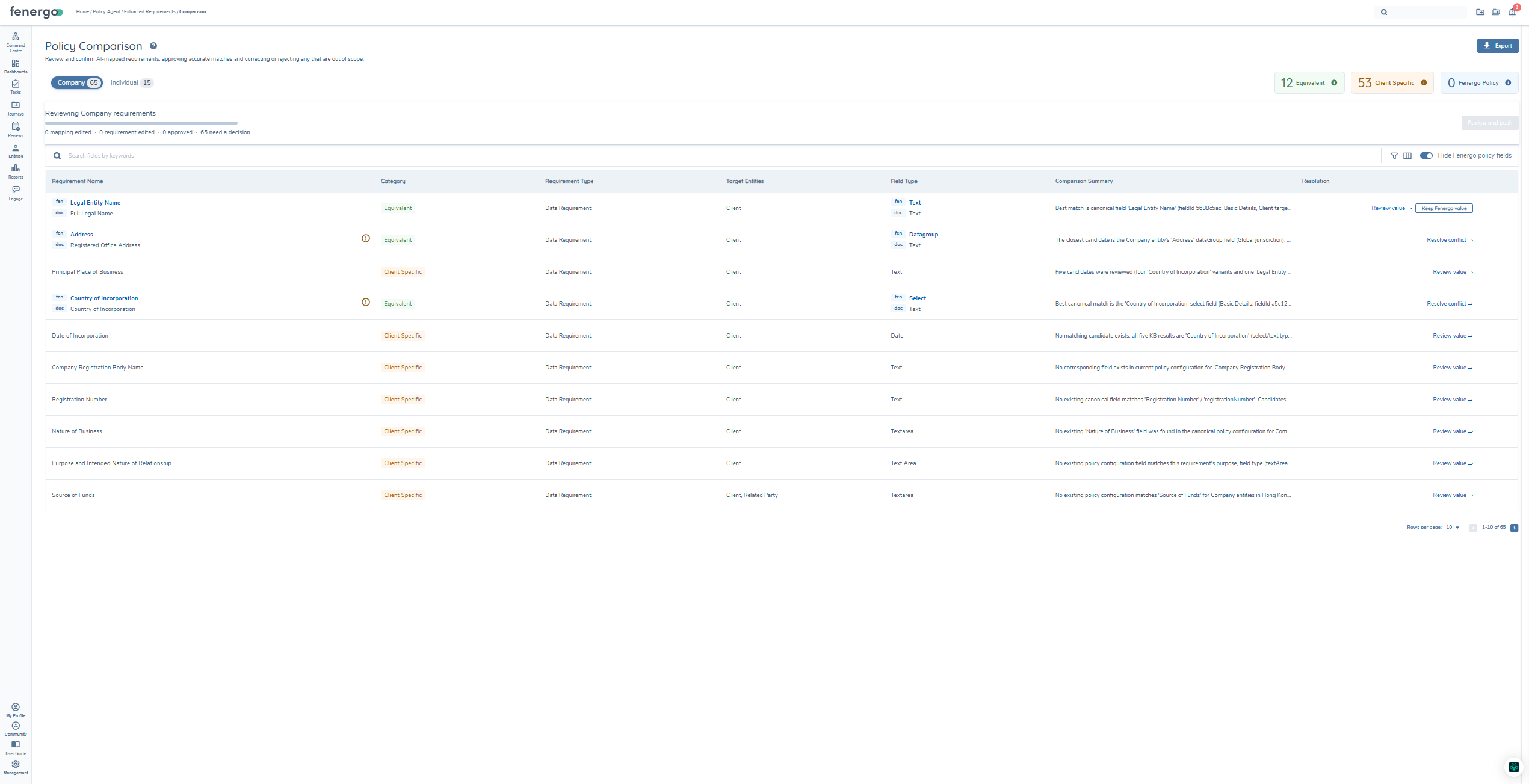
Select Proceed to Comparison from the Extracted Policy Requirements screen to compare extracted requirements against existing Fenergo Policy configuration. The screen presents each requirement alongside the relevant Fenergo configuration, with an AI-generated comparison summary for each row. Use the Company and Individual tabs to filter the view by entity type, or search by keyword using the search bar.
Each requirement is categorised as one of:
- Equivalent — the extracted requirement aligns with an existing Fenergo Policy requirement. Equivalent pairs show the Fenergo field (fen chip) alongside the document requirement (doc chip).
- Client Specific — present in the client policy but not in the existing Fenergo Policy configuration.
- Fenergo Policy — existing Fenergo Policy fields shown as read-only context. Select the Hide Fenergo policy fields filter chip to remove these rows from the view.
Comparison side panel
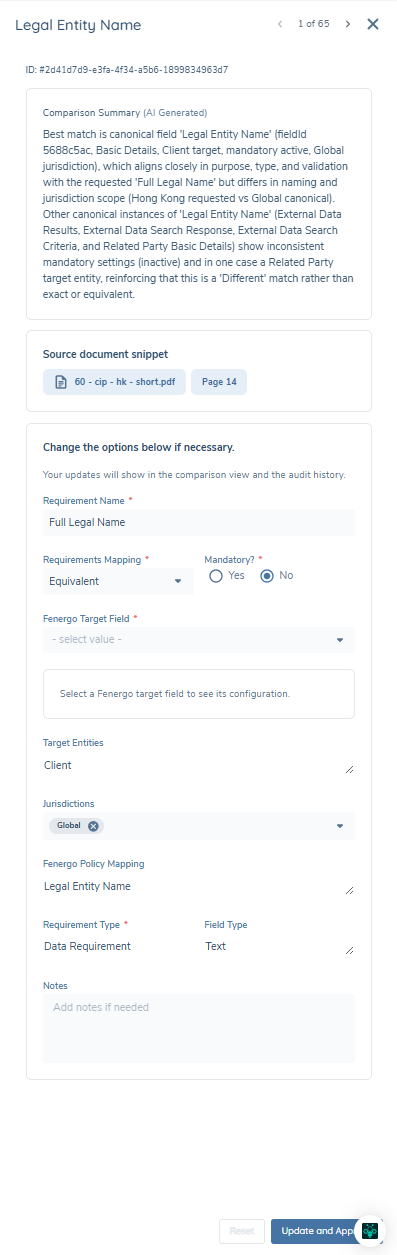
Select any requirement row to open the side panel. The panel displays the full requirement detail including the AI-generated Comparison Summary, Requirements Mapping, Mandatory status, Target Entities, Jurisdictions, Fenergo Policy Mapping, Requirement Type, and Field Type. Fenergo Policy requirements are read-only. For Client Specific and Equivalent requirements, the panel is where you review, amend and approve the requirement, as described below.
Reviewing requirements
Review each Client Specific and Equivalent requirement on the Comparison screen, and approve the ones to include in the draft policy. The mini progress bar above the table shows how many rows are mapping edited, requirement edited, approved, and still need a decision. The counts update as you work.
Each row has an entry in the Resolution column.
- Rows with a conflict indicator show Resolve conflict →. The extracted requirement conflicts with existing Fenergo Policy configuration.
- Other unresolved rows show Review value →.
- Unresolved Equivalent rows without a conflict also show Keep Fenergo value. This keeps the existing Fenergo configuration and excludes the requirement from the push. Any edits already made to the row are discarded.
- Fenergo Policy rows show no action, because they are included automatically.
When a row is resolved, its action is replaced by a status label.
| Status | Meaning |
|---|---|
| ✓ Requirement approved | You approved the extracted requirement without changes. |
| ✓ Mapping edited | You changed the mapping before approving. This label takes priority over ✓ Requirement edited. |
| ✓ Requirement edited | You changed other values, such as notes, without changing the mapping, then approved. |
| ✓ Fenergo value kept | Equivalent rows only. The requirement is not included in the push. |
Fenergo Policy requirements
Fenergo Policy requirements cannot be changed through KYRA:Policy. Each row carries a chip that identifies it as a Fenergo Policy field. Select a row to see its configuration name, field type, mandatory flag, lookup values, jurisdiction, requirement type and notes. The panel shows Locked — Fenergo policy field and has no Update and Approve, Reset or Reject controls.
The Hide Fenergo policy fields filter only changes what the screen shows. It does not change the analysis, the export or the push, and the screen indicates how many rows are hidden.
Client Specific requirements
Select a Client Specific requirement to edit it in the side panel.
You can edit Mandatory, the requirement name, Jurisdiction and notes. Global is a valid jurisdiction. The requirement type and the source reference are read-only.
- Select Update and Approve to save your edits and mark the requirement as approved. An approved requirement is included in the draft policy.
- Select Reset to return the fields to the values they held before the current edit session. Reset is not available after you save.
- If an edit is invalid, for example an empty requirement name, the panel blocks the action and shows a message next to each invalid field.
There is no Reject option. A requirement you do not approve is not actioned and has no effect on the draft policy.
Only Client-specific and Equivalent are available as mappings. Fenergo is never an option.
Equivalent requirements
Use Equivalent when the client's requirement is the same as an existing Fenergo field that the client names differently.
- Select the requirement and set its mapping to Equivalent.
- Select the Fenergo target field. You cannot save until you select one.
- Review the Fenergo field configuration that appears beside your edits. It is read-only and shows the field name, field type, mandatory flag, lookup values and jurisdiction as currently configured in Fenergo.
- Edit Mandatory, the requirement name, Jurisdiction or notes if needed. Field type, lookup values and target entity are read-only.
- Select Update and Approve.
Reset returns the mapping and your edits to the last saved state. Validation and the absence of a Reject option work as for Client Specific requirements.
Switching an Equivalent requirement to Client Specific
If the Agent's Equivalent mapping is wrong, you can treat the requirement as a new Client Specific one.
- Select the Equivalent requirement and change its mapping to Client-specific. The Fenergo field configuration panel is removed.
- Edit Mandatory, the requirement name, Jurisdiction or notes if needed.
- Select Update and Approve.
The original Equivalent mapping is removed, and a new approved Client Specific requirement is created with your edits. The Fenergo field is not changed. It stays in the list as a Fenergo Policy field.
You cannot undo a switch after you save it. Reset is available only before you select Update and Approve.
Reverting applied changes
To undo a saved change, select the ellipsis button on the requirement's row, then select Revert Applied Changes. The requirement returns to its original extraction state. Other rows are not affected.
The Reset button in the requirement panel is unchanged. It undoes unsaved changes only.
Exporting the comparison
Select the Export button at the top of the Comparison screen to download the results as an Excel file. The export includes requirement name, category, classification, field type, and AI comparison summary. The export includes all Fenergo Policy fields, whether or not the Hide Fenergo policy fields filter is on.
5. Push Requirements to a Workspace
After you approve requirements, you can push them into a Policy workspace as a new draft. Each entity type is pushed separately. The Company and Individual tabs each have their own Review and push button, and the count on each button covers only that tab.
To push requirements, you need the Policy Agent Edit permission. The entity type you are pushing (Company or Individual) must also be in Draft status on the Policy Configuration screen.
- On the Comparison screen, find the Reviewing [Entity Type] requirements section above the table. It stays at the top of the screen as you scroll.
- Select Review and push. The button is disabled until at least one requirement is approved. Once enabled, it reads Review and push X requirements. X is the number of approved requirements plus the Fenergo Policy fields. It updates as you approve or remove approvals.
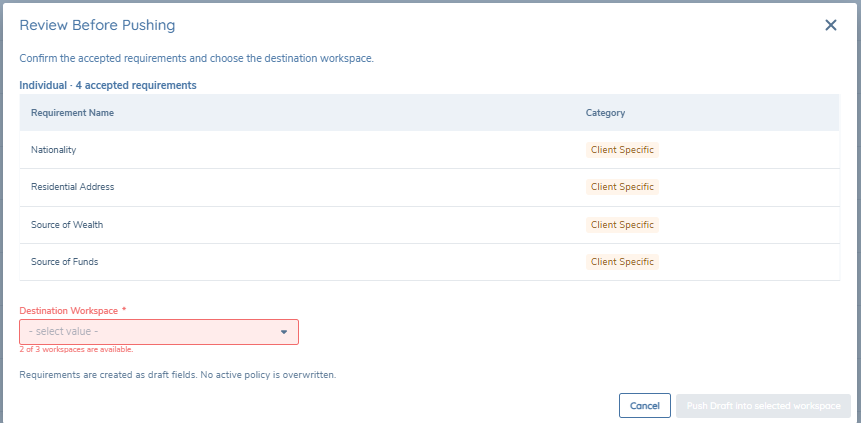
- In the Review Before Pushing window, check the table. It lists the Requirement Name and Category of every accepted requirement for the active entity type, under the heading "[Entity Type] · X accepted requirements". Fenergo Policy fields are listed as already accepted.
- Select a Destination Workspace. The list loads when the window opens.
- Select Push Draft into selected workspace. The button is disabled until you select an available workspace.
The Review Before Pushing window opens when you select Review and push. The Destination Workspace field is required. After you select an available workspace, you can select Push Draft into selected workspace.
Select the close button at any time to leave the window without pushing. There is no confirmation prompt.
Workspace availability
A workspace can hold one open draft per entity type. A workspace that already has an open draft for the active entity type cannot be selected. The window shows "[Workspace name] cannot be selected — it has an open draft pending approval. X of Y workspaces are available."
Availability is checked per entity type. A workspace with an open Company draft is still available for an Individual push.
If your tenant has no workspaces, the window shows "No policy workspaces found. Please create a workspace in Policy Configuration before pushing." You cannot push until a workspace exists.
The window states: "Requirements are created as draft fields. No active policy is overwritten."
What the push creates
The push creates a new draft in the selected workspace for the active entity type, in your name. The draft contains all Fenergo Policy fields and every requirement you approved. Unapproved and unresolved requirements, and requirements marked ✓ Fenergo value kept, are not included.
While the push runs, the window cannot be closed with Escape or by selecting outside it. The time taken depends on the number of requirements.
When the push succeeds, the window closes and a confirmation message appears. The Comparison screen for that entity type becomes read-only. Review and push is disabled, the resolution actions are removed, and the requirements and their statuses stay visible.
If the push does not complete
Your approved requirements are kept in every case.
| Situation | What you see |
|---|---|
| The workspace list does not load | An error with a Retry option. You cannot push until a valid workspace is available. |
| The workspace gained an open draft after you opened the window | "This workspace now has an open draft for [entity type] requirements and cannot be pushed to." Select a different workspace. |
| You do not have permission | "You do not have permission to push to this workspace. Contact your administrator." |
| Another error occurs during the push | An error message with Retry and Cancel options. |
History of KYRA:Policy Operations
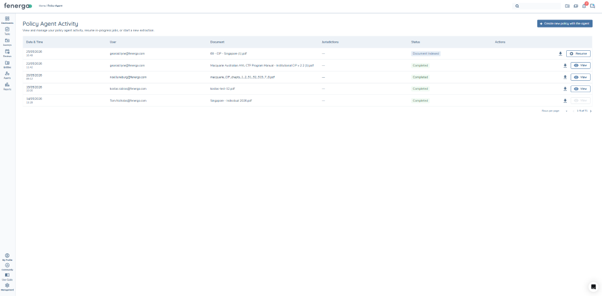
The KYRA:Policy grid on the Policy Configuration screen provides a complete record of all analyses run for the current policy or jurisdiction.
Each entry in the grid shows:
- Date/Time — when the operation was started.
- User — who initiated the analysis.
- Document — the name of the uploaded policy document.
- Jurisdiction — the jurisdiction associated with the analysis.
- Status — In Progress or Complete.
- Actions — Resume to continue an in-progress analysis, or View to open a completed analysis.
What KYRA:Policy Does Not Do
To ensure clarity of scope, KYRA:Policy currently does not:
- Support multiple document uploads simultaneously within a single analysis session.
- Support file formats other than PDF.
- Process documents exceeding 150 pages in length.
- Interpret complex conditional logic structures within policy documents.
- Interpret decision trees or advanced policy diagrams.
- Automatically compare two separately uploaded client policy versions.
- Maintain a persistent version history of uploaded documents — each upload is analysed independently.
- Push conditionality logic for published requirements.
- Link published requirements back to the source document.
- Create a workspace from the push window.
- Exclude individual approved requirements from a push. Approved requirements are pushed together.
- Push Company and Individual requirements in one operation.
Technical Details
Underlying technology. KYRA:Policy is built on Fenergo's Digital Agents platform, integrating a Large Language Model (LLM) with Fenergo's policy engine and CLM data model. The pipeline covers document ingestion, requirement extraction and classification, and Fenergo Policy comparison.
Confidence scoring. Each extracted requirement is assigned a confidence level based on the clarity of the source text, the consistency of the extraction, and the specificity of the requirement. Confidence levels guide analyst review — requirements marked Requires Review should always be validated against the source document.
Data handling and privacy. Uploaded documents and extracted requirements are processed in accordance with Fenergo's data privacy and security controls. All Agent decisions are logged within Fenergo's standard audit infrastructure.