Using the Risk Impact Assessment Feature
This feature allows our customers to re-asses their existing entities against new risk configuration and review the impacts on Risk Score and Risk Ratings by comparing Assessed to Verified values. Changes to Risk Models are carefully planned. Testing the changes can be challenging due to diverse client personas. This feature addresses 2 key objectives for customers when making changes to Risk Configuration:
I want to validate that this risk configuration will not dramatically shift the enterprise risk profile of our existing client base
I want to identify existing clients that need to be reviewed early due to a rating increase and distant Next Review Date
The feature is structured as a simulation of a selected Risk Assessment task. Users will select a Journey Schema and then step down to the Task via Stage and Process selection. The task has the Risk Set (Risk Model, Risk Configuration Model, Threshold Model) that will be used to assess entities and the data fields required to get their current verified Risk Score and Risk Rating values for comparison. We also get the scoping rules from each Journey component and apply them to determine which entities are eligible for inclusion in the Assessment. This approach improves the relevance of the assessment by ensuring that we only assess entities using Risk Sets that they would trigger if a journey was actually launched.
Permissions
- Risk Impact Assessment Access – required to navigate to and view Risk Impact Assessments
- Risk Impact Assessment Edit – required to create and run an assessment
- Access Layers – if entity data access layers are applicable in the tenant, users will only be able to run assessments against entities for which they have the required access layers. Similarly, access to completed Risk Impact Assessments will require appropriate Access Layers.
Running an Assessment
Once you've requested to 'Add' a new assessment and provided a description, there are a few simple inputs needed to guide the system in identifying the configuration to be used in the assessment and the entities that will be in-scope for assessment.
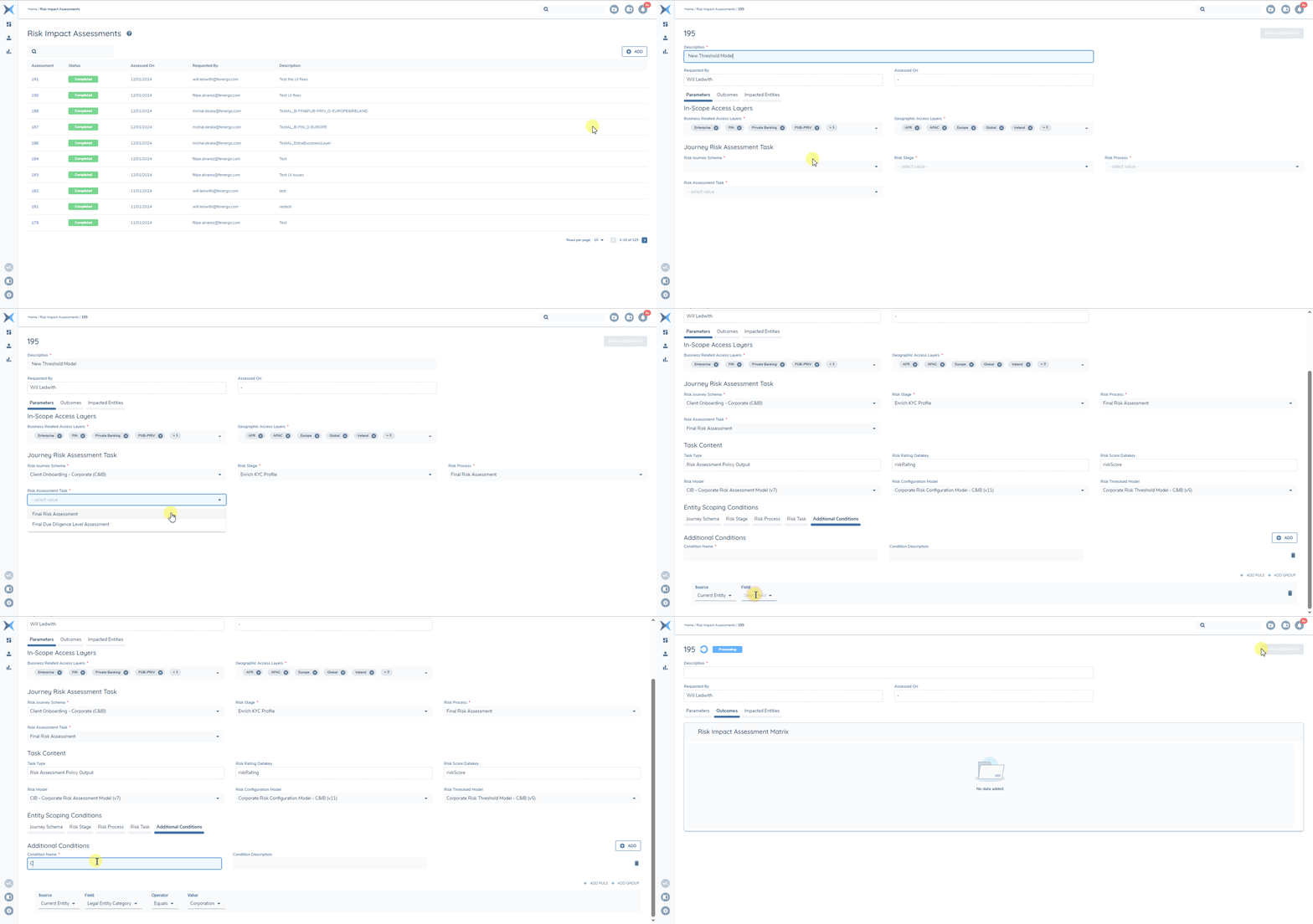
Description – free-text for future reference
In-Scope Access Layers – Auto populated with defaults and all Entity access layers assigned to the user. Deselecting Access Layers will act as a filter. Entities must match to one specified Business-Related Access Layer and one specified Geographic Access Layer value to be in-scope for assessment.
Journey Risk Assessment Task – Users will select a Risk Assessment task to simulated by first picking the Journey Schema, then the Stage, Process and Task.
Task Content - Once the Task is selected we display the Risk Set along with Risk Rating and Risk Score Data field values. We will default to the latest published version of each component of the Risk Set, but users can select any draft/published/archived version.
Entity Scoping Conditions - Scoping Conditions inherited from each selected Journey component will be applied (with Access Layers) to determine which entities are in-scope for the assessment. Users can also provide additional conditions to further limit in-scope entities and focus the assessment.
Run Assessment – the button will be enabled when all mandatory inputs have been entered.
Outcomes
The Assessment is summarised in 3 tiles showing the count and percentage of entities that with an increased/unchanged/decreased rating.
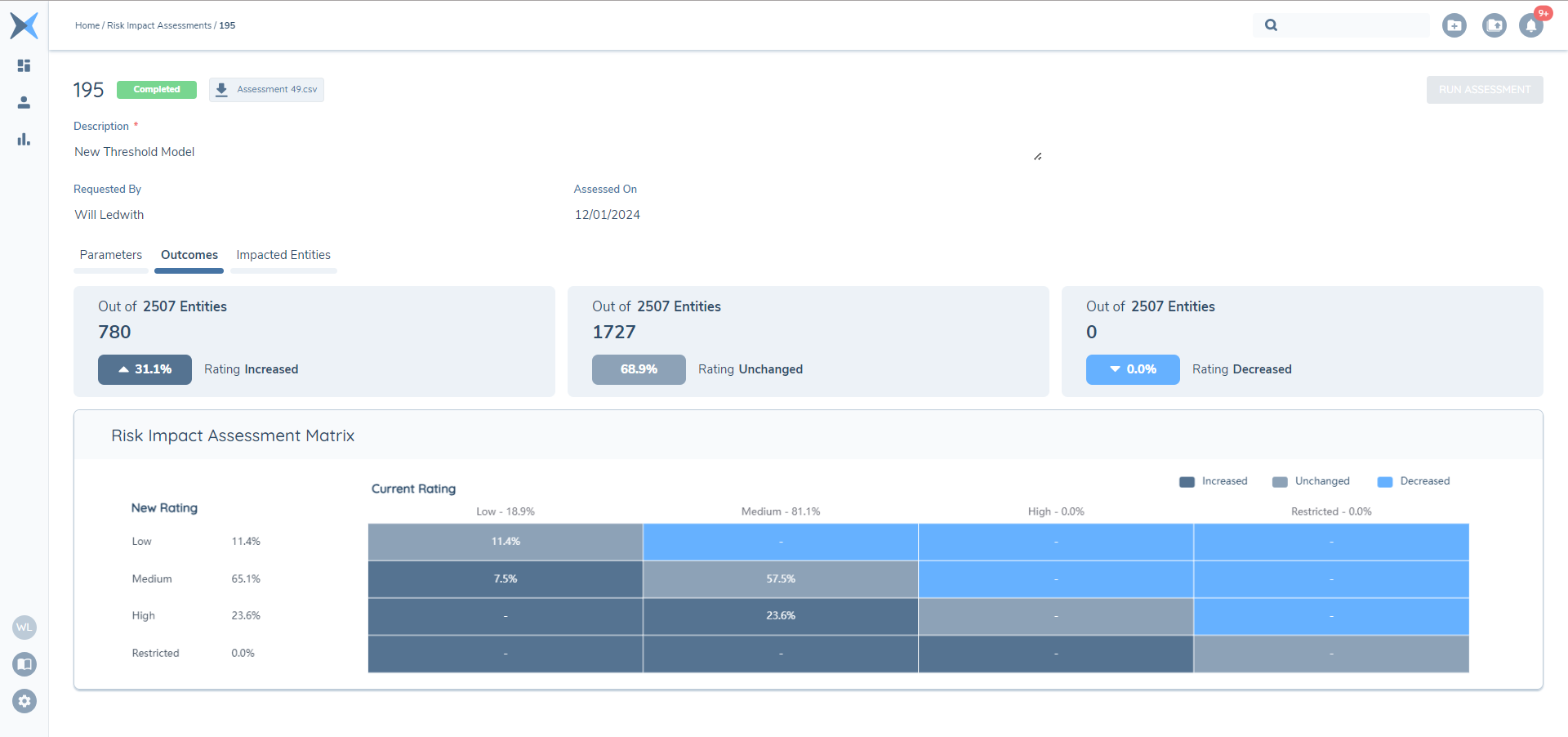
The Risk Impact Assessment Matrix is a dynamic table that scales according to the rating values in entity data and the Threshold Model. We display the distribution (%) across New and Current Rating values and the matrix itself shows the percentage (and count on mouse over) that moved from a given Current to New Rating – i.e. 2.3% had a current rating of Low and moved to a new rating of Medium.
Impacted Entities
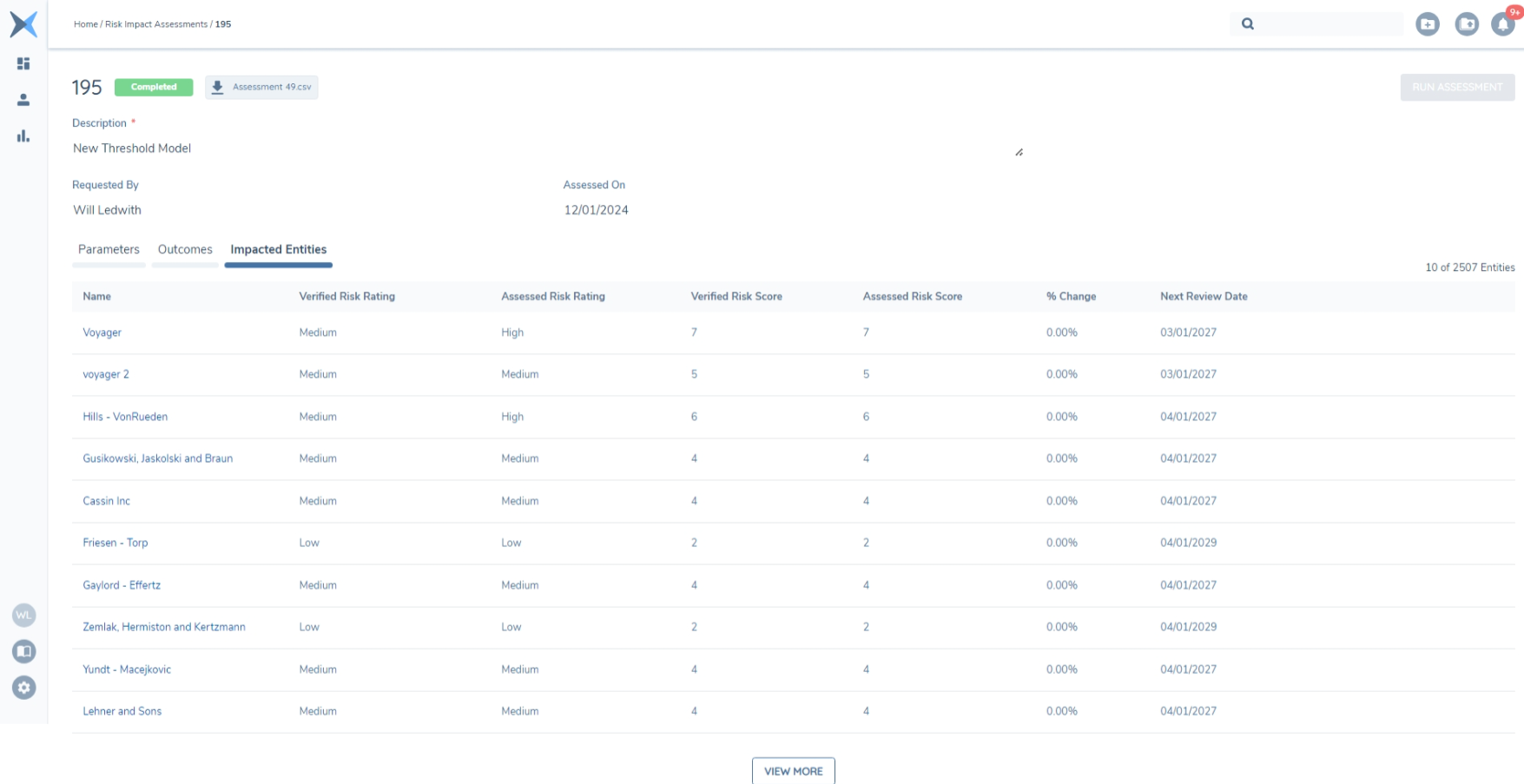
The most impacted entities are sorted according to the % change in their risk score (increase or decrease). We display in groups of 10 (use ‘View More’ to load the next 10). The Name can be used to navigate to their entity profile. The full table is available to download in CSV format.
FAQ
How many entities can be assessed?
There's no technical limit to how many entities can be assessed. Your scoping conditions and access layer inputs will guide the volume of entities in-scope. Processing time will vary by the number entities in the tenant (as we apply the scoping rules) and the number of properties each entity has. In our performance testing, we processed 1 million entities with an average of 125 properties within about 6 minutes.
Can I run a risk assessment in Production before the new configuration takes affect with client journeys?
Users select the Risk Set versions to be used in the assessment. The feature supports selection of versions in draft, published or archived states. For example, if you wanted to import configuration into production in a draft state, then you can run the assessment before making it available to use in production journeys and publish when ready.
Why are entities missing from the assessment?
The exceptions report will capture any entities that failed to generate a risk assessment. This could be because the entity is lacking a value under the Risk Score or Risk Rating data fields (i.e. we have nothing to compare against) or that the entity contains values that aren't included in Risk Configuration Model and thus cannot be scored. The reason will be displayed in the report to make this transparent.
Why can't I select other types of Risk Assessment Task?
The feature currently supports selection of task type ‘Risk Assessment’. Support for Related Party Risk and/or Product Risk Assessment tasks are considerations for future enhancement.