Using the Logic Engine
Logic Engine, Conditions and Operators
The Logic Engine is the query builder used to build out the Conditions for behaviours within Fenergo SaaS, such as Trigger Conditions for a Policy Requirement, Scoping Conditions for a Journey or Policy Scoping Conditions.
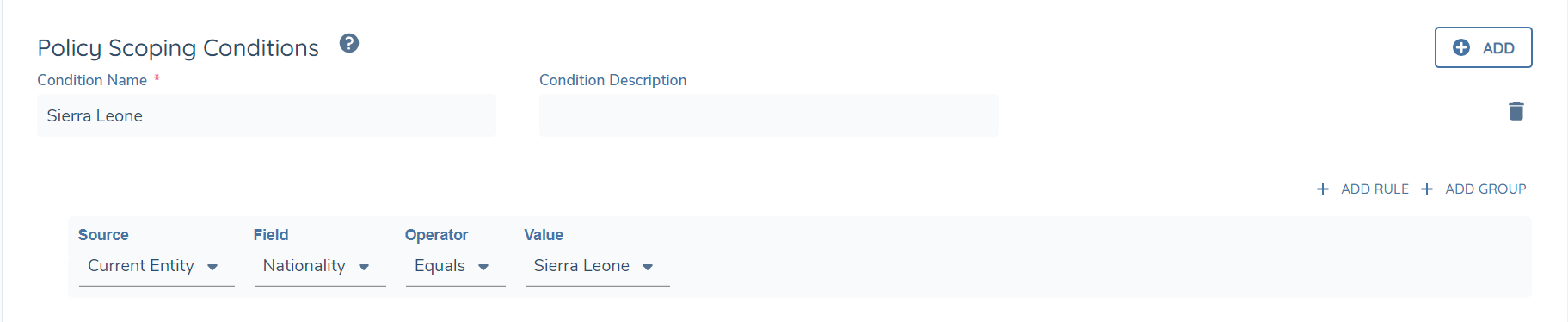
The look and feel of the Logic Engine will be the same regardless of where the User interacts with the component. It contains the following attributes:
- Source: This is the newest attribute of the Logic Engine, and is used to reference where the eventual "Field" selection should stem from. Currently, this field only supports "Current Entity" requirements and therefore this will be the default value, but in the future this field will allow a User to configure based on other requirements such as Related Party Data or Product Data.
- Field: This is the UI label of the field being referenced for the Condition.
- Operator: This is the function or clause we are stating that the selected Field must adhere to. For example, the Operator of "Equals" would state that the field must equal a defined value. The list of Operators will be dependent on the Data Field Type selected in the "Field" attribute.
- Value: This is the value that must be populated to satisfy the overall Condition. The available options in the "Value" dropdown will again relate to the Data Field Type selected in the "Field" attribute. For example, if the selected "Field" is a Lookup, the only available options in the "Value" column will be the configured Lookup values of the selected "Field". There are some instances where the "Value" column may be replaced or not visible.
- When the Operator of "Is defined" or "Is not defined", the "Value" column is not displayed.
- When a Data Field Type of "Text Field" is selected, the "Value" column will be replaced with a "String" column.
- When a Data Field Type of "Number" is selected, the "Value" column will be replaced with a "Number" column.
- When a Data Field Type of "Date" is selected, the "Value" column will be replaced with a "Date" column.
Pagination is a strategy used to divide content into separate pages, resulting in a more manageable and efficient User Interfave (UI) load time. Pagination is used in several instances throughout the Fenergo SaaS application in Policy and Journey.
- It is triggered when there are more than 5 instances of Logic Engine conditions, breaking the material into numerous pages.
- Per Page Default: The default value shows 5 instances per page. By reducing the amount of data loaded at once, this improves UI speed.
- Fenergo SaaS users have the option to increase the number of instances displayed per page. They have the flexibility to select 10,25 or view all instances on a single page.
Recommendation: It is recommended to keep the Per Page default value at 5 instances for an enhanced user experience.
The Logic Engine supports complex rules by offering "AND"/"OR" options when Configuring the Conditions. The "AND" stipulation means that all defined Conditions must be met concurrently; the "OR" stipulation will mean that at least one of the defined Conditions must be met.
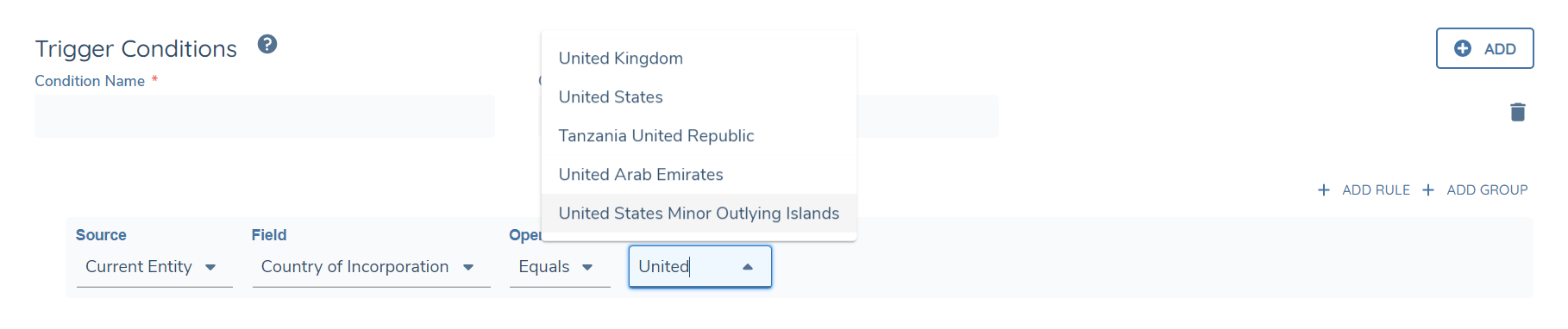
The Logic Engine now supports filtering in the search for a specific Field, Operator or Value. This means that a User can select any of these three fields when writing their Conditions, and search for the necessary value in a filtered view.
Note that the "Rich Text Editor" and "Text Area" field types are not supported to be used in the Logic Engine.
Logic Engine Operators
The available Operators will be dependent on the selected "Data Field Type" of the "Field" selected for usage in the Logic Engine. Some of these Operators are shared across Data Field Types, while others are unique to a specific Data Field Type.
A Data Field Type and its associated value will be stored as either a String, Lookup, Numeric or Date value. The manner in which the value is stored dictates the available Operators for the field:
- String: "Text Field"
- Lookup: "Select Dropdown", "Multiple Select Dropdown", "Linked Select Dropdown", "Linked Multiple Select Dropdown" and "Status".
- Number: "Number".
- Date: "Date".
The available Operators in Fenergo SaaS and their supported Value Types are:
| Operator | Description | String | Lookup | Numeric | Date |
|---|---|---|---|---|---|
| Equals | The field's value must match the user-entered value for the Condition to be true. Case Sensitivity is applied. | YES | YES | YES | YES |
| Not Equals | The field's value must not match the user-entered value for the Condition to be true. Case Sensitivity is applied. | YES | YES | YES | YES |
| Is defined | The field must have a defined value for the Condition to be true (i.e. cannot be null). | YES | YES | YES | YES |
| Is not defined | The field must be null for the Condition to be true. | YES | YES | YES | YES |
| Contains | The field must contain these characters in the order they appear for the condition to be true. Case Sensitivity is applied. | YES | |||
| Starts With | The field must start with these set of characters for the condition to be true. Case Sensitivity is applied. | YES | |||
| Ends With | The field must end with these set of characters for the condition to be true. Case Sensitivty is applied. | YES | |||
| In | The field's value must match one of the list of values configured in the Condition. | YES | |||
| Not in | The field's value must not match one of the list of values configured in the Condition. | YES | |||
| Equals Today | The field's date value matches today's date. | YES | |||
| Less than | The field's value must be less than the specified date or number value. | YES | YES | ||
| Less than or equal to | The field's value must be less than or equal to a specified date or number value. | YES | YES | ||
| Greater than | The field's value must be greater than the specified date or number value. | YES | YES | ||
| Greater than or equal to | The field's value must be greater than or equal to the specified date or number value. | YES | YES | ||
| Between | The field's value must be between the "from" and "to" range of date or number values. | YES | YES | ||
| Is not between | The field's value must not be between the "from" and "to" range of date or number values. | YES | YES | ||
| Days after | The field's date value must be exactly after the specified number of days for the Condition to be true. | YES | |||
| Days before | The field's date value must be exactly before the specified number of days for the Condition to be true. | YES | |||
| Less than (days in past) | The field's date value must be less than the specified number value in the past. | YES | |||
| Less than or equal to (days in past) | The field's date value must be less than or equal to the specified number value in the past. | YES | |||
| Greater than (days in past) | The field's date value must be greater than the specified number value in the past. | YES | |||
| Greater than or equal to (days in past) | The field's date value must be greater than or equal to the specified number value in the past. | YES | |||
| Less than (days in future) | The field's date value must be less than the specified number value in the future. | YES | |||
| Less than or equal to (days in future) | The field's date value must be less than or equal to the specified number value in the future. | YES | |||
| Greater than (days in future) | The field's date value must be greater than the specified number value in the future. | YES | |||
| Greater than or equal to (days in future) | The field's date must be greater than or equal to the specified number value in the future. | YES |
Please note that "Contains", "Starts With" and "Ends With" are currently only available for use in Policy and Journey Builder. These Operators will be available in the Journey Scheduler as a future enhancement.