Using the Legal Entity Profile Page
The Legal Entity Profile page is the representation for the information captured against a legal entity within Fenergo. It is the full 360 view of the legal entity and its associated information, summarising the different interactions the legal entity engaged in such as its data captured, the journeys it has gone through or the products it trades in. A User will be able to easily find and understand this information from a single point of reference.
The Legal Entity Profile Header
The Legal Entity Profile header will be the same view, regardless of the Tab that a User has currently selected. Here, the name of the legal entity will be displayed. The logic of the name being displayed is dependent on the Legal Entity Type and datakey. The required datakeys are:
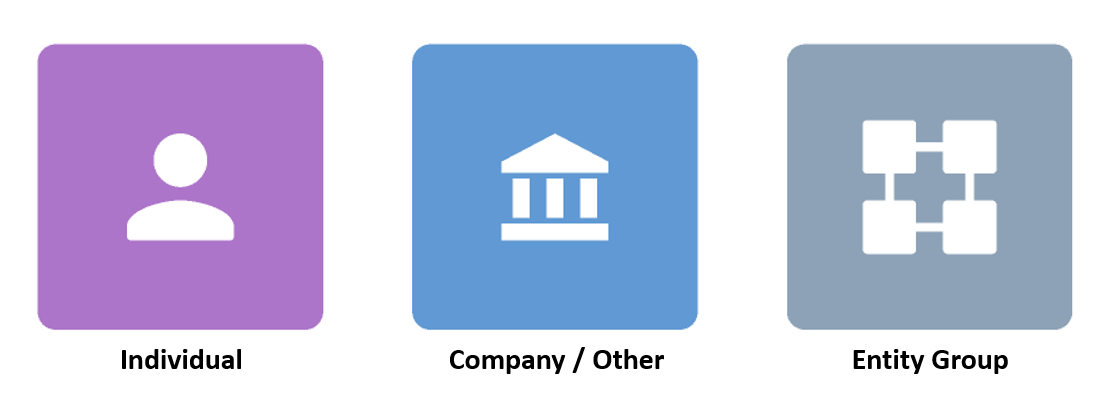
- For Company or Other Legal Entity Types, the datakey of "legalEntityName" will be displayed.
- For Individual Legal Entity Types, the datakeys of "firstName" and "lastName" will be concatenated and displayed in that order.
- For Entity Group Legal Entity Types, the datakey of "groupName" will be displayed.
The Legal Entity Type of the current Legal Entity Profile that a User is viewing will be indicated to a User, by the icon being rendered on screen. The icon used per Legal Entity Type is as follows:
Beside the Legal Entity Name, a User will see the Legal Entity ID displayed as a Chip. This is the unique identifying Legal Entity ID generated by Fenergo for each legal entity in the application. To support swivel-chair activities where a User may be required to share this with someone else, a User can copy this ID by selecting the clipboard icon.
Underneath the Legal Entity Name, a User will see additional Chips, which represent the progression of a legal entity through its lifespan in Fenergo. Based on a Journey Type's status or based on the Screening status captured within the journey, there will be different UI chips applied to the Legal Entity Profile Page. The logic for these chips is as follows:
- Client = Completed Client Onboarding Journey or the Entity has been migrated with the 'isClient' property defined as 'Yes'.
- Onboarding in Progress = In-progress Client Onboarding Journey.
- Compliant = Defined when an Entity goes through a "Client Onboarding" journey Type and has no Maintenance Journeys in-progress. The 'Compliant' chip cannot yet be defined through Data Migration.
- Maintenance in Progress = "Client", with a Maintenance Journey in-progress.
- Pending Offboarding = Offboarding of the Global Policy is in progress (Client Offboarding Journey Type in-progress).
- Client Offboarded = Completed Offboarding of the Global Policy (Client Offboarding Journey Type completed).
- Review in Progress = In-progress Periodic Review Journey Type.
- Sanctions = Screening Category of "Sanctions" = "Yes".
- PEP = if PEP match = "Yes" in Screening.
These hard-coded Statuses can be individually hidden through Legal Entity Profile Configuration. See the section on this topic for more information.

The "Overview" Tab
The "Overview" tab will be the default landing page for a User when navigating to a Legal Entity Profile. It represents the high-level view of the legal entity, acting as a summary of the legal entity through a series of components that each reference unique interactions that a legal entity may have undergone, such as being a Related Party to another legal entity or the representation of a Document that was uploaded. Information on the legal entity on this Tab is compartmentalised through these components, each representing a different domain within the application.
"Details" Component
The "Details" component is intended to act as the most important fields captured against a legal entity, which will allow an individual to easily understand who this legal entity is.
This component will allow up to eight fields to be displayed and does not support the displaying of Data Groups. Fields here will be sorted according to the Field Order that was configured in the Tenant's Policy. If configured, the tooltip of the data requirement can be found a User hovering their mouse over the label of the field.
To view more detailed Data about a legal entity, a User can navigate to the "Data" Tab by selecting this option in the Tabs list or by selecting the "View All" option.
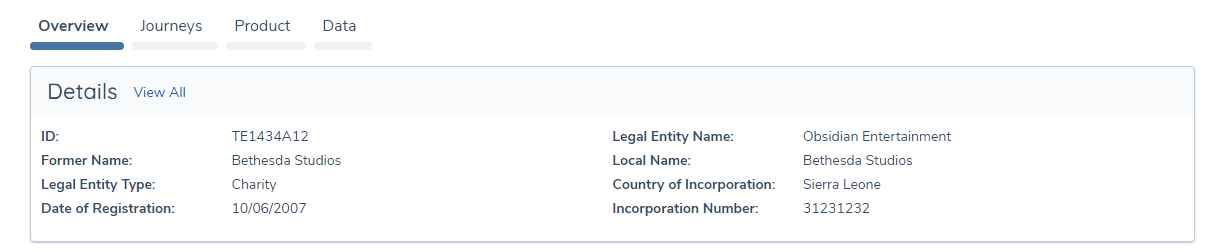
A Configurator will be able to configure the Policy Category that is displayed on the "Overview" Tab, per Legal Entity Type. If there has been no Legal Entity Profile configuration implemented for the Legal Entity Type, the default Policy Category that will be used here is "Basic Details". For more information, refer to Configuring the Legal Entity Profile Page.
"Journeys" Component
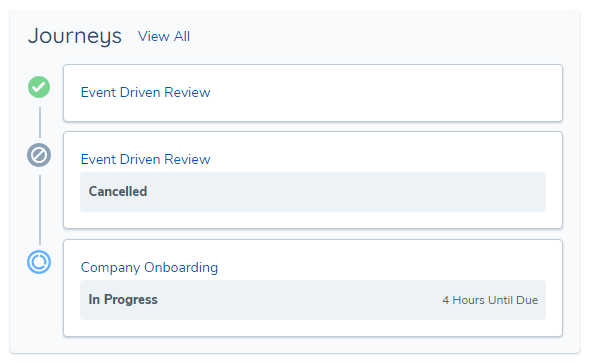
The "Journeys" component acts as a summarisation of the Journeys that have been initiated against a legal entity. Here, the name of the Journey will be displayed, alongside the status of the Journey. This is inclusive of the Journey's Service Level Agreement Status. For those Journeys that have SLAs set, these will display so that a User can easily understand which Journeys require their attention first, at the risk of a SLA being breached.
Additionally, the status of each Journey can be easily understood through the icon rendered beside each Journey. More information about a Journey, such as its started date or its SLA information, can be found in a hover-over that will be generated when the User moves their mouse over a Journey's associated icon.
To view more detailed information about the Journeys of a legal entity, a User can navigate to the "Journeys" Tab by selecting this option in the Tabs list or by selecting the "View All" option.
"Documents" Component
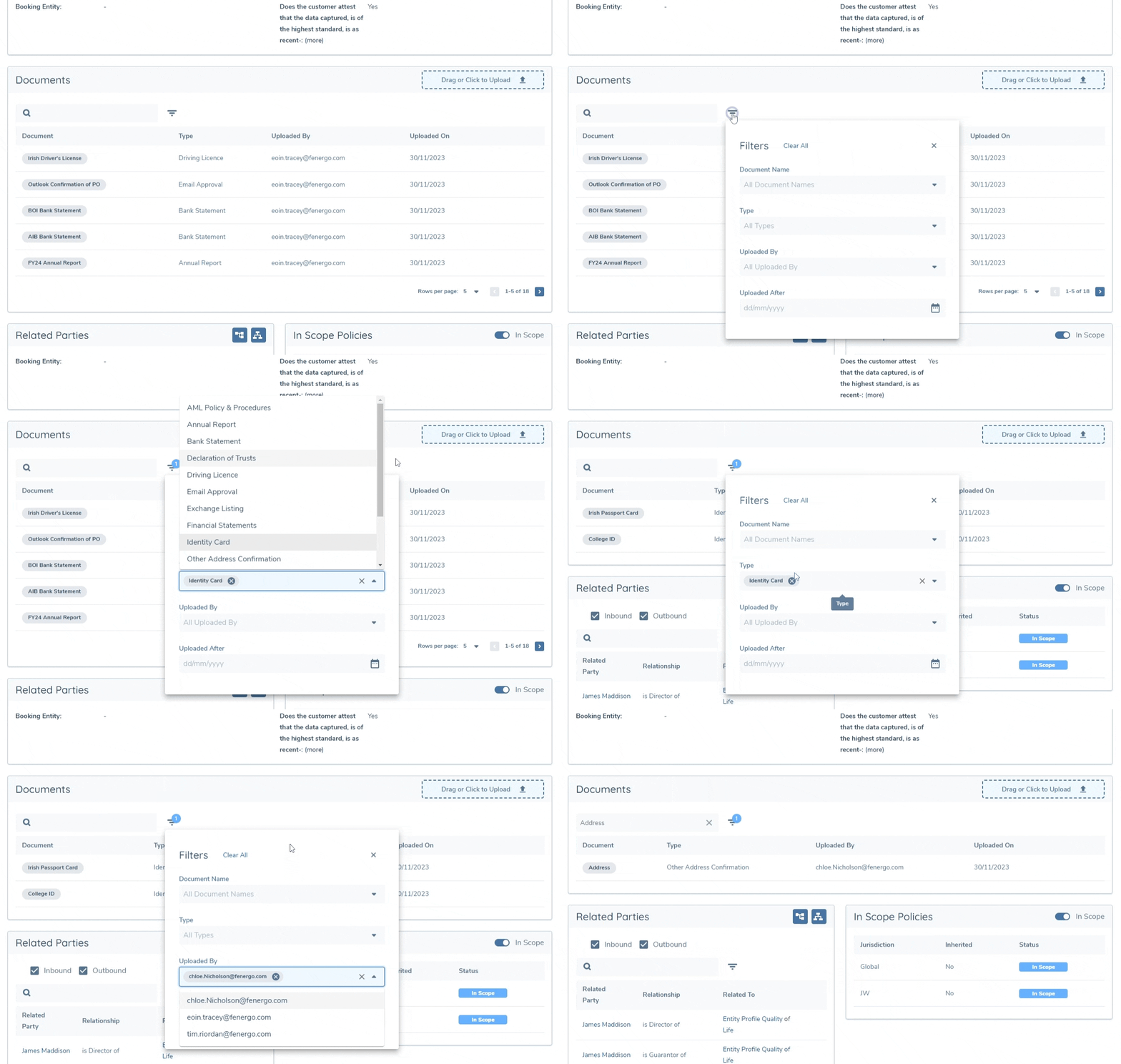
The "Documents" component will show the Documents that have been uploaded against a legal entity. Each Document will be displayed under four columns:
- Document Name
- Document Type
- Uploaded By
- Uploaded On
This component will show those Documents that have been uploaded to a legal entity in the context of a Journey or inherited as part of Legal Entity Grouping. Additionally, a User can ad-hoc upload a Document by selecting the "Drag or Click to Upload" button or add a Virtual Document by selecting the "ADD VIRTUAL DOCUMENT" button.
A User can access the document metadata captured against a Document, by hovering over the given Document's row where an information icon will be revealed. Accessing this icon will open the respective Document's Metadata modal, where the User can access this information.
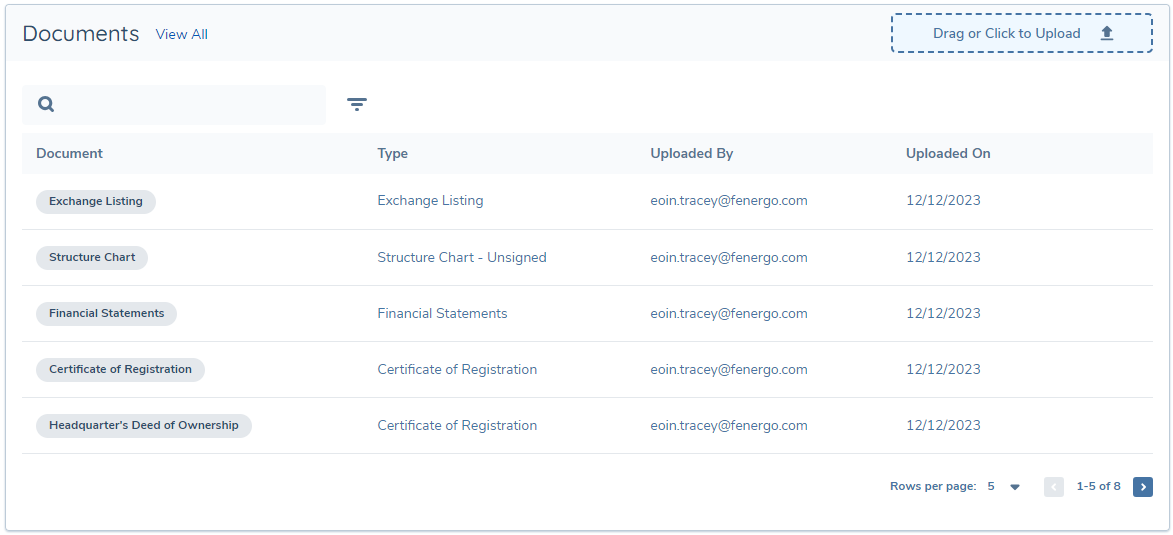
The Document Component comes with a Search Bar and a number of Filters. Both of these options allow a User to precisely find a particular Document. Both the Search Bar and the Filters are searchable against the four columns visible on screen, and can be used in combination with one another:
Selecting the "View All Documents" link will bring the User to the "Documents" Tab. See the section later in this User Guide for more information on this.
When viewing Documents on the Legal Entity Profile, the "Uploaded By" property will display the username of the individual who uploaded the Document. This ensures that there is traceability and context around the original uploader of a Document. It is worth noting that the username will persist, even if that User has been removed from the Tenant.
To align with business needs, it is possible to configure a maximum of two additional columns to display within the "Documents" component and the "Documents" tab. The columns will be driven by fields from the Document Metadata data group that are configured within the Entity Profile Configuration. Please see the Common Configuration in the Configuring the Legal Entity Profile Page user guide for additional details.
By default the modal for uploading documents utilises the traditional document upload modal. However, to streamline the experience, the Documents V2 modal can be enabled within the "Documents" component and the "Documents" tab of the Entity Profile. Please see the Common Configuration in the Configuring the Legal Entity Profile Page user guide for additional details.
"Documents" Component Document Loading
Please note this functionality is currently on non-live tenants and will be available in the near future on live production tenants.
For scenarios where an entity has a large number of associated documents, in order to allow the Entity Profile to load without delay, the first 50 documents will display in the "Documents" component. A spinner may display within the component while these documents are retrieved. A "Preview" chip will display with a tooltip indicating to the user that the documents displayed are a subset of the full list of associated documents. Any search and filter with the "Preview" chip in place will only encompass those 50 documents displayed.
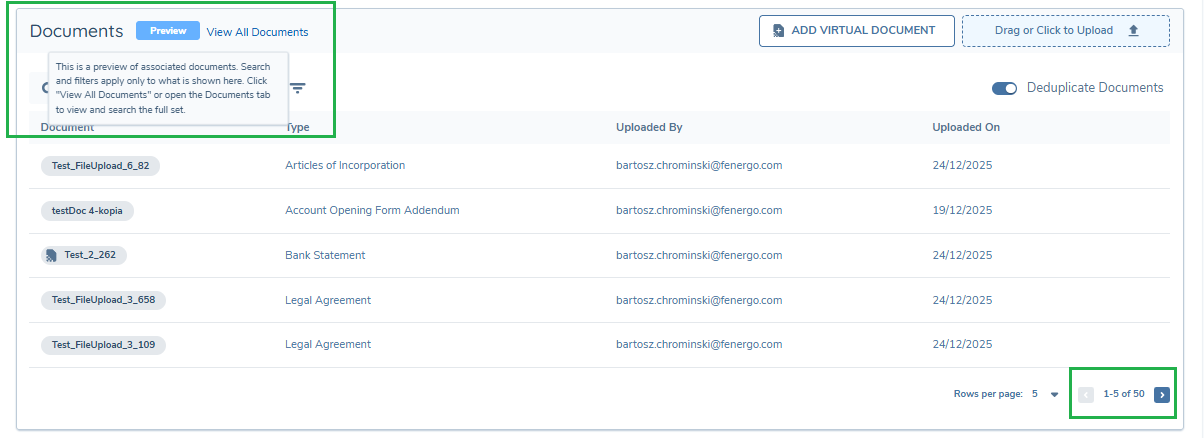
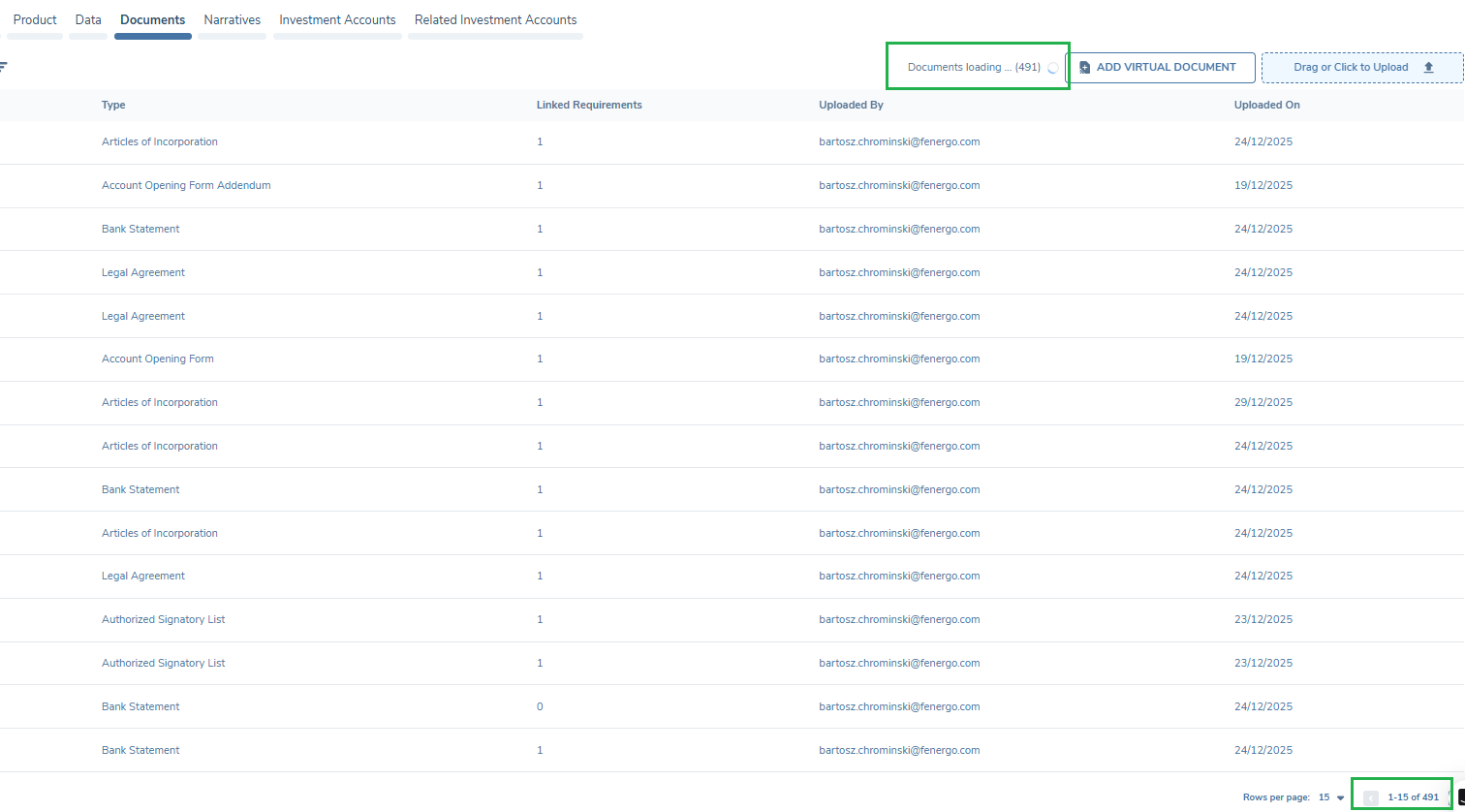
When the user selects the "View All Documents" link to navigate to the "Documents" tab, or navigates directly to the "Documents" tab, this will commence the display of the remaining documents and the user will be given an indication of the load while in progress. See the "Documents" component further in this user guide for example.
Should the user revert to the "Overview" tab while the load is in progress, the document count will reflect the loading of the remaining associated documents and once the loading is complete, the "Preview" chip will no longer be displayed.
"Related Parties" Component
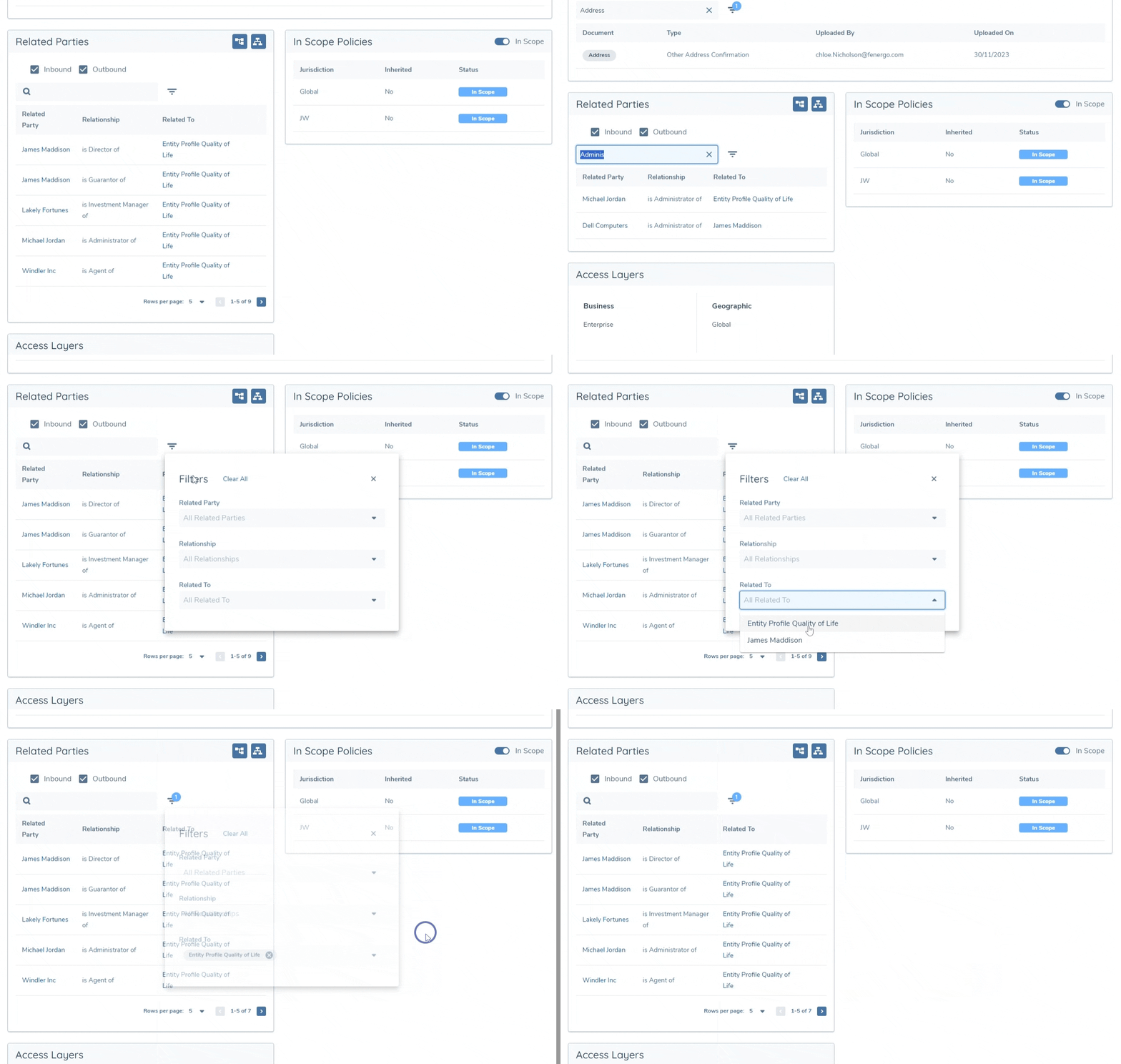
The Related Parties component will display the inbound and outbound verified associations that a legal entity has. For more detail on how this information is handled and how the hierarchy can be viewed, refer to Visualising Related Parties.
The Related Parties Component also comes with a Search Bar and Filters, similar to the Documents Component. Here, the searchable elements are the three columns visible on screen - "Related Party", "Relationship" and "Related To":
"In Scope Policies" Component
The In Scope Policies component is a representation of all of the Policies (also known as "Jurisdictions") that have been in-scope for a legal entity. It operates on a historic basis, displaying the culmination of all of the Policies that a legal entity has ever been scoped for throughout its Journeys and associations.
The evaluation of the Policy that a legal entity is scoped for will occur upon the verification of the legal entity data at the end of each Journey. At this point, we will also evaluate whether a Policy may be considered as "Offboarded"; if a Client Offboarding Journey was being completed.
When the Related Party Launchpad task is used in a journey, parent legal entity policies will be stamped as 'In Scope' for its associated related party entities. Policies stamped from the parent will be treated the same as natively in-scope policies on the Related Party Legal Entity. Future enhancements will manage this as an inheritance from the parent and will reflect as such in the 'Inherited' column of the In-Scope Policies table
By default, the "In Scope" toggle will be set to active. To review the Policies for a legal entity that may be offboarded, a User can select this toggle, which will expose any offboarded policies.
"Access Layers" Component
The Access Layers component will display the current access layers assigned to a legal entity. This is represented under two columns; one for each of "Geographic" and "Business Related" access layers.
The setting of these access layers can be done within the context of a Journey, or can be set via Dynamic Access Layers configuration.
If a User does not have any of the legal entity's assigned access layers, they will not be able to access the Legal Entity Profile. For more information on Access Layers, refer to Access Layers Fundamentals.

"Groups" Component
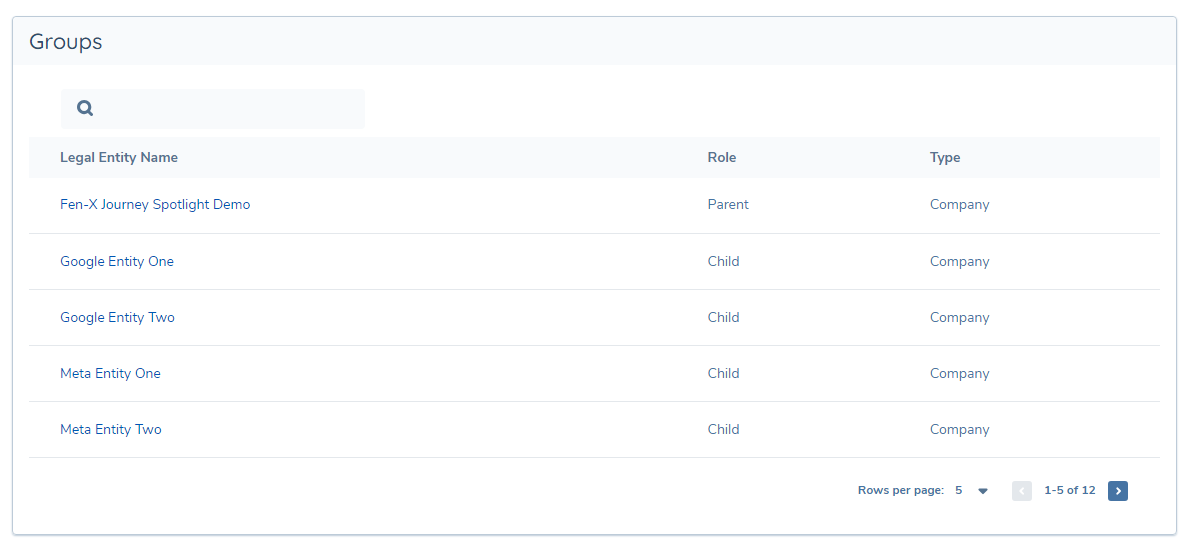
For those legal entities where they have been added to a Legal Entity Group's hierarchy as either a Parent or Child, a conditional component will be displayed. This component will be titled "Groups", and will have a slightly different view dependent on the Legal Entity Type of the legal entity. For the Legal Entity Types of "Company", "Individual" and "Other", that have at least one verified association to a Legal Entity Group, this component will be displayed.
This component will display the name of the Group[s] that the current legal entity is a member of, and the Group Role that the current legal entity serves in that Legal Entity Group - either as a Parent or Child. The Group Name is hyperlinked to the Legal Entity Group's Profile.
If a legal entity is not a verified member of any Legal Entity Group, this component will not be displayed on the Legal Entity Profile for "Company", "Individual" and "Other" Legal Entity Types.

If the legal entity is a Legal Entity Type of "Entity Group", this behaviour will be slightly different. The "Groups" component will always be visible, to highlight the importance of a Legal Entity Group's hierarchy. In this context, the component will render those legal entities that have a verified Child or Parent Group Association to the Legal Entity Group. An additional property will be shown here of "Type", which will denote the Group Association's Legal Entity Type as differing Legal Entity Types can exist within an Legal Entity Group's hierarchy.
A final note, that the sorting logic here will be as follows:
- Parent Legal Entities first, sorted A-Z
- Child Legal Entities, sorted A-Z
"Journeys" Tab
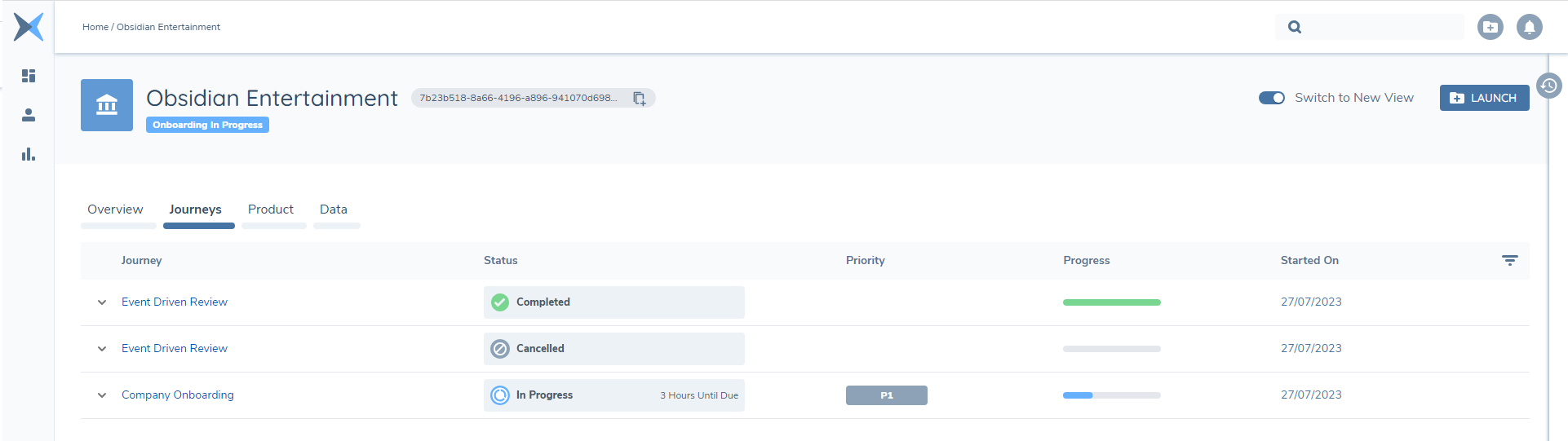
The Journeys Tab is where a User can access more detailed information about the Journeys of their given legal entity. Upon landing on this page, a User will see all Journeys, sorted by the time they were first created. In this way, the view of the Journeys for a legal entity is historic from earliest to latest initiated.
Journeys will be displayed under five column headers:
- "Journey" - this is the name of the individual Journey, as per the defined Journey Schema. Each entry is hyperlinked to the specific Journey, providing easy navigation.
- Status - this is the current status, including SLA information, of the Journey. It operates the same as what is on the "Journeys" component of the Legal Entity Profile.
- Priority - this will display the current value captured on the "Priority" datakey of the specific Journey. Note that only in-progress Journeys will be able to have a Priority displayed. Completed, Cancelled or Journeys without a defined "priority" datakey will show an empty value here. More information on "Priority" can be found in Configuring Journey Priority.
- Progress - this is a progression bar, which will visualise the number of completed Tasks relative to the number of total Tasks within the Journey. Completed Journeys will show a fully green bar, whereas Cancelled Journeys will show a fully grey bar.
- Started On - the date that the Journey was created.
- Completed On - the date that the Journey was completed, displayed in DD MMM YYYY format. Journeys that have not yet reached a completed status will display an empty value in this column. The column can be sorted in ascending or descending order by selecting the column header; Journeys without a completion date will sort to the bottom in both directions.
A User can avail of several filters, found on the right-hand side of the Columns. Selecting this Filter will allow a User to filter the Journeys in the grid on the criteria of their Journey Name, their Status or their Priority.
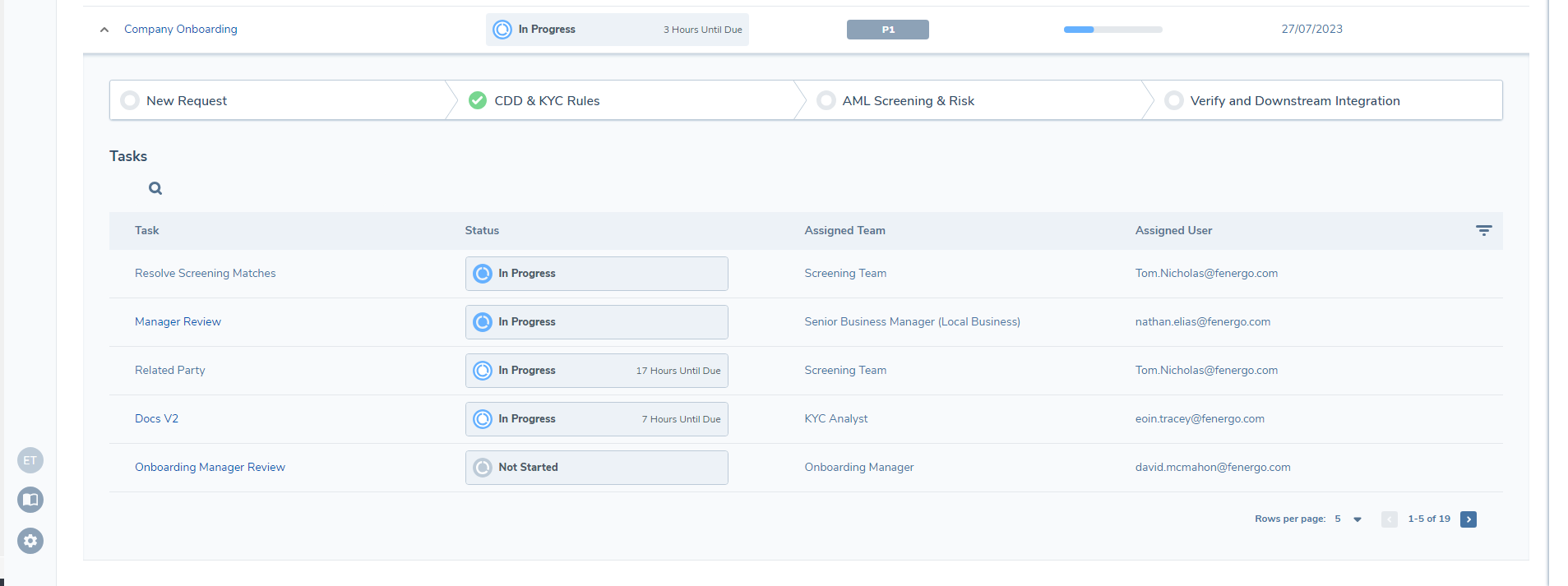
By selecting the chevron found to the left of each Journey Name, a User can access the information about the specific Tasks and Milestones configured for each Journey Instance. Here, the Tasks of a Journey will show under four column headers:
- Task - the name of the Task.
- Status - this is the current status, including SLA information, of the Task.
- Assigned Team - the current Team assigned to the Task.
- Assigned User the current User assigned to the Task.
A User will be able to navigate into a Task, so long as they possess in their User Profile the assigned Team of a given Task. This is the same functionality as seen in the Journey Hub. If a User does not have the assigned Team, the Task will not be hyperlinked and thus block a User from accessing Tasks outside the remit of their assigned Team[s].
When a Task has been completed, a User can hover over the Task's status chip to view additional detail in a status pop-up. A Date Completed field will be displayed here, showing the date the Task was completed in DD MMM YYYY format. If the Task has not yet been completed, this field will not be shown. Where a Task has been reopened and completed again, the Date Completed will reflect the most recent completion date.
The Tasks row will also allow for the setting of active filters. The options here are an exact replica of the column headers. Additionally, a User can search for a given Task based on the name, status, assigned team or assigned user.
Finally, the Milestones of a Journey are also visible when a Journey is expanded. Similar to the Journey Hub, and assuming the Milestones have been configured for the given Journey, a User can hover over a Milestone to view the progression of its contained Stages. If Journey Milestones have not been configured, the Stage names instead will be displayed here.
"Product" Tab
A Product tab will display on the Legal Entity Profile where the Product domain has been enabled within the tenant. Within this tab, a table displays all verified products associated to the legal entity in profile, with the following columns:
- Product Type
- Status - Verified product status
- Product Family
- Relationship - The relationship of the legal entity in profile to the product
- Secondary Identifiers - Fields configured as secondary identifiers in the Global Product Requirement Set will display as columns with a maximum of 5 displayed and in their configured field order.
Searching and Filtering the Product Tab
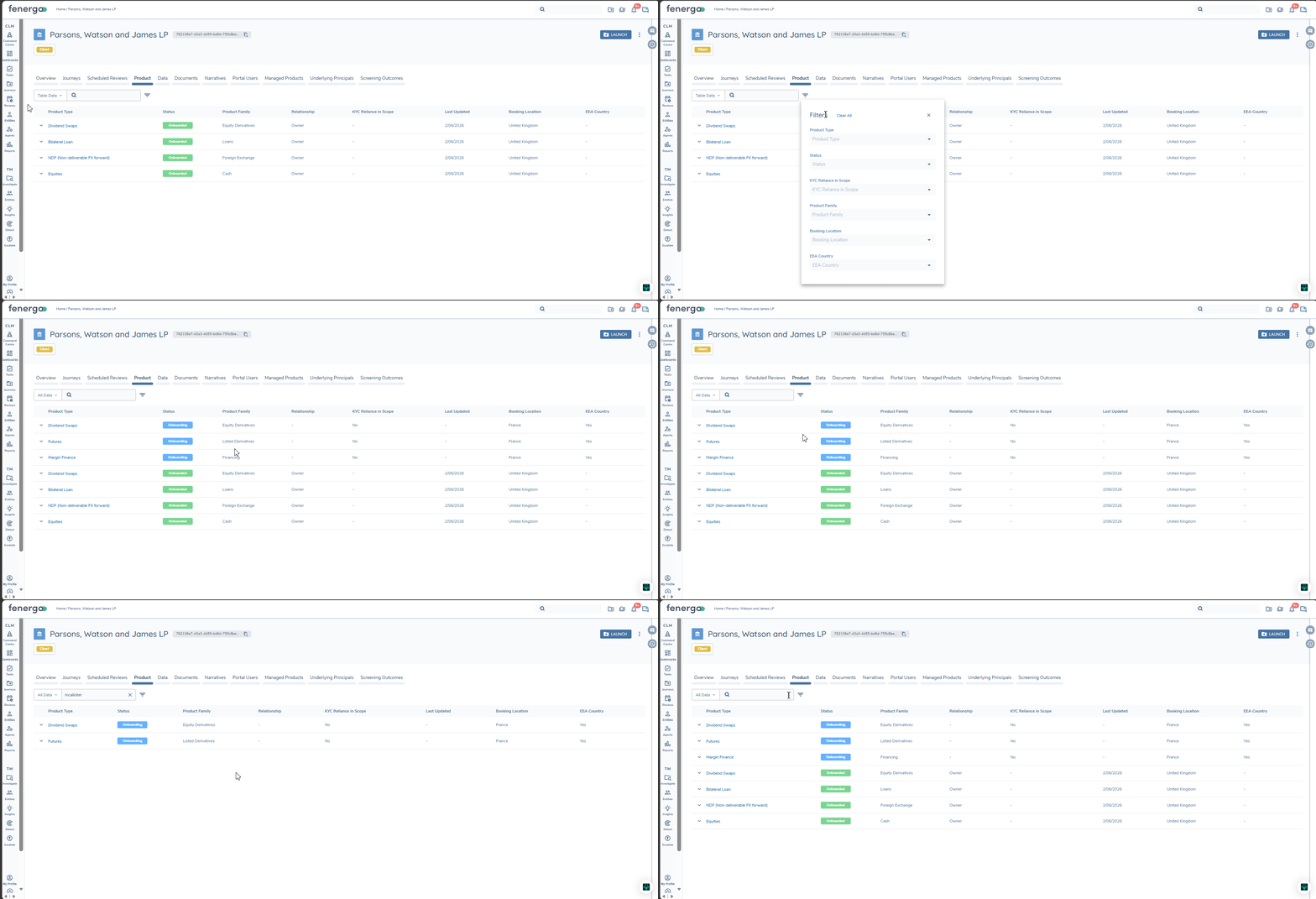
The search bar has two modes:
- Table Data (default) - searching filters the table by to display products that match that expression in any of the displayed table columns.
- All Data - This mode searches all product properties, including within it's data groups and across verified Products (Onboarded, Offboarded) and draft (Onboarding).
Selecting All Data immediately shows any 'Onboarding' drafts for the entity, pinned above the verified products. Drafts appear with the same row styling as verified products. When there are no inprogress journeys with 'Onboarding' product drafts, an information toast message will be presented. Expanding a draft row shows its Journey, Documents and Access Layers information; a Related Parties tab is not available for drafts (these will only display once the product is verified). If a product exists as both a draft and a verified record, only the verified record is shown, and where several drafts exist for the same product, only the most recently created is shown.
To search with All Data selected, type 3 or more characters and press Enter. The table is filtered to display matching products. Use the X control in the search field to clear a search or cancel one in progress.
Filters apply to all products displayed in the table, including 'Onboarding' products (when displayed).
Switching between Table Data and All Data clears the search field and any column filters, and returns the table to that scope's default view.
This search bar is also available on the Managed Product tab described below. It is not available on the Underlying Principals tab.

When a User lands on the "Product" tab, all associated Product rows in the table will be collapsed by default. Each row contains a hyperlink on the Product Type and once selected, the user will be presented with a read only modal containing the latest verified data for that product. By default, all product categories saved for that product in the Manage Products task of a journey will display in alphabetical order within this modal.
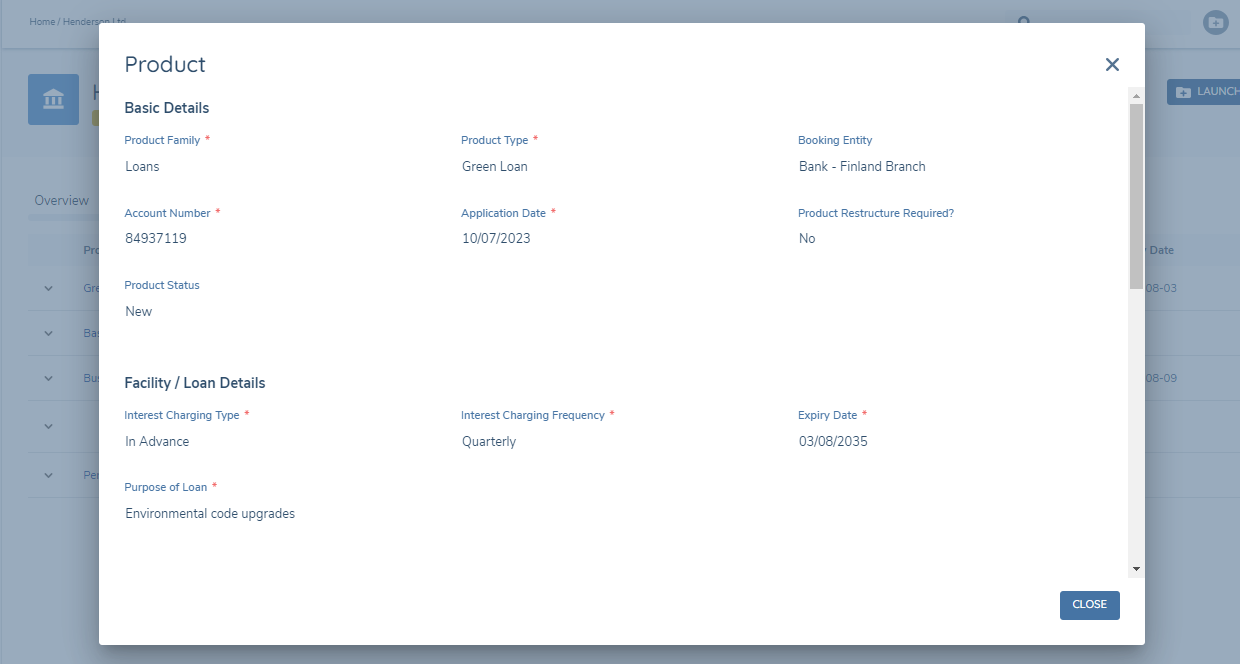
The categories shown in this modal are configurable through the "Product" Entity Type in Legal Entity Profile Configuration. Where no configuration exists, or where its categories have been removed, the modal continues to display all product categories alphabetically as described above.
Where categories have been configured, the modal displays only those categories in their configured order, with data groups positioned in line with the category they belong to. Any configured category with no populated requirements for the product being viewed is hidden automatically, keeping the modal free of empty sections. This applies wherever the modal is opened from - the "Product" tab, the "Managed Products" tab and the "Underlying Principals" tab.
The modal renders the configured categories against the Product Requirement Set versions referenced on the verified product, following the same logic used to render entity data on the "Data" Tab. The same configuration can therefore display differently from one product to another. This is intentional - what displays is relative to what was available to capture for that product at the time it was verified.
For example, if a new "System Dates" Product Requirement Category is added to the Global Product Requirement Set along with three system date fields, that category will only appear in the Product Details modal for products verified after that version was published. For products last verified beforehand, neither the category nor its requirements existed in the versions referenced on the product, so they do not exist in the context of that product.
In addition to the modal, a user can expand a product row to view further information by selecting the chevron to the left of the product type. Once expanded, the user is presented with a tabbed view, with the default being the Journeys tab.
'Journeys' Product Tab
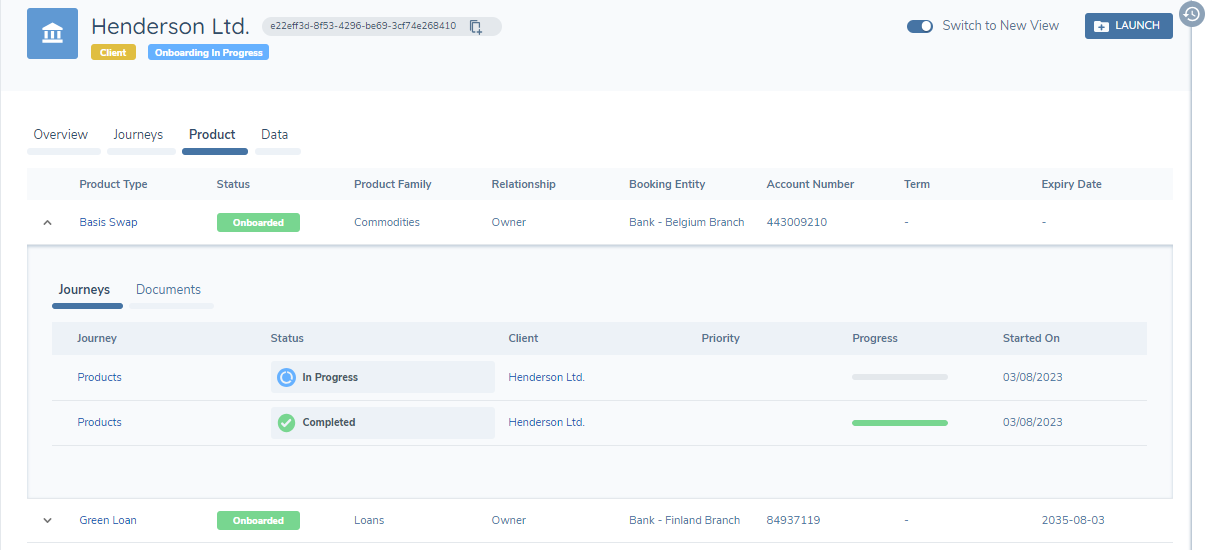
Journeys associated with the product are displayed within this tab, with the following columns in the table:
- Journey - this is the name of the individual Journey, and is hyperlinked to the specific Journey, providing easy navigation.
- Status - this is the current status of the Journey.
- Client - this is the legal entity associated to the Journey, and is hyperlinked providing easy navigation.
- Priority - this will display the current value captured on the "Priority" datakey of the specific Journey as outlined above in the legal entity's Journeys tab.
- Progress - this is a progression bar as outlined above in the legal entity's Journeys tab.
- Started On - the date that the Journey was created.
Journeys of all status will display within this tab meaning a user can view not only completed journeys, but also those journeys where Products are being edited.
'Documents' Product Tab
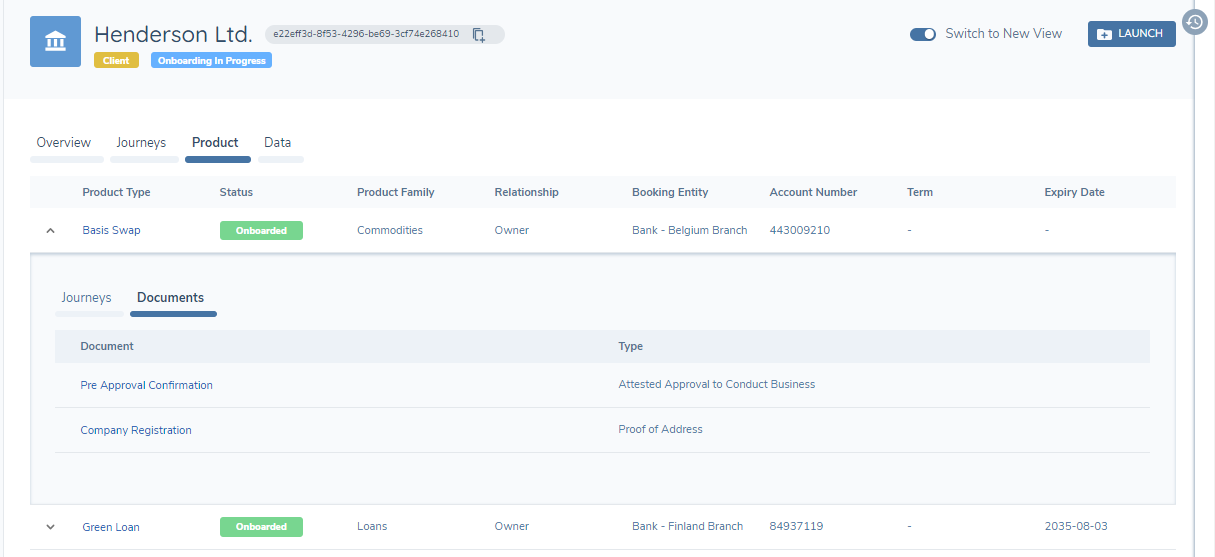
Documents that have been associated with the product, either via Document Requirements within the Manage Products task of a journey, or via the API, will display within this tab, with detail in the following columns:
- Document - this is the document name and contains a hyperlink to view the uploaded document
- Document Type - this is the document type selected in the metadata when uploaded via Document Requirements
'Related Parties' Product Tab
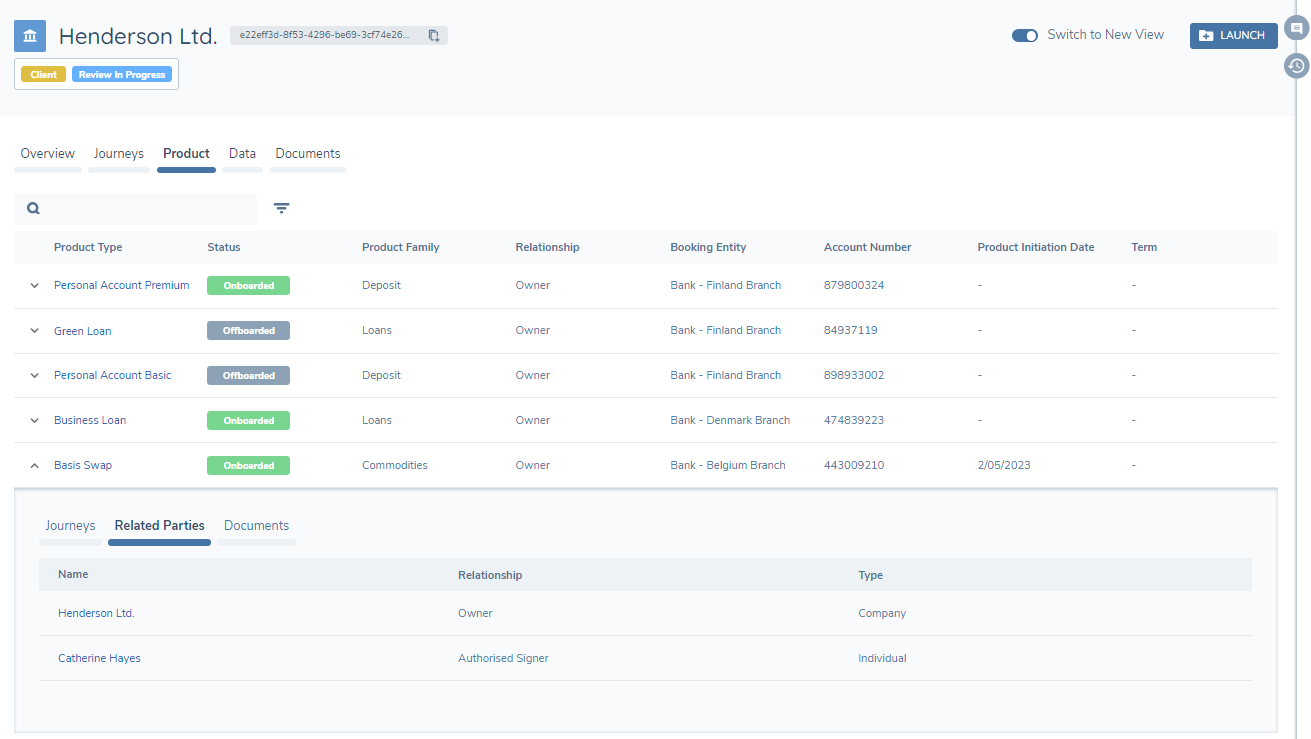
Related Parties that have been associated with the product via the Manage Products task of a journey, will display within this tab, with detail in the following columns:
- Name - this is the legal entity name of the associated Related Party and contains a hyperlink to navigate to the legal entity profile of that legal entity
- Relationship - this is the Product Relationship specified when creating the association
- Type - this is the legal entity type of the associated Related Party
Associated product Related Parties will display within this tab when the association has been verified as part of a journey.
'Access Layers' Product Tab
A products assigned 'Business Related' and 'Geographic' Access Layers are visible via this tab. These access layers are exclusively assigned via 'Product' Dyanamic Access Layers.
"Managed Products" Tab
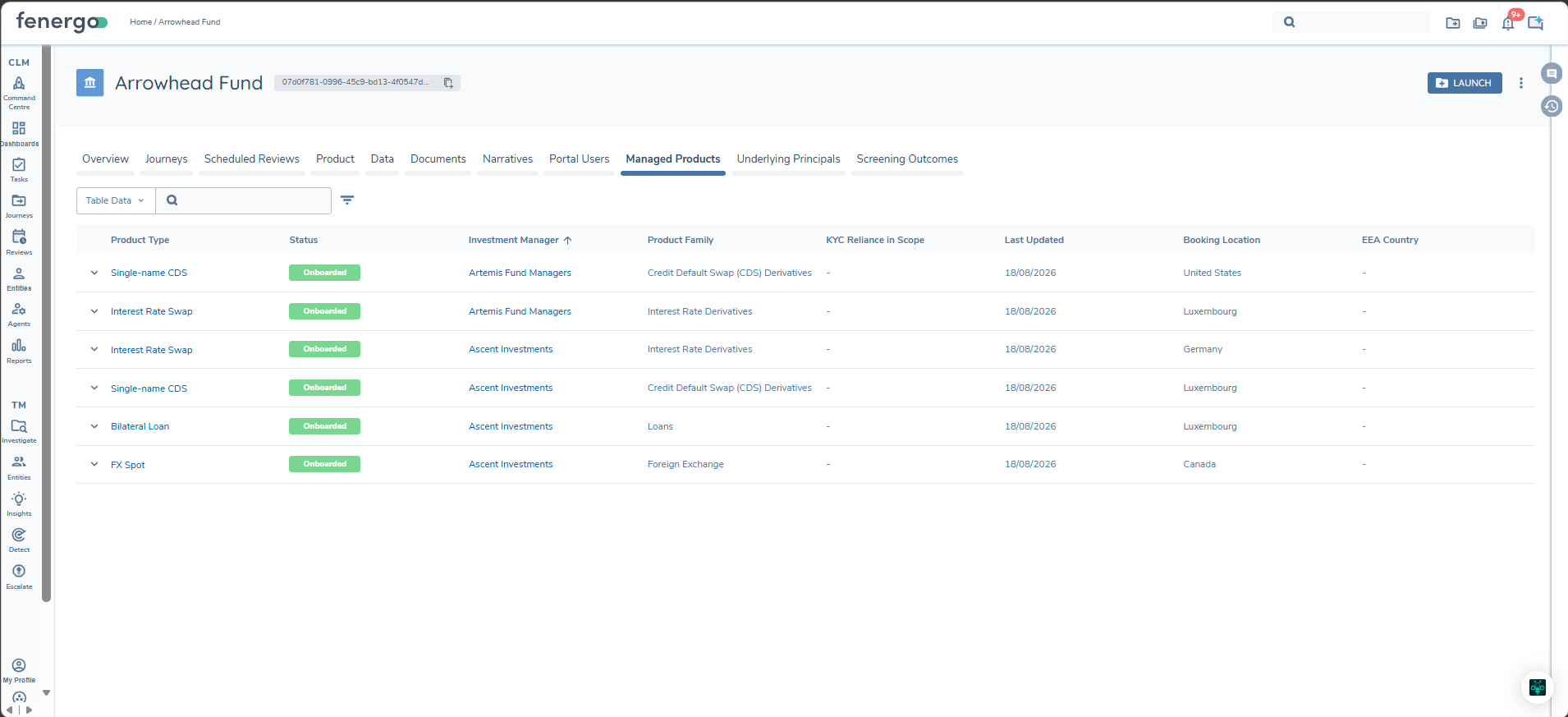
This tab provides users with view of all products managed by an investment manager on behalf of the legal entity in profile. It is specific to agency scenarios, where the legal entity in context has products managed by one or more investment Managers(agents).
A Managed Products tab will display on the Legal Entity Profile where both the Product domain and the Agency feature has been enabled within the tenant. Within this tab, a table displays all verified products owned by the legal entity in profile, which have an investment manager associated. The investment manager name is visible against each listed product.
The search bar has the same search modes described in Searching and Filtering the Product Tab above: Table Data filters by the table's visible columns, and All Data searches all product properties for verified products and 'Onboarding' drafts.
By default, the following columns will display:
- Product Type
- Status - Verified product status
- Investment Manager – name of the investment manager associated to the product
- Product Family
- Secondary Identifiers - Fields configured as secondary identifiers in the Global Product Requirement Set will display as columns with a maximum of 5 displayed and in their configured field order.
The tab supports the same details modal, and journey, related party, documents and access layers tabs, for each product listing as standard. Where the modal has been configured under Entity Profile Configuration, it will render with configured categories/ordering (same as 'Product' tab).
"Underlying Principals" Tab
This tab provides a structured view of all Underlying Principal entities associated with the legal entity in profile, allowing users to explore Underlying Principals (UPs) / Funds and the Agency Products nested beneath each of them.
It is specific to agency scenarios, where the legal entity in context acts as an agent/investment manager, and requests trades on behalf of 3rd parties. An Underlying Principals tab will display on the Legal Entity Profile, where both the Product domain and the Agency feature has been enabled within the tenant.
By default, all Underlying Principals linked to the legal entity in profile are displayed. From here, a user can:
- Select an Underlying Principal's name to open their Legal Entity Profile in a new tab.
- Expand an Underlying Principal to view their nested Products table.
- Use the filter field at the top to search or refine the list of Underlying Principals, and the same filter within a nested Products table to isolate products of interest.
Where a user does not have the necessary access permissions, the corresponding Underlying Principals will be hidden from the table.
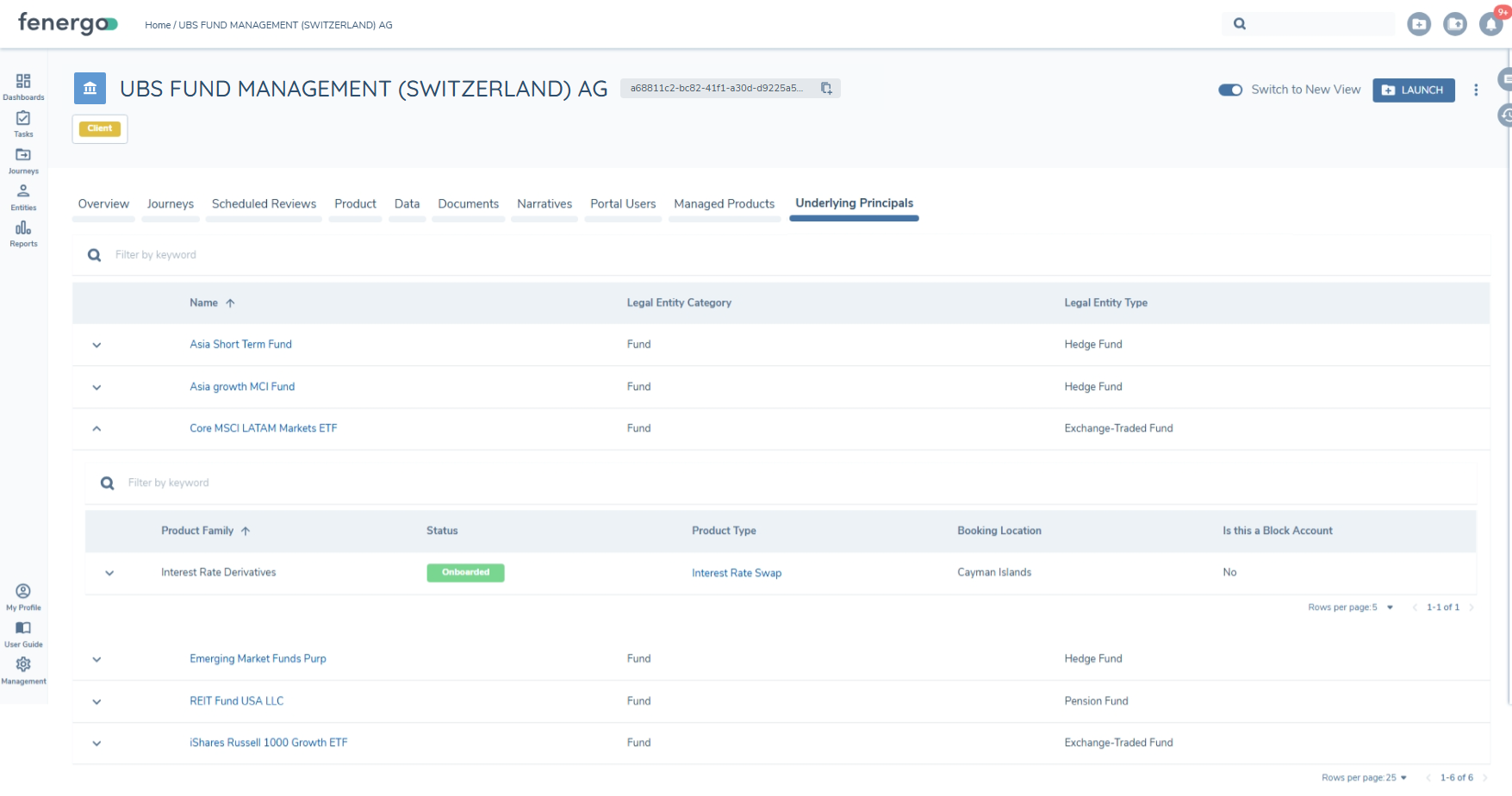
The columns displayed for Underlying Principals are configurable through the Entity Profile Configuration for Company entities. The nested Products table follows the same structure as other product contexts, with Primary Identifiers always shown, followed by up to five Product Requirements configured as Secondary Identifiers. The same Product Details Modal applicable to the 'Product' tab is available here, Where categories have been configured under Entity Profile Configuration, it will render with those configured categories/ordering (same as 'Product' tab). For further detail, see Agency Views: Entity Profile.
The nested Products table supports the details modal, and journey, related party and documents tabs, for each product listing as standard.
"Data" Tab
The Data Tab represents all of the verified data requirements that have been captured via the related Journeys of a legal entity. Data is represented relative to the Policy Category that the requirement was configured against, in the same logic as to how that Data might appear in a Journey. The Data Tab will display data captured across all of the Policies reflected in the "In Scope Policies" component, including those Policies that are offboarded but whose Data Retention Period has not yet been met.
The Legal Entity Profile will also support the rendering of any conditional fields (those fields that are visible only when a trigger condition is satisfied). We will only display those fields on the Legal Entity Profile that are either static (those data requirement that do not have a trigger condition specified), or those fields that have a trigger condition that is satisfied. If a field has a trigger condition that is not satisfied, it will not be visible on the Legal Entity Profile (as it was not in scope in the Journey from which the data was verified either).
By default when a User lands on the "Data" Tab, all Policy Categories will be collapsed by default. A User can expand a given Policy Category to see the fields within by selecting the chevron to the right, or by selecting the relevant Policy Category row.
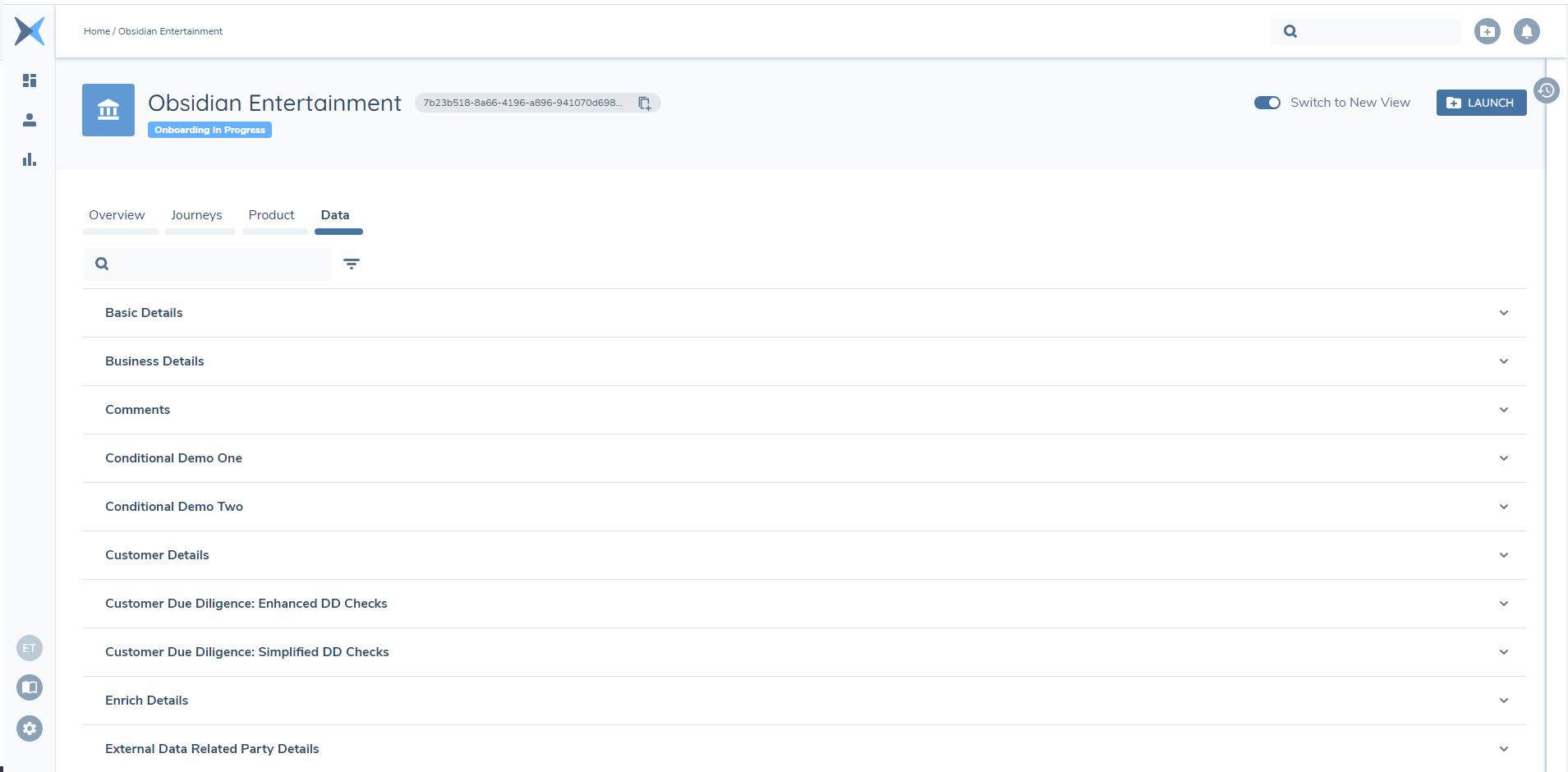
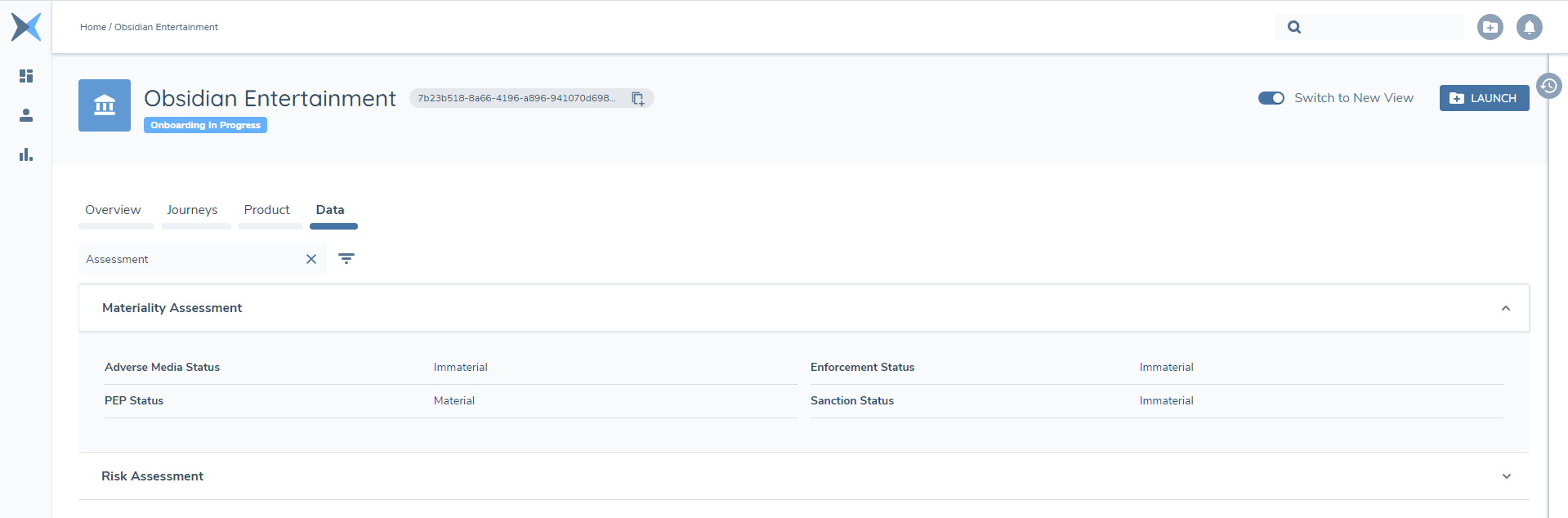
In the scenario whereby a User is looking for a specific field, they can utilise the search bar. This search bar will return results based on both the name of the field (its UI label) and also the value of the field. For example, a User could search for "Country of Incorporation" or search "Ireland", and in both scenarios the relevant field or its value will be returned in the search. Data Groups can be searched by their name only; the contents of an individual Data Group record are not searchable.
In addition to being able to search, a User can also utilise Filters on the Data Tab. The options contained here are the Policy Categories, or the "Target Legal Entity" type. A legal entity may have a piece of data captured in the context of being a "Client" (i.e., a Journey in which they are the primary subject) *or a "Related Party" (i.e., a Journey whereby they were added as a Related Party in the Journey of another legal entity). This "Target Legal Entity" filter allows a User to contextualise the data being returned, so that they may understand under which of these two scenarios a piece of information was captured.
The Policy Categories that appear on the "Data" Tab are dictated by the version of the Policies that the legal entity was last verified against. The Policies are then evaluated, and a Policy Category is then displayed if there exists at least one data requirement configured for the Legal Entity Type. As an example, this means that if an "Individual" Legal Entity Type had a Policy Category configured of "Individual ID&V", this "Individual ID&V" Policy Category would not display on Legal Entity Types of "Company", "Other" or "Legal Entity Group".
Data Groups will always appear alongside the Policy Category that the initial Data Requirement was defined against within their Policy. This simply means that if the "Addresses" Data Group was configured to appear in the "Enrich Details" Policy Category, the User would be required to examine the "Enrich Details" Policy Category to find the Data Group. Alternatively, a User could find the Data Group they are looking for using the Search functionality.
Configurator will be able to configure the ordering of the Policy Categories that are displayed on the "Data" Tab, per Legal Entity Type. If there has been no Legal Entity Profile configuration implemented for the Legal Entity Type, the default Policy Category ordering will all in-scope Policy Categories sorted A-Z descending. See the Configuring the Legal Entity Profile Page section for more information.
"Documents" Tab
The "Documents" Tab represents the Documents attached to a legal entity, where each Documents metadata can be accessed. It also will display the Document Requirements that each Document has satisfied across the Journeys for that legal entity. This Tab requires no configuration, meaning it will immediately and always be visible if a User navigates to a Legal Entity Profile. It has been added to the Legal Entity Profile so that a User can easily find a Document or Document Requirement with ease.
Navigating to this Tab, a User will see a list of all of the Documents attached to a legal entity, with the same column headers as visible as what are seen on the "Documents" Component on the "Overview" Tab. There is one additional column here, titled "Linked Requirements". This column indicates to a User the number of Document Requirements that a given Document has satisfied across all of the Journeys associated with the legal entity.
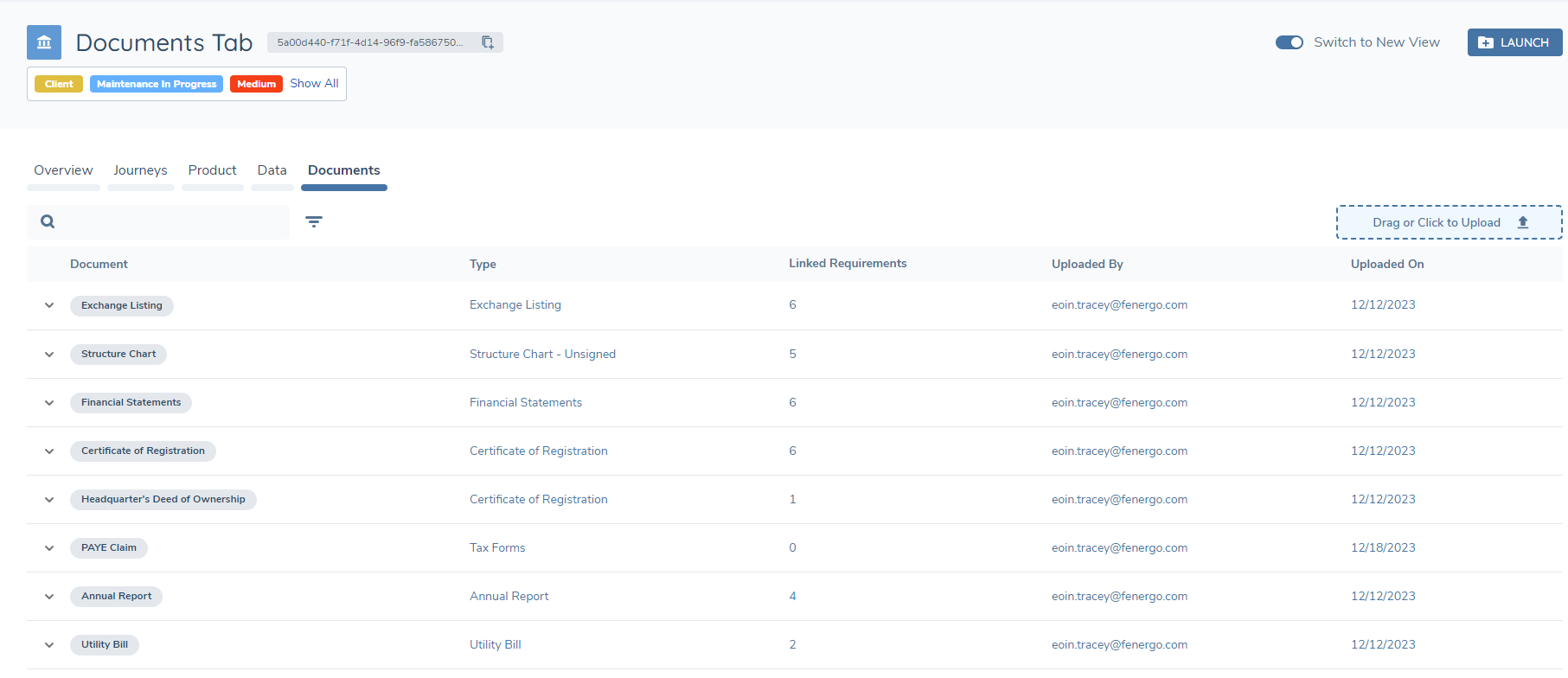
Expanding the chevron icon beside each Document will reveal its Metadata as well as any Access Layers associated with that Document. These will be represented to the User in the "Details" Tab of the individual Document.
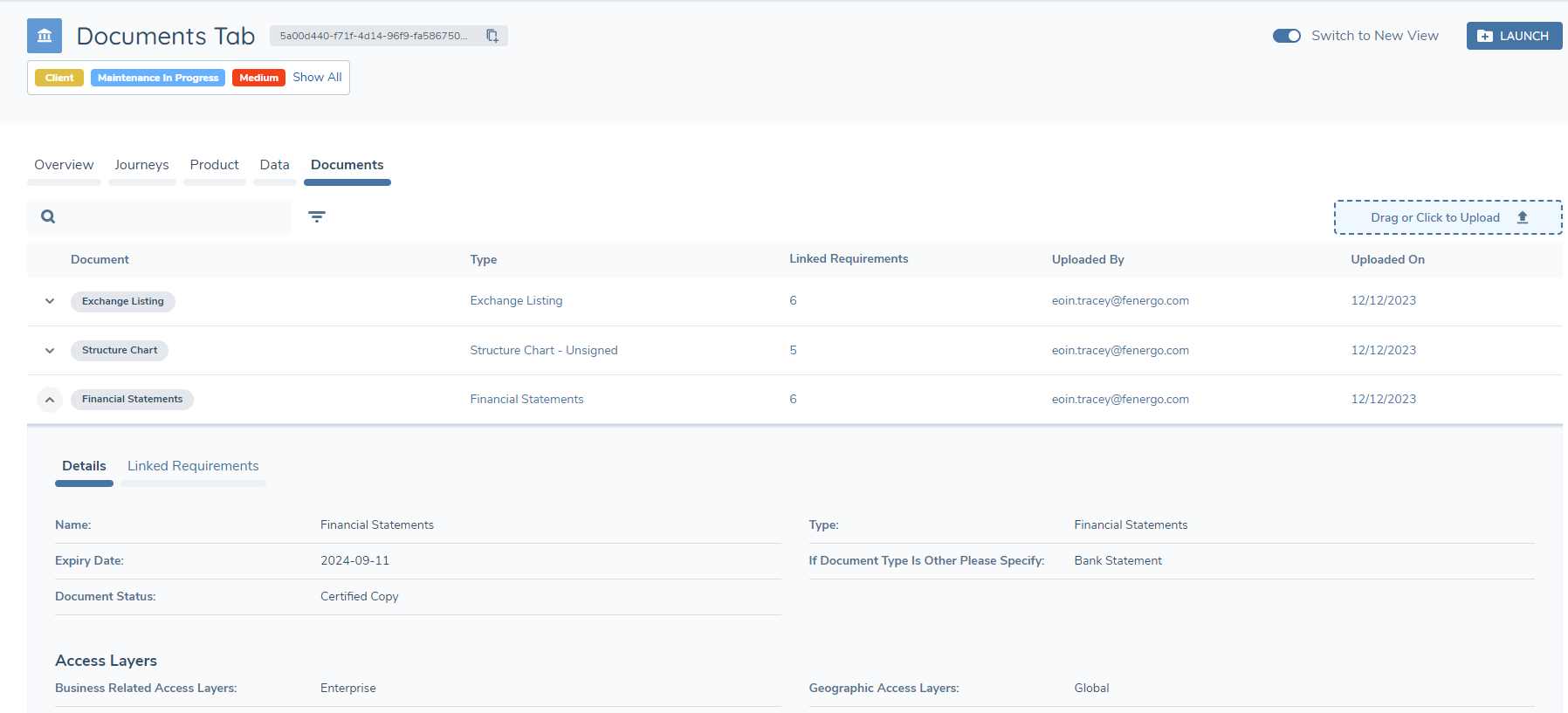
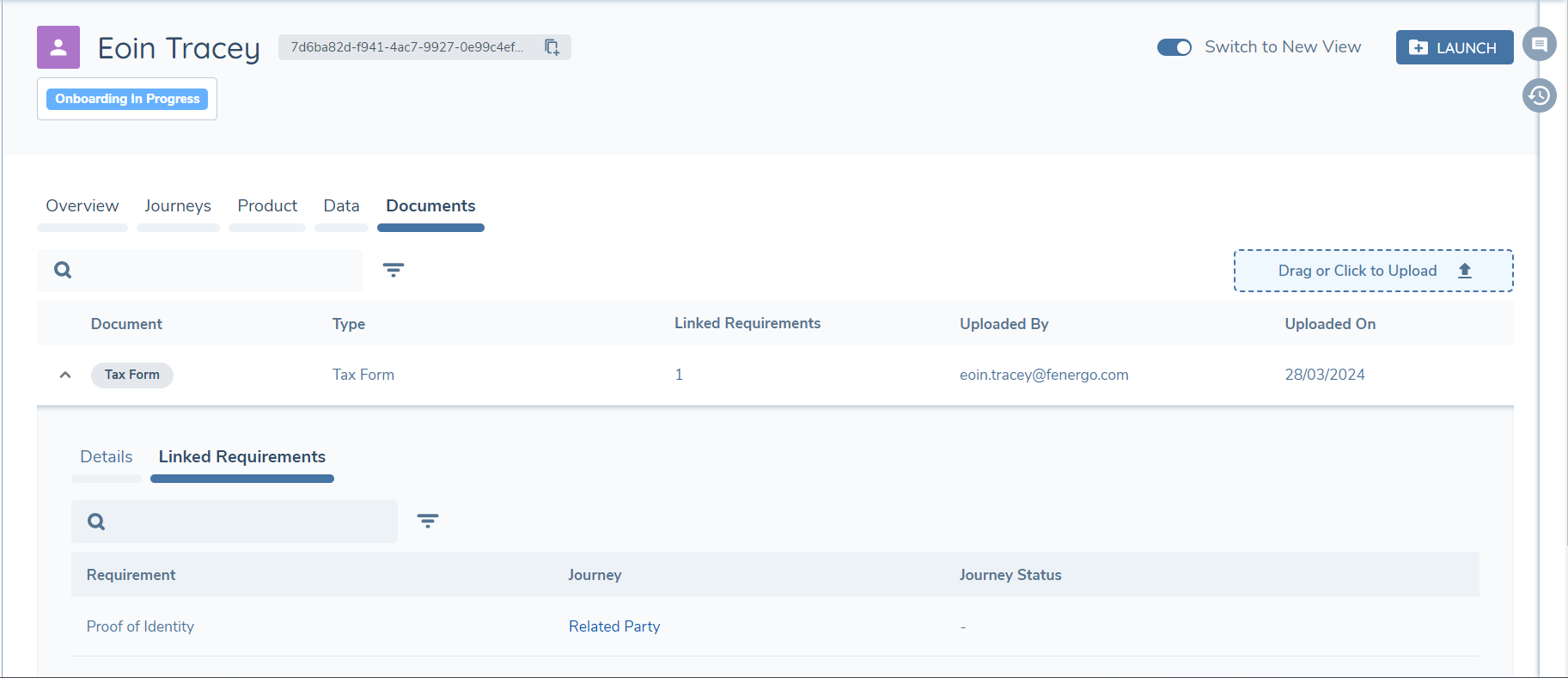
If a User wishes to see the Document Requirements that a given Document has satisfied, they can access this information by selecting the Linked Requirements" Tab. This will then display all Document Requirements that this Document has satisfied across all Journeys for the legal entity. Additionally, the Journey from which the Document Requirement was originated from will be shown, as well as the current Status of that Journey:
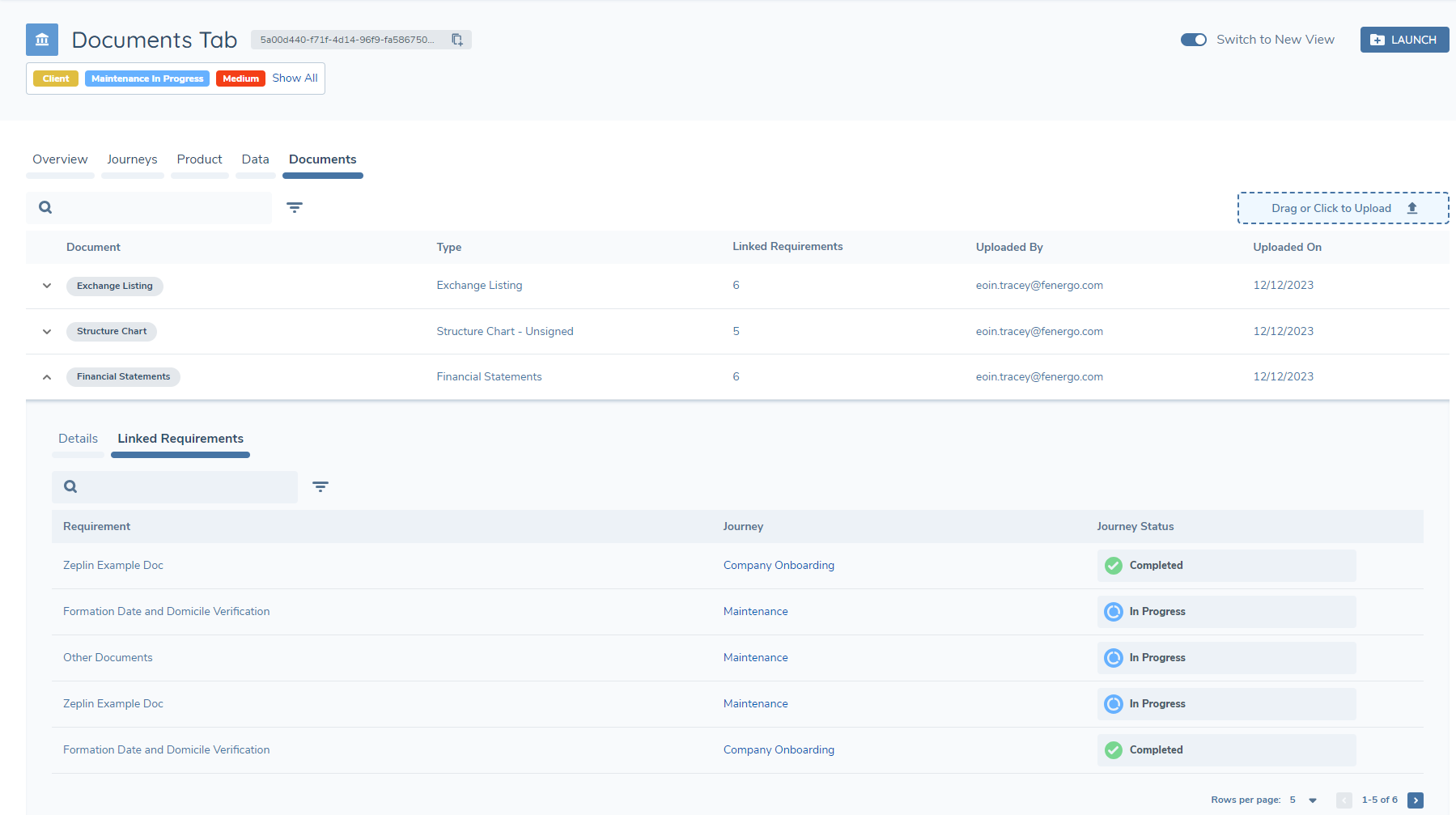
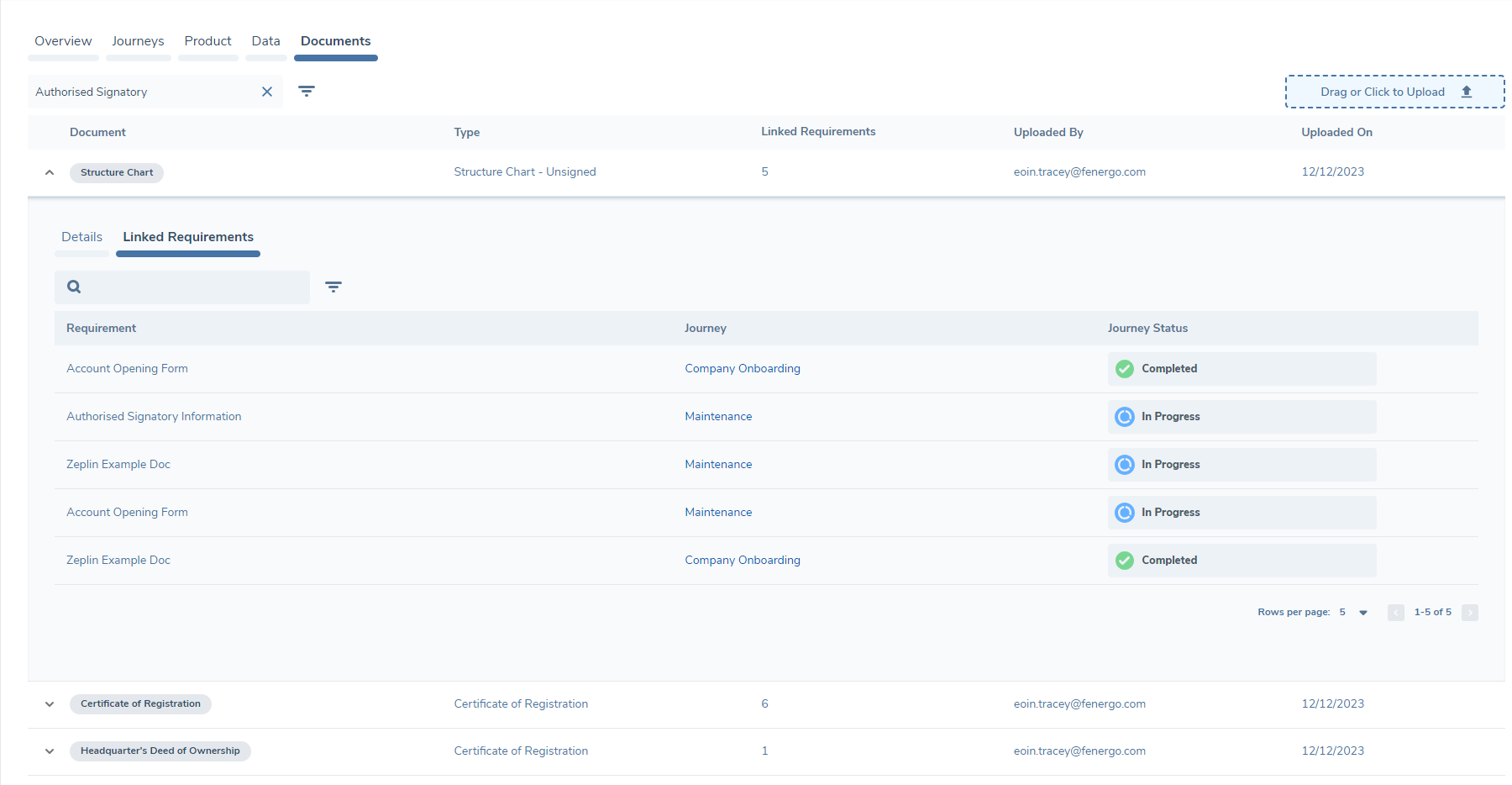
The "Documents" Tab comes with a Search Bar and set of Filters. The Filters available here are the same as the "Documents" Component on the "Overview" Tab. The Search Bar here is searchable against:
- Document Name, Document Type, Uploaded By and Uploaded On
- Document Metadata
- Document Requirement
- Journey Name
In the below example, all Documents that satisfied a Document Requirement of "Authorised Signatory Information" are being returned via the search:
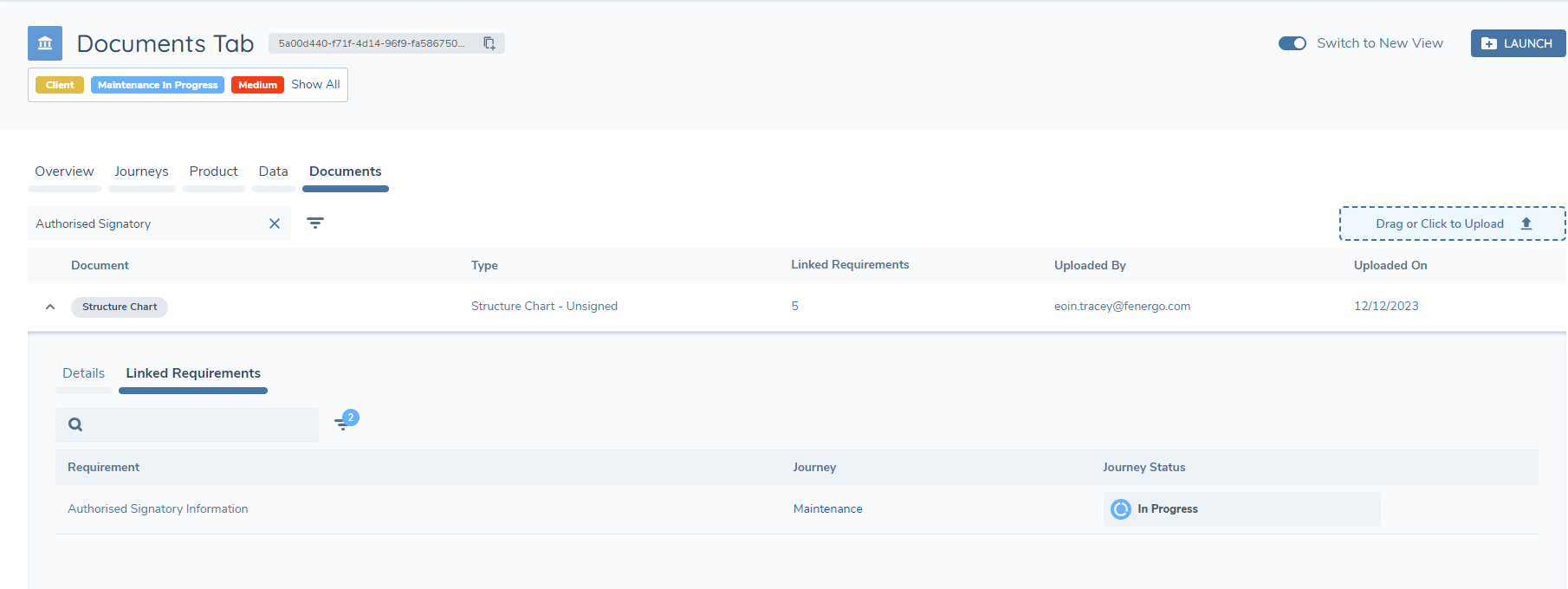
Within the "Linked Requirements" Tab, an additional Search Bar and Filters are available. Here, the Filters are:
- Document Requirement: the name of the Document Requirement, as configured in Policy.
- Journey: the name of the Journey where the Document Requirement originated. This is hyperlinked with the Journey for easy access.
- Status: the Status of the Journey where the Document Requirement originated.
The Search Bar in this context is searchable against these three above parameters. In the below example - having performed an initial search against all Documents that satisfied a Document Requirement of "Authorised Signatory Information" - a User can then refine their search within the context of the "Linked Requirements" to find a specific Document Requirement within a specific Journey, such as "Authorised Signatory Information" in the context of a Maintenance Journey:
As mentioned in the "Documents" Component section of this user guide, it is possible display an additional two columns of Document metadata within this tab, and also to utilise the Document V2 document upload modal functionality. Please see the Common Configuration in the Configuring the Legal Entity Profile Page user guide for additional details.
"Documents" Tab Document Loading
Please note this functionality is currently on non-live tenants and will be available in the near future on live production tenants.
As mentioned in the "Documents" Component section, for scenarios where an entity has a large number of associated documents, in order to allow the Entity Profile to load without delay, the first 50 documents will display in the "Documents" component. When the user selects the "View All Documents" link to navigate to the "Documents" tab, or navigates directly to the "Documents" tab, this commences the display of the remaining documents and the user will be given an indication of the load while in progress. A "Documents loading ... (Count)" indicator will display at the top of the table matching the total count at the bottom of the table. Once the load has completed, this indicator will no longer display, relecting all associated documents have been loaded.
Document Requirements when Acting as a Related Party
A legal entity in Fenergo may interact with Document Requirements in two contexts:
- a Document Requirement that is applied when the legal entity is the primary subject of a Journey. For example, a Document Requirement generated during a Client Onboarding for the legal entity.
- a Document Requirement that is applied when the legal entity is acting as a Related Party in another Legal Entity's Journey. For example, an ID&V document requirement generated for a legal entity, when said legal entity has been added as a Related Party in another legal entity's Journey.
Document Requirements that are interacted with in this first context will display as prescribed in the previous section of this user guide. When Document Requirements are interacted with in the second context, the UI view will be slightly different.
When a Document Requirement has been uploaded against a Related Party, the Document Metadata and Document Requirement name will still be visible. The "Journey" value will display as "Related Party", with the Journey hyperlinked, to recognise the context of where this Document Requirement was interacted with. Finally, the "Journey Status" value will display as a static "-", as the progression of this Journey does not hold relevance in this context. This is because the status of that Journey is applicable only for the main legal entity of the Journey, and not the current Legal Entity Profile the User is viewing.
"Investment Accounts" Tab
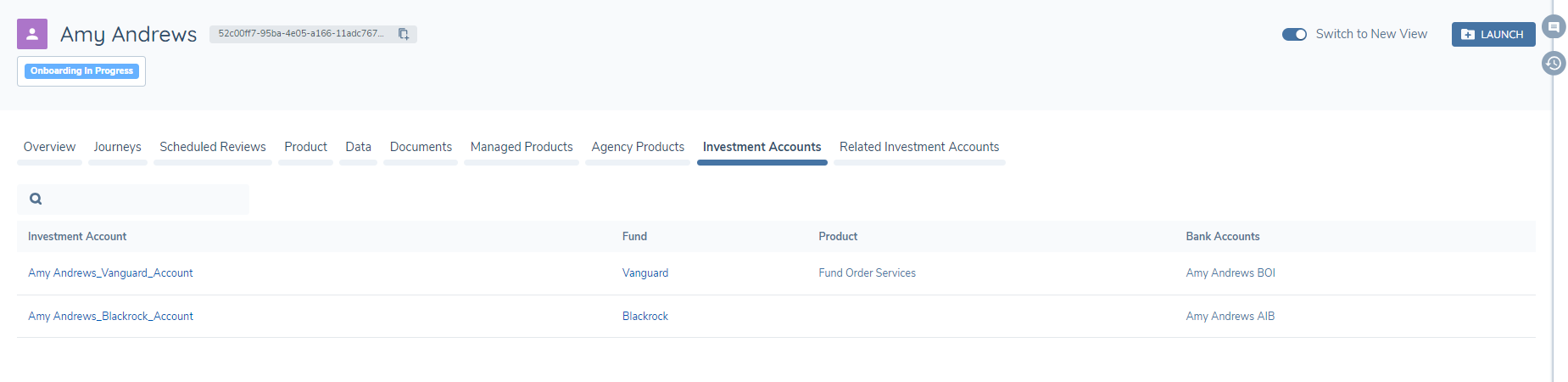
The Investment Accounts tab provides users with a view of all verified Investment Accounts associated with the Investor entity in profile, and is specific to asset servicing scenarios. This tab represents a specific relationship between the entity in profile and the Investment Account(s), and will display on the Entity Profile where Asset Servicing has been enabled within the tenant, providing a means of identifying and searching across an Investors investment accounts.
Within this tab, a table displays all verified Investment Accounts associated to the entity in profile, with the following columns:
- Investment Account
- Fund - The fund associated to the investment account
- Product - This column will display when the Product domain is enabled within the tenant and presents the product/share class associated with the linked Fund that was selected for association to the investment account
- Bank Account - The bank account of the entity in journey associated with the investment account
The Investment Account and Fund columns contain hyperlinked values so users can navigate directly to the Entity Profile of those entities, and access further information related to the entity.
"Related Investment Accounts" Tab
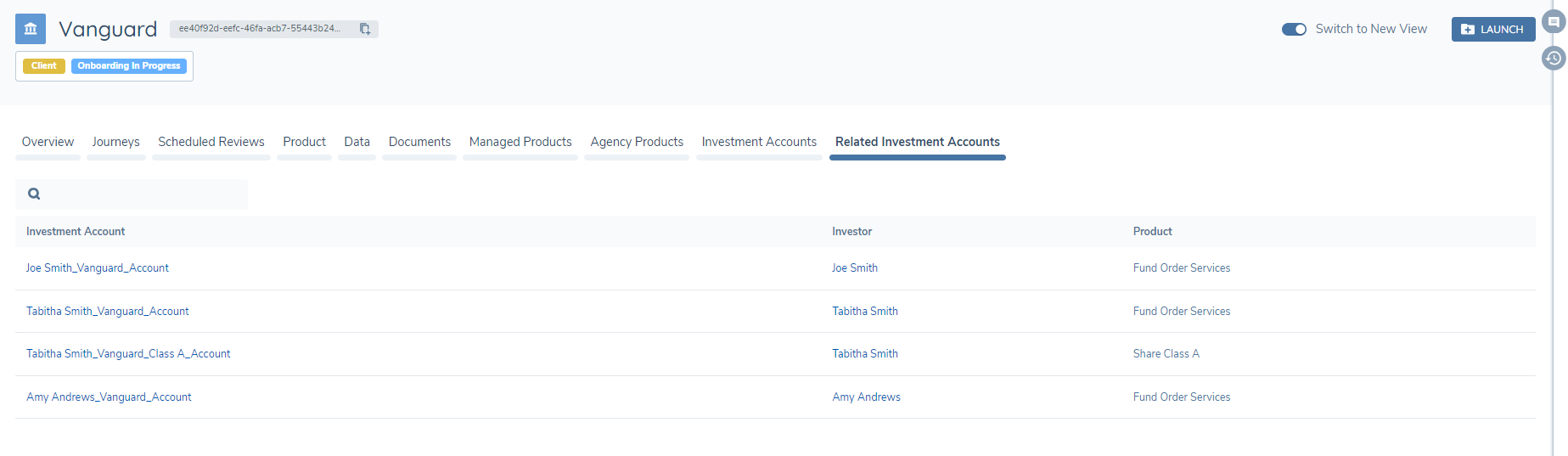
The Related Investment Accounts tab provides users with a view of all verified Investment Accounts associated with the Fund entity in profile, and is also specific to asset servicing scenarios. Similar to the Investment Account tab, this tab represents a specific relationship between the entity in profile and the Investment Account(s), though the relationship differs as this tab provides context for the Fund entity in profile and displays all those Investment Accounts to which the fund is related, providing a means of identifying and searching across an Funds associated/linked investment accounts. Also, this tab will only display on the Entity Profile where Asset Servicing has been enabled within the tenant.
Within this tab, a table displays all verified Investment Accounts associated to the entity in profile, with the following columns:
- Investment Account
- Investor - The investor associated to the investment account
- Product - This column will display when the Product domain is enabled within the tenant and presents the product/share class associated with the linked Fund that was selected for association to the investment account
The Investment Account and Investor columns contain hyperlinked values so users can navigate directly to the Entity Profile of those entities, and access further information related to the entity.
Pagination is in place within this table to cater for large numbers of Fund associated Investment Accounts. Please note the search functionality will apply to those values displayed within the current page view.
Support of the Previous Legal Entity Profile View
The improved Legal Entity Profile will now be the default landing page for all legal entities in the application for all tenants except live-production Tenants. This means that for those Dev, UAT, SIT, PreProd Client tenants, the UI will default to the redesigned Legal Entity Profile.
To assist with the transition for Users in adjusting to the new view of the Legal Entity Profile Page versus its previous UI, we have introduced a temporary toggle that is visible on the header of all legal entities within Fenergo. This toggle is titled "Switch to New View” and is set to active by default. Should a User wish to access the previous UI, they can deselect this toggle and will be brought to the previous view of the Legal Entity Profile.
For those aforementioned live-production tenants that the Client's end-users will be using, the behaviour is slightly different. The UI will default to the previous Legal Entity Profile view. The redesigned Legal Entity Profile will be accessible through the same toggle mentioned above, with the toggle being set to inactive by default.
If you wish to make the redesigned Legal Entity Profile UI their default view in their live-production tenant, reach out to your respective Product Manager. Once this request has been confirmed, the engineering team will make this change in behaviour.
Exporting the Entity Profile Page
Various information collated on the Entity Profile can now be exported onto a PDF document. Information available for export includes:
- Entity Data
- Journeys
- Related Parties
- Products
- Documents (Document Metadata + Document Files).
- In Scope Policies
- Access Layers
To enable this feature the “Entity Profile Export” permission must be granted. There is no other configuration required for this feature. Once this permission is activated, a vertical ellipsis will always be visible at the top right of a profile, to the right of the Launch button.
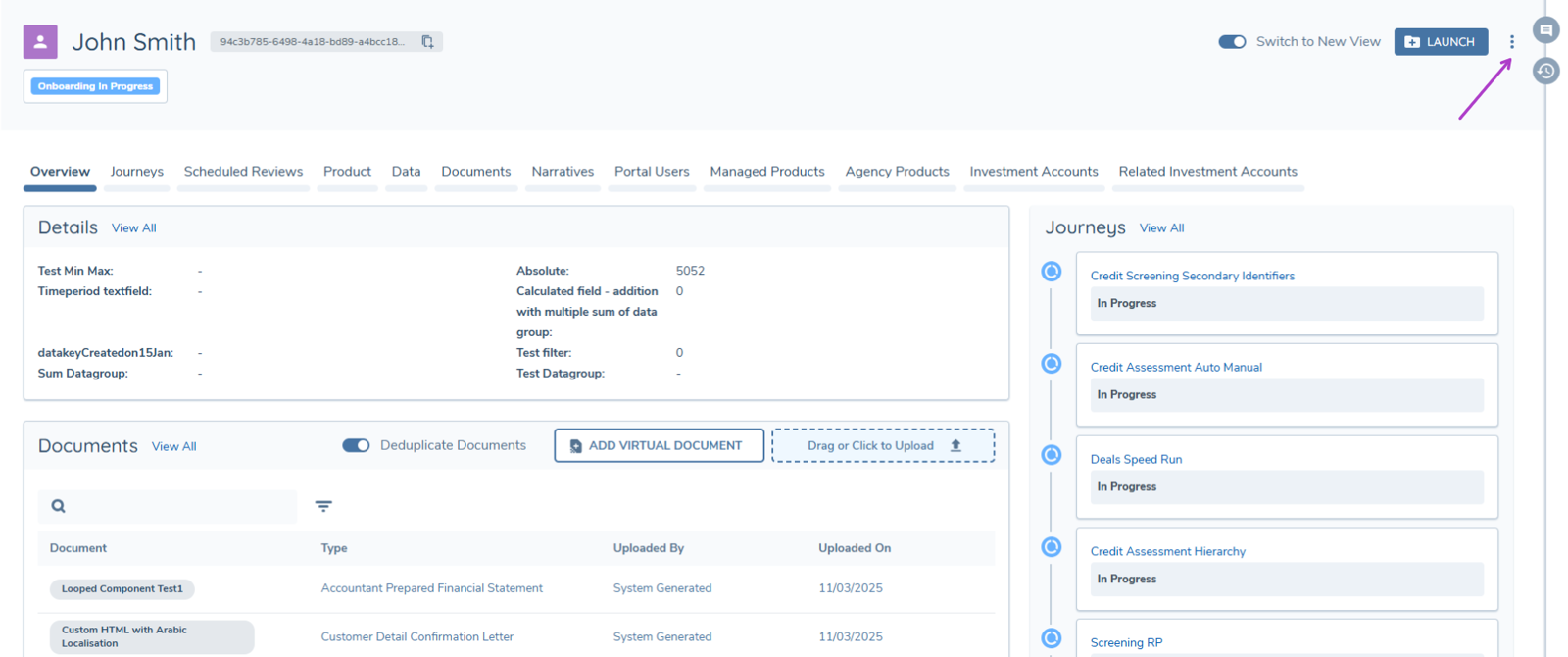
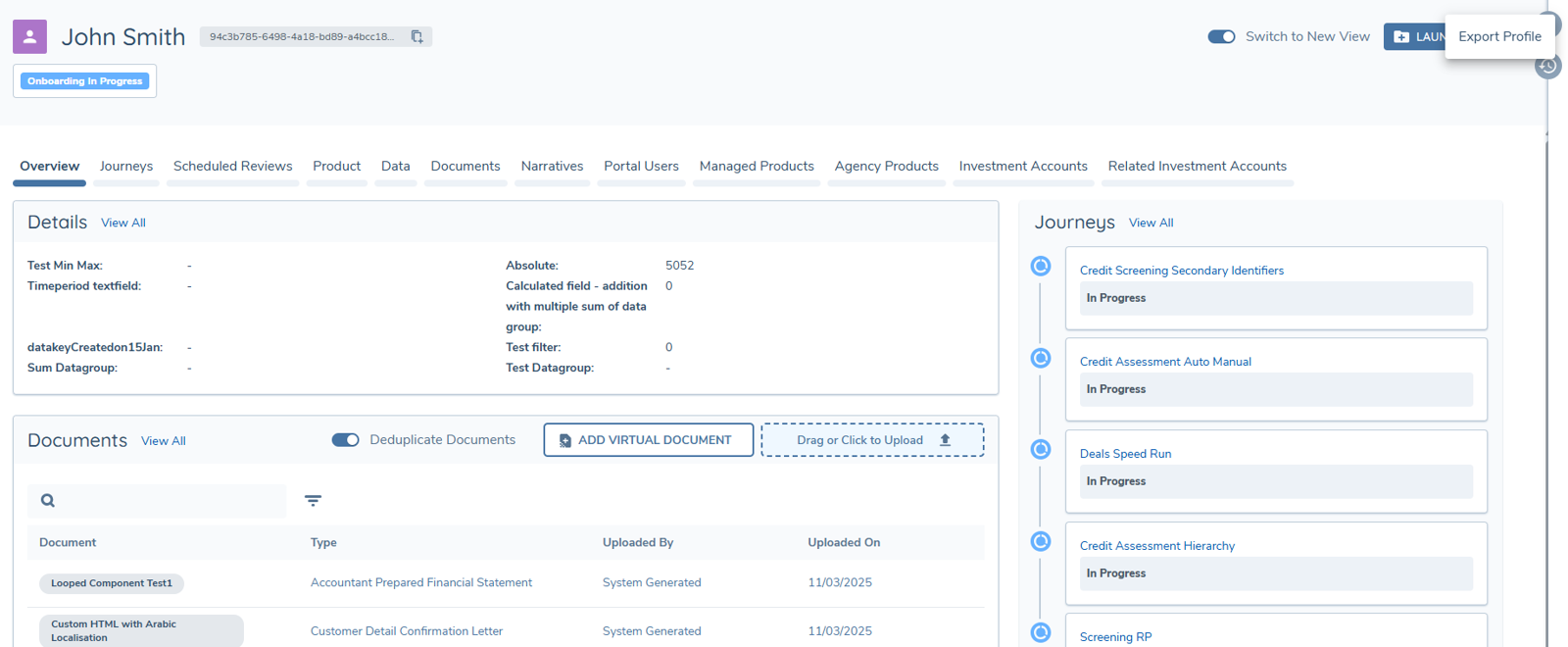
Clicking this will bring up the option to export the profile.
Once this button has been pressed, a Print Preview view from within the UI will be displayed for the user to review. The order of the information will always be in the order that has been listed at the start of this user guide. Additionally, all information available on the profile will be prepared for export.
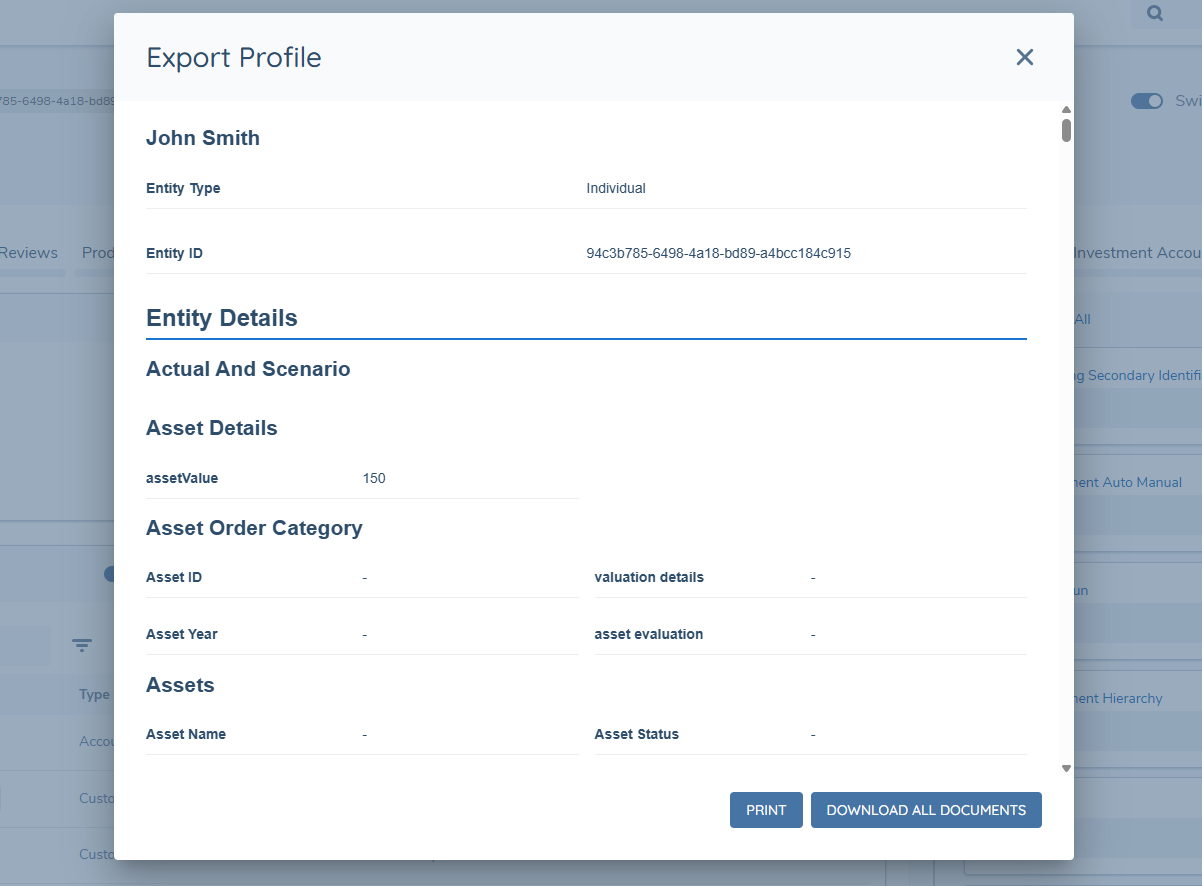
At this point the user has the option to “Download All Documents”, if there are any documents either uploaded or generated against the entity. Pressing this button will download all documents on the profile in a ZIP format to the user’s local device. If no documents are uploaded/generated for the entity, this button will not be usable.
Once the user is ready to export the profile and presses print, they will be directed to their browsers Print Preview view.
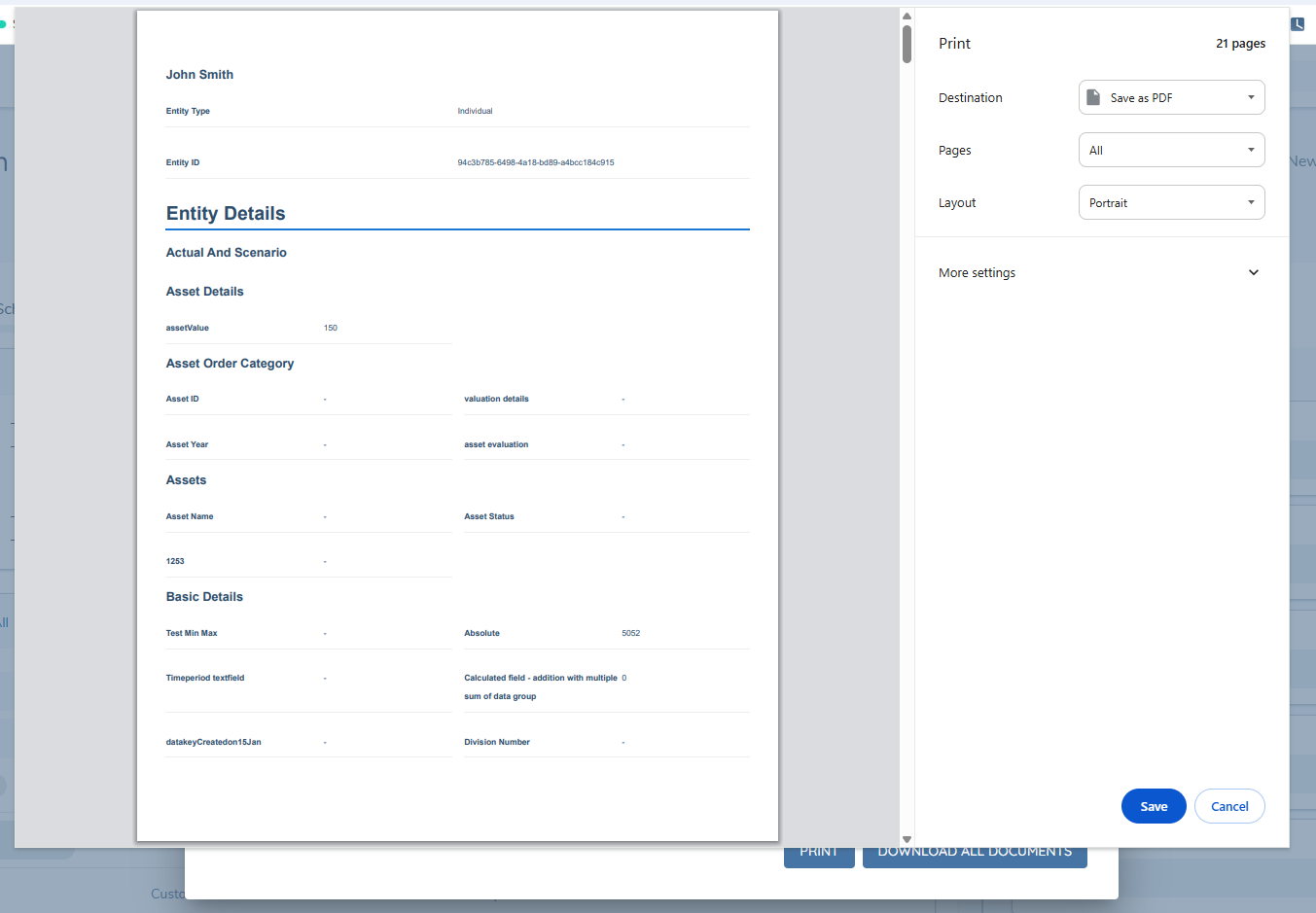
From here the user is able to determine their desired print settings, including layout, margins and scaling. For a 1 to 1 likeness between the initial print preview view from the UI and the browser view, it is recommended to turn on “Background Graphics”. This will ensure that tables and chips present in the same styling format as the platform UI.
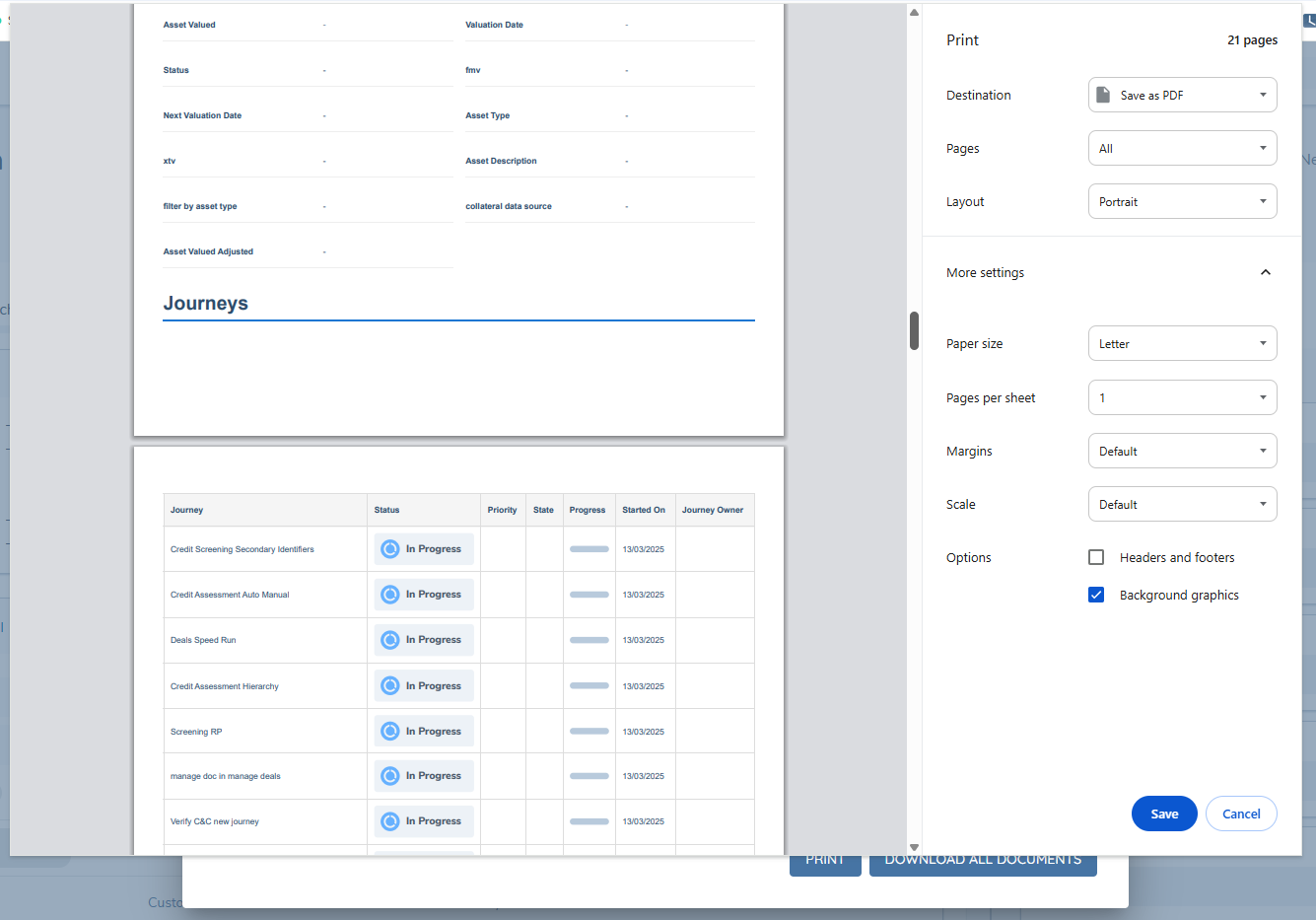
Once settings have been determined the user is free to save or print as expected.
Entity Profile Page Export Considerations
- Customised styling and branding is not available for the Entity Profile Export. If any data is desired in a custom format or with custom branding, Document Generation should instead be used. Please refer to the Document Generation User Guide for more information
- The Related Parties section will also specify the Percentage Ownership value and PEP Status for each related party. This is in addition to the standard 3 columns available on the Entity Profile.
- The Products section will not specify the Journeys, Related Parties or Documents associated with each Product. The table will instead specify the standard fields seen in the Products Table, along with the configured secondary identifiers (if applicable). Essentially a 1-to-1 copy of the overall Products Table on the Entity Profile.