Using Shared Data
Shared Data Templates
Shared Data Templates are used to capture the Data, Documents and Related Parties that can be shared between a Parent Entity and an Entity Group, or Entity Group and its Child Entities. It is an essential piece of the Fenergo SaaS data sharing process for Entity Groups.
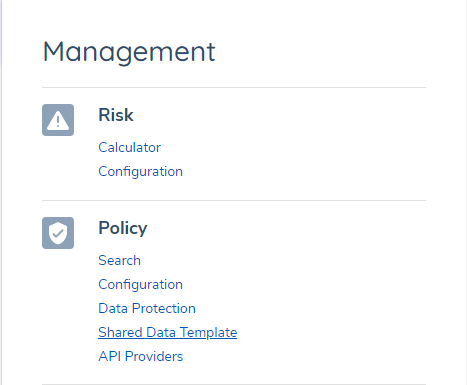
Once the User has the requisite permissions, they can access the Shared Data Template screen from the Management icon, under the Policy domain:
Creating a Shared Data Template
To create a new Shared Data Template, the User can select the "+ADD" button. Doing so will bring them to a blank Shared Data Template, where they will be required to populate three mandatory fields: Template Name, Description and Policy. The first two fields are free-text, whereas the third field is a multi-select that will allow a Configurator to select the Policy or Policies that they wish to build the Shared Data Template around.
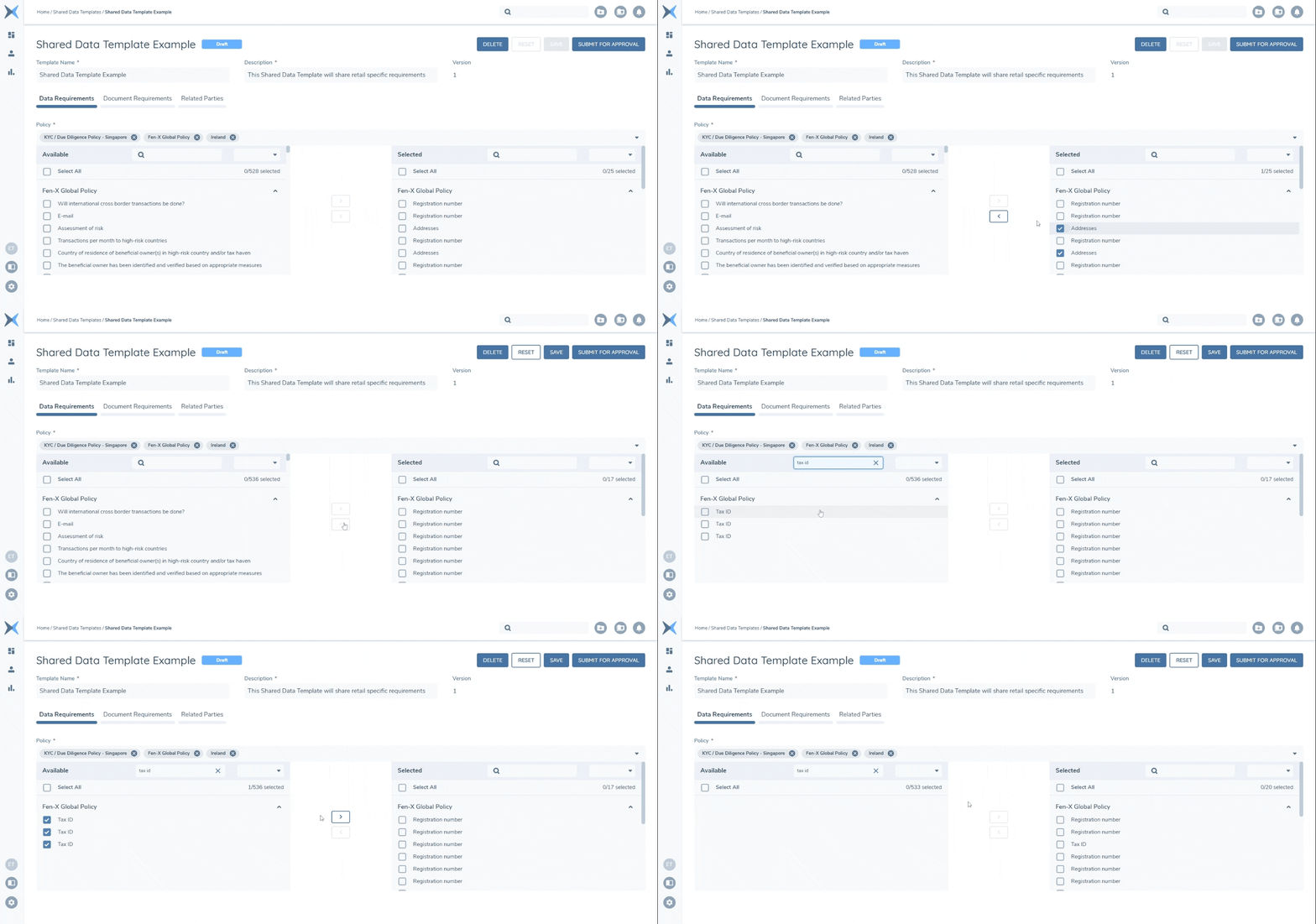
Once the User has populated their Name and Description, they can select the Policy they wish to include in the Shared Data Template. The Policy selected will appear in the "Available" Transfer List on the left-hand side. These represent the Data & Document Requirements as well as the Related Parties Association Types that are available for the User to bring over into the "Selected" Transfer List on the right-hand side. A User can select the relevant items they wish to include in this Shared Data Template by selecting each item and selecting the ">" button. They can also use the ‘Select All’ function to transfer the current Data, Document or Related Party requirements across to the “selected” Shared Data Template.

In the above gif, it can be seen that multiple "Registration Number" Data Requirements appear in the "Selected" Transfer List. This is because the Shared Data Template operates at a datakey level. Once a User has selected a datakey to be brought into the Shared Data Template, all instances of this datakey, across all Policies and regardless of differing UI labels for the datakey, will be brought into the "Selected" Transfer List. The same behaviour is observed when the User looks to remove a Data Requirement. The same flow is followed for Document Requirements and Related Parties. The only distinguishing difference here is that for the “Related Parties” tab, we are selecting the Association Types we wish to include in our Shared Data Template, rather than a specific O&C Requirement.
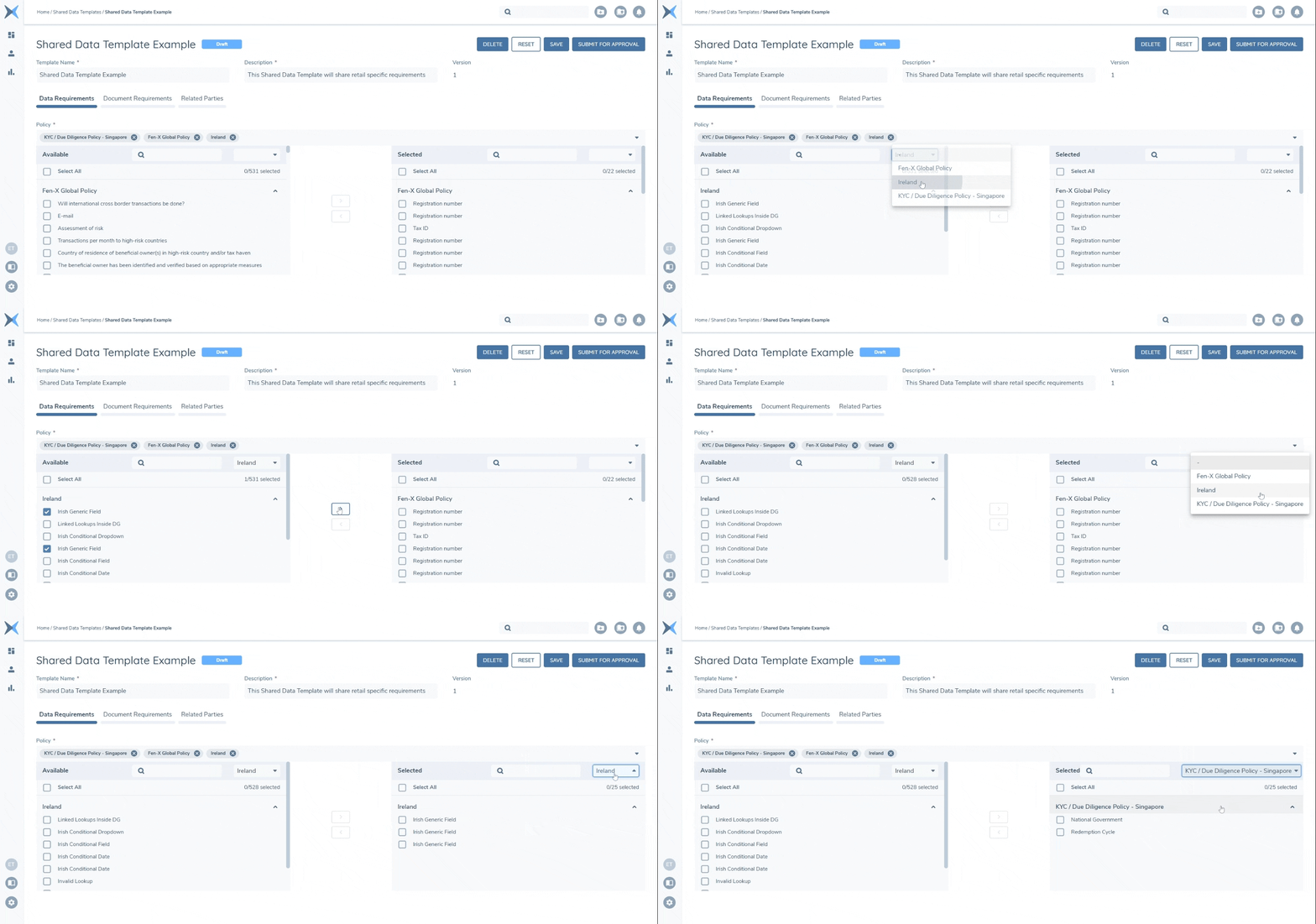
When multiple Policies have been selected in the "Policy" field, the Data and Document Requirements in both Transfer Lists will be organised by the Policy they belong to. A Configurator can scroll to find the requirements under the relevant Policy or perform further filtering by selecting the dropdown visible in the top-right of each Transfer List. Selected Related Parties will not be filtered by a Policy, as they all sit within the one “Relationships” lookup.
Once the User has selected the Requirements they wish to include, they can submit and publish their Shared Data Template. It can now be used for our Legal Entity Group.
The same process will be followed for adding Document Requirements and Related Party Association Types to the selected Shared Data Template.
Data Sharing
Data Sharing as a concept works on the premise that a value that is populated on a datakey for a Company, Individual or Other also exists for a Legal Entity Group, and that this Datakey (represented by a selected Data Requirement) is captured in a Shared Data Template being used in a Journey. This captured value on a datakey can then be propagated from one legal entity to another, such as from a Company to a Legal Entity Group.
For example, if we wish to share a "Products" datagroup collection between a Legal Entity Type of "Legal Entity Group" and "Company", a Configurator should create a "products" datakey that exists for both Legal Entity Types.
Therefore, it is essential that before configuring a Shared Data Template, that a User first configures the exact same datakey for the respective Legal Entity Types that are going to be included in the eventual template. Effectively, if there any requirements that you want to have data sharing enabled for, you need to make sure that these datakeys exist for Legal Entity Group and your Company / Individual / Other Legal Entity Types (as applicable).
Please note that when sharing data down from a Parent Entity to an Entity Group, or Entity Group to Child Entity, that only fields that are in-scope for the recipient will be shared. As an example, if the Parent Entity had a field from an "Ireland" Policy that was defined within the Shared Data Template, but the Entity Group was not in-scope for this Policy, this field and its value will not be shared down. Similarly, if there is a trigger condition that the recipient is not in scope for, this datapoint will not be shared down. This ensures that the Entity Group or Child Entity will only ingest the fields that they are in-scope for via trigger conditions (either at the policy or data requirement level).
Document Sharing
The same flow for Data Sharing is seen for Document Requirements. However, a key difference is that Documents are versionless in Fenergo SaaS. There is no concept of draft versus verified Documents. This means that when Documents are shared across legal entities, those Documents will appear immediately on the verified Legal Entity record in the Documents panel as well as in the relevant requirements in the Documents task in the Child Journeys.
Related Party Sharing
Related Party Sharing works slightly different in that they are not directly tied to Policy. Instead, users will see all the Association Types configured in a given Fenergo SaaS tenant, as per their latest published “Relationships” lookup.
Bulk Entity Management
Shared Data Templates will allow for a common set of data, documents and related parties to be shared down to each of the Child Entities as appropriate, based on what the user has configured to appear in that template. This ensures uniformity in the information being sent to each Child Entity from the group level.
As all the Child Entities belong to the same Entity Group, we can assume that these Child Entities also share some similarities to other Child Entities. If there was a scenario where we want to share a piece of information - such as a "Country of Operation" - to some of the Child Entities but all, shared data templates will not suffice. Instead, a user would be required to input that some piece of data, or attach the same related party, to each Child Entity in their dedicated Journey.
Bulk Entity Management solves for this use case by allowing a user to write specific data or create unique associations between their selected Child Entities. It grants the user the ability to send information to a subsection of their Child Entities within a single interaction, from the context of the Entity Group. This will allow for streamlined selective data and related party sharing for the Child Entities in your Entity Group.
Configuration of Bulk Entity Management
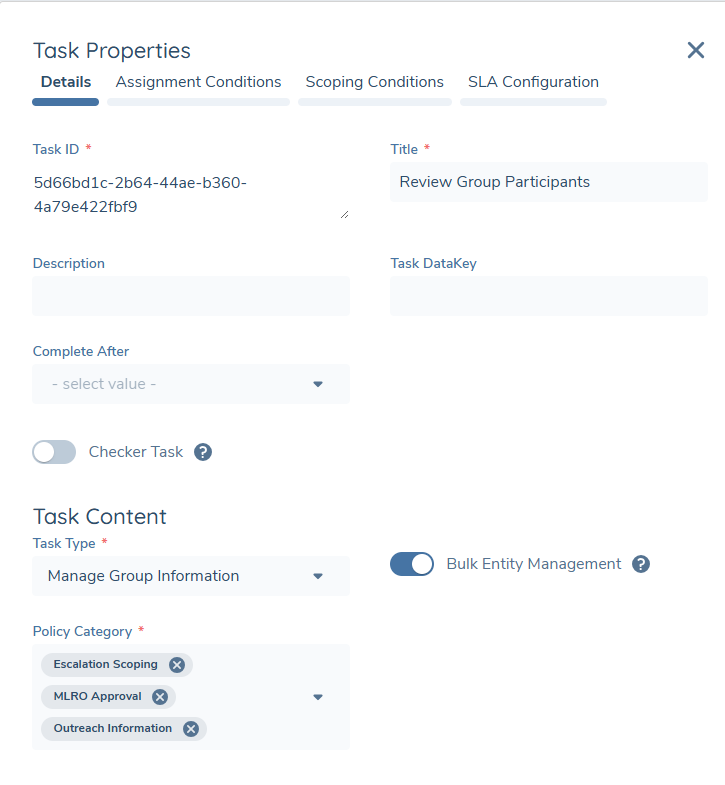
To adopt Bulk Entity Management of your Child Entities, a new toggle has been introduced on the "Manage Group Information" Task Type. This is aptly titled "Bulk Entity Management". This new configuration option will have a tooltip alongside it, that will state "When enabled, this allows a user to bulk edit data & related parties for the child entities of an Entity Group".
Selecting this toggle will also present another field, titled "Policy Category". This is a multi-select dropdown, with a selection limit of up 5 policy categories. This will determine the Policy Categories that are displayed within the Selective Data Sharing modal.
Important Note: Selective Data Sharing and Selective Related Party Sharing are coupled together with this toggle. It is not currently possible to only take on one of these capabilities, as they are packaged together.
Selective Data Sharing
Assuming the User has configured Bulk Entity Management, they will now be able to bulk edit data for their Child Entities from the context of the Entity Group's "Manage Group Information" task type. To do this, a user will be required to select the designated Child Entities via the checkboxes visible in this task.
After doing this, users will see a pencil icon, with a tooltip titled "Edit Entity Data". Selecting this icon will present the Edit Data modal. In here, we will fetch the Policy Categories selected in the above configuration.
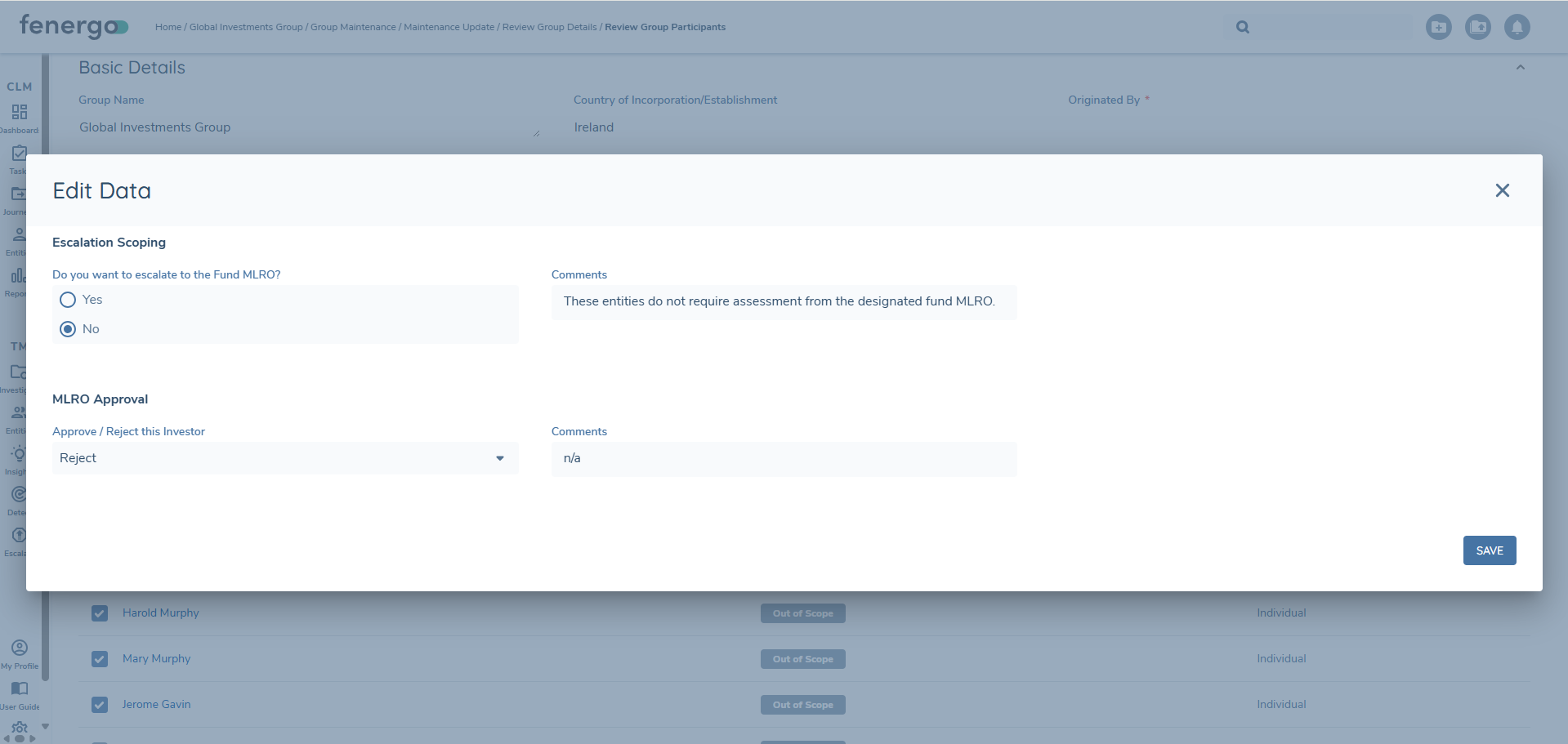
After providing all of the required information, a user can hit "Save", where they will be presented with a confirmation modal. This confirmation modal will update in real-time, telling the user when each update to the required Child Entity is completed. This is indicated in the UI from the icons accompanying each Child Entity going from blue to green.
If applicable, this action will bring the Child Entities into scope for a Journey. Please see Selective Journey Launching Section on the Using Legal Entity Groups User Guide for more information on this functionality.
Finally, please be aware that bulk editing this data for your selected Child Entities does not apply immediately. Instead, we store this information that should be written against Child Entity and apply it when their Journey is created via the "Entity Group Updates Launchpad" task.
Below are some key callouts on utilising this functionality:
- Policy Validation is applied here. A User must satisfy any validation presented in the modal.
- Conditional fields can be displayed here. However, the conditionality of these fields will be based off of the information the user is providing within the modal.
- Data Groups and Rich Text Editor field types are not supported.
- As mentioned, the configurator can specify the Policy Categories that appear in this modal. Whilst existing Policy Categories can be re-used here, one suggested configuration would be to create new data requirements in your policies where shared datakeys are copied across into a singular cateogry (e.g. "Shared Group Information" policy category that contains datakeys from other policy categories in your tenant).
- Selective Data Sharing can be layered on top of Data being inherited from the Shared Data Template. When the Journey for the Child Entity is created, we will first apply the Selective Data Sharing information onto the entity-draft. The information from the Shared Data Template will then be ingested when the "Auto Group Updates" task runs.
Selective Related Party Sharing
Assuming the User has configured Bulk Entity Management, they will now be able to bulk edit related parties for their Child Entities from the context of the Entity Group's "Manage Group Information" task type. To do this, a user will be required to select the designated Child Entities via the checkboxes visible in this task.
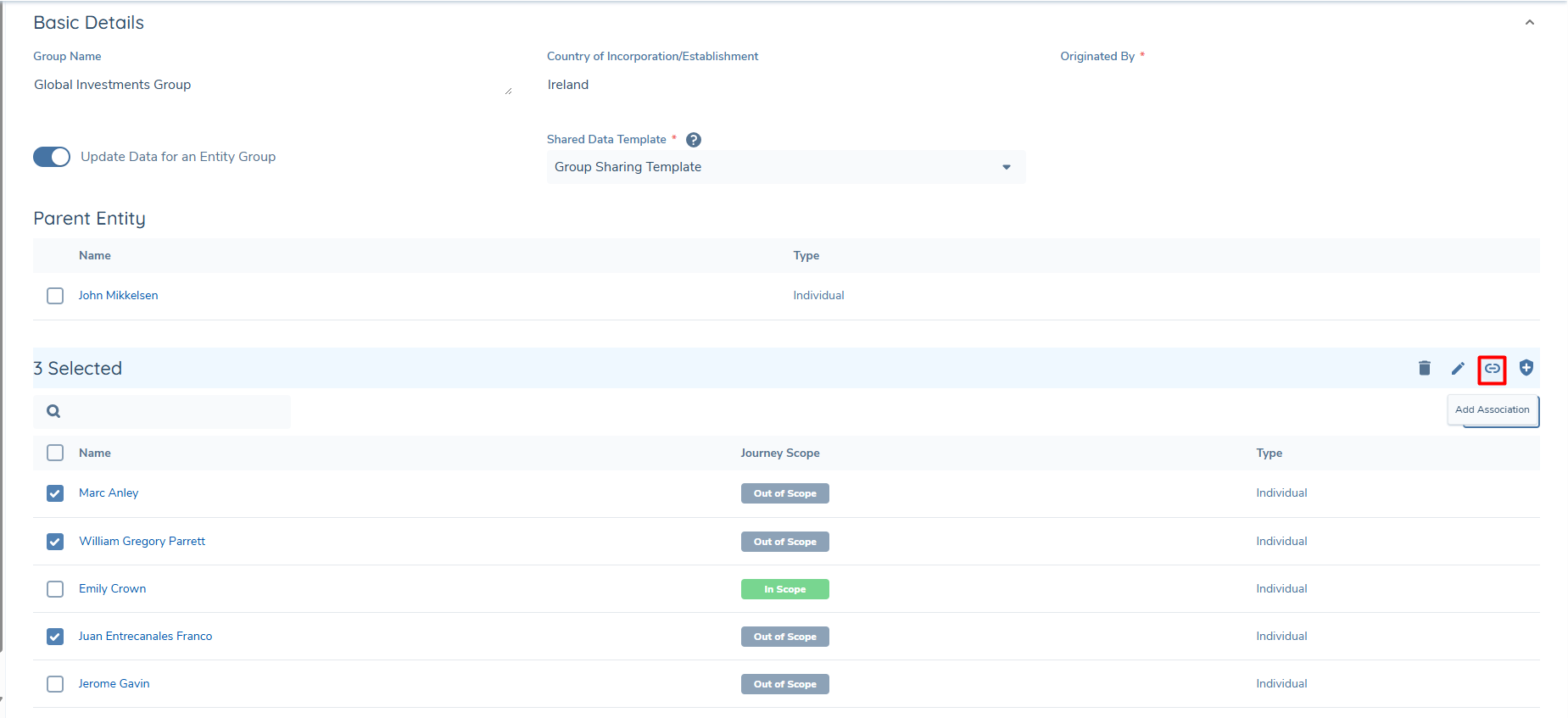
After doing this, users will see the link icon, with a tooltip titled "Add Association". Selecting this icon will present the Add Association modal. This modal will resemble other similar ones found in the system, such as in the "Related Parties" task.
A user will first be required to perform a search against an Entity Type of "Individual", "Company" or "Other". After finding their match, they can select the Related Party they wish to link against and select "Continue" within the modal.
Once selecting their Related Party, the user will now need to define the Relationship between the Related Party and the Child Entities. Any other information configured against the "Relationship Details" Policy Category will also display here, such as "Ownership Percentage". Once they are done, they can select "Link".
A user will then be presented with a confirmation modal. This confirmation modal will update in real-time, telling the user when each association has been created. This is indicated in the UI from the icons accompanying each Child Entity going from blue to green.
Important Note: Associations created through Selective Related Party Sharing are immediately verified.