Using Legal Entity Groups
The Legal Entity Group functionality in Fenergo SaaS will allow users to create Group constructs in the system to display and manage legal entities that share common information. Legal Entity Groups will solve for various business problems including the ability to provide one central location showing all legal entities in Fenergo SaaS that may share common information points.
It allows clients to organize legal entities that fall under a "group" organization structure (Investment Managers, Subsidiary Hierarchy). It will also provide the facility to bulk manage information relating to legal entities. We will treat Groups in a similar way to how we treat other legal entities in Fenergo SaaS; you will be able to create and search for Groups as well as complete Journeys for Groups. This will allow us to easily add or remove legal entities to and from a Group as well as enable Data Sharing across legal entities within a Group.
Grouping Task Types
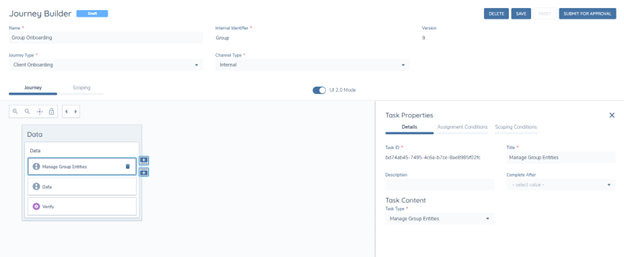
To support Legal Entity Groups in Fenergo SaaS, the following new task types are now available in Journey Builder:
Manage Group Information
This task type will give Users with the ability to add or remove legal entities to and from a Group, including selecting which of those legal entities should act as the 'Parent' or 'Child' within that Group.
- Parent: Acts as the Primary source of information for a Group – used to reduce the amount of re-keying of information when creating a Legal Entity Group, in the scenario where an existing legal entity within a client's tenant already has the information available for use. Users can add this legal entity to the Group as a Parent and pull in the required information.
- Child: Acts as the inheritor of information being shared from the Group – used to reduce the amount of re-keying of information when Onboarding or completing Maintenance on a legal entity that shares common information with other legal entities in a client tenant.
A Group may only have one Parent, but can have many Child Legal Entities.
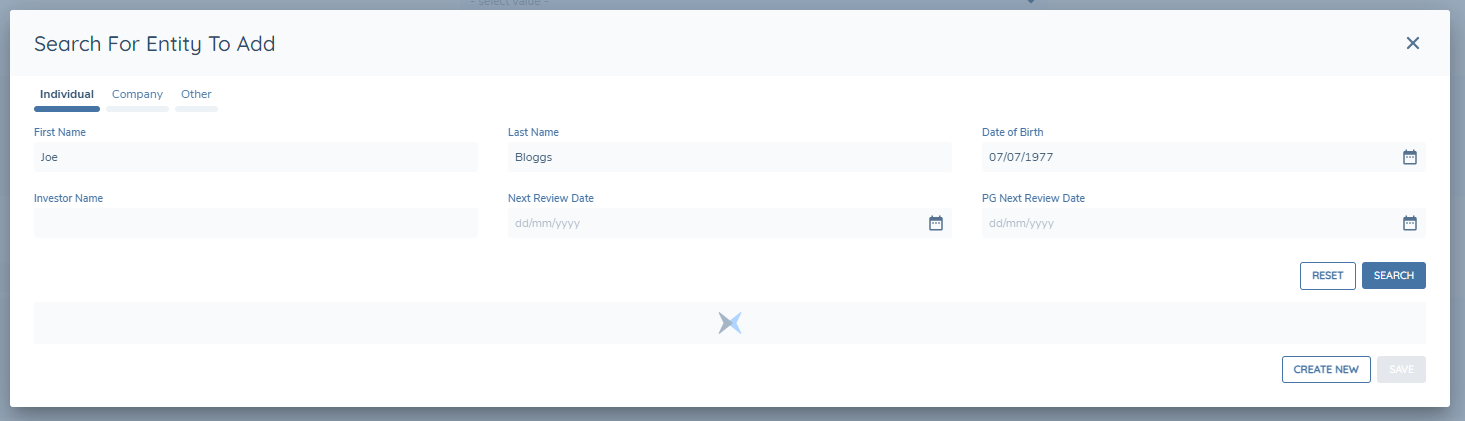
A User can look to add a Parent Legal Entity or Child Legal Entity by selecting the relevant "+ ADD" button within the "Manage Group Information" Task. Selecting either button will present a modal where the User can perform a Search for the legal entity they wish to add via the fields configured in "Advanced Search". After a search is completed, the User can interact with three options:
- Create New: The User can create a new legal entity if they are satisfied that it does not exist in Fenergo SaaS.
- Add Another: After the User has selected an legal entity, they can add the Child Legal Entity to the Group and then complete a re-search or add additional Child Legal Entities still within the Modal. Note: this button is only available when adding Child Legal Entities due to the limitation of one Parent Legal Entity per Group.
- Save: After the User has selected a legal entity, selecting "Save" will add the legal entity and closes the modal.
When editing Child Legal Entities via the modal, a maximum of 200 can be selected at one time. The All option is no longer available in the rows-per-page selector within the modal; available options are 5, 10, 25, and 100.
The User can bulk edit Child legal Entities (add or delete dependent on context of selection) by multi-selecting the checkboxes next to the returned legal entities within the modal, or selecting the Child Legal Entities from the grid displayed, and then selecting the trashcan icon. The User can also search for an existing Child Legal Entity via the search bar above this grid.
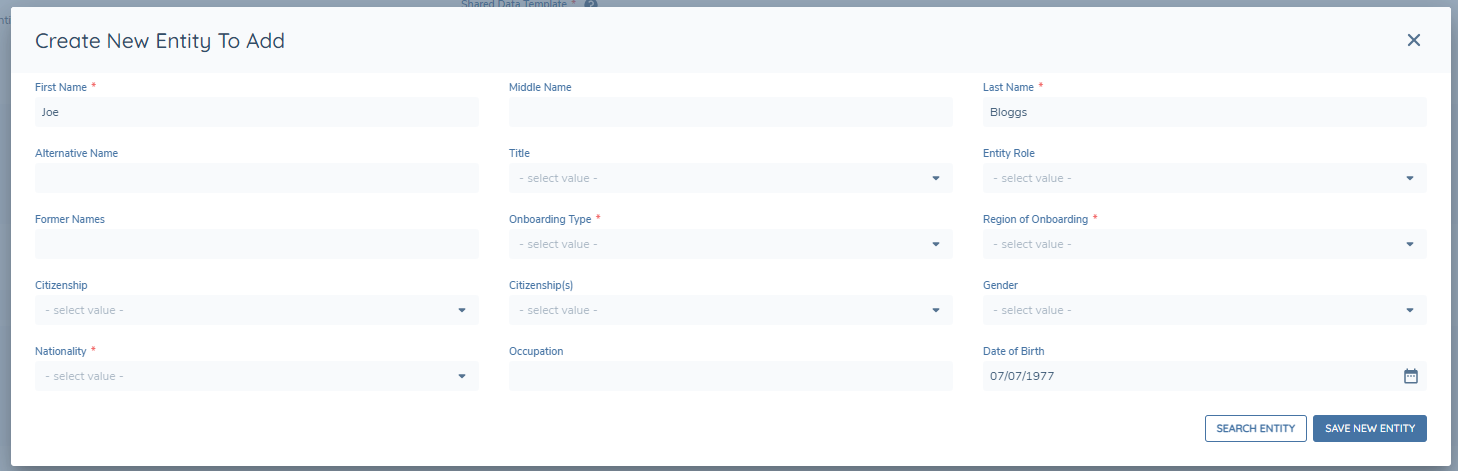
When a user inputs search criteria in the 'Search For Legal Entity To Add' modal fields (within the Manage Group Information task) but doesn't find their desired legal entity, they might want to create a new legal entity. In such cases, the values inputted to these fields will be automatically transferred to the 'Create New Legal Entity To Add' modal. This feature aims to save the user time by minimising the need to re-enter the same information.
The addition of unverified Child Legal Entities and a Parent Legal Entity are now snapshotted per Journey. This will mean that when a User navigates into the Manage Group Information task, they will see:
- The unverified Child associations, that were added in the context of the current Journey.
- The current verified Child associations, that were added and verified across other Journeys (past and present) of the Group.
- The current verified Parent association. This behaviour is more unique, as Legal Entity Grouping only allows for one Parent per Group. If there have been concurrent Journeys, where each Journey had a draft Parent association - the verified Parent will be that Parent association which was verified first, via the "Verify Group Associations" task type in its respective Journey.
Child and Parent group associations that have been "deleted" within the Manage Group Information, will only have their group associations fully deleted when the "Verify Group Associations" task is completed in the Group Journey. This follows the same process as an unverified Child or Parent association only becoming verified, upon the "Verify Group Associations" task being complete. A group association that is to-be-deleted is only "verified" as being deleted under the same logic.
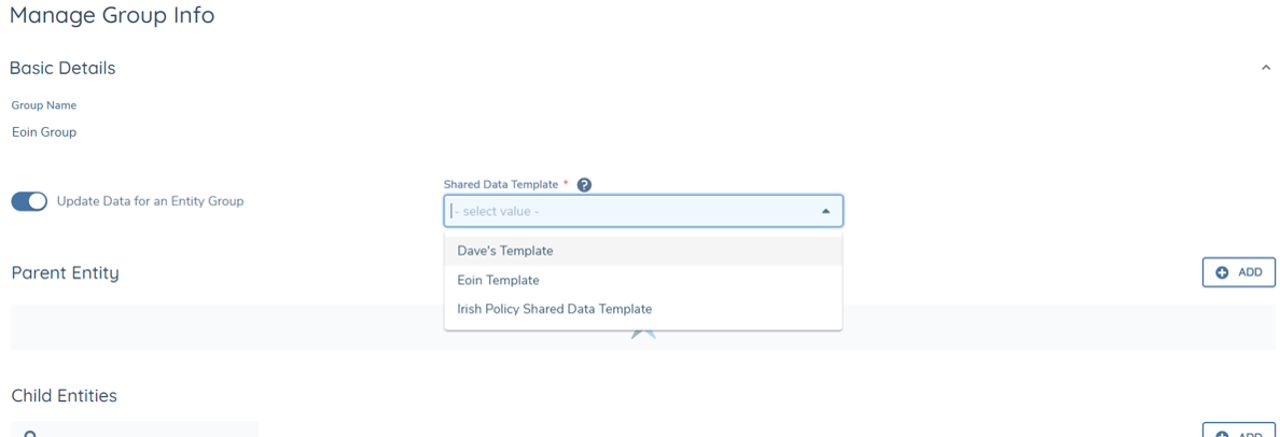
Within the "Manage Group Information" Task, there is a mandatory "Shared Data Template" field. This field allows a User to select the Shared Data Template to be used for the given Journey, which will dictate the Data, Documents and Related Parties that can be shared between Parent and Group and then Group to Children. Selecting this field will display the latest version of the Published Shared Data Templates within the tenant.
The "Shared Data Template" selection is included as a property of the Legal Entity Data Draft. The selected template will be verified during the "Verify Legal Entity" Task. This will mean that when a new Journey is created, the last verified Shared Data Template will persist in the "Shared Data Template" field.
Shared Data Templates are covered in more detail in Using Shared Data.
Manage Group Membership
This task type (not to be confused with Manage Group Information) provides clients with the ability to add or remove a legal entity to or from a Group in Fenergo SaaS. The use case for when this task type should be used is when a Client wishes to onboard / update a legal entity by adding them to a Group and pulling in the latest verified information from that Group.
Previously, to do this, Clients were required to launch a Group Journey to update the relationships within the Group (which in this case, was just adding one new legal entity). The issue with this approach for this particular scenario is that in this Group configuration, Clients may then end up launching unnecessary update Journeys for all of the Child Legal Entities within that Group.
Important note:
When using this task type, Clients will be adding the legal entity as a Child Legal Entity and not a Parent Legal Entity. The reason for this is that only Child Legal Entities can pull in information (Data, Docs and Related Parties) from a Group Legal Entity and Parent Legal Entities cannot. To add a legal entity to a Group as a Parent Legal Entity for that Group – users will be required to launch a Group Journey, go to the Manage Group Information task and update the Group relationship structure there.
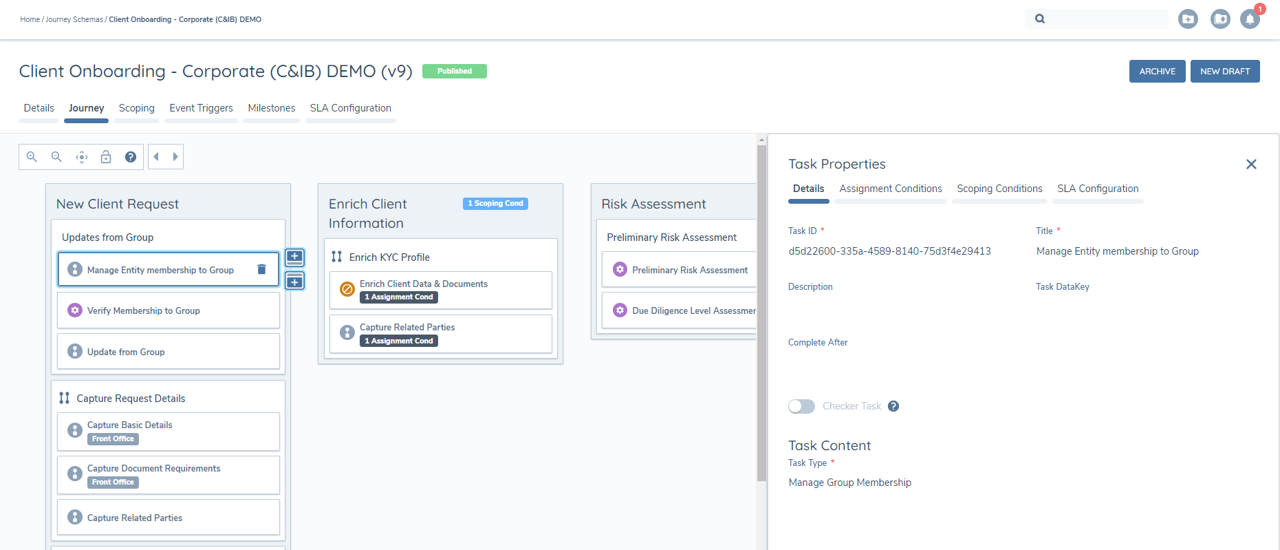
When this task type is used in a Journey, it will display any Groups that the legal entity in question is a verified member of. It will also provide the ability to 'Link' to a new Group:
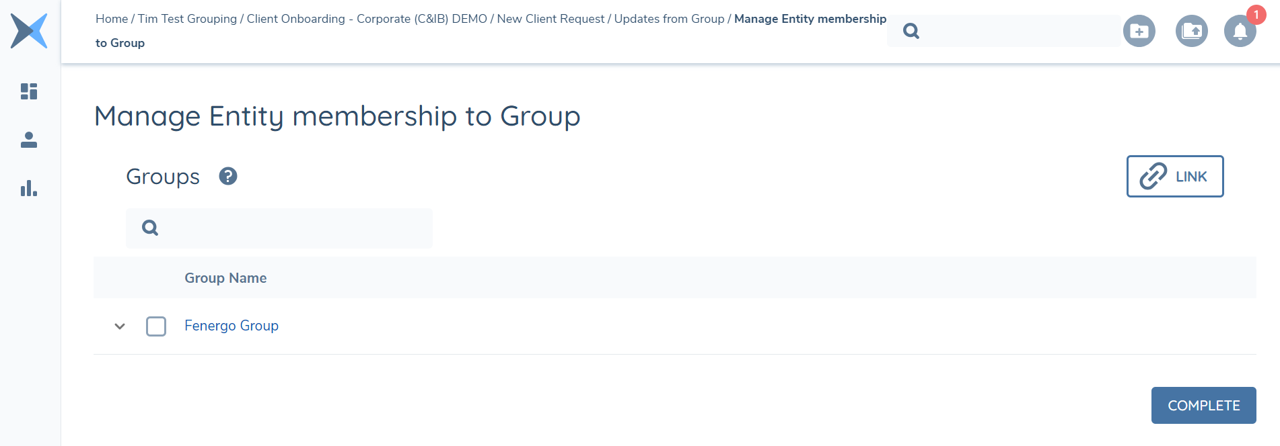
Once the user selects 'Link', they will be presented with a modal to search for any existing Groups within the system to add the legal entity to. The user will search using any Legal Entity Group fields that have been Indexed in the Global Policy (similar to Advanced Search or the Manage Group Information Task):
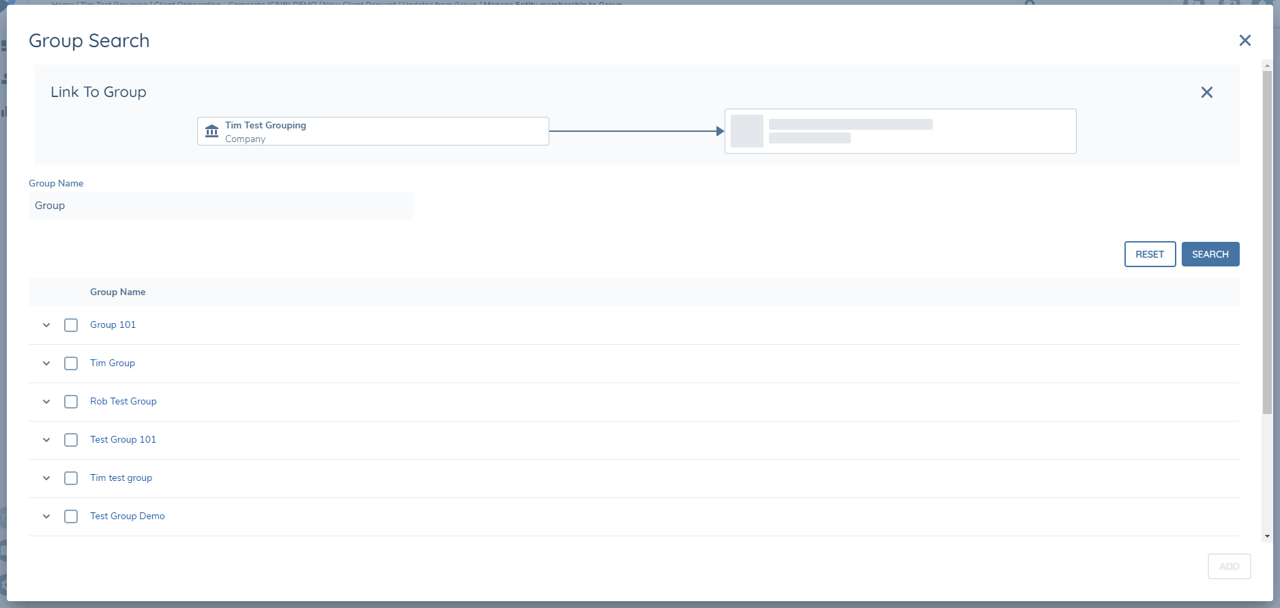
Once legal entities have been selected, the Link to Group graph at the top of the modal will update to show the new draft relationships between the legal entity and the Group(s):
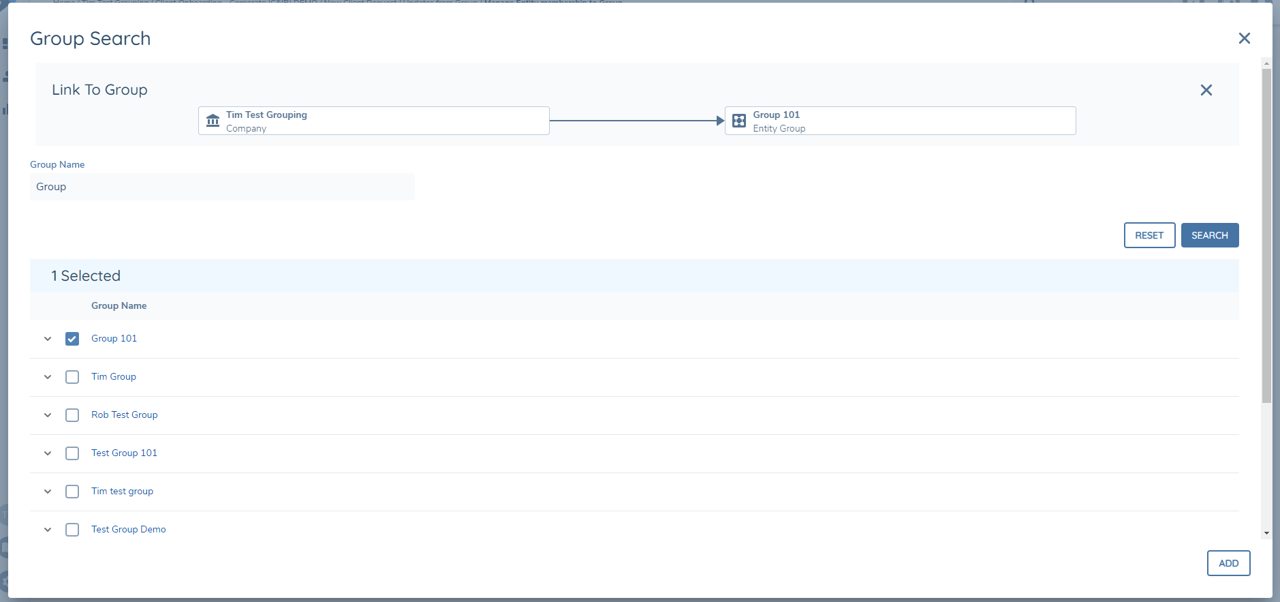
Once the user confirms their new Group relationships by selecting the 'Save' button, the draft association between the legal entity and the chosen Groups will be confirmed:
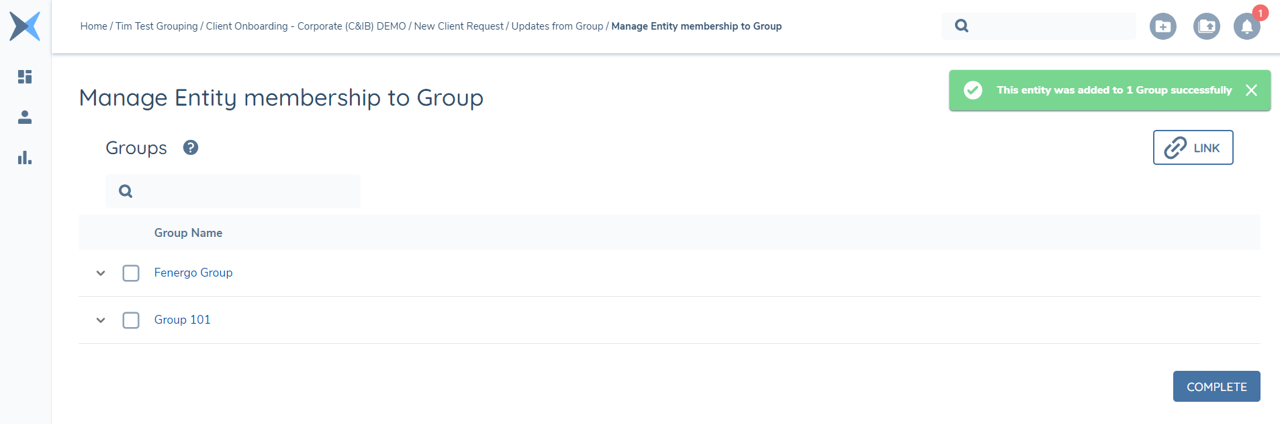
Recommended flow to use this Task Type:
This Task Type will cater for the scenario where Clients wish to add a legal entity to a Group and pull in the latest verified information from that Group. In order to achieve this, Clients will need to use this task with the Verify Group Legal Entities Task Type and the Manual Group Updates task. The reason for this is that once the user adds the legal entity to a Group, a draft Association will be created. The system needs to verify this relationship before any data can be shared between the Group and the legal entity.
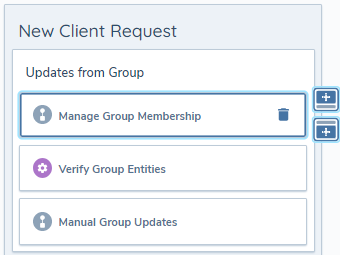
Verify Group Legal Entities
When we add a legal entity to a Group in Fenergo SaaS, we create a Draft relationship between the legal entity and the Group. The "Verify Group Legal Entities" task type can be used to Verify this relationship between Child / Parent Legal Entity and the Group. This task will act in a similar way to the "Verify Related Party Associations" task type. A Group Journey will still need to contain the "Verify Legal Entity" task to Verify the Data recorded against the Legal Entity Group. The "Verify Group Legal Entities" Task only verifies the relationship of the Parent and Child Legal Entities; not the Legal Entity Data of the Group.
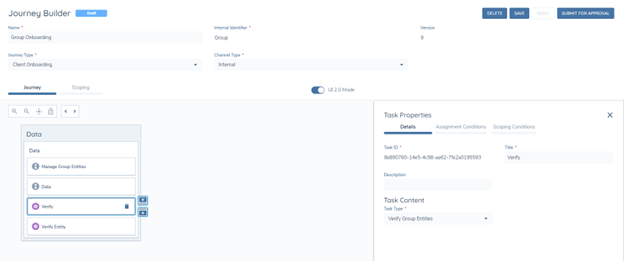
Auto Group Updates
The Auto Group Updates Task is a service / system task that is used to share the information defined in a Shared Data Template between either the Parent Legal Entity and Legal Entity Group, or Legal Entity Group and Child Legal Entities. It has two purposes, dependent on the context of the Journey Schema it is being used for.
Legal Entity Group Context
If the Legal Entity Type equals Legal Entity Group and the Auto Group Updates Task is initiated, the Auto Group Updates Task will first check if a verified Parent has been added to the Legal Entity Group. Verified Parent here refers to the verification of an legal entity as the Parent Legal Entity of the Legal Entity Group, which is done via the "Verify Group Legal Entities" Task Type. If a verified Parent has been defined, the Auto Group Updates Task will then check the Shared Data Template being referenced for the Journey. The Datakeys defined in the Shared Data Template and their associated values will then be propagated from the Parent Legal Entity into the Legal Entity Group, as appropriate. This will allow for the sharing of Data, Documents and Related Parties from the Parent to the Legal Entity Group.
If no Parent has been defined for the Legal Entity Group and the Auto Group Updates Task is ran, no information will be shared as there is no Parent Legal Entity for the Legal Entity Group to inherit from. In this case the Task will still complete, which will allow the Journey to progress.
Child Legal Entity Context (Following Entity Group Updates Launchpad)
When the "Entity Group Updates Launchpad" Task has been ran in the Legal Entity Group Journey, it will create a Launchpad Journey for the verified Child Legal Entities of the Legal Entity Group. In the Journey Schema for the Launchpad Journey of the Child Legal Entities, the Auto Group Updates Task can be used to propagate information from the Legal Entity Group to the Child Legal Entity that the Journey is being launched from.
The Auto Group Updates Task when used in a Journey for a Legal Entity Type of Individual, Company or Other can only be used in a Journey Schema that is triggered via a Group Updates Launchpad Task that has been ran in the Legal Entity Group Journey, in order for the sharing of information from Legal Entity Group to Child Entity to be successful.
If the Auto Group Updates Task is placed in a Journey Schema, and this Journey Schema is not triggered directly from a Legal Entity Group's Journey via the Entity Group Updates Launchpad Task, the Child Legal Entity will not be able to inherit the Legal Entity Group information. This is because there is no direct reference connecting the Child Legal Entity's Journey and the Legal Entity Group (in technical terms, there is a null value in the "applicationId" property in the Journey Instance API of the Child Legal Entity Journey[s]).
There is a future roadmap item the Galileo Team have planned for a Task called "Manual Group Updates". This will be a Task that allows a User to manually select the Legal Entity Group they wish to pull information from via a Shared Data Template.
Entity Group Updates Launchpad
The Entity Group Updates Launchpad Task is used in a similar manner to other Launchpad Tasks in Fenergo SaaS, like the Journey Launchpad, Related Party Launchpad and OGS: Related Client Journey Launchpad Tasks.
The Entity Group Updates Launchpad Task will look specifically at the verified Child Legal Entities of the Legal Entity Group Journey, and will scope the Journey Type selected in the Task Properties of the Entity Group Updates Launchpad Task. "Verified" in this example is referring to the verification of a legal entity as a Child Legal Entity of the Legal Entity Group, which is done via the "Verify Group Legal Entities" Task Type in the Legal Entity Group Journey. If the Child Legal Entity satisfies the Journey Scoping Conditions of one or more of the Journey Schemas, it will create the relevant Journey for the relevant Child Legal Entity.
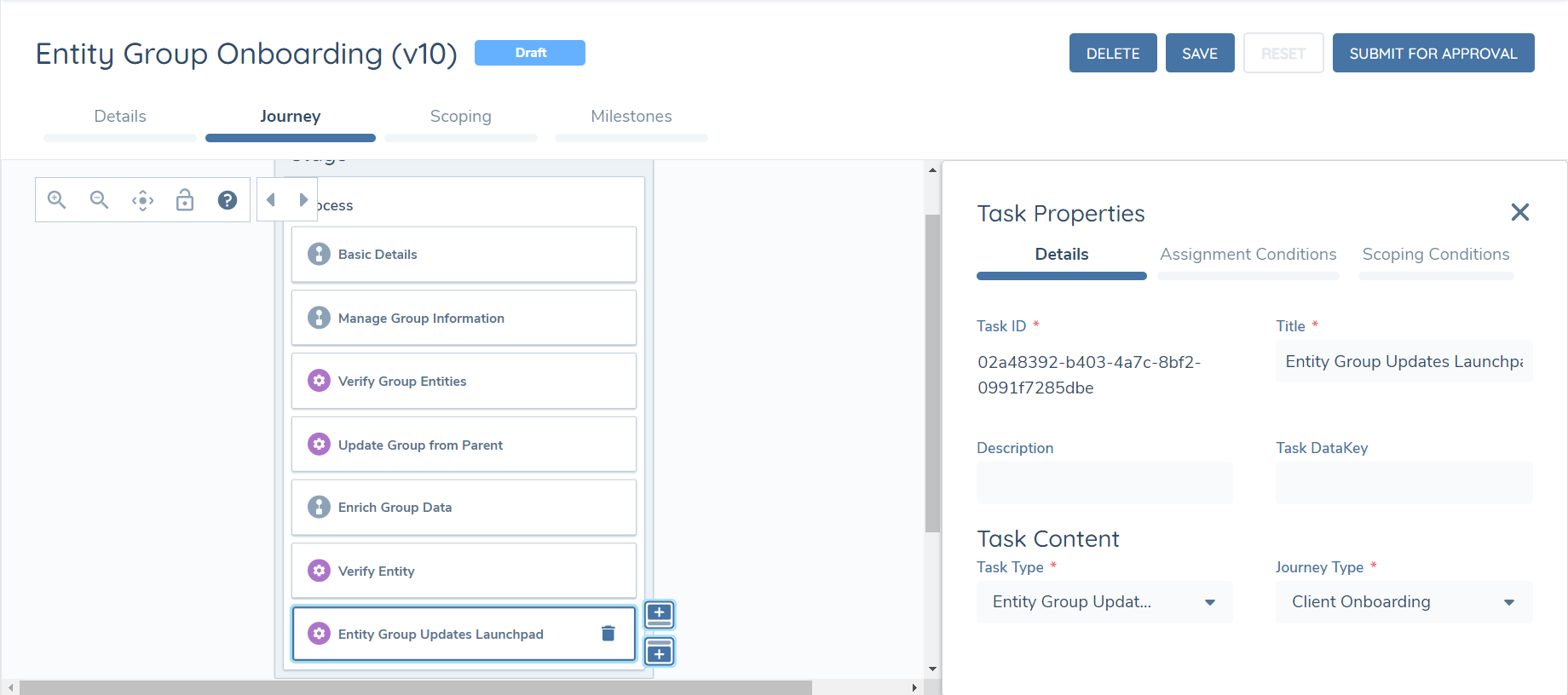
As an example, imagine we had a Entity Group Updates Launchpad Task configured in a Legal Entity Group Journey, with Journey Type of "Client Onboarding" to be scoped when the Task is ran. In the Legal Entity Group Journey, we add five Child Legal Entities in the "Manage Group Information" Task. We then verify these five Child Legal Entities in the "Verify Group Legal Entities" Task. When the "Entity Group Updates Launchpad" Task is ran, we will first check the verified Child Legal Entities of the Legal Entity Group, of which there are five. We will then evaluate the Journey Scoping Conditions of each Journey Schema of Journey Type "Maintenance" each of the five Child legal entities. The Child legal entities that meet the Scoping Conditions of the Journey Schemas of Journey Type "Maintenance" will then have these Maintenance Journeys launched.
The Entity Group Updates Launchpad Task will only consider the Verified Child Legal Entities of the Legal Entity Group. It will not evaluate any unverified Child Legal Entities, nor will it consider the Parent Legal Entity (unverified or verified).
Selective Journey Launching
Under standard Entity Group Updates Launchpad task behaviour, we will evaluate every Child Entity for a Journey. The fact that the Child Entity was pre-existing from a prior Entity Group Journey, or has already gone through a Journey, has no bearing. This effectively means that every Child Entity is in-scope for a Journey every time a Group Journey is created.
A common scenario is that a customer will only want to launch Journeys for specific Child Entities. A Journey may only be required if the Child Entity is net-new within the context of the Group Journey, for when only certain Child Entites require Data Sharing, or at the discretion of the user themselves. To facilitate this use case, we have introduced a new functionality titled "Selective Journey Launching".
When this functionality is configured, Fenergo SaaS will only create Journeys in the following scenarios:
- Net New Child Entities added to a Group
- Child Entities chosen for Selective Data Sharing
- Child Entities manually selected for a Journey
To highlight which Child Entities are in-scope for a Journey, we have introduced a new column visible in the "Manage Group Information" task. This will only display if the "Selective Journey Launching" functionality has been enabled:
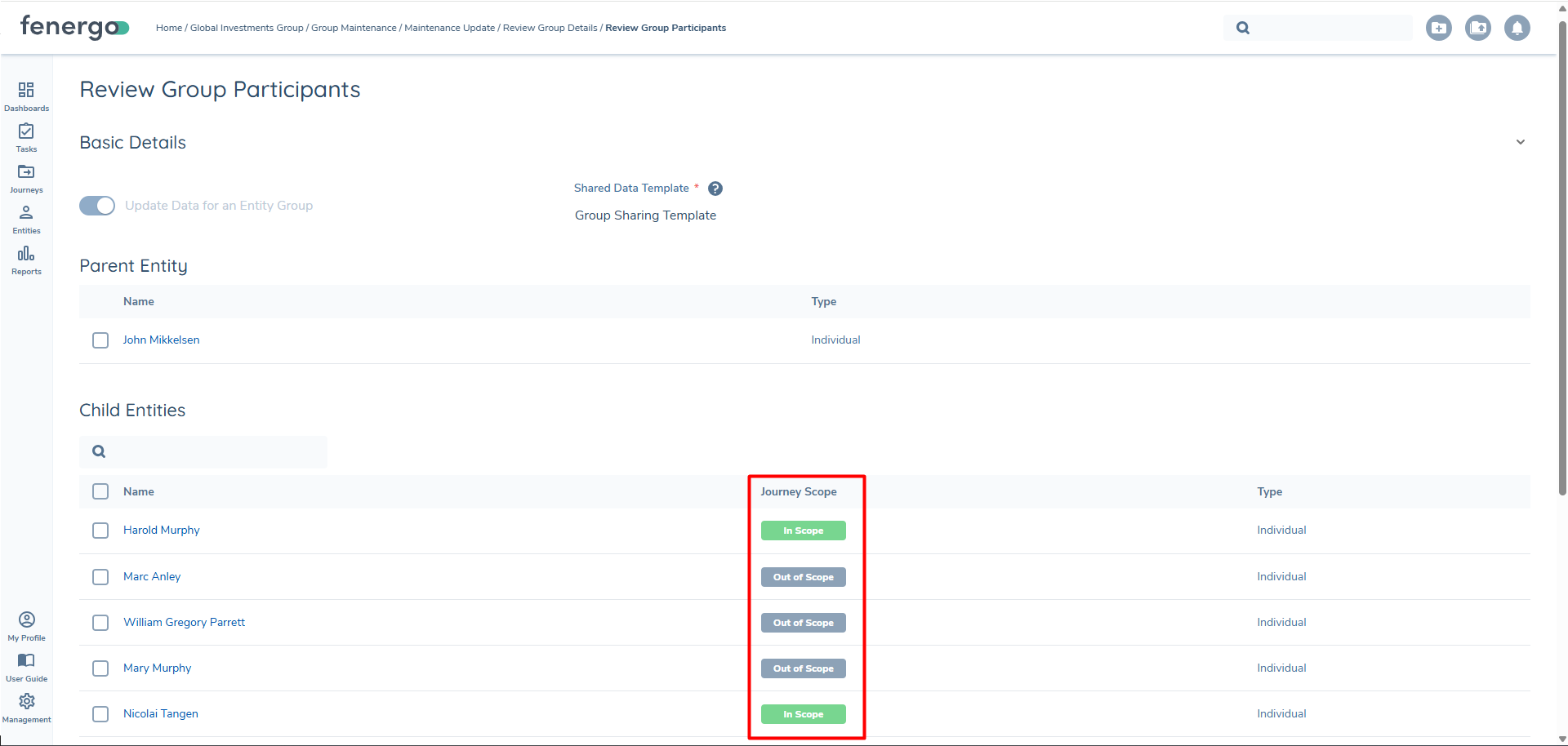
When this configuration has been set-up, users will see that their existing Child Entities in a new Journey will be immediately deemed out-of-scope. Should they wish to manually force a Journey to be created, a user can do so by selecting the checkbox against the Child Entities they wish and selecting the "Selective Journey Launch" icon presented in the toolbar, which will be the icon at the end on the right. Selecting this icon will present a confirmation modal, where the user can confirm if they wish to manually invoke a Journey for these Child Entities.
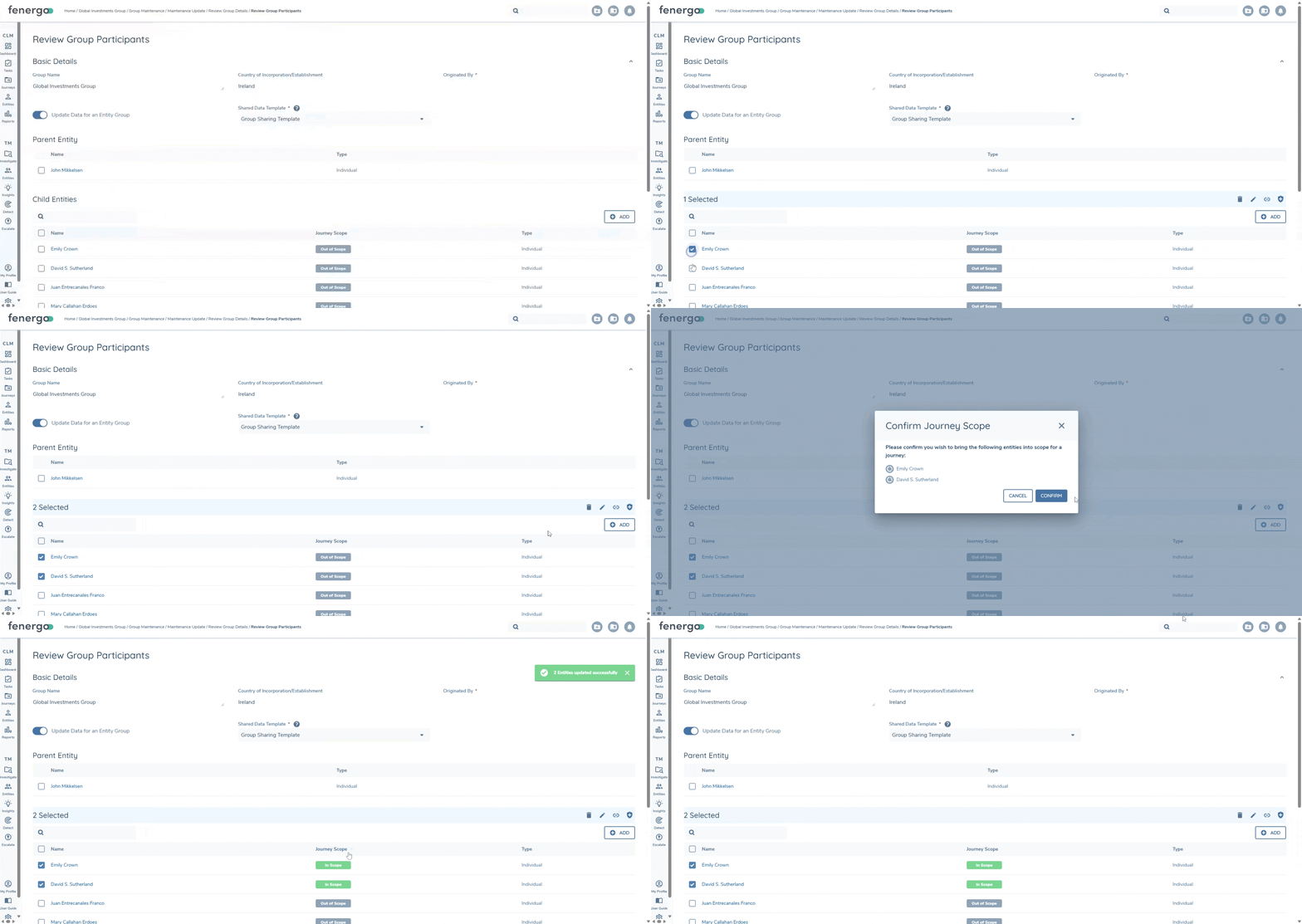
After confirming their Selective Journey Launching, the entities will be brought into scope for a Journey, and their "Journey Scope" column will be updated accordingly.
Please note that once a Child Entity is deemed as in-scope for a Journey, per the above points, a user cannot bring them out of scope.
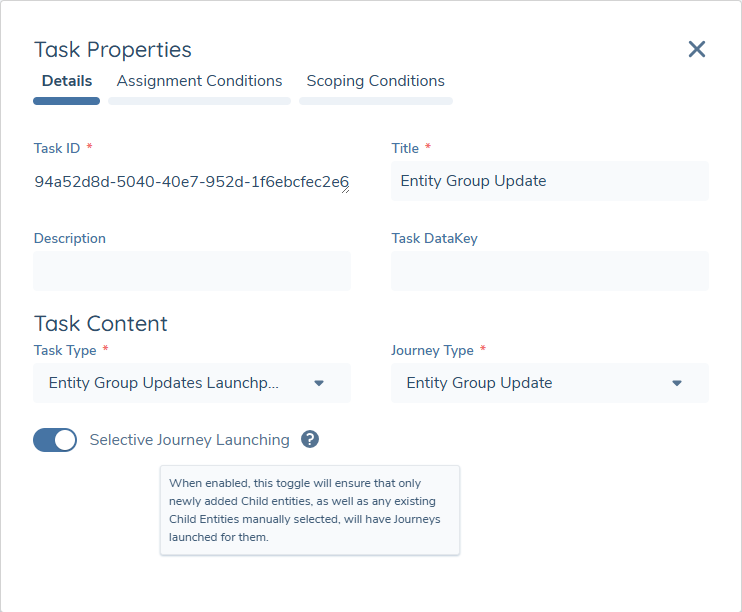
To configure this functionality, a configurator must enable the "Selective Journey Launching" toggle on the "Entity Group Updates Launchpad" task in the Journey Builder. A tooltip will accompany this toggle, notifying the configurator of its purpose:
Manual Group Updates task
Currently for Grouping scenarios in Fenergo SaaS, in order to share Data, Documents and Related Parties across legal entities – configurators will use the Auto-Group Updates task.
However, if we want to launch a Journey for a legal entity and pull in information from one of the groups that it is a Child of, we run into some trouble. If the legal entity is in just one Group, then the Auto Group Updates task will refer to the verified Group and pull in the information. But if the legal entity is part of multiple Groups – how does the system know which Group to pull information in from?
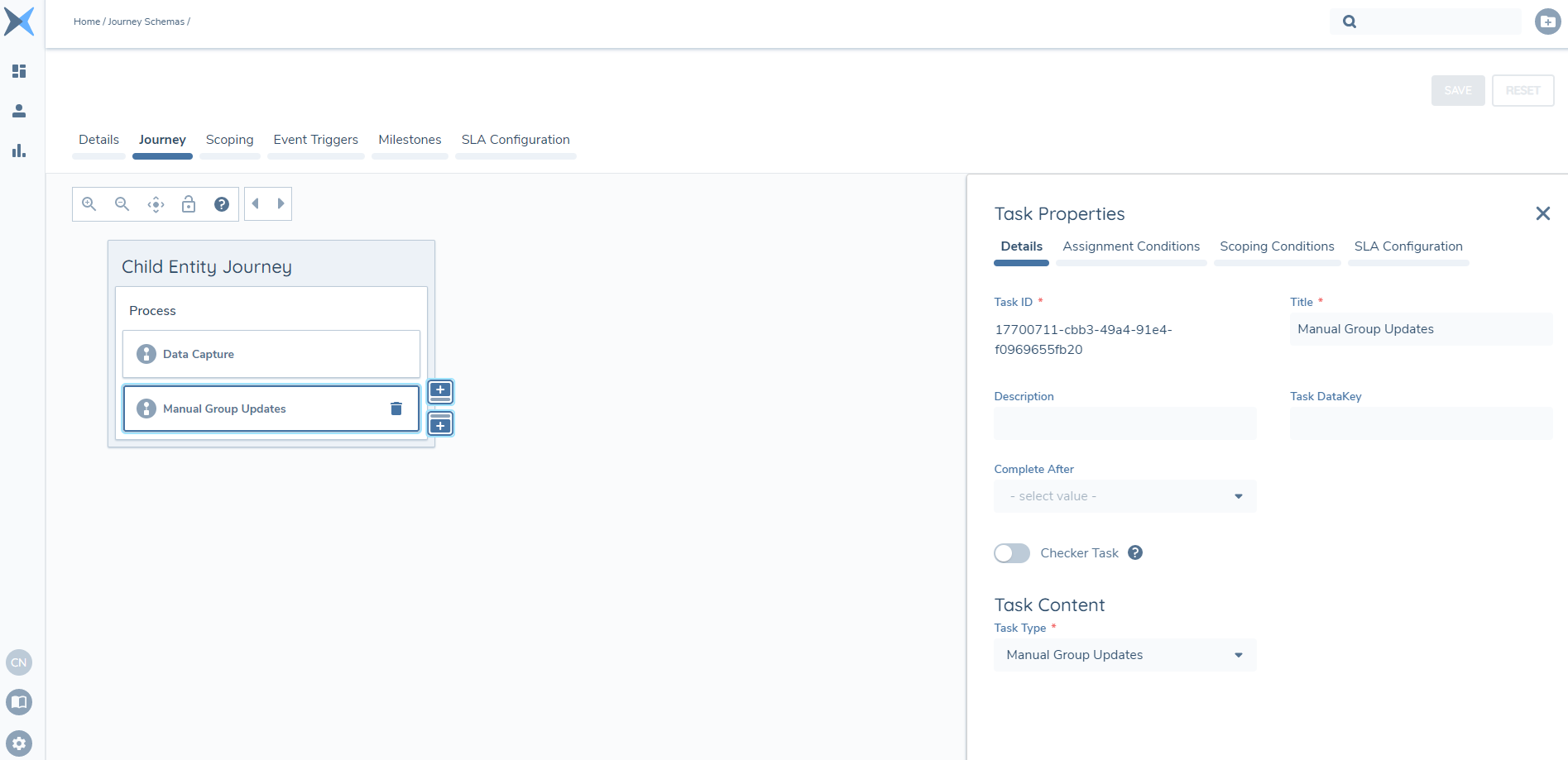
The Manual Group Updates task solves for this use case by providing users with an interactable task, which will allow the User to specify which Group (and its associated Shared Data Template) that they wish to use to pull in information into the Legal Entity Journey.
Once the user has selected their Group and completed the task – the data sharing process will then run in the background and pull in the information specified in the Shared Data Template values that have been captured on the selected Group Legal Entity.
Screengrab of Manual Group Updates task in Journey Builder
Screengrab of Manual Group Updates task
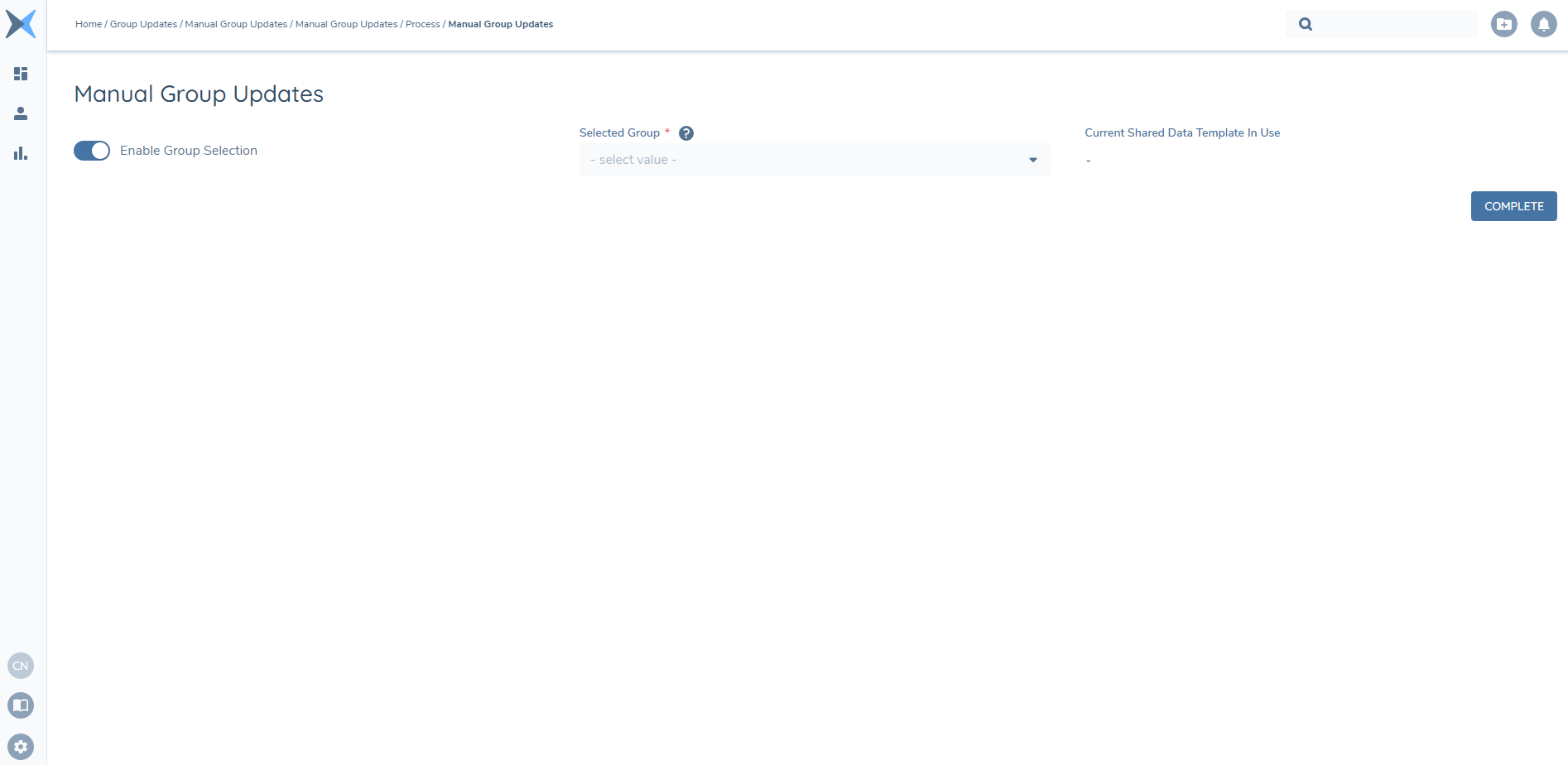
When a User selects "Complete" within the Manual Group Updates Task, the blue "in progress" icon will still be displayed from the Journey Hub perspective. This is because the User interaction aspect of the Task is complete, but in the back-end, the data of the Group as per the current Shared Data Template is being shared down to the legal entity. While this process is running, the Task will not be able to be reopened. If a User navigates into the Task while this process is occurring, the fields within will be read-only, and a toast message will indicate that the Task is still in-progress:
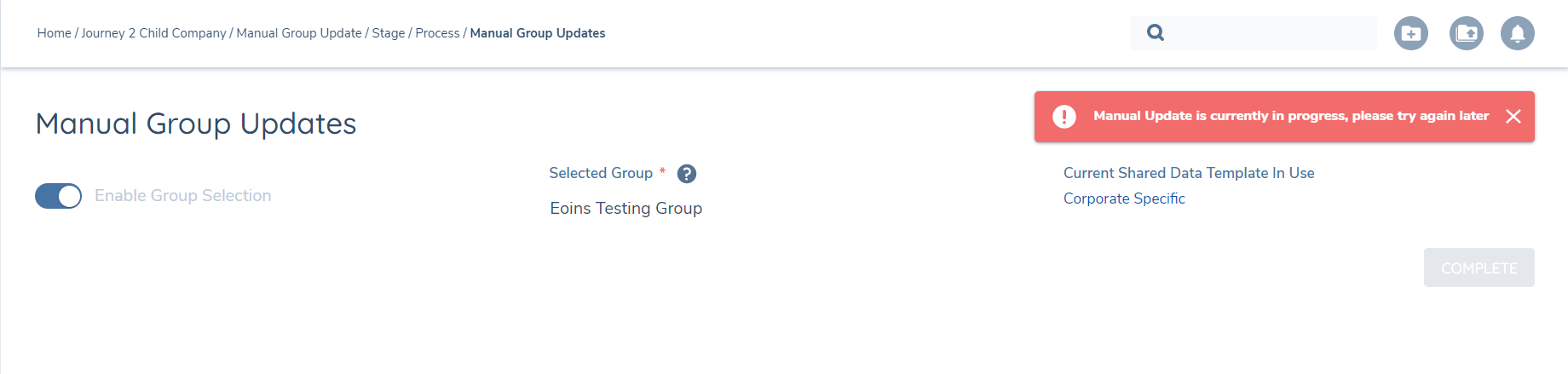
When the Task is completed or reopened, the last made selection in the "Enable Group Selection", "Selected Group" and "Current Shared Data Template In Use" fields will persist. This will provide Journey-level audit of the selection a User has made on a Journey-by-Journey basis. The fields presented will reset to blank for new Journeys.
Creating Groups in Fenergo SaaS
To create a Group in Fenergo SaaS, Users will navigate to the New Request Screen in the UI or by using the Create Legal Entity Command via the APIs.
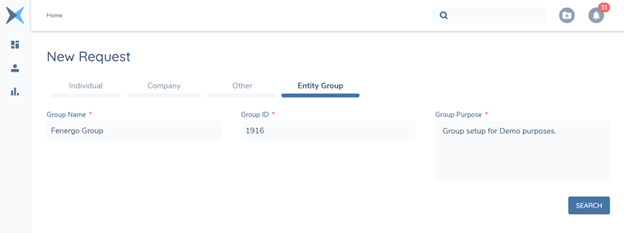
An initial search for duplicates will be run to determine if the Group that a User is looking for already exists in the Fenergo SaaS tenant. Provided that the User is happy that the results returned (if any) do not match the legal entity that they are creating, they can create the new Group.
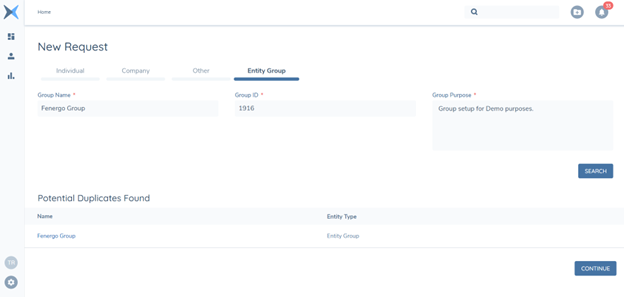
Once the Group has been created and the necessary scoping conditions for a Journey have been met for the Group, the User will be taken to the Journey Hub view of their configured Legal Entity Group Journey Schema.
From this view, the User can navigate to the Group Legal Entity Profile Page
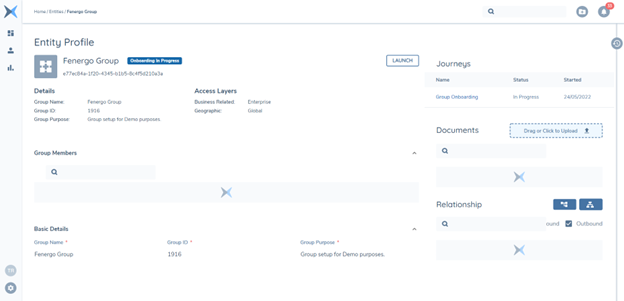
Legal Entity Groups will be indicated by the below icon:

Group Members & Member of Groups
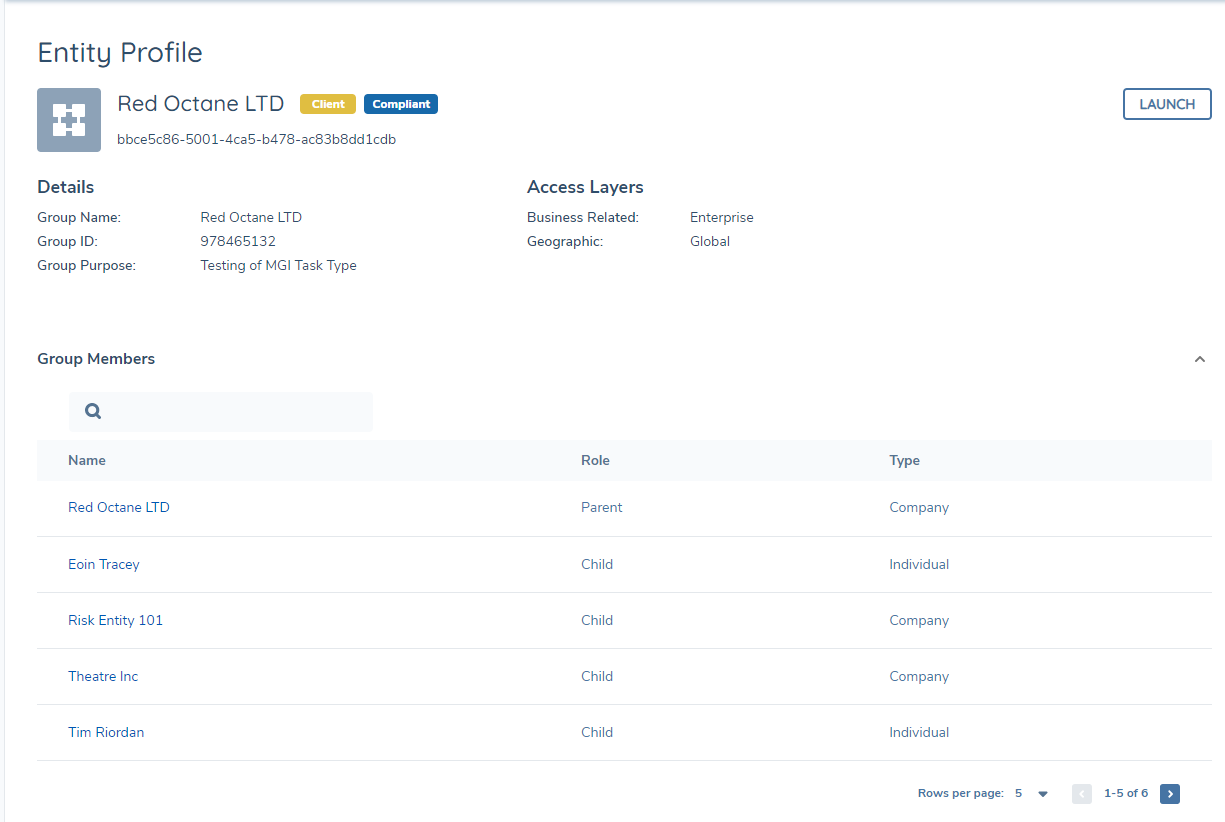
On the Entity Group Profile Page, there is a new grid called "Group Members". This grid will display the Verified Parent Legal Entity and Child Legal Entities that were added to the Legal Entity Group during the "Manage Group Information" task. The grid by default will display the Parent Legal Entity first, and then sort the Child Legal Entities alphabetically A-Z.
The User can use the "Group Members" grid to quickly navigate to the Legal Entity Profile Page of the Parent Legal Entity and Child Legal Entities of the Group.
For all other Legal Entity Types (i.e. when Legal Entity Type does not equal Legal Entity Group), a similar grid is displayed titled "Member of Groups". This will display all of the Groups that a legal entity belongs to, as either a Child or Parent. The User can use the "Member of Group[s]" grid to quickly navigate to the Groups that the legal entity is a member of. There are no limitations on how many Groups a legal entity can be a Parent or Child of. If a legal entity Type of Individual, Company or Other does not belong to any Legal Entity Group, then this "Member of Group[s]" grid will not be displayed.
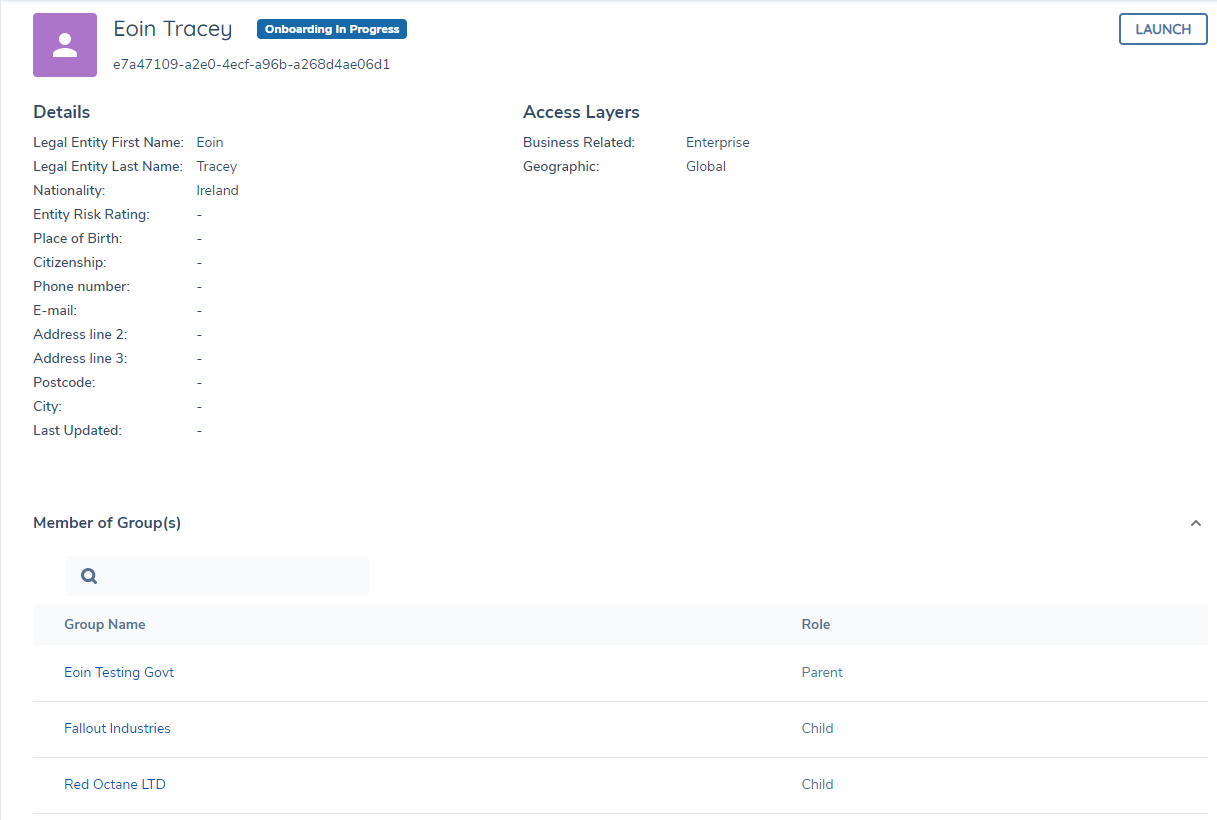
Note: Only Verified Group Legal Entities are displayed in the Group Members and Member of Group[s] grid. If a Group Onboarding Journey does not have the "Verify Group Legal Entities" Task Type in its Journey Schema, the legal entities added during "Manage Group Information" will not be verified against the Legal Entity Record for the Group.
Additional Group Members' Columns on Group Entity Profile Pages
As part of the ongoing maturity work in the Grouping domain of the application, the Product team have introduced the capability to add two additional columns to the "Group Members" grid on the Entity Profile Page for an Entity Group. The reason for this change is that previously, users have provided feedback that the Group Members grid does not provide enough information on the Entities related to the particular Group. A good example of the feedback given was that users would like to see "KYC Level" or "Risk Level" related to each Entity that is a member of a Group. With this change, users will be able to configure up to two additional columns to be displayed in this grid. These can be selected from the 'Group' page in the Entity Profile Configuration section which can be found in the Tenant area of the Management sidebar:

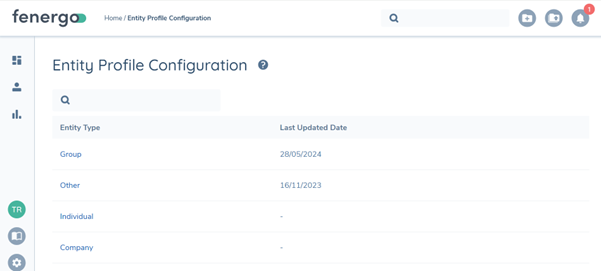
Within the Group page, users will see the 'Additional Group Members' Columns' field. This is a multi-select field which allows users to select up to two additional values that will be displayed on the Entity Profile Page for Entity Groups. An important note here is that the selection of fields here will be what is displayed for all Entity Groups in the user's tenant so the advice is to be mindful that the fields chosen will be relevant to all Entity Groups.
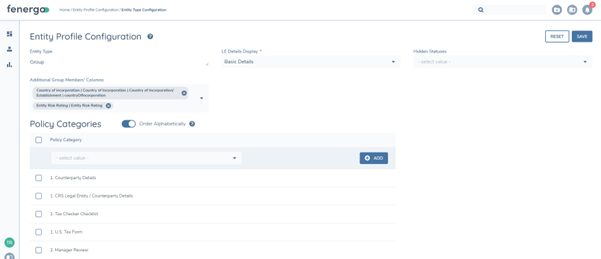
When the user is happy with the changes, they will then select 'Save'. This will update all existing Entity Groups config on their Entity Profiles to display the latest configured changes:
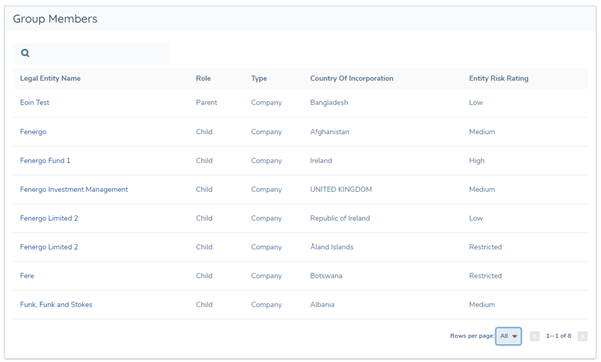
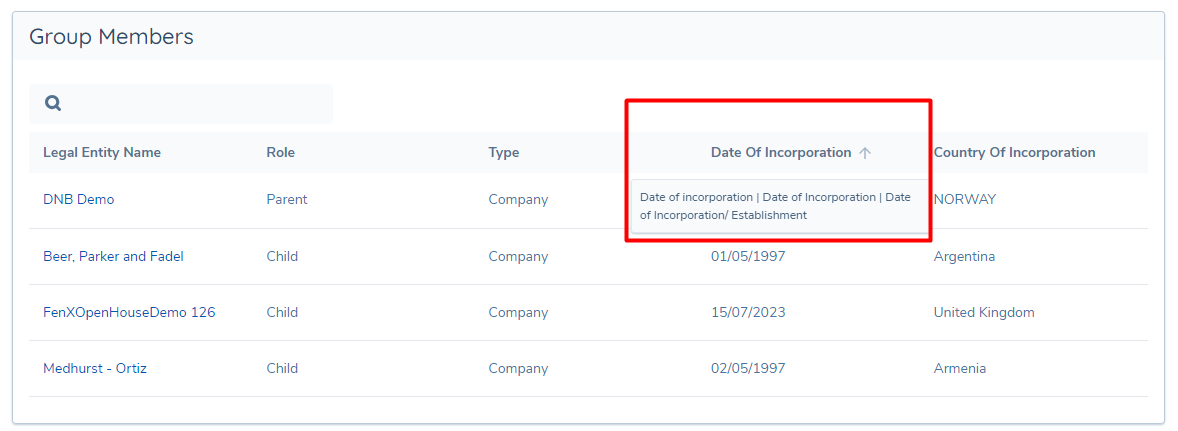
The displayed Column Name is inferred based on the selected datakeys in your configuration. This is done because a single datakey may be represented across multiple data requirements, that each have a different UI label. Should a User wish to see all possible UI labels that has been configured against a datakey, they can hover over the column name, where this information will be displayed:
Searching for Groups in Fenergo SaaS
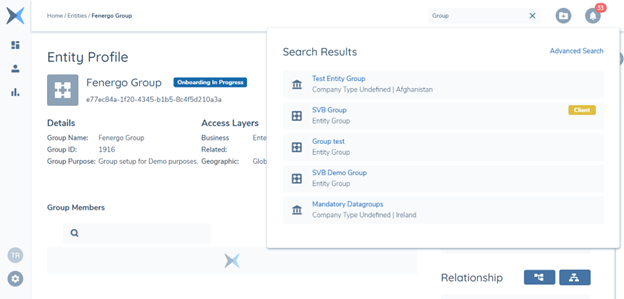
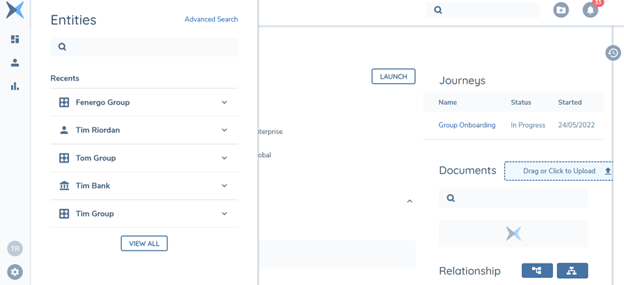
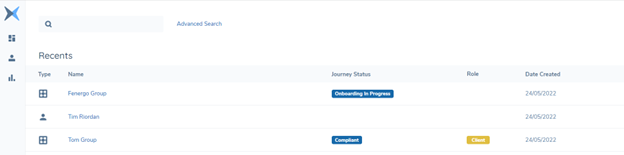
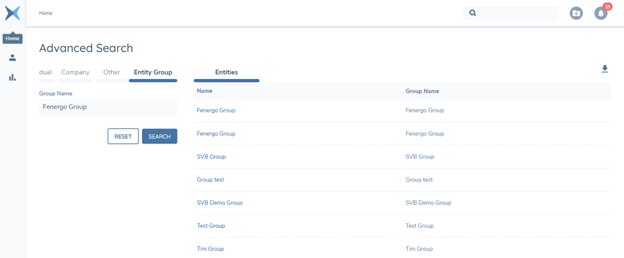
To search for a Group in Fenergo SaaS, Users will be able to leverage the same tools that they currently have today; the Search Navigation bar, Left-Hand Search Navigation & Advanced Search.
Search Navigation:
Left-Hand Navigation Search:
Search Legal Entities Search:
Advanced Search:
Legal Entity Grouping Permissions
There are two Permissions associated with the Legal Entity Grouping functionality. These are:
- Legal Entity Group Management Access & Search: This grants the ability to search and access Legal Entity Group records.
- Legal Entity Group Management Edit: This grants the ability to create and edit Legal Entity Group records (i.e. Create Legal Entity Groups).
Refer to the Permissions Catalogue for more detail on Permission sets for Legal Entity Grouping.