Using the Fenergo Portal Outreach Functionality
The Fenergo Portal can now be used as a tool within a journey to conduct an external outreach to gather information, to assist, and to progress Client Onboarding and Client Review journeys. It allows users to interact with Fenergo entities and journeys, and provide data and documents to support Fenergo Journeys. Outreach can also facilitate the review and the update of Related Parties. Data and Related Parties updates are reviewed in Fenergo before changes are imported to Entity draft data.
Portal Outreach
This can now be done in two ways:
- An entire journey can be created as "External". This will allow the portal user to see all the relevant portal tasks for the entire journey
- A stage within a journey can be set to external and the portal user will only see this stage, not the whole journey
Creating an external stage in a journey for outreach will ensure that outreach can be done as part of a single overall journey, rather than a series of independent journeys.
Portal Quick Link
A specific Portal Quick Link task has been created. This task can be added to a journey and with the correct permissions users can link portal users from within a journey. The task will:
- show users that are linked to this entity
- allow new users to be added directly from the journey
- allow users to be removed portal access to this entity
Alongside information such as status, relationship, and email address, a users Portal Role is also displayed on the Portal Quick Link task.
Once users have the correct edit permission, they will see the +Add button on the Quick Link task.

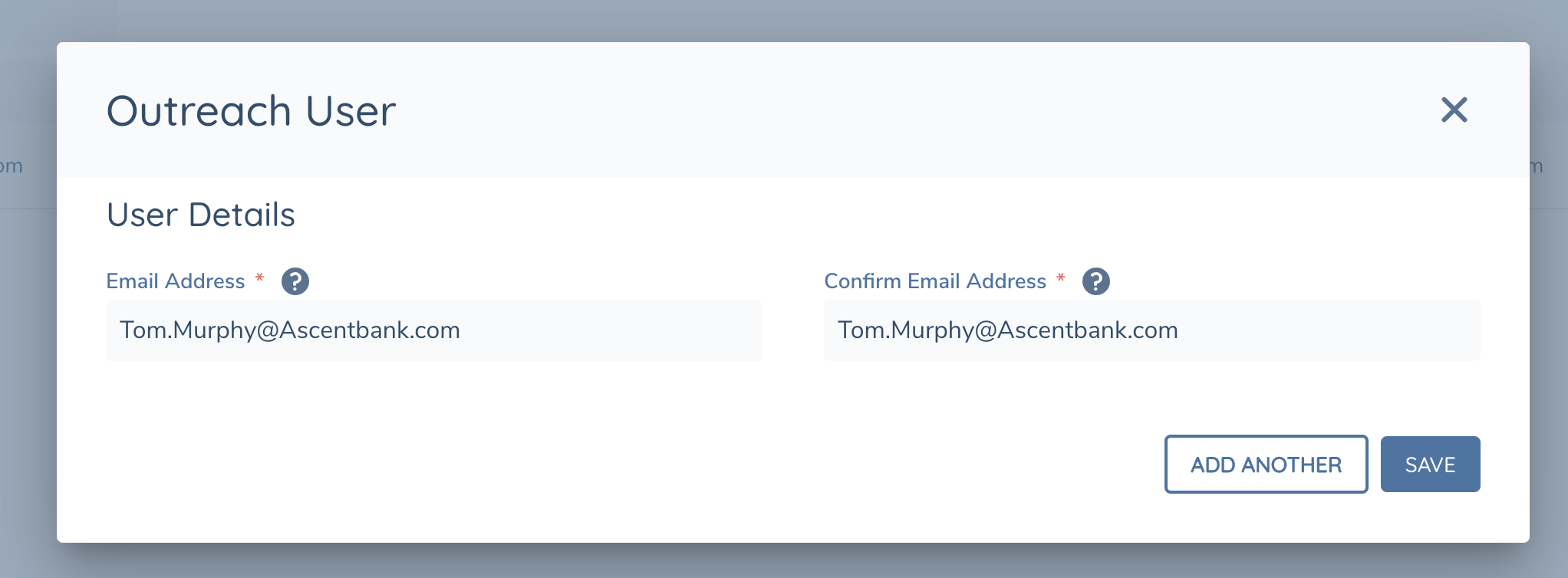
Clicking on the +Add button will invoke a modal which will allow them to link a new portal user by inputting the users email.
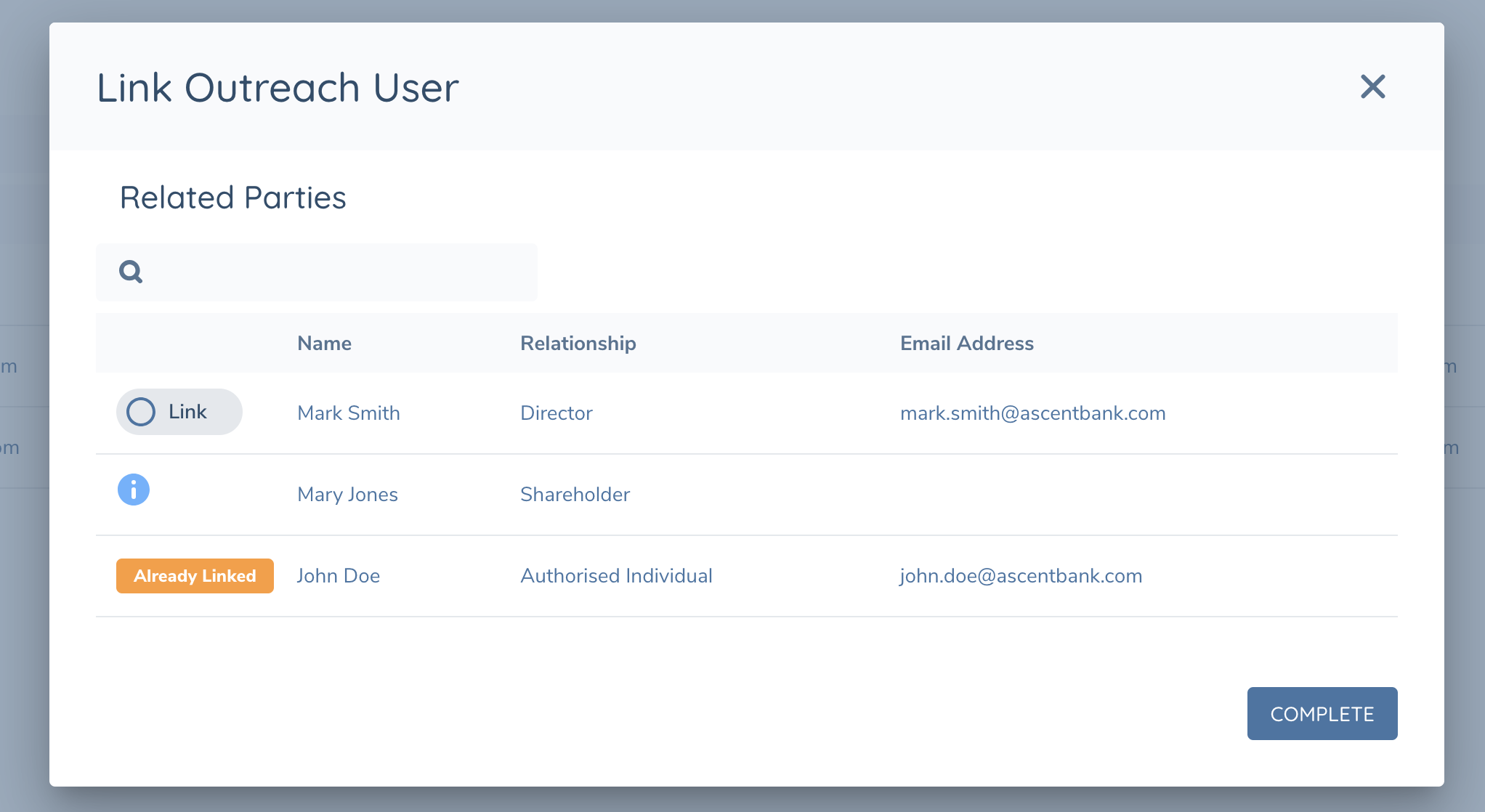
Clicking on the Link button will invoke a modal which will allow them to select a related party of type of individual that has been added to the hierarchy and add them as a portal user. Only related parties with an email address added can be linked as a portal user. If a related party is already linked, a user will not be able to link again and will be indicate by the blue info icon.
This new user will receive a verification email if they have not already verified their email address. If they have verified their email, they will receive an email notification once the outreach stage is triggered.
Tasks in an External Stage
Once the External stage is flagged, the system will recognise that the tasks in this stage will behave differently to tasks within an internal stage.
-
Task in an external stage must be completed sequentially to ensure that the data snapshot behaviour is consistent.
-
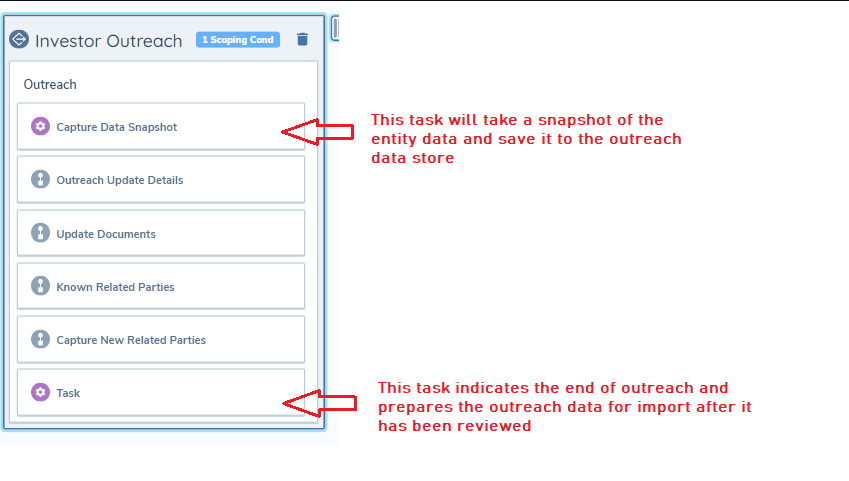
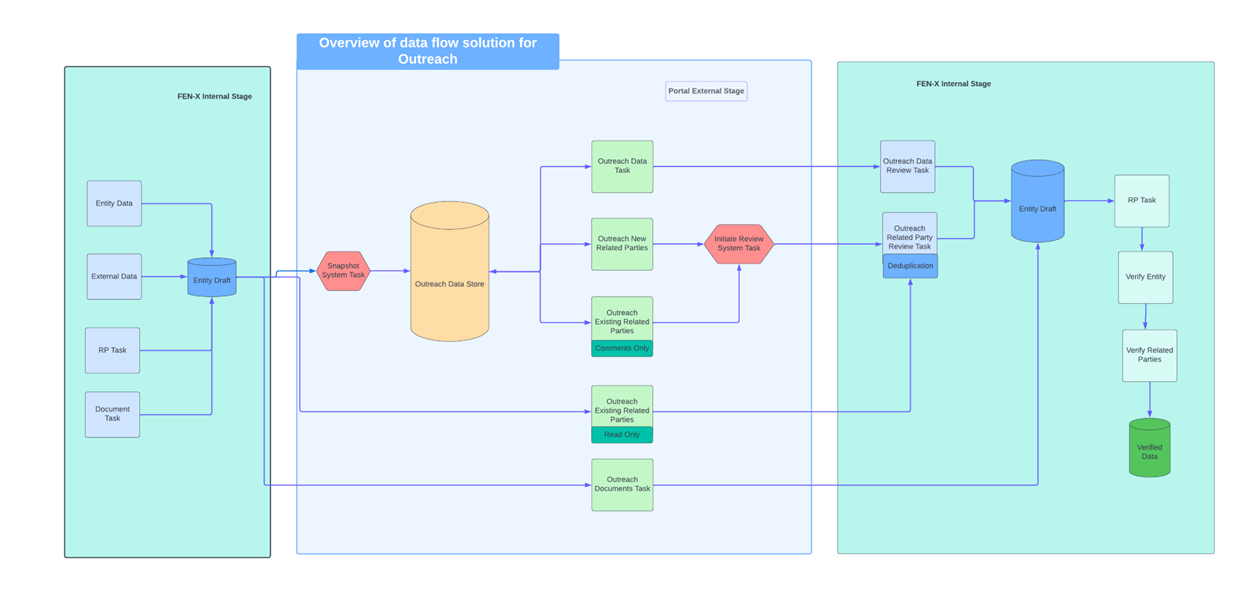
The first task in this stage ‘Capture Data Snapshot’ will write the entity draft data for the journey to the outreach data store. This is done to ensure that the data added through outreach does not update the entity draft data until it is reviewed by a Fen X user.
-
The task types available in the outreach stage are limited to Data task, Outreach Related Parties tasks and Documents task.
-
Multiple processes can be added to the stage, processes can be done in any order but care should be taken to ensure that the data tasks are sequential.
-
System Tasks
- In order to ensure the correct behaviour of the tasks within the outreach stage, two system tasks are required. The first task in this stage must be task Type "Create Outreach Snapshot". This takes a snapshot of the entity data which can be provisionally updated in the outreach task. The last task in the stage must be "Import Outreach Snapshot", indicating the end of outreach and preparing the data for import after it is reviewed.
-
Data Tasks
- Data tasks in this stage will read and write to the outreach data store. Updates made in this task can be reviewed in the Outreach Data Review before they are imported to the entity draft.
-
Document Tasks
- Document tasks in this stage will show existing documents linked to the document requirement. They allow users to download or remove exisitng documents. They can also upload documents to the document requirement. These documents will be scanned for viruses and will be saved in the Fenergo SaaS database.
-
Related Party Tasks
- There are three related party tasks available for outreach.
- Outreach Existing Related Parties: this task will show related parties added prior to outreach. These related parties will be in a read only format. Howver, the outreach user can add a comment to each one as they review them.
- Outreach New Related Parties: this task will allow outreach users to add new related parties at entity level. These new Related Parties can be reviewed in the Outreach Related Parties Review task before they are imported to the entity draft. This will allow the Fenergo SaaS user to deduplicate these Related Parties and ensure the integrity of the Fenergo SaaS data.
- Related Parties: This is the standard related parties task. Any replated parties added using this task will be automatcially created as entities. No related party review/deduplication will be required after outreach is completed.
- There are three related party tasks available for outreach.
Parallel Outreach Tasks
The outreach stage now supports multiple processes running in parallel. If a process does not include the "Create Outreach Snapshot" or "Import Outreach Snapshot" tasks, the task completion order can be set to "In Any Order". This configuration allows users to complete tasks flexibly, either as needed or when all required information becomes available, streamlining the workflow and accommodating more efficient task management.
External Journey in Journey Hub
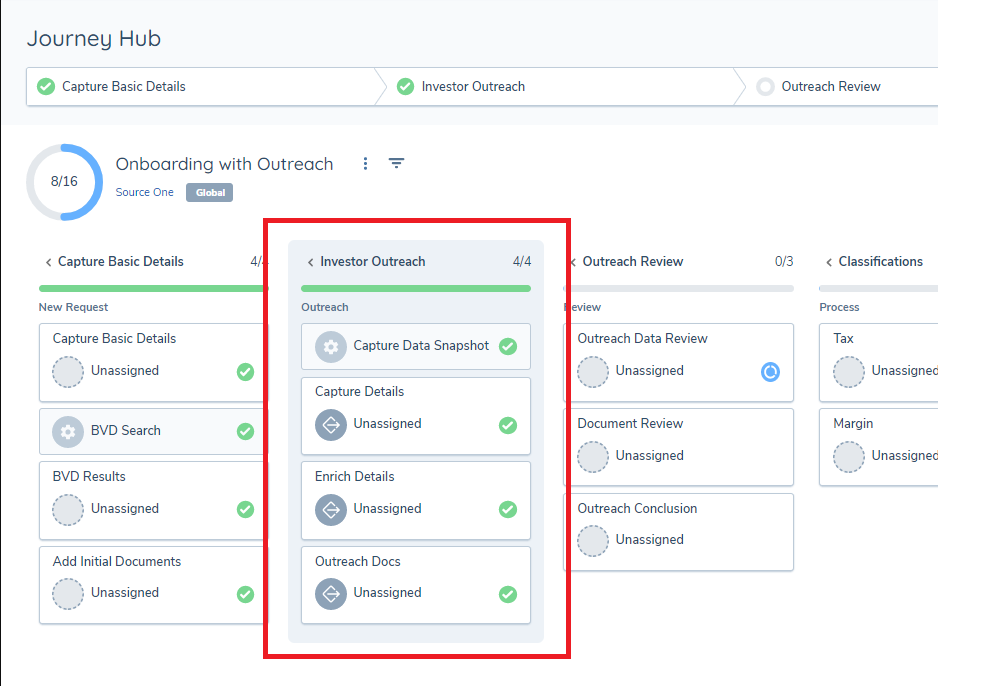
An external stage in a journey is highlighted in the journey hub, to give a visual indication that the stage is configured differently to the other stages in the journey. The outreach icon is visible here too.
Portal Outreach Data Task
All data tasks included in an external-portal stage will read and write to the outreach data store. Updating the data in this task will not update the entity draft. This task can be configured in journey builder, with the required business categories defined here.
Portal Related Parties Tasks
There are distinct Related Parties tasks available for Outreach.
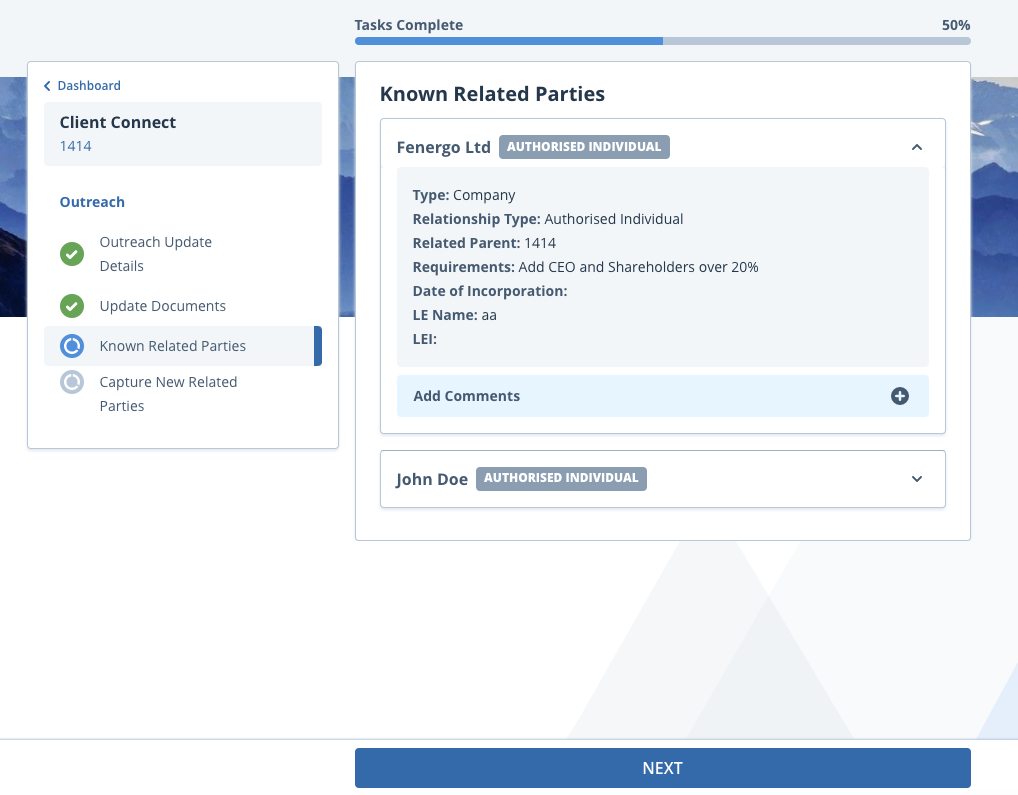
- Outreach Existing Related Parties - this task will show related parties added prior to outreach. These related parties will be in a read only format. The outreach user can add a comment to each one as they review them.
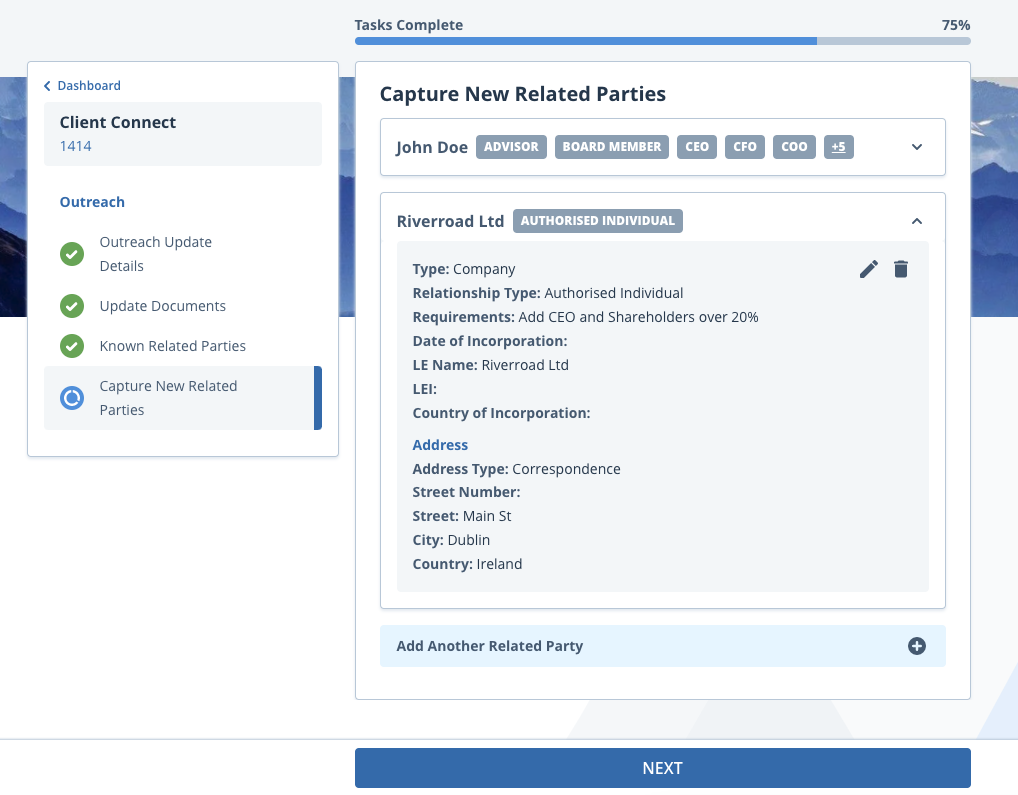
- Outreach New Related Parties - this task will allow outreach users to add new related parties at entity level. These new Related Parties can be reviewed in the Outreach Related Parties Review task before they are imported to the entity draft. This will allow the Fenergo SaaS user to deduplicate these Related Parties and ensure the integrity of the Fenergo SaaS data.
Outreach Related Party Documents
Related party document functionality is available in the Portal. Document which are configured for Related Parties, using the relevant requirement categories will be available in the Portal.
Known Related Parties
Related Party documents that are added to Related Parties prior to outreach are available in the portal Known Related Parties task. From here they can be viewed, edited, downloaded or removed. It is also possible to add additional document to any of the document requirement in this task. All of the same actions are available in this task from Fenergo SaaS. Document changes made in outreach will be visible on the Known Related Party once the task is complete.
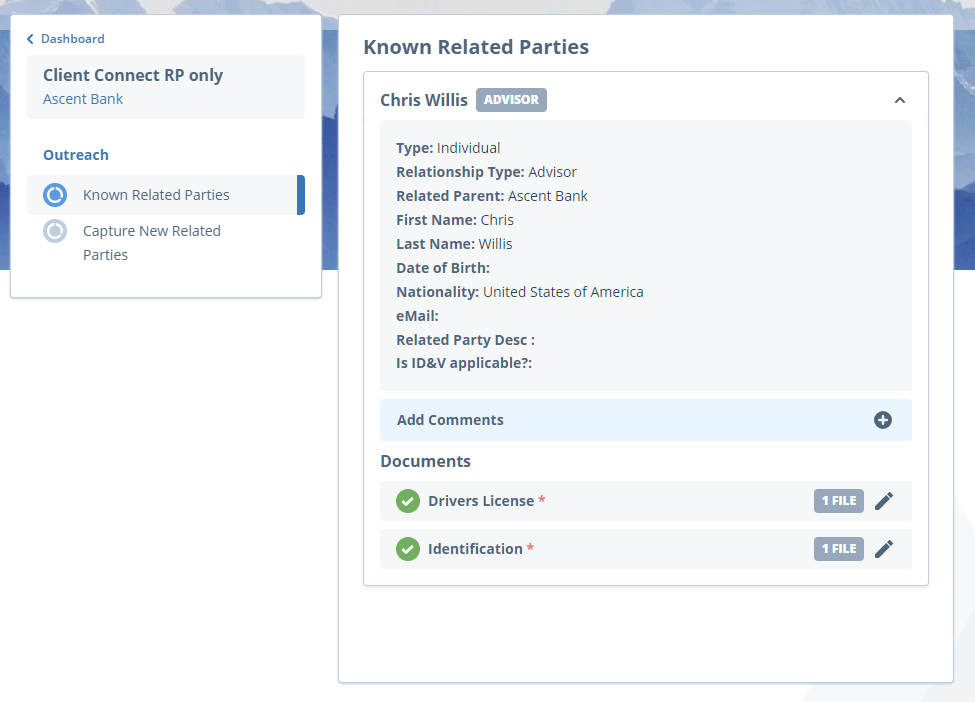
Here clicking on the pencil/edit icon will invoke the document modal, here the document metadata can be edited, the document can be downloaded/viewed or removed. Additional documents can be added to the requirement.
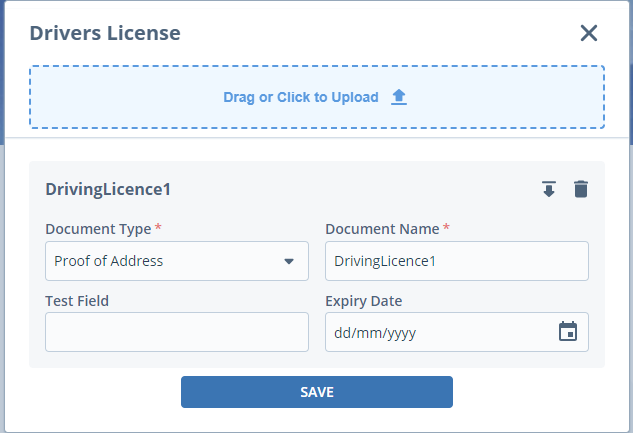
As documents are added to the requirement, there will be an indication on the collapsed document requirement.
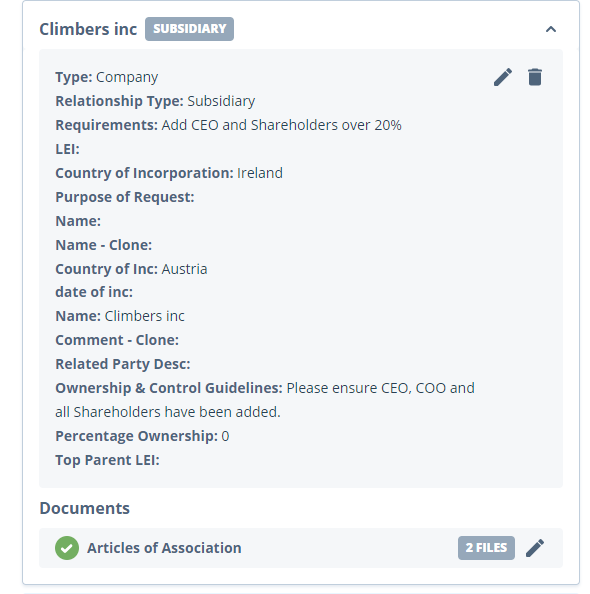
Outreach Related Parties V2 Task
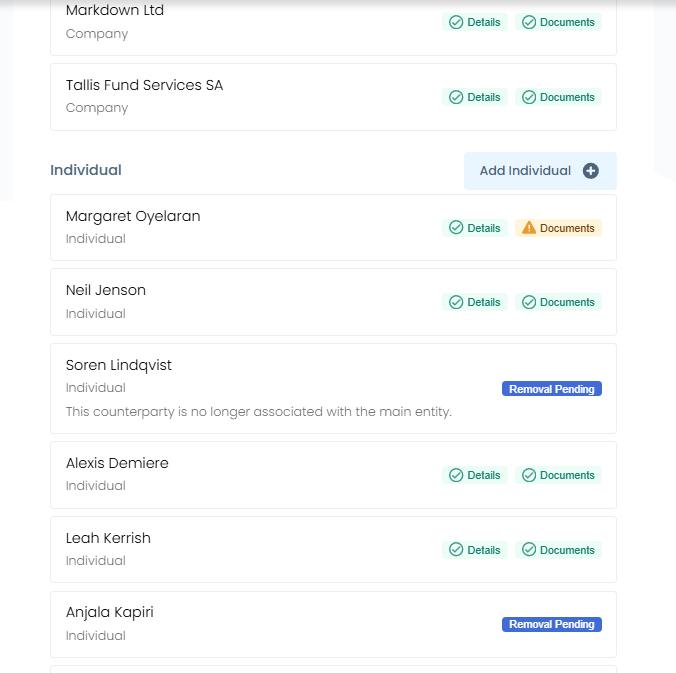
The Outreach Related Parties V2 task is a new, unified task that amalgamates the Outreach Existing Related Parties and Outreach New Related Parties tasks into a single screen. From here, portal users can add new related parties, amend the details of existing related parties, and request the removal of a related party that is no longer relevant, all in one place.
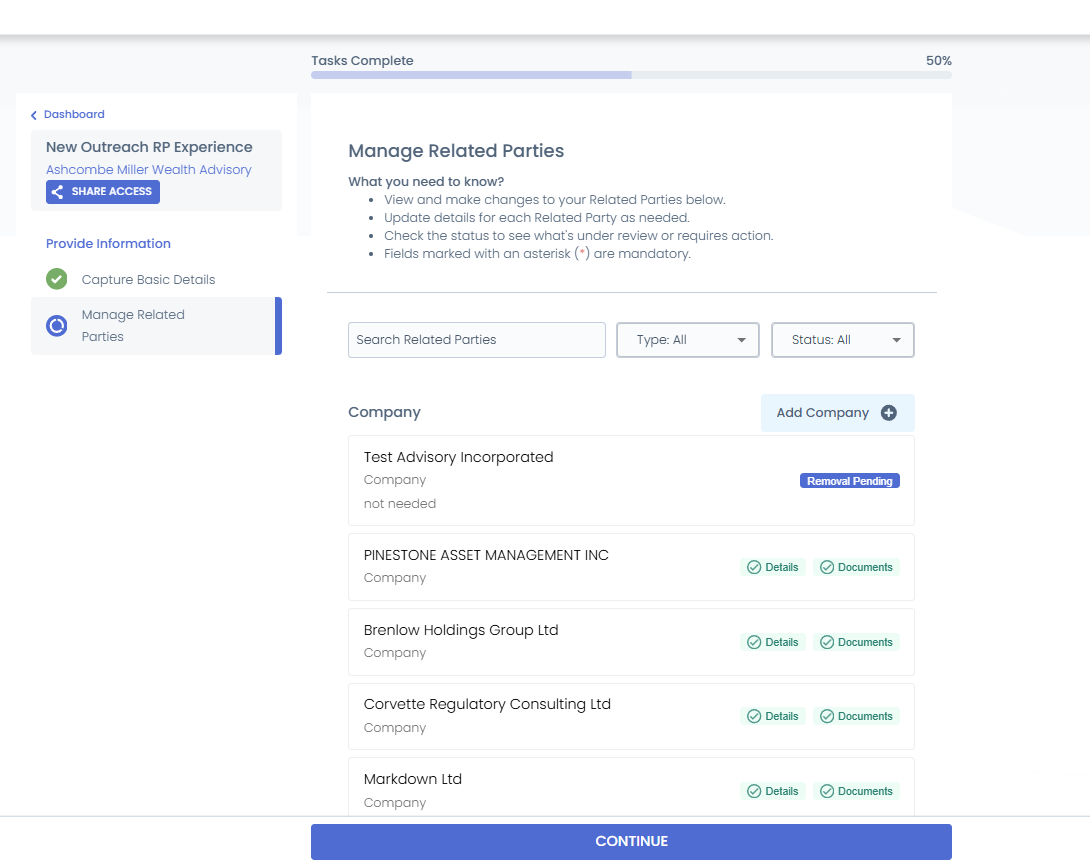
Adding a Related Party
Clicking Add Company or Add Individual opens the Related Party Details form, where the portal user can capture the required data for a new related party.
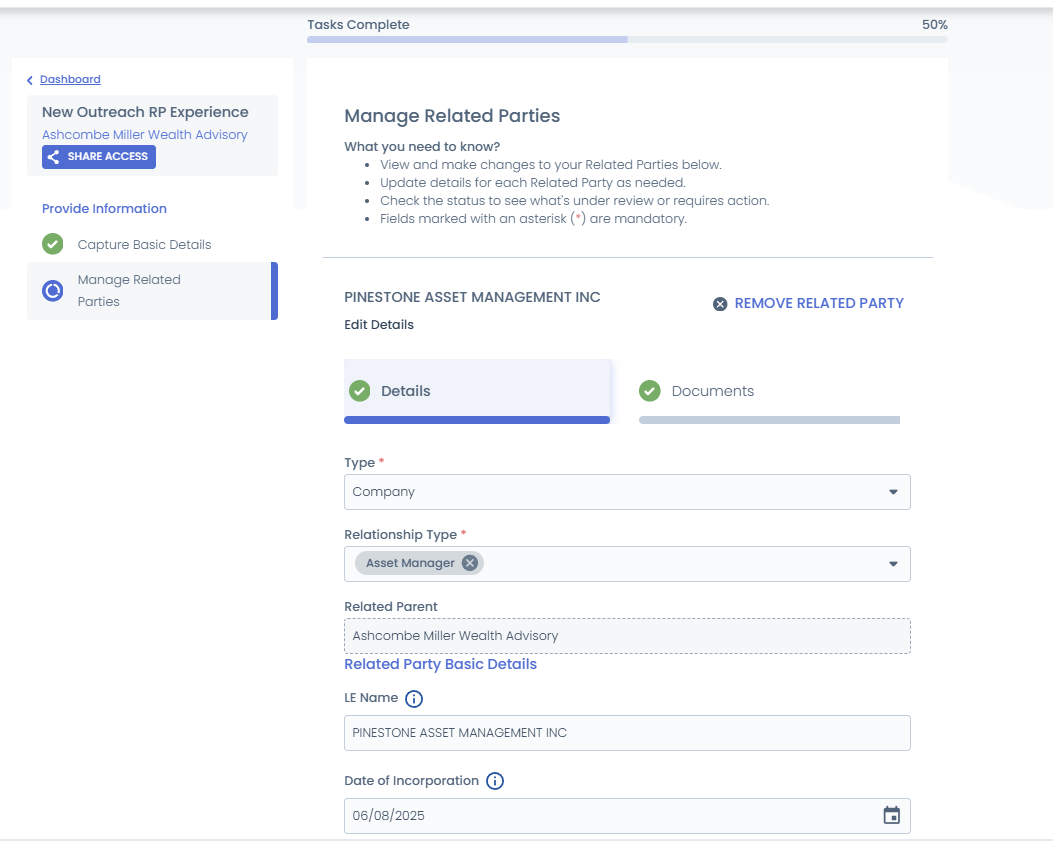
Amending an Existing Related Party
Clicking on an existing related party's card opens its detail view, where the portal user can edit any field within the categories configured on the task. Selecting Save stores the change as a proposed amendment, the related party record itself is not updated immediately. The portal user will continue to see their proposed values if they return to the task later, and the amendment is held pending review by a Fenergo user on the internal Outreach Related Parties Review task.
Removing a Related Party
From the related party view, selecting Remove related party opens a confirmation modal where the portal user can add a comment explaining the reason behind the requested removal. On confirming, a toast notification is shown and the related party's card is flagged Removal Requested while remaining visible in the list, the related party is not removed from the entity’s hierarchy until a Fenergo user approves the request internally on the Review task.
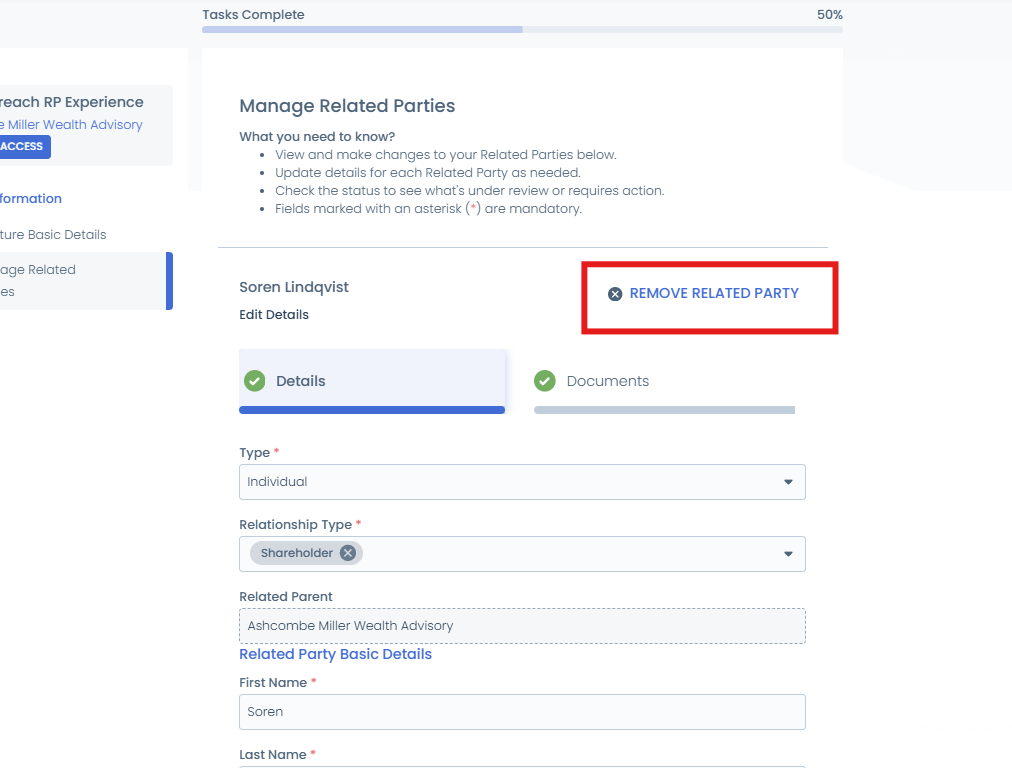
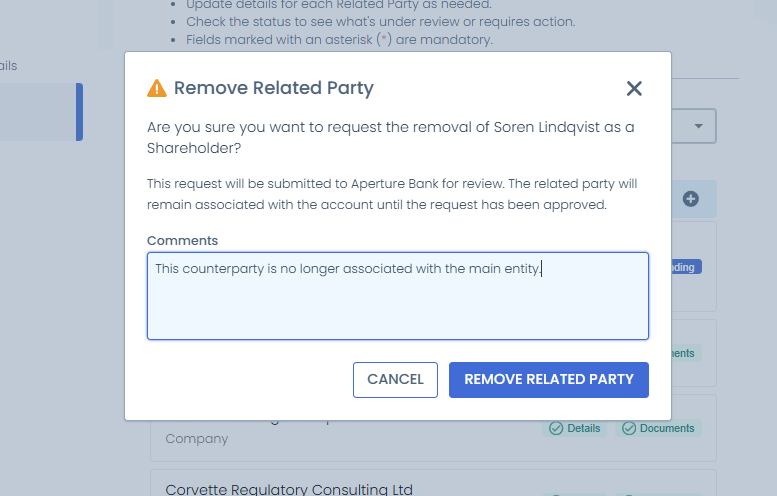
If a portal user amends a related party and then requests its removal, the removal takes priority. The amendment is discarded and only the removal request is submitted for review.
Documents on the V2 Task
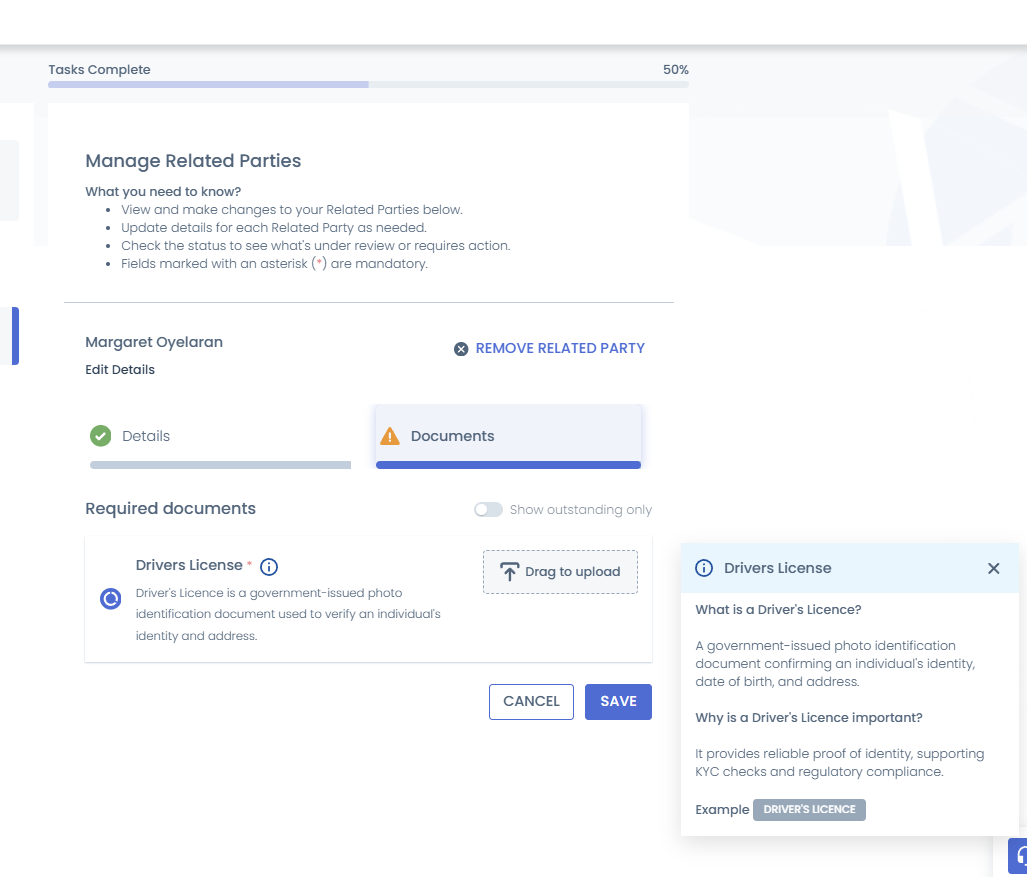
The Outreach Related Parties V2 task supports Documents V2. Each document requirement can be configured to show an inline description of what is required and why, together with a status indicator. A Show outstanding only toggle lets the portal user filter the list down to incomplete requirements, and documents can be uploaded either by dragging a file onto the requirement or by clicking to browse.
Outreach Review
Outreach Data Review Task
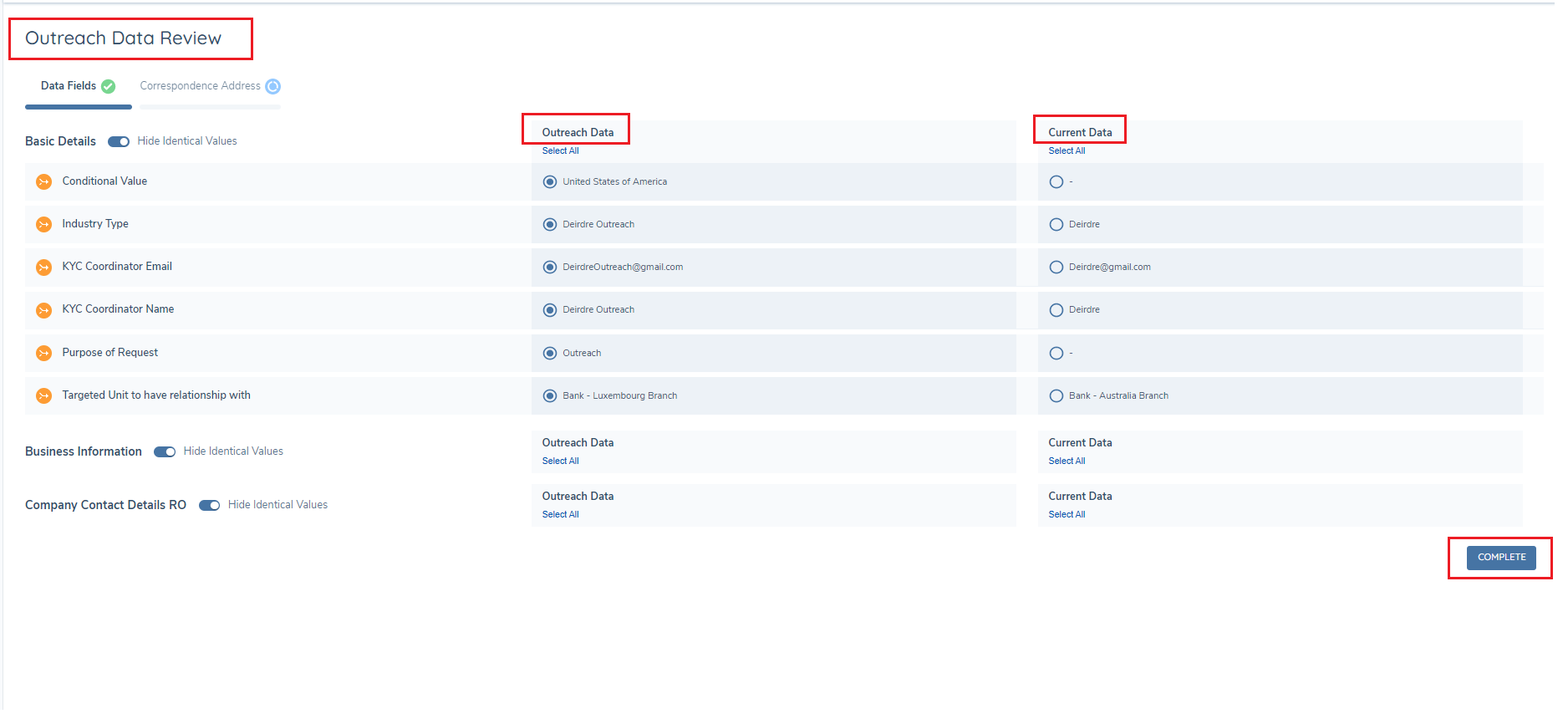
On completion of outreach, the back-office user can review the data points added or updated by the portal user, and decide if this data should be imported to the entity draft data. They can select to import the data at field level. They can also review data groups in this task. This can be done using "Outreach Data Review" task. This task will show a comparison screen with each outreach data field displayed, grouped by Requirement Category and only showing the Requirement Categories that are included in the outreach data task/s. The outreach data is shown on the left, and the current entity draft value on the right. The user can easily compare and select the value they want to progress with. Once they have reviewed all the data points, they will need to also review the data groups per tab. On Completion of this task, the selected values will be written to the entity draft record. The outreach snapshot data will be overwritten if the user refers to a task prior to outreach.
Outreach Data Review Autocomplete Task
On completion of an Outreach stage, by adding the Outreach Data Review Auto Complete system task to a journey, the outreach data provided by a portal user will auto update the journey draft for the entity without requiring a Fen X user to manually review and accept this data allowing for greater efficiency.
This is only available for data fields and data groups. Related parties added during outreach stage require manual review and deduplication.
Outreach Related Parties Review Task
This task has two tabs, New Related Parties and Existing Related parties. Both Tabs must be reviewed before this task can be completed.
Conditional fields and datagroups are not supported on this task currently. In order to display this data, duplicate the datapoint with conditional logic applied, add the new data field to a requirement category to display on this task and remove any trigger conditions.
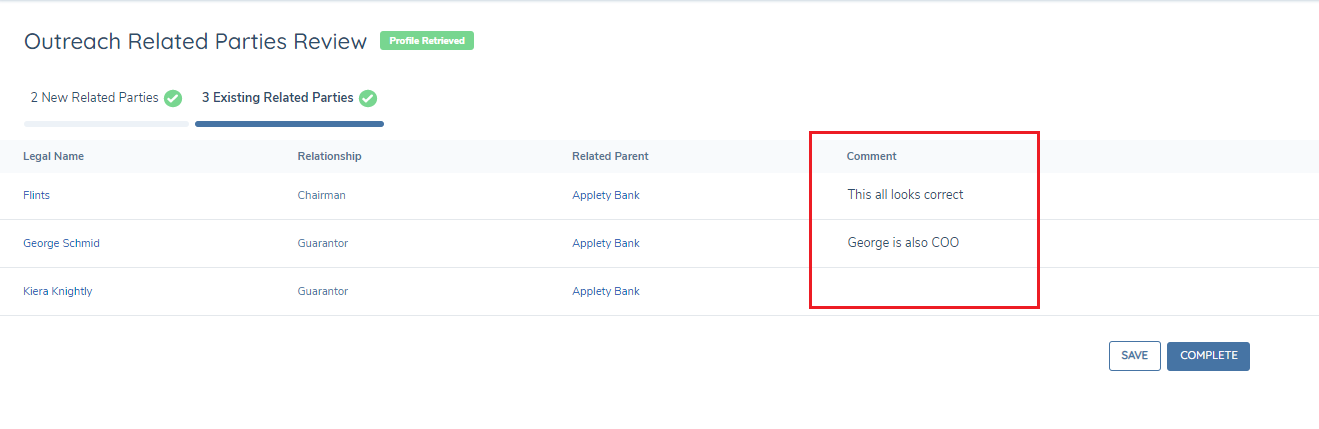
- Existing Related Parties: this tab will show all related parties added or dedupedlicated in this journey and all verified related parties for the entity regardless if they were created in another journey. Task snapshotting is not currently available for this task so it is not possible to only related parties that added as part of this journey.
If a comment was added during outreach, it can be viewed here. All documents linked to this related party can be viewed here also.
-
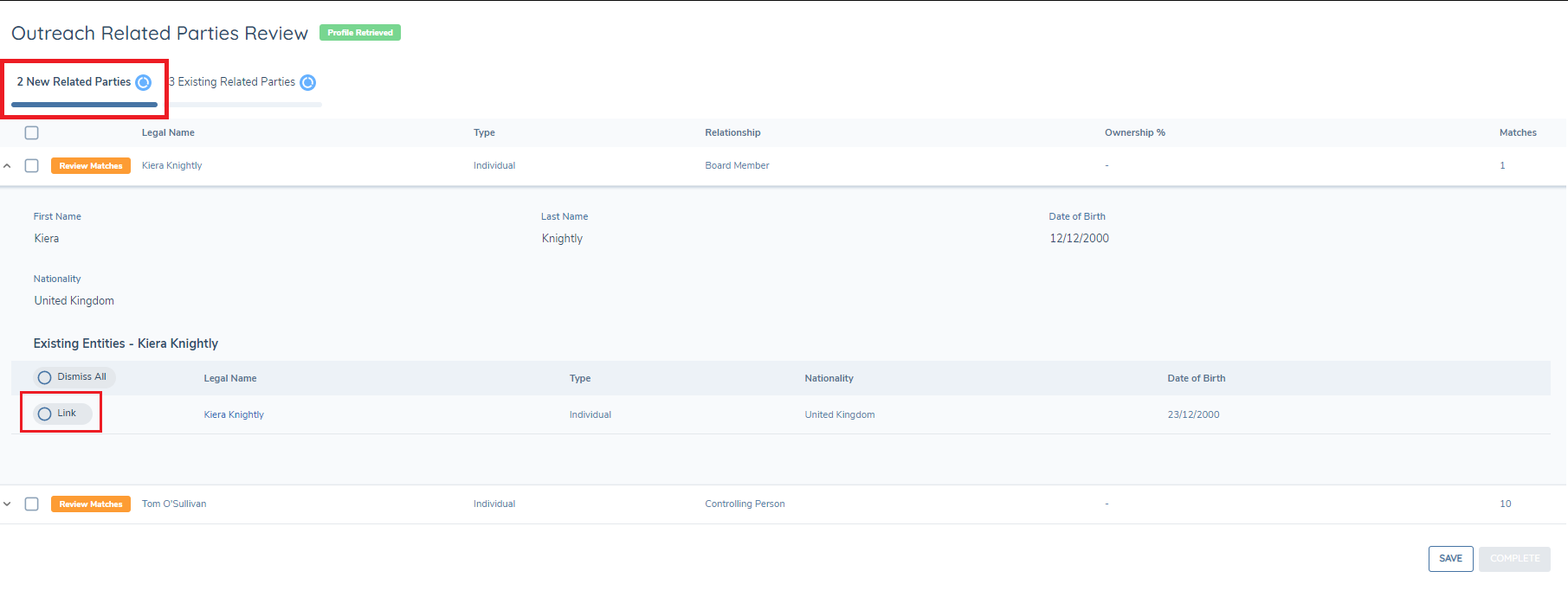
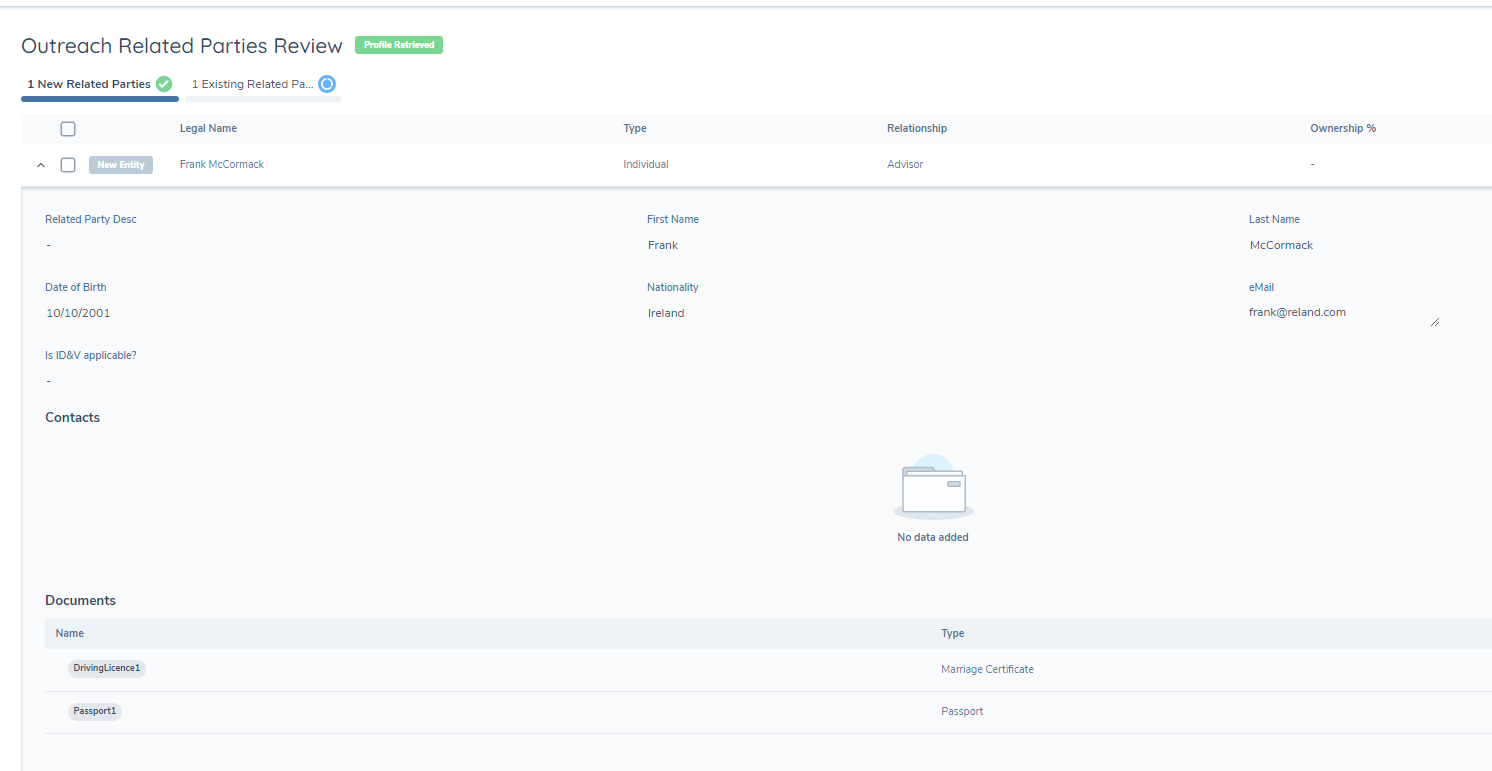
New Related Parties: this tab will show the Related Parties added in the Outreach New Related Parties task.
- Each record can be reviewed here and deduplicated as appropriate.
- If the new record is deemed a duplicate, a link can be created from the parent entity to the original entity and the no new related party is created in Fenergo SaaS.
- If the potential duplicates are "Dismissed" then a new legal entity is create and linked to the parent.
-
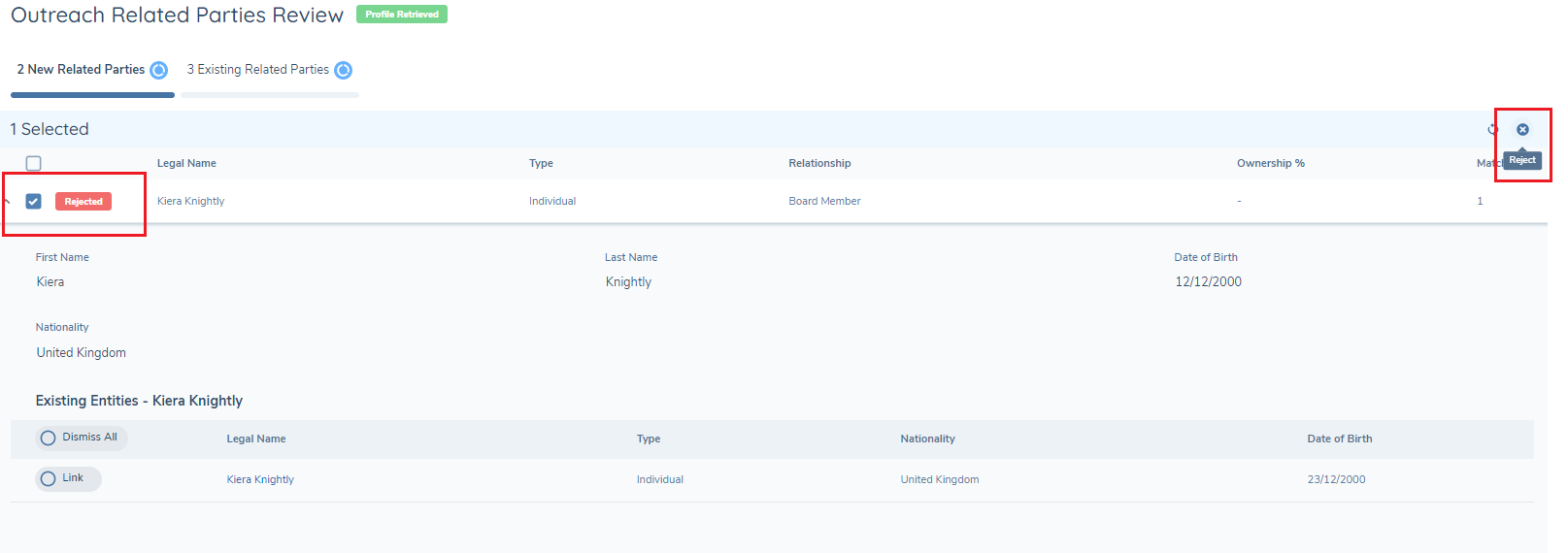
If a record is incorrect or not required it can be rejected
-
On completion of this task, new entities, that are not deemed to be duplicates are imported from outreach and created in Fenergo SaaS
-
Related Party document will be imported with the Related Party
Note: If the standard related party task is used during outreach, no related party review task is required. Related parties added via the standard related party task will not display on the Outreach Related Parties Review Task
Note: To access the Outreach Related Parties Review Task, the External Data Access permission is required. Additionally, to import new related parties added during outreach, the External Data Approve permission is necessary.
Outreach Related Parties Review: Proposed Changes
As part of the newly introduced Related Parties Outreach Experience, enhancements have been made to the Outreach Related Parties Review Task. When a journey uses the new Outreach Related Parties V2 task, the second tab of the Outreach Related Parties Review Task works as a Proposed Changes tab, giving Fenergo users a clear, field-level view of what a portal user has proposed to change on each related party. This tab continues to list all existing related parties on the entity, but with a chip against any related party that has a pending amendment or removal request.
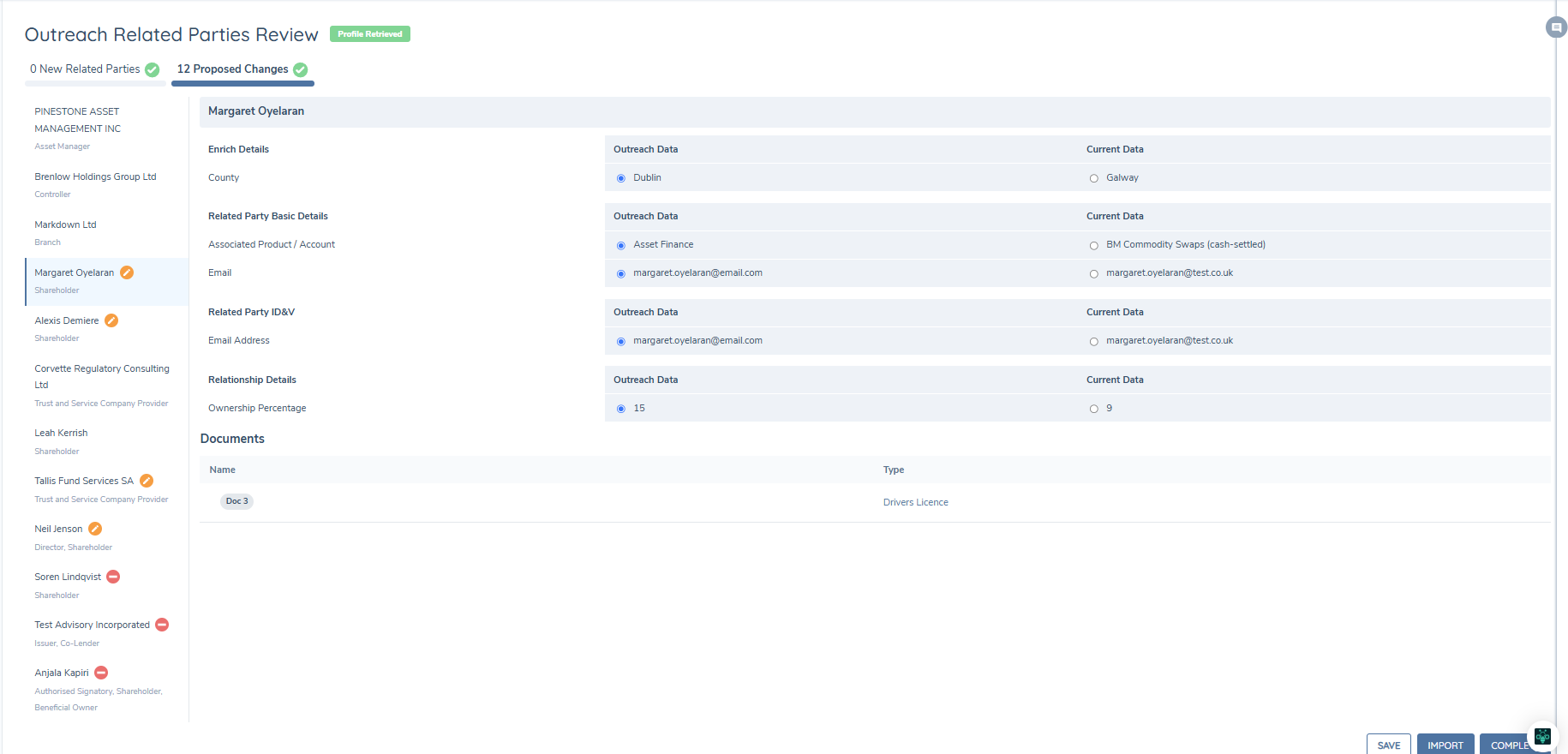
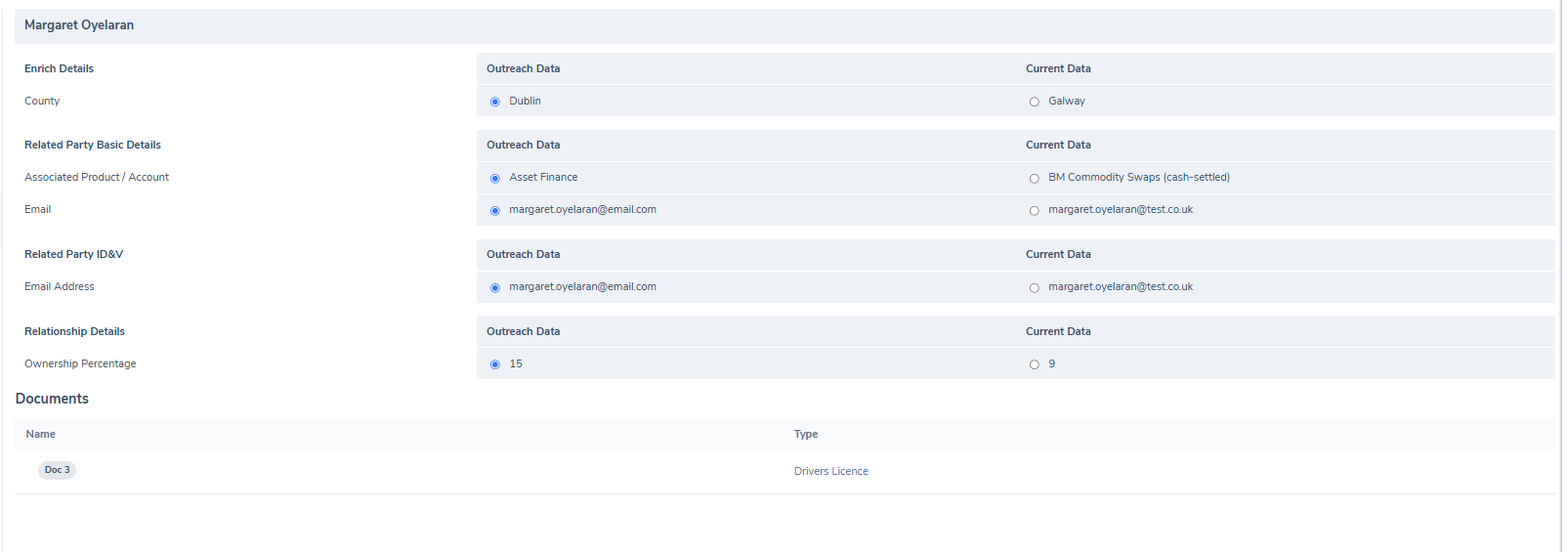
- Reviewing an amendment: selecting a related party with a pending amendment shows a field-level comparison, the Current Value versus the proposed Outreach value. The Fenergo user can decide to accept the portal users proposed change to the entity, or continue using the existing value.
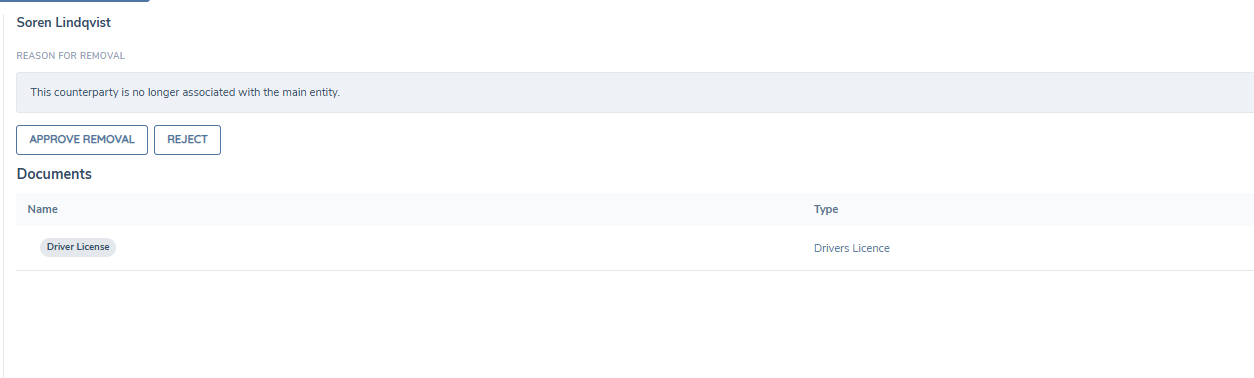
- Reviewing a removal request: selecting a related party flagged for removal shows any comment left by the portal user, with the ability to Approve or Reject the removal. Approving removes the related party from the entity hierarchy; rejecting leaves it in place.
Each related party is reviewed and actioned independently. An empty state is shown if no proposed changes were submitted during outreach for the selected related party.
This tab works as Proposed Changes specifically for journeys using the Outreach Related Parties V2 task. For journeys using the Outreach Existing Related Parties task, this tab continues to show the existing "Existing Related Parties" behaviour.
Data Management in Outreach
In order to meet GDPR requirements the data that is added during outreach is stored for a limited duration, this is set to 365 days. Once 365 days has elapsed the Data stored in the outreach data store will expire. Once the Data and RP review tasks have been completed, this outreach data is no longer required. Related Party document added during outreach will also expire after 365 days if they are not imported. If a Fenergo SaaS user tries to access this data after it has expired through the outreach tasks or the outreach review tasks they will see the following:

The Portal user will see the following screen if the data they are trying to access has expired.
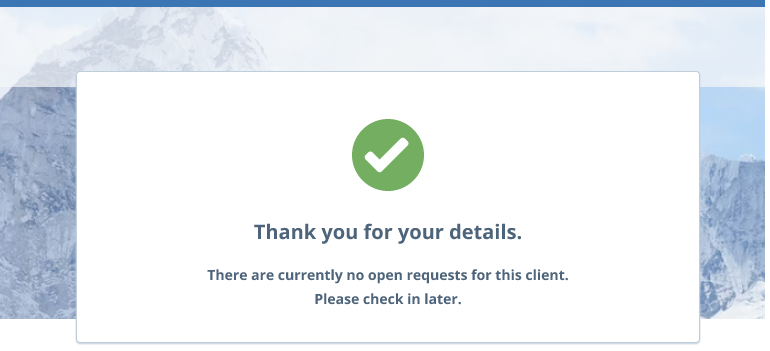
Task Reopen in Outreach
Referring journeys or reopening tasks for outreach should be done with consideration.
- Referring back to a stage prior to outreach before the data review has been complete will result is a new snapshot of the entity data being taken and written to the outreach data store, this will overwrite previous outreach data unless it has been imported
- Referring to a task in the outreach stage after the Outreach Snapshot task will allow the user to update the outreach data
- Related parties added at the Outreach New Related Parties will remain in the outreach data store until they are imported, once they are imported they will be visible in Fenergo SaaS Related Parties task. If they are not imported they will remain until outreach data is cleansed after 365 days.
- Outreach Data Review task cannot be reopened.
Outreach Email and Notifications
Application Abandonment Reminders
The Portal can automatically send reminder emails to portal users who have not completed tasks in an open outreach stage. Reminders are configured by a Fenergo configurator and assigned to outreach stages in Journey Builder.
Reminders are sent only while the outreach stage remains open and incomplete. They stop immediately when the stage is completed or cancelled. If the outreach stage is reopened, reminder tracking resets and intervals restart from the reopen timestamp.
Reminders are sent only to portal users linked to the entity who have the role assigned to the outreach stage. If no role is assigned to the outreach stage, all linked portal users receive the reminders. A portal user who holds multiple roles assigned to the outreach stage receives only one reminder email per interval.
Send Portal Email
The Send Portal Email task is a system task that can be triggered at any point in a journey to send a portal email template to portal users with specified roles. This task is not visible to portal users in the Portal UI — it runs silently as part of the journey workflow.
A portal user must be linked to the entity and hold at least one of the roles selected on the task in order to receive the email. If a user holds multiple selected roles, only one email is sent per task execution.
Notifications
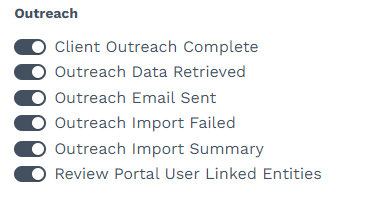
There are specific notifications that will trigger throughout the outreach process. These can be toggled on or off on in the notifications area.
- Client Outreach Complete: This will trigger once the outreach stage has been completed.
- Outreach Data Retrieved: This will trigger once the outreach related party data is retrieved.
- Outreach Import Summary: This will trigger once new Related Parties are imported to Fenergo SaaS
- Outreach Import Failed: Should there be an issue writing new Related Parties to Fenergo SaaS this notification will trigger
- Review Portal User Linked Entities: This will trigger each time an outreach stage is triggered to remind Fenergo SaaS user to check the appropriate portal user has permission to this Legal Entity.
- Outreach Email Sent: An email has been sent to all portal users linked to this entity to advise them that outreach has been triggered and they have tasks available in portal.
Outreach Email
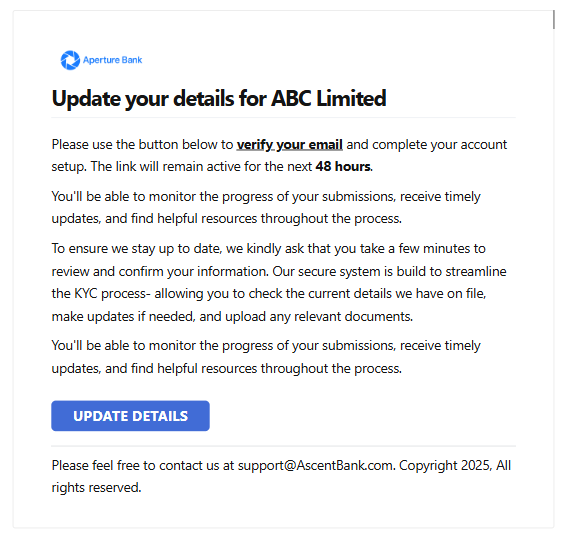
In order to send an outreach email the External Email Domain must be configured and enabled in Fenergo SaaS. (See eMail cofnguration in the Portal Configuration Guide). Once this is enabled, when an external stage is triggered in a journey an email will be sent to all portal users linked to that entity. The content of the email is configurable and can be updated in the portal configuration page. See more details in the Portal Configuration User Guide.
Enabling Different Roles to Complete Different Tasks
This feature allows users with different roles to complete outreach stages/tasks in a journey.
Assigned Portal Role
- A user role can be assigned to an outreach stage. When a role is assigned, any user with that role can complete all tasks within the outreach stage.
- Users that do not have the assigned role, will not be able to view or complete the tasks within the outreach stage
-
If an Outreach stage is not assigned to a Portal Role, all roles and portal users will be able to complete the outreach tasks.
-
Please ensure that each Outreach stage is properly configured and assigned to the appropriate user or role to avoid any unintended access.
Email Notifications
Only users with the role assigned to an outreach stage user will receive the outreach email notification reminding them to complete a task.
Users that do not have the assigned role to an outreach stage will not receive the outreach email notification.
By default, if no role is assigned, all linked users will receive the outreach email notification.
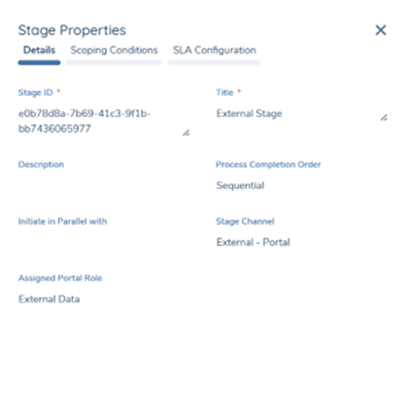
Please go to the Enabling Different Roles to Complete Different Tasks for more information on how to configure this feature.
Personalising Outreach Emails with the Client Name
Outreach Emails 1–4 and the Delegated Authority email can be personalised with the recipient's client name. Configurators can include predefined placeholder tags in the body of the email in Portal Configuration, and the tags will resolve to the correct client name at the point each email is sent.
| Placeholder | Resolves for Companies | Resolves for Individuals |
|---|---|---|
{{entityName}} | Company name | First name |
{{entityFullName}} | Company name | First name and last name |
Templates can include either tag, or both, independently. If a supported tag is present but the underlying client name value is not available at the time the email is sent, the tag renders as an empty string and the email is still sent. Client name personalisation only applies when the relevant tag is present in the template — if no tags are added, the email content renders exactly as before.
For guidance on adding these tags to your outreach email templates, see Configuring the Fenergo Portal Outreach Functionality > Personalising Outreach Emails with the Client Name.
Outreach Requests Dashboard
The Outreach Requests Dashboard is designed to allow Portal users to focus only on entities that have open requests. This feature will make it easier for users to take action on pending Outreach tasks. The dashboard has two tabs, Company and Individual. Users are able to use filtering capabilities and search to find entities.
Note: Only journeys linked to the Portal user will appear on this dashboard. A journey is linked to a Portal user through the Create Outreach Snapshot task. If the Link Journey toggle is enabled, the journey will be assigned to all Portal users associated with the Legal Entity and have the assigned role for the outreach stage. If no role is assigned to the outreach stage, no journeys are linked to any user.
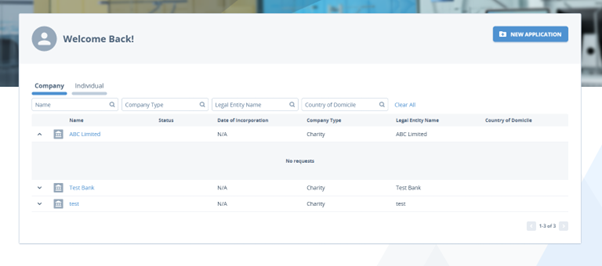
When a user completes all tasks in an outreach stage, the Import Snapshot task is marked as complete. If the Unlink Journey toggle is enabled on the Import Outreach Snapshot task, the journey will be unlinked from the user, and the journey/entity will no longer appear on the Requests dashboard.
In addition to the Entity Name column, the dashboard will also display configurable columns.
Note:
-
Outreach request links when journeys are cancelled or are older than 365 days will be automatically removed.
-
If a journey has been referred to a previous stage, the portal user will be presented with an information screen indicating that the request is no longer valid and will be removed from their dashboard.
Please refer to the Configuration Guide on how to configure the Outreach Requests Dashboard.
Outreach Data Flow
Portal User Management
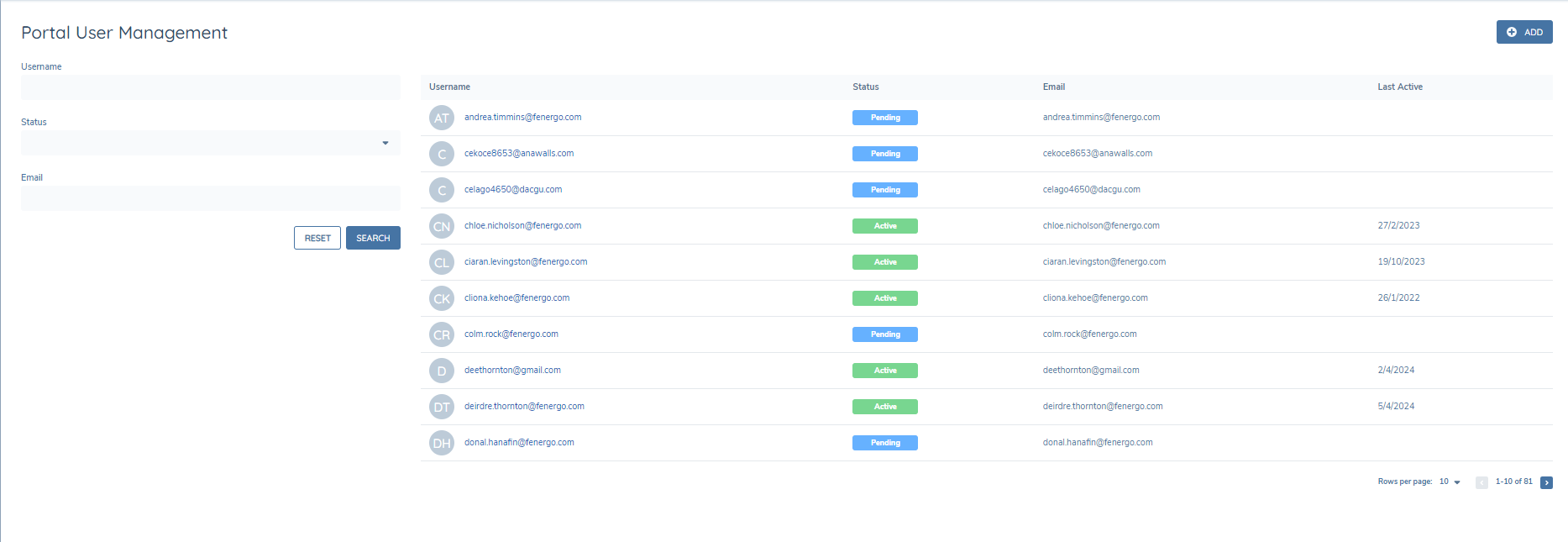
To access a journey for an entity in the Portal, users need to be created and assigned access to the relevant Legal Entities. This can all be done from the QuickLink task detailed above or from the Fenergo SaaS Portal User Management area which is accessible from the Settings cog. To see this setting, users must have the correct security configuration assigned to them.
- Portal User Administration – will allow them to see the Portal User Administration area.
- Portal Administration User Delete – will allow them to delete Portal users.
Portal User Management from Fenergo SaaS
On clicking into the Portal User Management area, the user will be presented with a list of portal users who have access to the portal on this tenant. From here they can search the existing list of portal users, access a specific user or add a new user.
Adding a New User
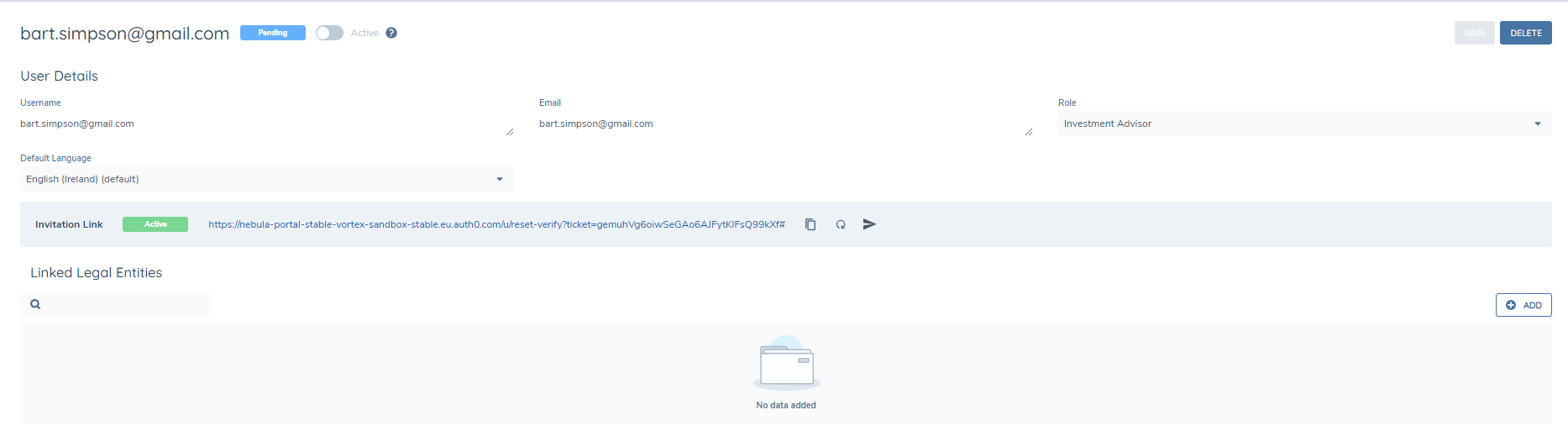
A new user can be added using their email address. Once created, a unique link will be provided onscreen which can be sent to the user. This will allow them to create a password and access the portal. The link will expire after 5 days and can be regenerated. Once the user accesses the portal they will be set to "Active", and the link will no longer be shown.
Linking and Unlinking Legal Entities to a Portal User
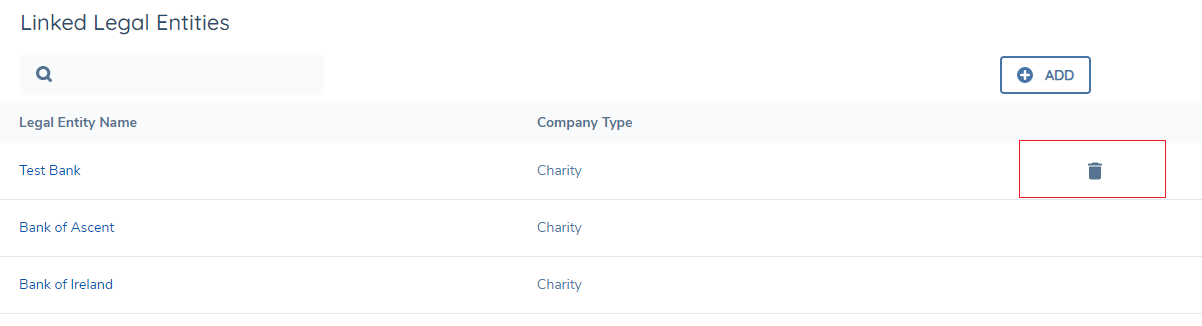
Legal Entities can be added to a portal user using the "+Add" button from the portal user page. Here, there is a Search Legal Entity capability. Once the relevant Legal Entities are found, one or more can be selected. Clicking on the "Link" button will create the user to Legal Entity link.
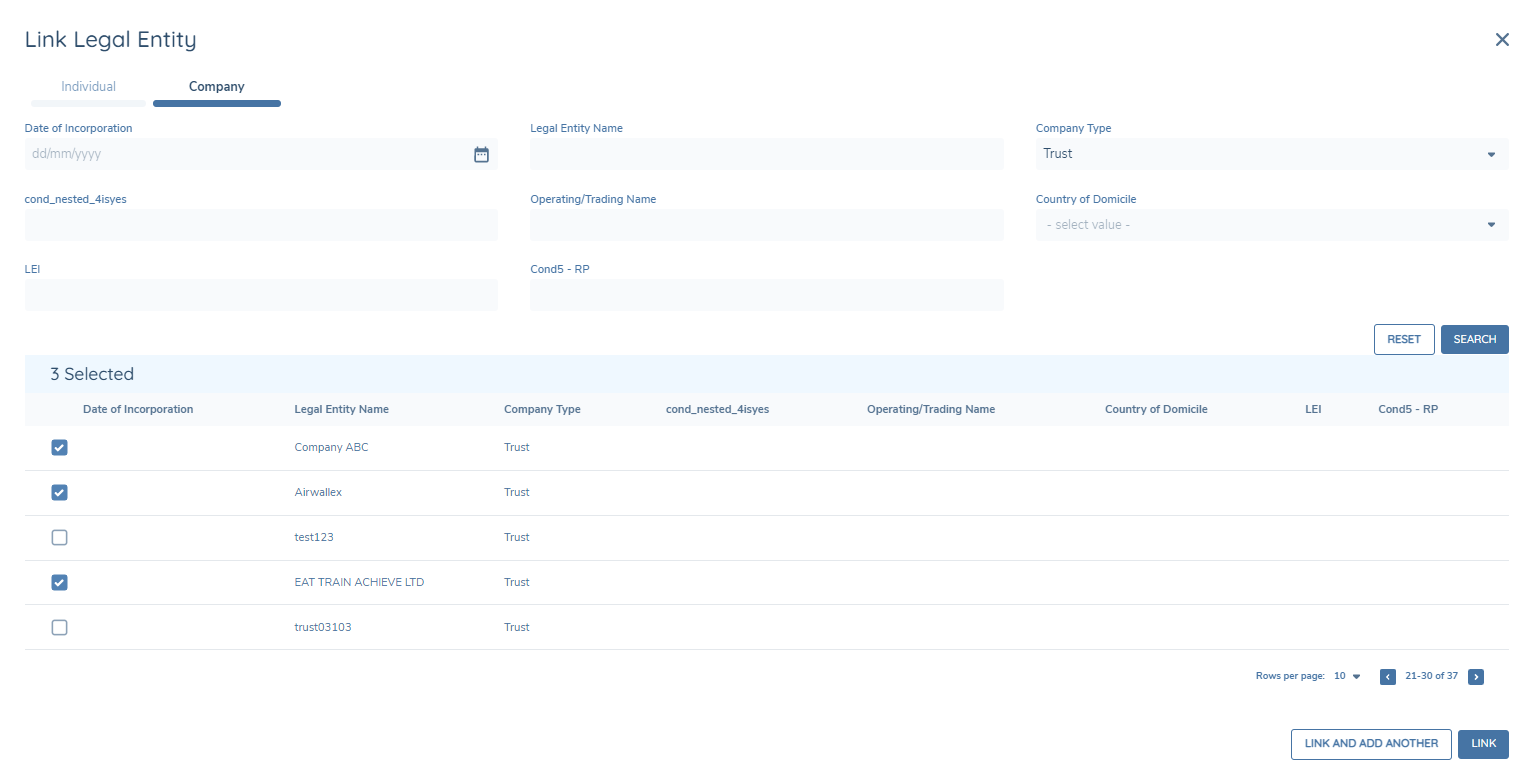
Hovering on a row of linked Legal Entities will reveal a trash icon that can be used to unlink the Legal Entity from that user.
Deactivating and Removing Portal Users
With the Remove Administration User Delete permission, Fenergo SaaS users can remove a portal user. All Legal Entities must be unlinked from a portal user before the user can be delete. Portal user can also be set to inactive. If they are not going to be using the portal for a period, this option prevents them from logging into the portal. However, their account is still available for reactivation.