Using Screening Functionality
Screening of entities in Fenergo SaaS is conducted through integration to one or more third party screening providers. Screening can be distinguished between On Demand Screening, where a request is triggered from within Fenergo SaaS as part of a journey, and Ongoing Screening, where an alert is triggered outside of Fenergo SaaS based on an update from the screening provider.
Fenergo SaaS supports screening of the following match categories:
- PEP
- Sanctions
- AdverseMedia
- Enforcements
- Other
This User Guide offers an overview of the functionality provided by Fenergo SaaS for On Demand Screening.
Refer to the specifics of each supported provider in the respective configuration guide:
- LexisNexis Specifics User Guide
- WCO Specifics User Guide
- Grid Specifics User Guide
On Demand Screening
Journey Task: Screening Scoping
This is an automated task that runs the Scoping Rules that are configured in the Screening Scoping Rules Configuration to determine which entities in the hierarchy are screened.
If this task is not included in the Journey configuration, or if no valid Scoping Rules have been configured, all entities in the hierarchy will be screened.
Journey Task: Screening Entity Selection
As well as automated Scoping Rules, a manual screening scoping task can be inserted into a journey to allow users to manually select entities to bring in or out of scope for screening. This is an optional step that some clients may choose to use to give users some control over who is screened in addition to what is determined by the rule sets. The manual scoping task does not require the automated scoping task to be used, and vice versa. However, if the automated scoping task is run prior to the manual scoping task, the entities that have been determined to be in scope by the rule sets will be pre-set to In Scope.
The Screening Entity Selection task displays the hierarchy structure and allows a user to select entities to bring in or out of scope for screening.
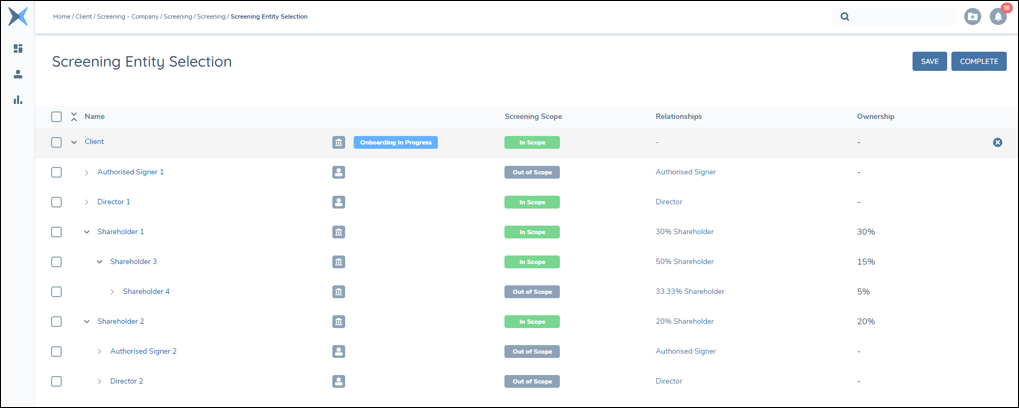
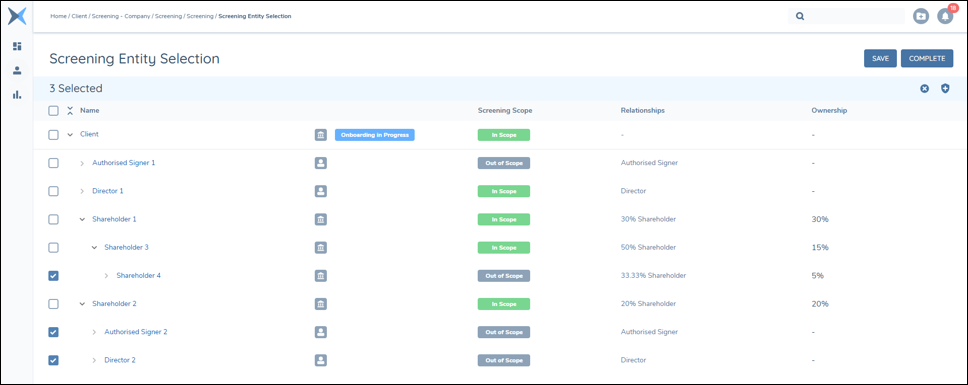
Entities can be selected in bulk by using the checkboxes, which will expose icons to set the selected entites as In Scope or Out of Scope.
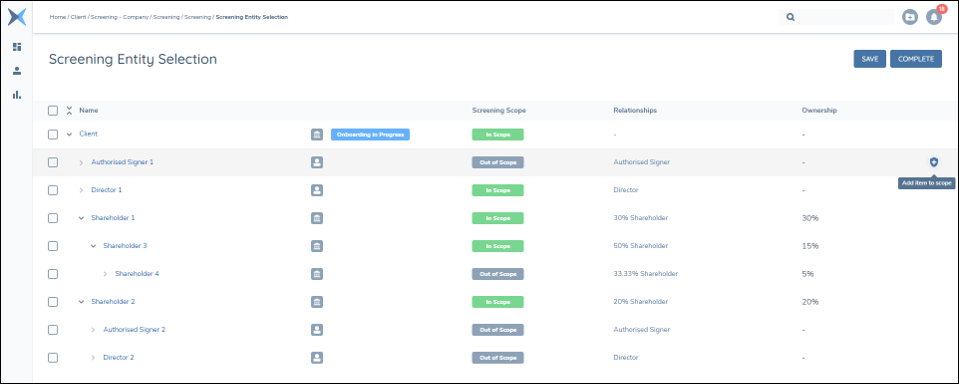
Indiviudal rows can be actioned by mousing over the right-hand side of the row to expose the icons.
For the screening entity selection task to be completed, it is required to have at least one entity included in the scope.
Journey Task: Initiate Screening
This is an automated task that orchestrates the screening search request to the screening providers selected through configuration.
The credentials and provider-specific settings will also be defined in the configuration as described in the Screening Configuration User Guide.
Where more than one entity is being screened as part of the journey, a single Batch request is created which contains the list of entities that are passed to the screening providers. This will be based on the entities determined to be In Scope by the Scoping Rules and/or Screening Entity Selection tasks if these tasks are in use.
There is no user action required for this task.
Journey Task: Screening Match Resolution
This task presents the results returned from the screening search request and allows the user to determine whether the results are matches or false positives.
If no results are returned for any of the entities that are screened, the system will auto-complete the task and no user action is required. An exponential backoff mechanism is implemented for auto-completion, allowing sufficient time for screening providers to complete the search process. This mechanism can extend the wait time for results, up to a maximum of 7 days.
The list of results is presented in the Screening Results table.
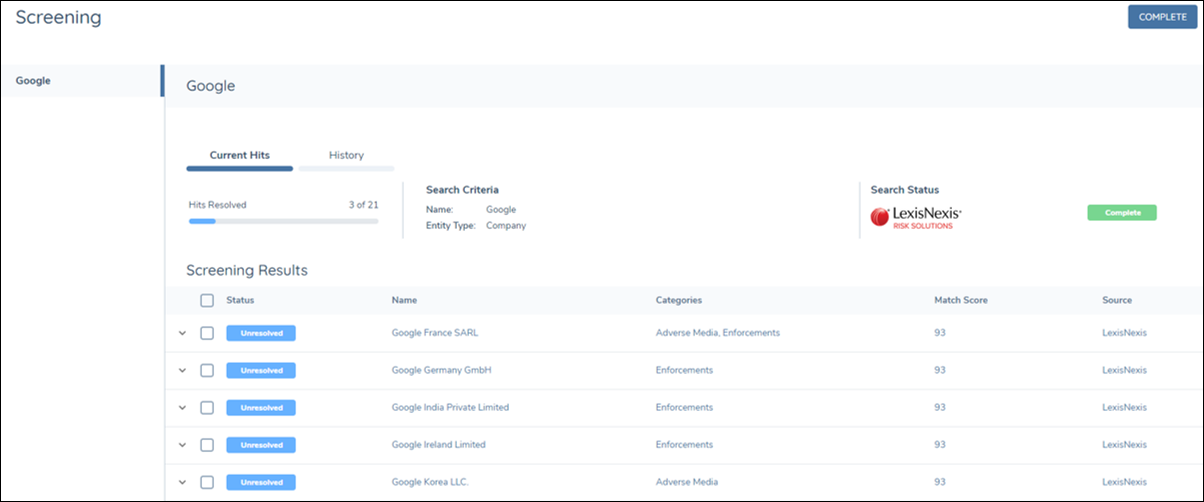
Screening Results:
The Screening Results table displays the key data returned from the provider for each of the results.
Provider Hyperlinks in Screening Results
Where a screening result includes a recognised provider source, the source name in the Screening Results grid is rendered as a clickable hyperlink. Clicking the link opens the corresponding record in the provider portal in a new browser tab. The Screening Results page remains active. Hyperlinks are displayed only when a valid profile or Alert ID is available for the result. If no profile or Alert ID is present, the source name is displayed as plain text and no link appears. Fen-X does not manage authentication with screening provider for these links. If you are not already logged into the provider portal, clicking the hyperlink will redirect you to the provider portal login page.
WorldCompliance (WCO) and GRID
For WorldCompliance (WCO) and GRID results, the hyperlink navigates to the subject profile page in the respective provider portal, opening it in a new browser tab.
LexisNexis (Bridger)
LexisNexis does not provide a subject profile page equivalent to those available in WCO and GRID. For this reason, LexisNexis hyperlinks navigate directly to the alert record in the Bridger portal rather than to a profile page.
Hit Details
Clicking the expand icon for a particular result will expand the row to display the data that has been returned from the screening provider.
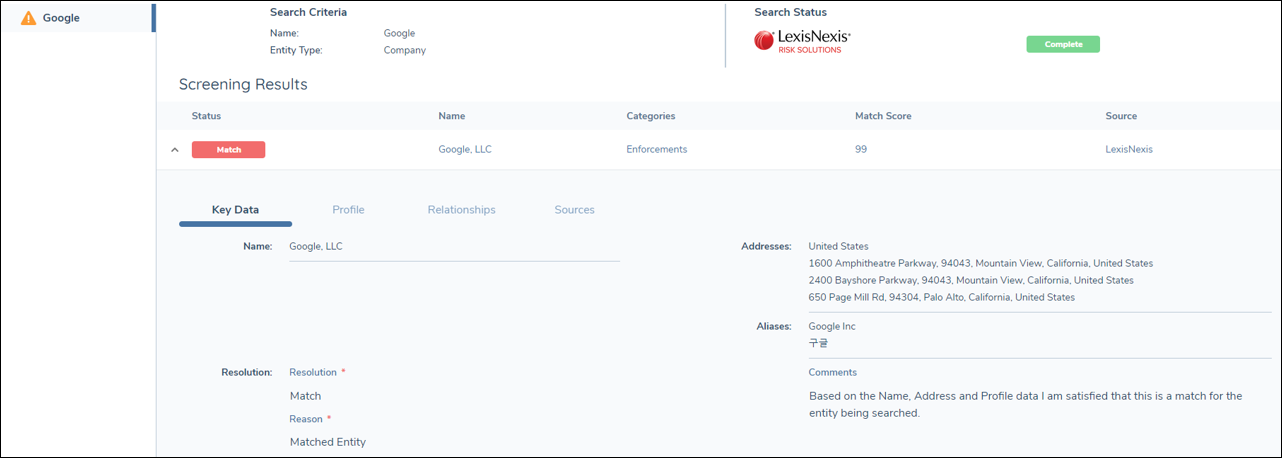
Key Data: Contains the key data that is most useful in identifying whether the result is a match or not. It includes Names, Addresses, Aliases, Dates of Birth, Gender, and Nationality/Citizenship data.
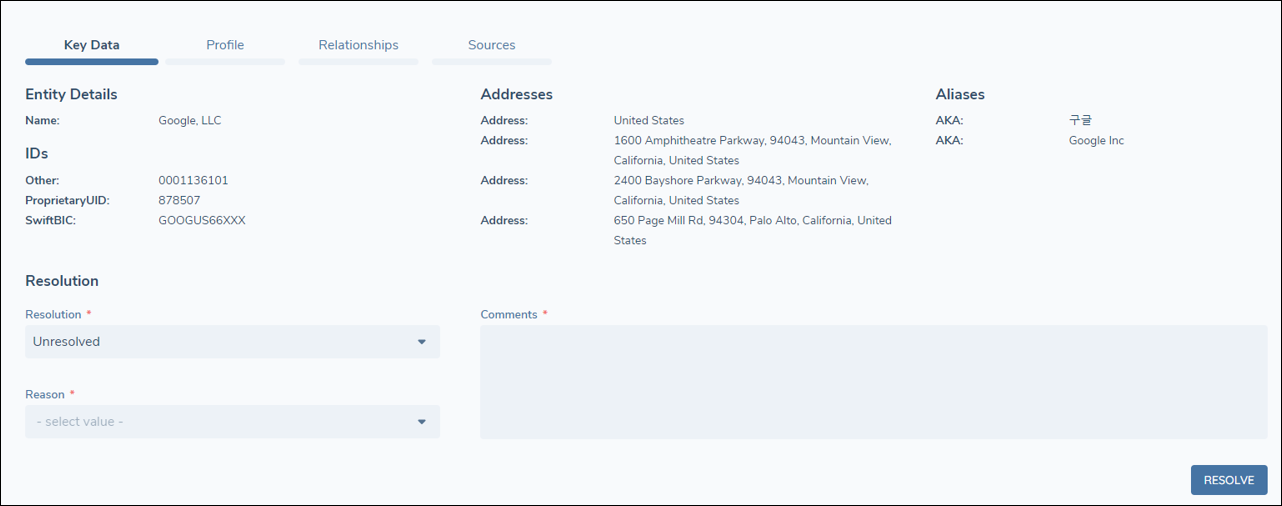
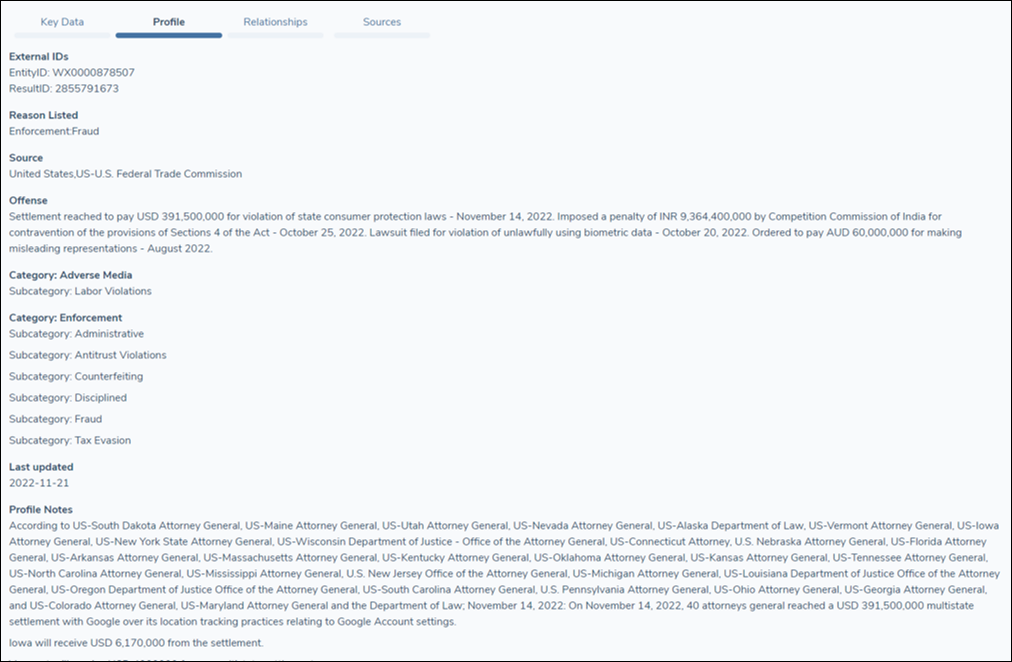
Profile: Contains more extensive profile or biography data relating to the entity. This will differ depending on which provider the results are returned from but will typically include a history or biography of the entity, as well as information on why they have been listed in the screening database. The Profile section would typically only be used if a user is unable to make a determination based on Key Data alone, or to conduct an assessment of a confirmed match.
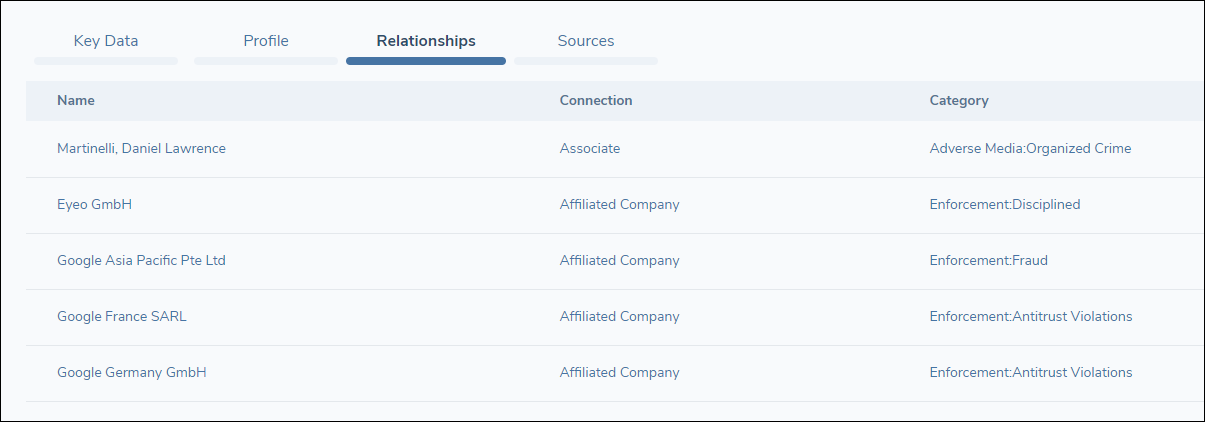
Relationships: Contains data on associations of the entity, which may be individuals or companies.
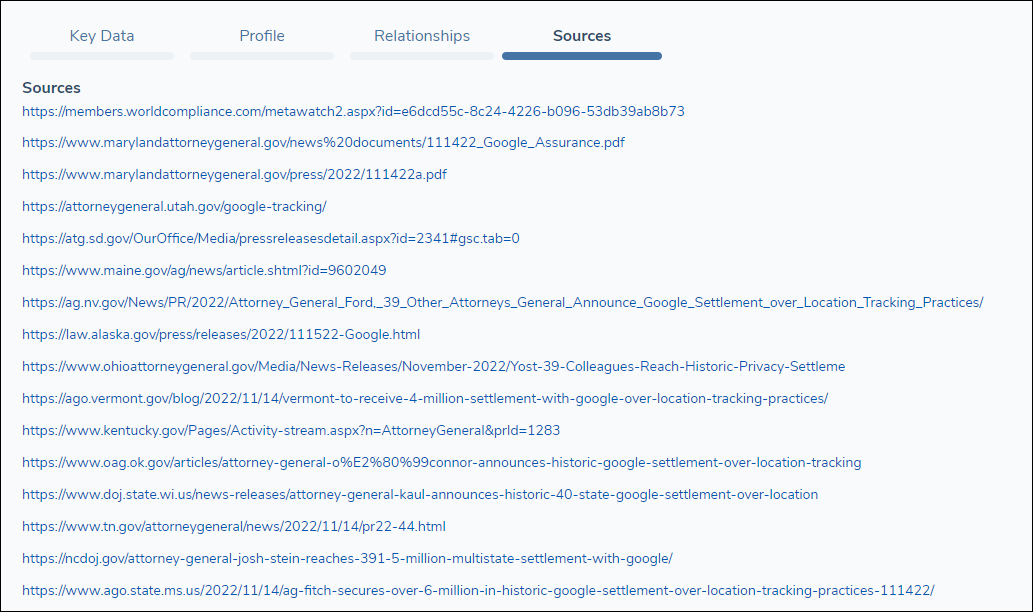
Sources: Contains links to sources of information related to the result.
Individual Match Resolution
Click the expand icon for a particular result to expand the row and review the data contained within each tab.
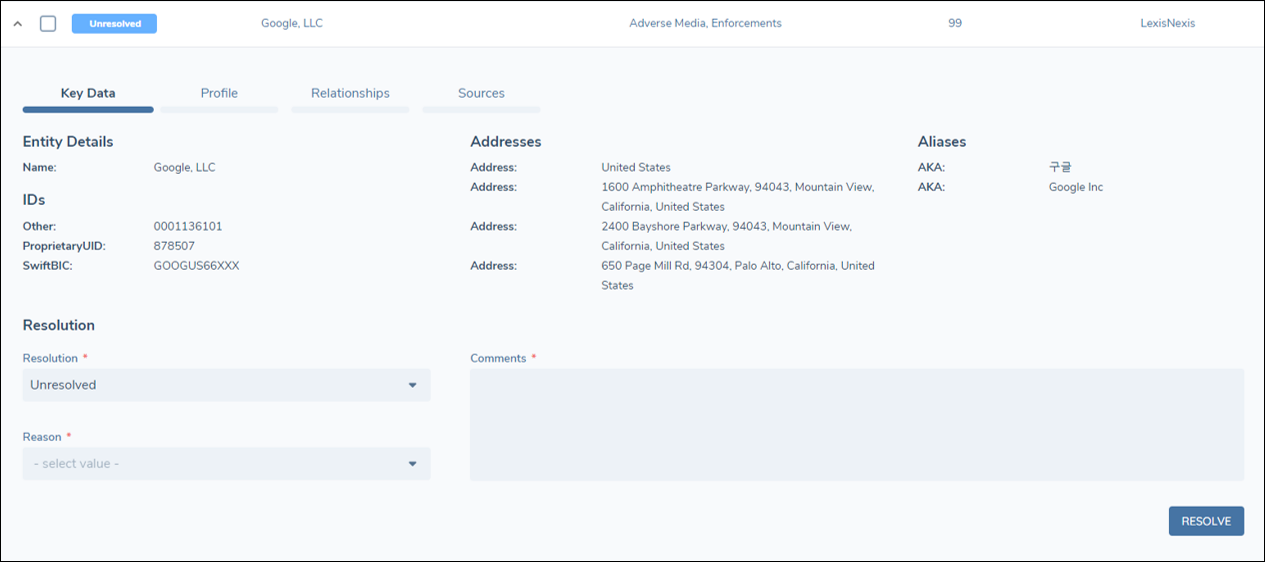
Select a Resolution status from the following options:
- Match: The user is satisfied that the result relates to the entity that has been searched.
- No Match: The user is satisfied that the result does not relate to the entity that has been searched.
- Unresolved: The user is unable to make a determination at this point.
Note: All results should be resolved as either a Match or No Match before the task is completed. The system will run a validation to ensure no results have a status of Unresolved when the user clicks the Complete button.
Select a Reason value from the available drop-down options. The available options differ depending on the selection of the Resolution field.
The Comments field can be used to include additional commentary as to how the user made their determination, or any other information related to the result or the match resolution process. This can be useful to store from an audit perspective.
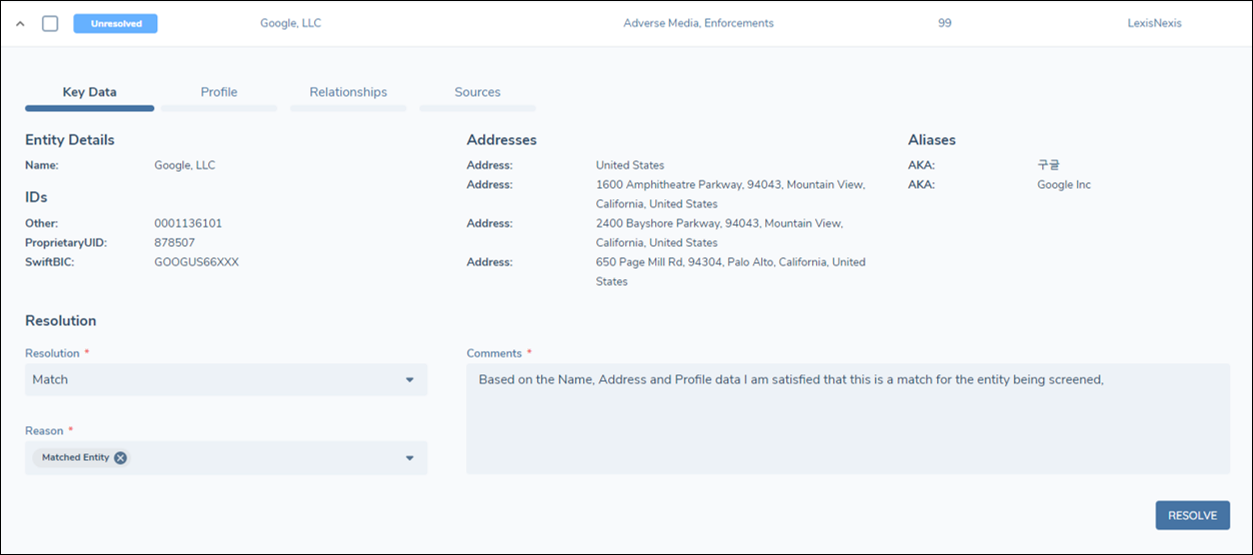
Click Resolve. This saves the data for that record and the Status is updated.
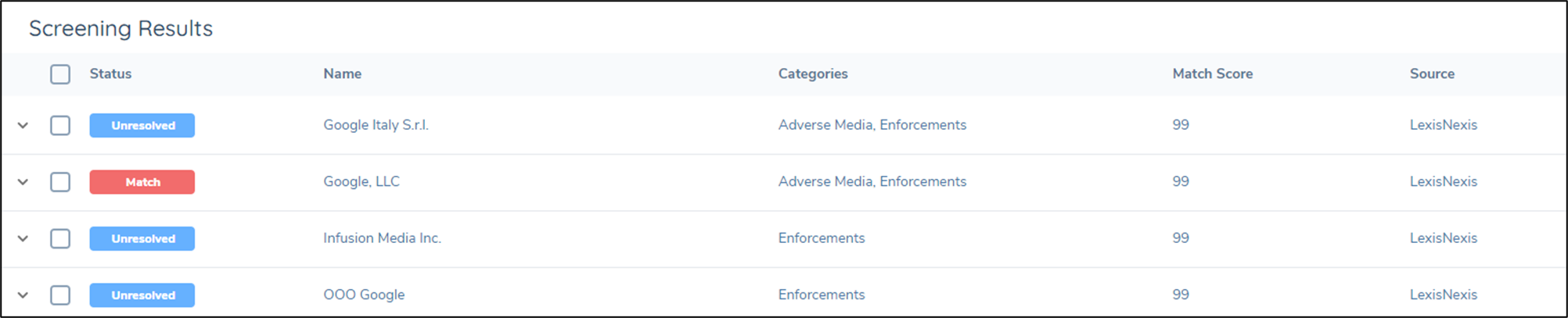
Bulk Match Resolution
Use the checkbox to multi-select the records to be resolved.
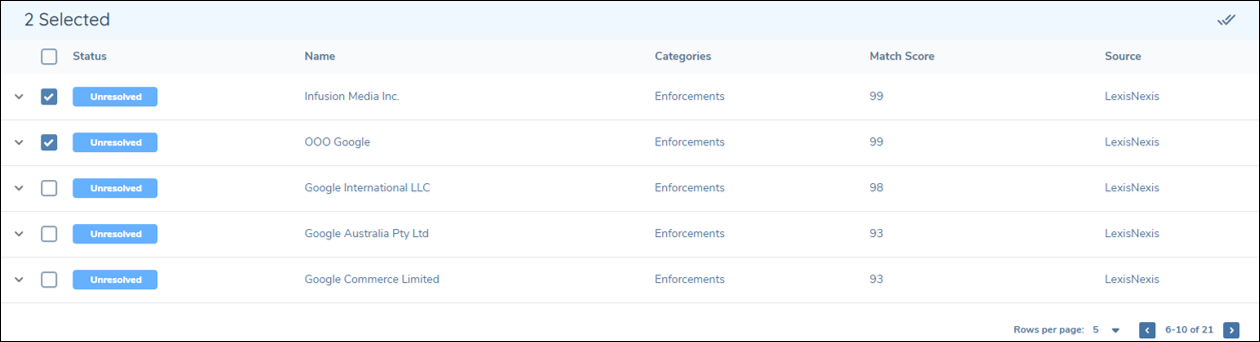
Click the resolve icon to expand the Resolution drawer.
Select a Resolution status, Reason and enter any additional Comments.
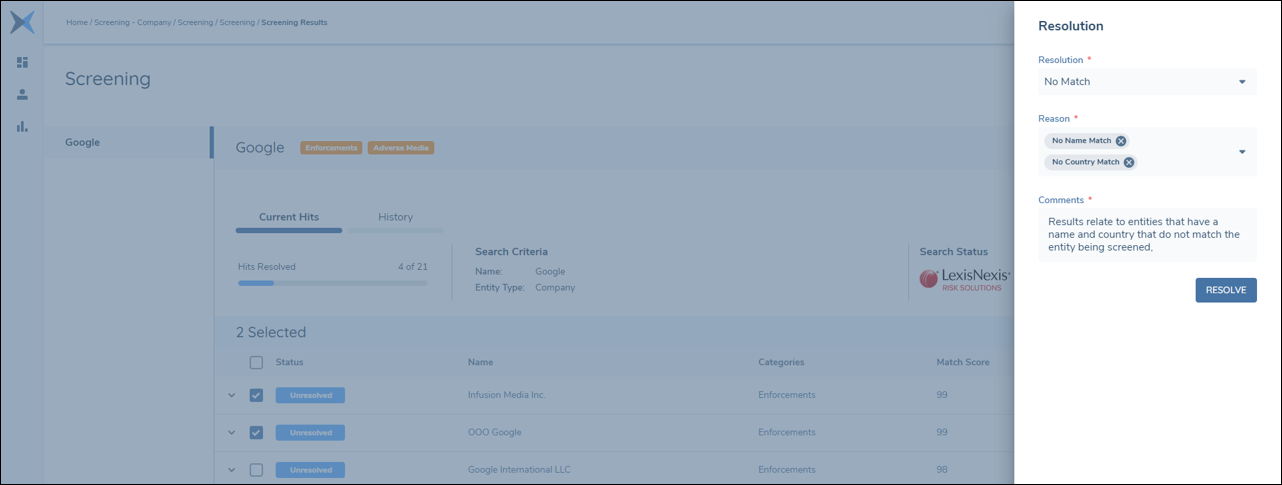
Click Resolve. This saves the data for that record and the Status is updated.
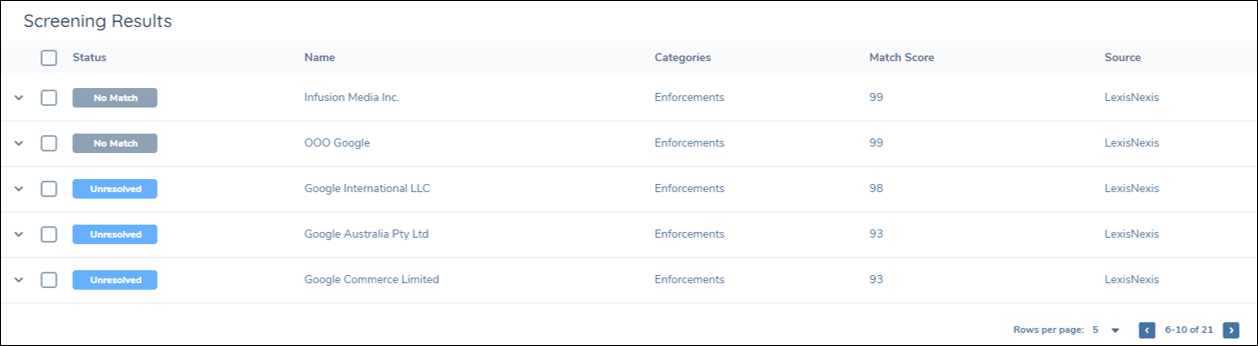
Once all results have a status of Match or No Match , click Complete to complete the task.
A Select visible bulk-selection control is also available in the v1 Screening Match Resolution task and the v2 ODS: Screening Resolution & Materiality and OGS: Screening Resolution & Client Selection tasks, allowing analysts to select all hits on the current page in one click and resolve them in bulk. See Bulk selection: Select visible and Select all for full details.
History
As well as results for the current screening search which are displayed under the Current Hits tab, historic screening searches that have been conducted for the same entity can be viewed in the History tab.
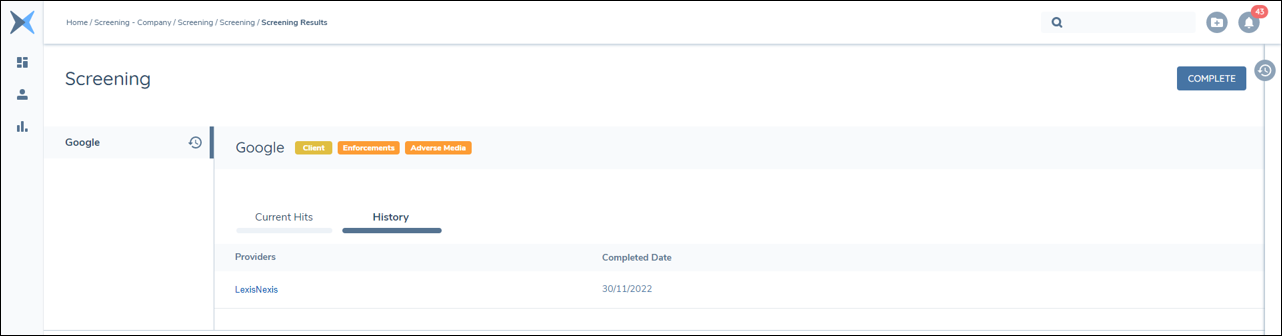
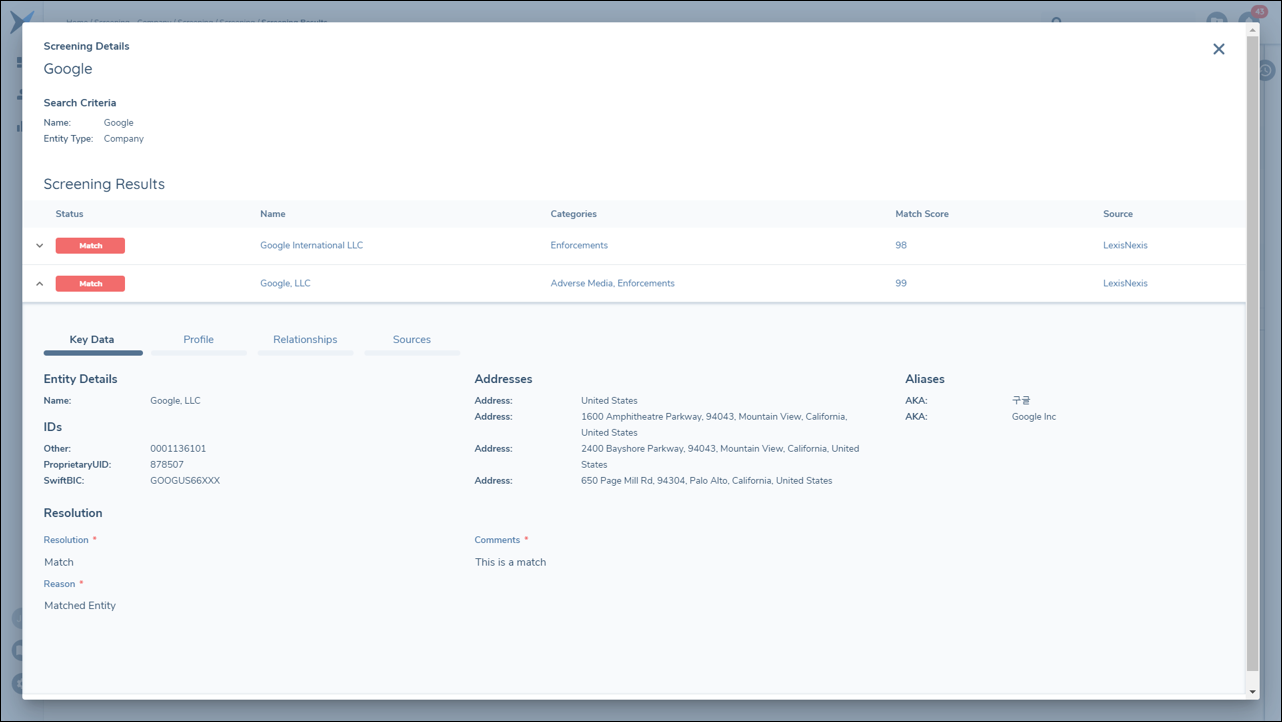
Clicking on a record in the History tab will open a modal displaying the Screening Results table for that particular search. This includes the data that was returned from the provider and the match resolution details recorded by the user. Only hits with a Status of Match will be displayed in the History tab.
Journey Task: Confirmed Match Verification
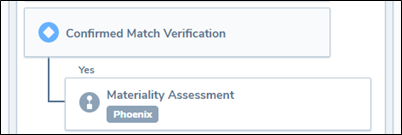
This task is a pre-defined decision gateway that houses conditional logic to determine whether any confirmed matches have been identified during the match resolution process. The primary purpose of this is to determine whether or not to trigger the Materiality Assessment task, however, it can be used to drive any conditional tasks that should be triggered where confirmed matches have been identified.
Confirmed Match Verification checks the result records for the previously completed Screening Results task for any records where Status = Match. The Yes branch determines what action should be taken where Confirmed Match Verification = Yes.
In the below example, the decision gateway is determining that the Materiality Assessment task should be triggered if Confirmed Match Verification has identified that there are result records where Status = Match. If no results have Status = Match, the Materiality Assessment task would be skipped.
Journey Task: Materiality Assessment
The Materiality Assessment task is designed to capture the overall outcome of the screening process. It allows a user to view a summary of all confirmed matches, and to make a determination as to whether the matches are material or not in the context of the client entity. It can also be used to drive additional processes such as risk and escalation tasks.
The Materiality Assessment task is composed of two panels: Screening Results and Review Details.
Screening Results:
The Screening Results table displays a list of confirmed matches as determined during the match resolution process. The structure of the table is the same as it appears in the Screening Results task, however, the data is not editable and results that have been resolved as false positives are not displayed in this context.
Review Details:
The Review Details panel contains the fields that allow the user to capture the outcome of the screening process. The fields that appear here are driven by the Policy configuration for the tenant. There is a short guide to configuring these fields at the end of this section.
The default configuration for the Review Details panel consists of the following fields:
- Sanction Status: The overall materiality of confirmed Sanctions hits in the context of the client entity.
- PEP Status: The overall materiality of confirmed PEP hits in the context of the client entity.
- Adverse Media Status: The overall materiality of confirmed Adverse Media hits in the context of the client entity.
- Enforcement Status: The overall materiality of confirmed Enforcement hits in the context of the client entity.
The user can select from the following options:
- Material: The confirmed screening hits in this category have a material impact on the client entity.
- Immaterial: The confirmed screening hits in this category do not have a material impact on the client entity.
- None: There are no confirmed screening hits in this category.

The values that are selected in the Review Details panel are used to drive subsequent tasks:
- Risk Assessment: The materiality status per screening category is used to feed into the overall risk assessment calculation. Please see Risk User Guide for details on how to configure risk factors.
- Conditional Tasks: Conditional tasks such as escalations to senior managers or Enhanced Due Diligence can be triggered by the materiality status. Please see Journey User Guide for details on how to configure conditional tasks.
Sample Configuration
This section describes how to configure the Review Details fields using the default configuration. The entries and values can be amended as required. Please refer to the Policy User Guide for full details of how to configure a policy.
- Add Materiality Assessment as a Requirement Category in the Reference Data Editor.
- Add a new Materiality Status lookup in the Reference Data Editor with the following entries: a. Material b. Immaterial c. None
- Navigate to the appropriate Policy and add Data Requirements for the following fields: a. PEP Status b. Sanctions Status c. Adverse Media Status d. Enforcement Status
- Select Materiality Status as the Lookup value and Materiality Assessment as the Category for each of the above fields.
- Navigate to any Journey that you wish to configure the Materiality Assessment for.
- Select Materiality Assessment as the Business Category for the Materiality Assessment task. The Review Details panel will be populated with the configuration that has been mapped to the Materiality Assessment category.
Journey Task: Return Screening Results to Providers
When results are generated by the screening provider, they remain as open alerts until they are closed with a resolution status.
After the user completes the match resolution process in Fenergo SaaS, the resolution status must be returned to the screening providers in order to close the alerts.
This is an automated task that orchestrates the return of resolved screening results to the screening providers defined in the configuration.
There is no user action required for this task.
Journey Task: Verify Screening Period
The Verify Screening Period task checks whether screening results are still within their configured validity period before the journey is allowed to proceed. It is a checkpoint task — in practice it is commonly placed in its own Verify stage together with other verification tasks (such as Verify Associations, Verify Entity), positioned after the Screening stage — to guard against a journey completing on screening data that has become stale.
The task automatically evaluates every screening process it governs against the validity period configured on that process's Configuration Set (see Verify Screening Period Configuration in the Configuration Guide). No manual selection of which process to check is required.
-
If every governed screening process is still within its validity period, the task auto-completes and no user action is required. Each process is shown with a simple Completed status — the Expiry and Results returned detail described below is not displayed in this case.
-
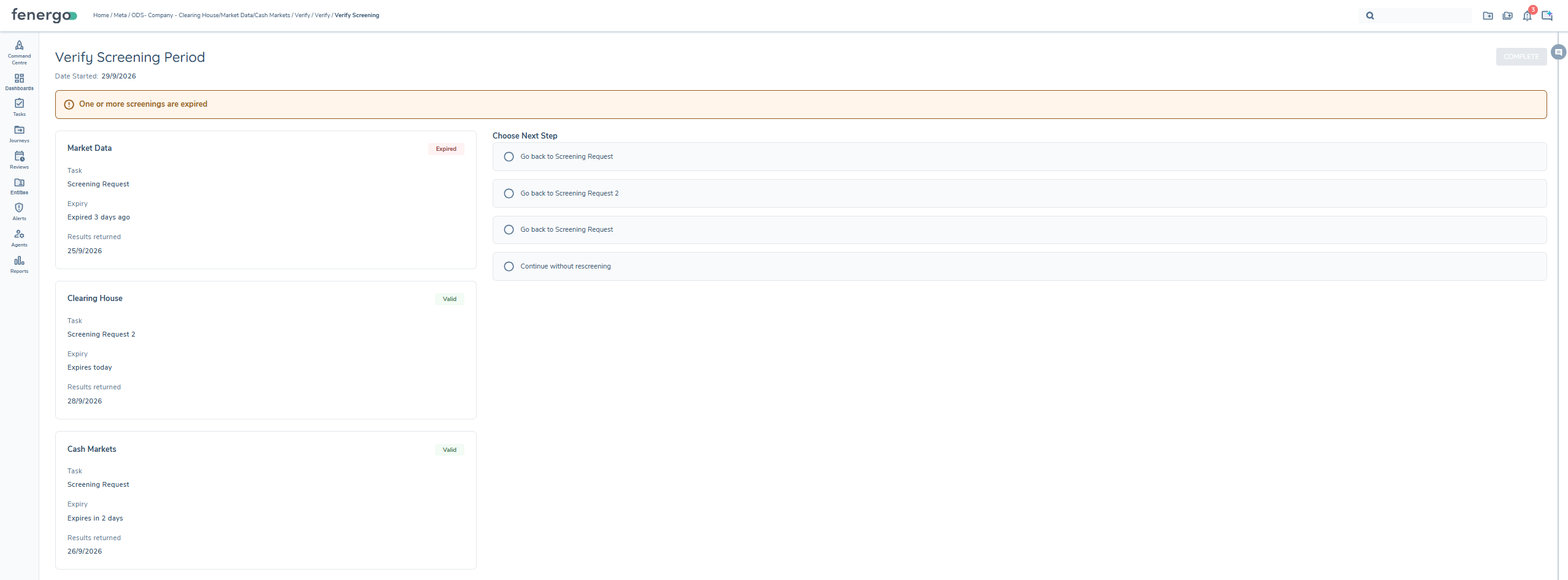
If any governed screening process has exceeded its validity period, the journey blocks. A banner reading "One or more screenings are expired" appears, and each governed process is shown as its own card listing:
- The process name and a status chip (Expired or Valid)
- Task — the name of that process's screening request task (for example, Screening Request)
- Expiry — a relative countdown or overdue message (for example, Expires today, Expires in 2 days, Expired 3 days ago)
- Results returned — the date screening results were returned for that process
A process backed by a Configuration Set with no Validity Period (Days) set can never expire. If it is the only governed process, the task auto-completes as usual. If the checkpoint is triggered by another governed process instead, this process still appears as its own card, showing a Valid chip and its Task name only — no Expiry or Results returned is shown — and it remains available as a Go back to [Task Name] option like any other governed process.
-
If a screening process's results-returned date is missing, or the screening for that process is incomplete, the task blocks with a data or configuration error. This cannot be resolved by choosing Continue without rescreening — the underlying data issue must be corrected first.
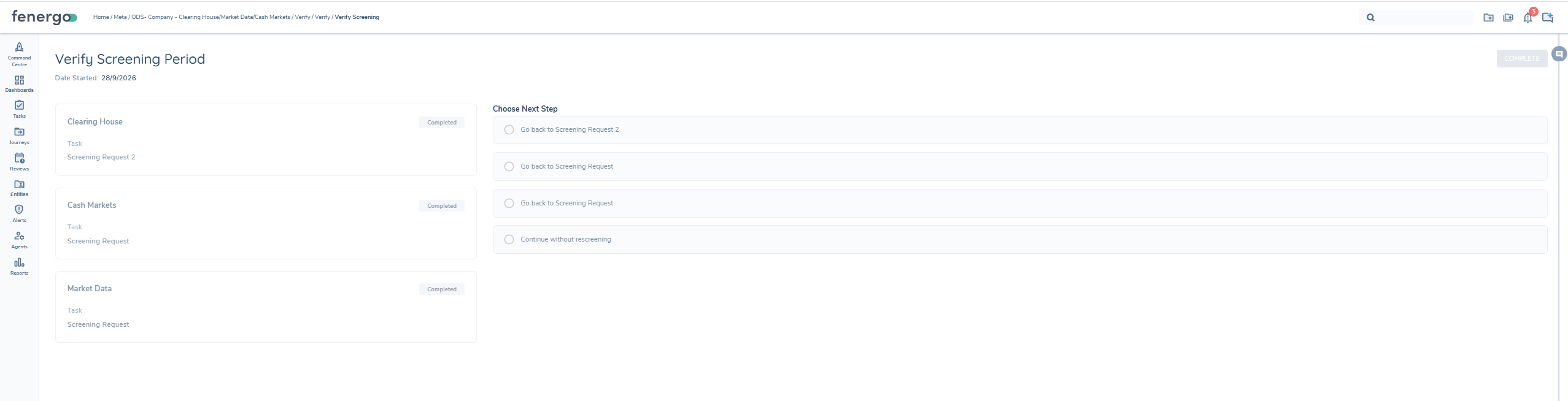
Choosing next step:
When the checkpoint is shown (at least one process has expired), the user selects exactly one option to complete the task:
- Go back to [Task Name] — one option is shown for each governed screening process, labelled with that process's own screening request task name (for example, Go back to Screening Request). Selecting this reopens that process's screening request task and reverts every task completed after it, so screening and any dependent work (such as risk assessment or approvals) are redone. This option is available for any governed process, not only the one(s) found expired — for example, a user can choose to refresh a still-valid process for the latest results instead of going back further.
- Continue without rescreening — the journey proceeds without refreshing screening.
Reopening a process reverts every task completed after it, in journey order — this can include another governed process's own tasks if that process comes later in the journey.
Audit trail: A reopen is recorded to the audit trail like any other reopen. Continue without rescreening does not create its own audit trail entry — it can only be inferred from the task's own Task Completed history record, where Completed By shows the analyst's user account. When the task auto-completes instead (every process valid), Completed By shows system.
If two or more governed processes share the same screening request task name (for example, both named Screening Request), their Go back to options will display with identical labels. Use distinct task names for each screening request task in the journey to keep these options distinguishable.
A validity period only applies to a screening process if one has been set on its Configuration Set. A process with no validity period configured can never expire on its own — but if the checkpoint is triggered by another governed process, it still appears as a Valid card with no Expiry or Results returned, and remains available to reopen.
Reopening Screening Processes and Screening Resolution Reuse
The Verify Screening Period task (above) also uses this reopening mechanism when a user selects a "Go back to" option.
In the context of a journey, the screening process may occasionally need to be reopened for corrective actions. When screening is reopened, Fenergo can re-use previously saved screening resolutions so analysts do not need to repeat dispositioning for the same underlying match.
When Does Resolution Reuse Happen?
Screening resolution reuse is applied in either of the following situations:
- Reopening screening: A screening process is reopened for corrective actions and screening results are returned again for the entity.
- Screening the same entity again: The same entity is screened again in a subsequent screening process, either within the same journey or in a different journey.
In both situations, Fenergo uses the same matching rules to determine whether a returned match should inherit a previously saved resolution.
Conditions for Reopening
Users can reopen any tasks that occur before the screening process begins. Once the screening process has started, only tasks prior to the screening can be reopened. Reopening the screening process itself is not permitted during ongoing screening.
What happens when Screening is Reopened
When a screening process is reopened (within the same journey or in a different journey for the same entity), the following occurs:
- Reuse of resolutions: For each match returned, Fenergo automatically populates the resolution, reason, and comments from the most recently saved resolution for the same match, where applicable.
- Latest resolution on save: When a user saves an update to a match resolution in Fenergo, that saved outcome becomes the latest active resolution immediately, even if the screening results task has not been completed.
- Multiple screening processes: In journeys with multiple screening processes, the most recently saved resolution always takes precedence when applying re-use.
- Configuration sets: Screening resolutions are not reused across different configuration sets. Each configuration set maintains its own independent set of resolutions.
- No validity window: Reuse is always attempted where the matching rules are met. Users can review and amend any reused resolution before completing the screening task.
Match Identification and Traceability
Reuse is applied only when Fenergo can identify the same underlying match for the same entity.
- profileID: This screening property is used as the unique match identifier to link the same match across screening batches and across journeys. It is used to determine whether a returned match should inherit a previously saved resolution.
Important Considerations
- Custom providers: For custom screening adaptors (for example Fircosoft), profileID must be populated, unique, and consistent for each screening hit. If EntityUniqueID is missing or changes between screening runs, re-use cannot be applied reliably for those matches.
- Scope and provider notes:
- WCO: This reuse feature does not apply. WCO maintains cross-journey reuse natively. To update a resolution for a WCO hit, the entity must be screened again via a subsequent journey (for example a maintenance journey) and the decision updated there.
- OGS: Reopening screening during ongoing screening is not permitted and remains out of scope. For updated hits (where classified as updated by the provider), the existing resolution is maintained and reused when the same match can be identified.
- Grid and LexisNexis: Where results are returned with stable profileID values and screening is reopened, previously saved resolutions can be reused as described above (subject to provider-specific behaviour outside of Fenergo control, such as alert suppression mechanisms).
Performance Guidelines and Limitations
-
API Payload Response Limit: There is a 6MB limit on the API payload response returned from the Screening Providers.
-
Limits on Screening Results: Due to the payload response limit, there are restrictions on the number of Screening Results that can be consumed into Fenergo SaaS. The number of results that can be supported will depend on the size, measured in number of characters, of individual hits within the results. In order to manage the response size, users can provide additional Secondary Identifier data to the provider to refine the search results, or apply Scoping Rules to filter and reduce the number of entities being screened.
-
Impact of Individual Hit Size (in Characters): The number of entities or hits that can be supported does not have a precise limit. It will vary depending on the size of individual hits. Some hits may have extensive Biography/Profile data spanning multiple pages, while others may have only a single sentence. This size difference significantly affects the number of hits that can be supported.
-
Screening Entity Selection Task Limit: There is a maximum of 1000 entities limit on the entities that are displayed in the Screening Entity Selection Task taking into account the main entity plus the related parties.
-
Request Screening Task Limit: There is a maximum of 1000 entities limit on the Request Screening task taking into account the main entity plus the related parties.
-
Tested Scenarios and Results: The system's capabilities have been evaluated through various test scenarios. The obtained results provide an overview of the supported functionalities based on these tests::
Entity No Matches Size No of Entities Supported Entity A 4 9,050 700 Entity B 19 57,480 275 Entity C 20 113,000 150 Entity D 36 126,576 225 Entity E 22 395,490 25 Entity F 40 434,460 30 Note: The number of entities supported refers to the number of entities of that size that can be supported in a single batch.
Ensure that you consider these performance testing results and associated limits when utilizing the Screening service.
Reporting
Screening data can be reported on using the Advanced Reporting feature; for full details on available tables refer to the Advanced Reporting User Guide.