Configuring Advanced Risk Functionality
Scoping Rules
The Scoping Rules Component in Risk Configuration, provides you with the ability to set the conditions in which Risk Models, Configuration Models and Threshold models should be used when calculating Risk via the Fenergo SaaS APIs.
To find Scoping Rules, navigate back to the Risk Configuration homepage by clicking in the icon on the left.
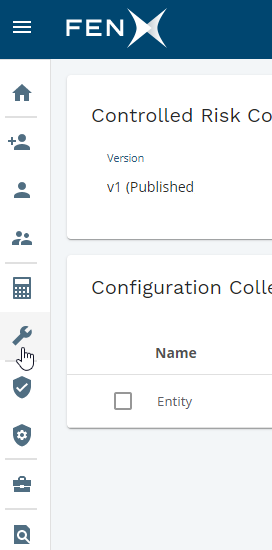
The Scoping Rules panel is located below the Threshold panel.

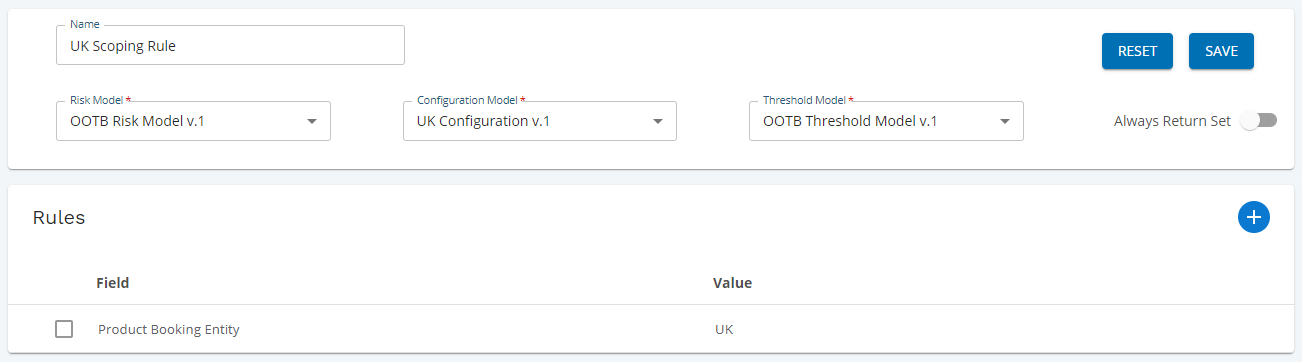
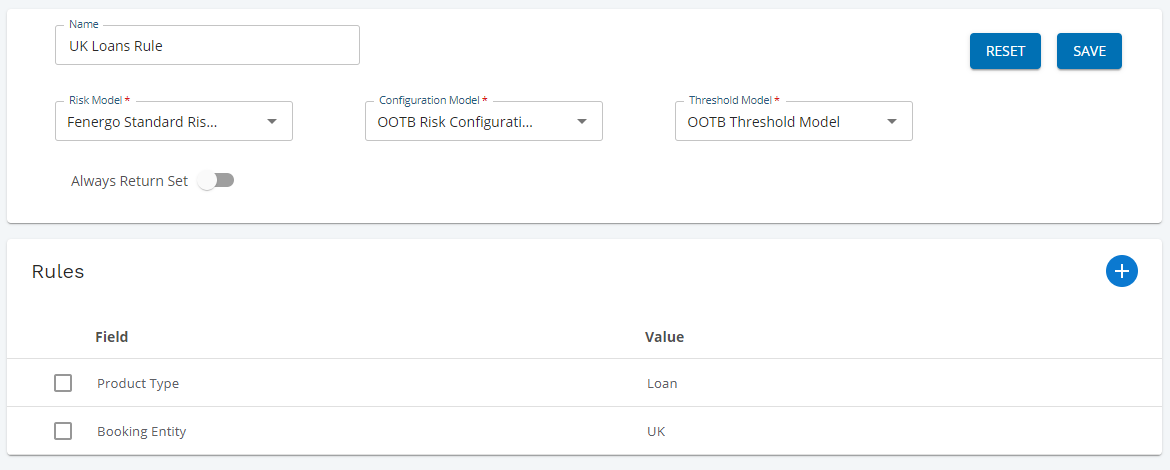
This section allows you to configure a set of models to run together based on certain conditions. For example, you may have a risk model, configuration model, and threshold model that is specific to UK-based booking entities. In this panel you can choose a model set to run via the API if the condition “Product Booking Entity: UK” is true.
Create a Scoping Rule
- Click the ‘+’ icon in the top right to create a new rule.
- Give the rule a name, for example “UK Scoping Rule”.
- Choose the risk model, configuration model, and threshold model that apply to this rule.
- If you want this model set to always run no matter what rules are passed, turn on the “Always Return Model” switch.
- Define the values that must be passed in the Key/Value Pair panel. For example, Key: “Product Booking Entity” and Value: “UK”
Exact Matching
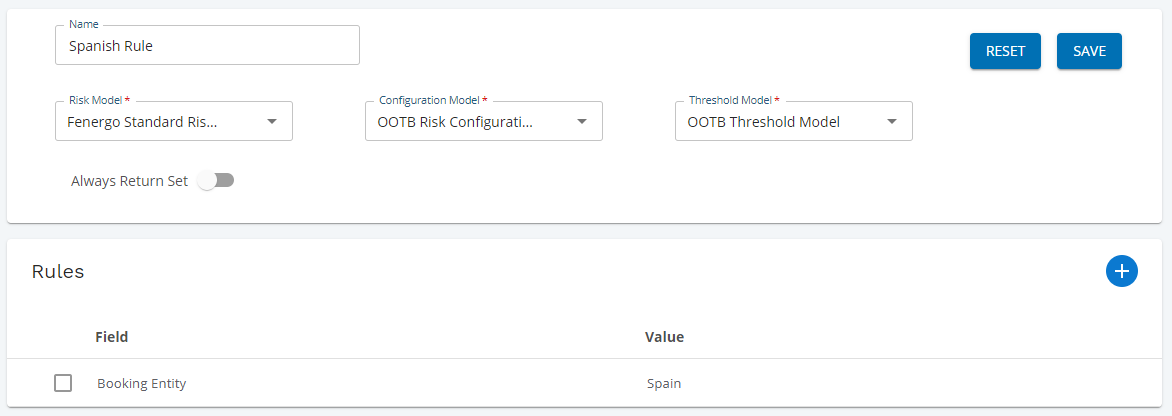
The scoping engine searches for exact matches. If the rules “Product Booking Entity: UK” and “Product Type: Loan” are passed, but the rule only has “Product Booking Entity: UK”, the model set will not be returned. In order for a model set to be run with these parameters, there needs to be two key/value pairs configured in the panel: “Booking Entity: UK” and “Product Type: Loan”. There needs to be a scoping rule to cover every possible set of conditions that can be passed.
Depending on how the rules are configured, more than one model set may be returned. If the “Always Return Set” switch is on, the model set will be returned no matter what rules are passed. In this case, multiple risk ratings will be returned via the API.
Example 1:
Sending the following values will run the above model set:

Sending the following will not run the above model set:

Example 2:
Sending the following values will run the above model set:

Sending the following will not run the above model set:

Driving Conditionality from Risk Assessment
Configuration
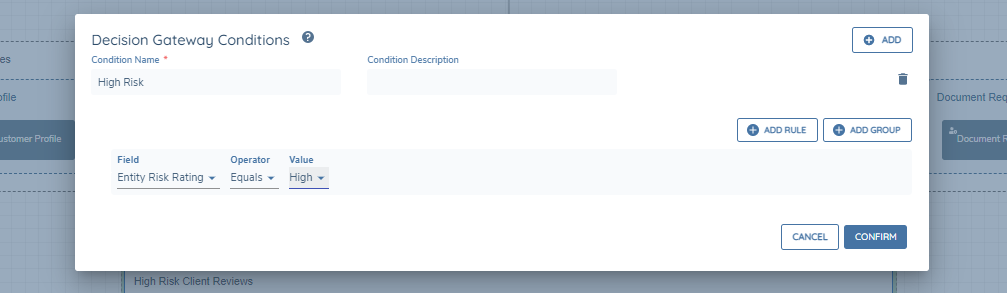
To trigger conditional tasks based on risk ratings calculated in a Journey, we need to ensure, using Decision Gateway Conditions, that we define the field that the risk is output to in our conditions as well as the corresponding value returned for the condition to be true.
For example, trigger High Risk Escalation task if the Entity Risk Rating = High (see below).
Risk Assessment Condition task & Risk Assessment Conditional value task now removed as options when creating new Journeys / Updating versions for Journeys:
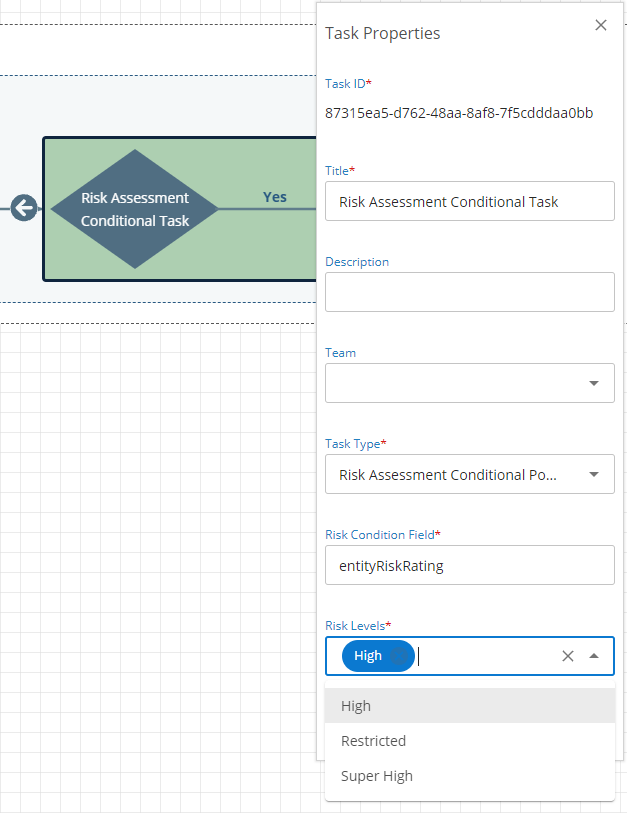
Users can set a “Risk Assessment Condition Task” / “Risk Assessment Conditional value task” which takes the outcome of a risk assessment and triggers a condition workflow based on the calculated threshold.
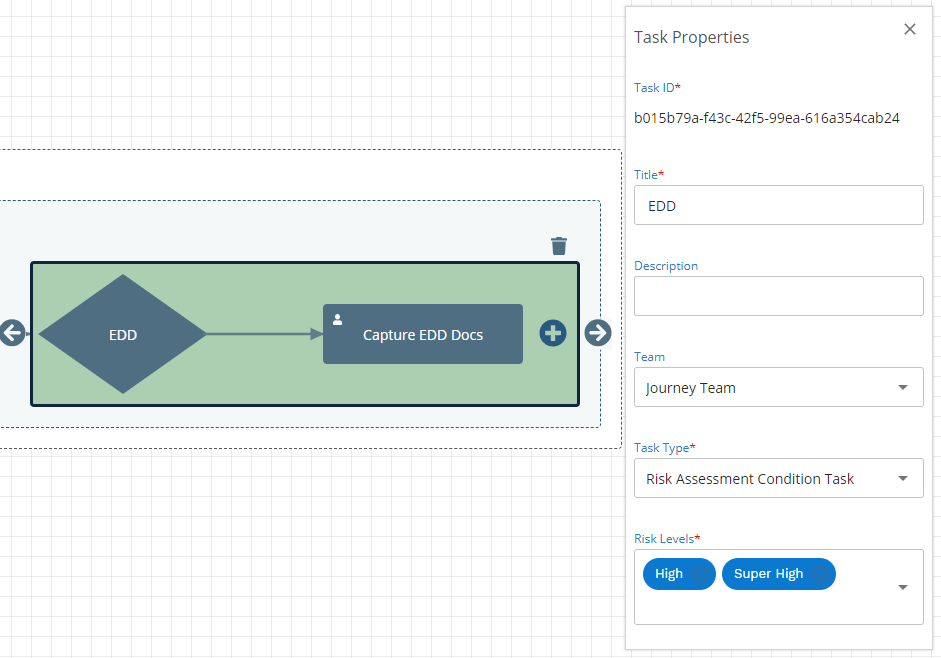
This task has been configured to trigger “Capture EDD Docs” if the Entity Risk Rating is “High” or “Super High”
To add a custom threshold, type it and press enter.

Ensure that the Risk Levels assigned here match the thresholds configured in the selected threshold model.
The only difference between the two Risk condition tasks in Journey Builder is that the Risk Assessment Conditional Policy Output value task takes in the datakey of the field that the Risk Assessment was written to following the calculation.