Migrating Products against Legal Entities
Clients can enable the use of Products in Fenergo and can also migrate Products alongside Legal Entities in a Data Migration. To do so the data migration needs to be created with a reference to an appropriate Products Requirement Set. As a perquisite, the Product Enablement Guide needs to be followed. In terms of using the products API, the following guide walks through the use of Working With Products
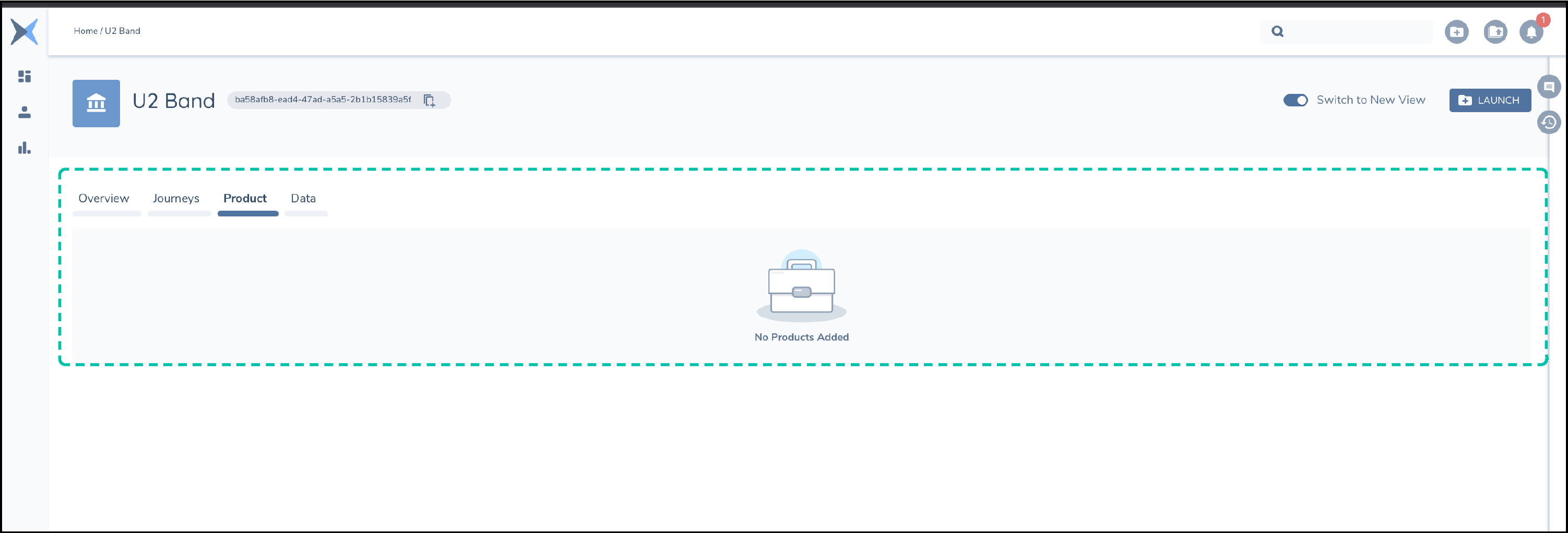
Product Migration Use Case
  AS: an API consumer:

    GIVEN: I have a collection of Product data which I want to Migrate onto the Fenergo SaaS platform.

    AND: I know which Legal Entity Id I want to create my products against

 THEN: I want to upload my product data as part of a Data Migration and have the products show up against the LEgal Entity.
To satisfy this use case, a client will need to populate the Generated Products CSV file which will be created by the migration with data related to the products. Product Data is NOT part of the Legal Entity Record, instead it exists as a separate data records which is related to one or more Legal Entities by way of an association.
Product Migration Strategy
Product Migration can be included into a Data Migration by referencing the appropriate Product Requirement Set as part of the Create Migration API POST Call sent to the following URL Endpoint : {{baseURL}}/datamigrationcommand/api/v2/migration as indicated in the sample below. "productJurisdiction":"Global". The Requirement set called Global will be used to generate artifacts for populating products. The Data Migration Schema will also include the details of the fields used for the product artifact.
{
  "data": {
    "jurisdiction": "Migration",
    "productJurisdiction": "Global"
  }
}
Retrieving the Product Artifacts
Once the Migration has been created, there are two Artifacts in the list returned by calling the below HTTP GET API. These are the "name":"AssociationsToProduct" and "name":"Product". These source files are used in conjunction with either the Individual or Company files to migrate products and associate them with LE Individual or LE Company types.
{{baseURL}}/datamigrationquery/api/migration/{{migrationID}}</get-artifacts
{
    "data": [
        .
        .
        . . . . {Other Artifacts}
        .
        .
        {
            "type": "sample-templates",
            "name": "Company",
            "format": "csv"
        },
        {
            "type": "sample-templates",
            "name": "Individual",
            "format": "csv"
        },
        {
            "type": "sample-templates",
            "name": "AssociationsToProduct",
            "format": "csv"
        },
        .
        .
        . . . . {Other Artifacts}
        .
        .
        {
            "type": "sample-templates",
            "name": "Product",
            "format": "csv"
        },
        .
        .
        . . . . {Other Artifacts}
        .
        .
    ],
    "messages": null
}
Understanding the Product Artifacts
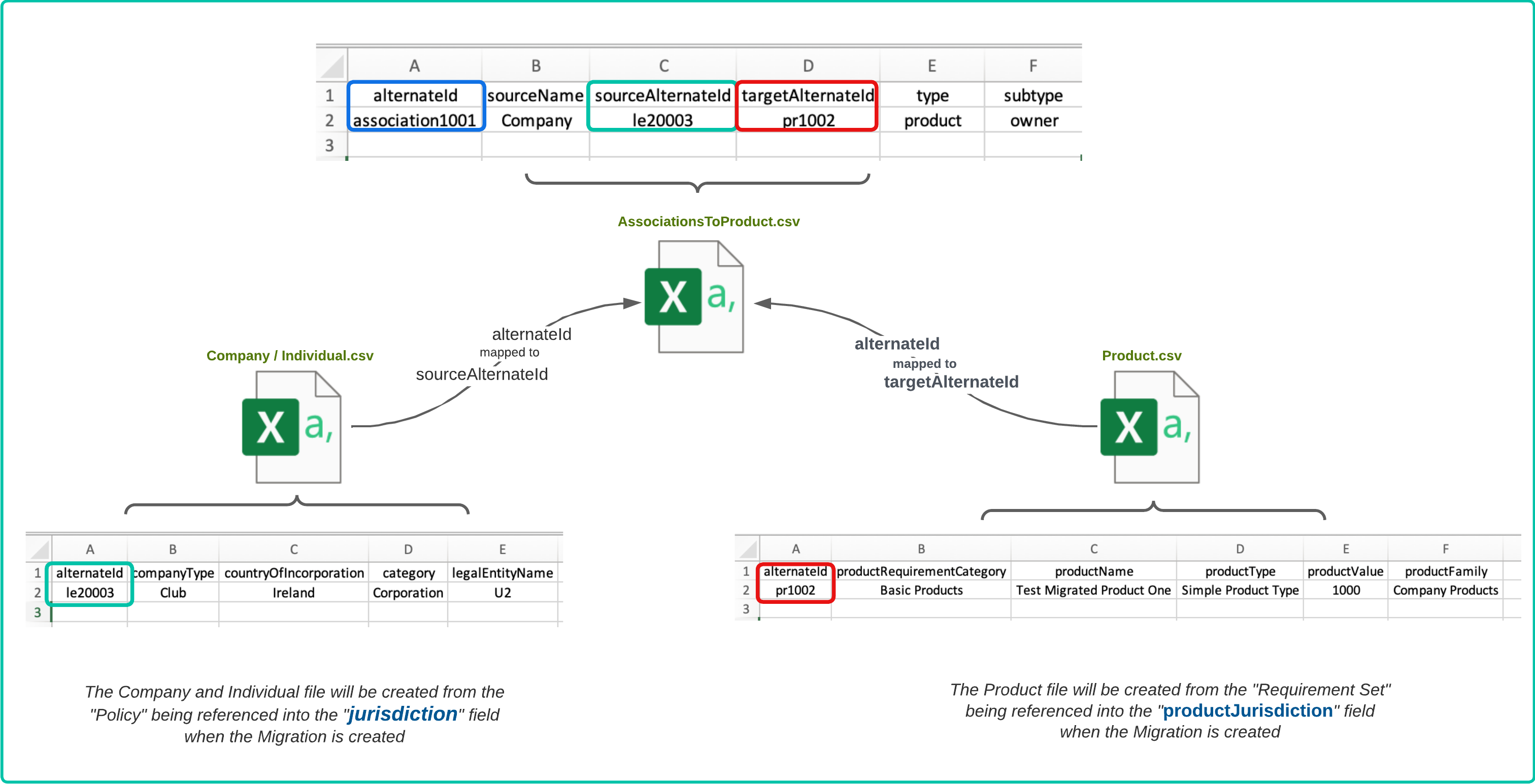
Illustrated below is the relationship and mapping between the files required to Migrate products.
- The Product.csv file is generated based on the Requirement Set referred when the migration is created by setting
"productJurisdiction":"Global" - The Individual.csv or Company.csv files are generated based on the Policy referred when the migration is created by setting
"jurisdiction":"Migration" - The AssociationsToProduct.csv is what connects these separate elements together.
- The
"alternateId"from the Company or Individual file is mapped to the"sourceAlternateId"in the AssociationsToProducts file. The value in the above example is"le20003" - The
"alternateId"from the Product file is mapped to the"targetAlternateId"in the AssociationsToProducts file. The value in the above example is"pr1002" - The
"alternateId"in the AssociationsToProducts file is required to identify a unique association established between a product and Legal Entity as illustrated above"association1001"
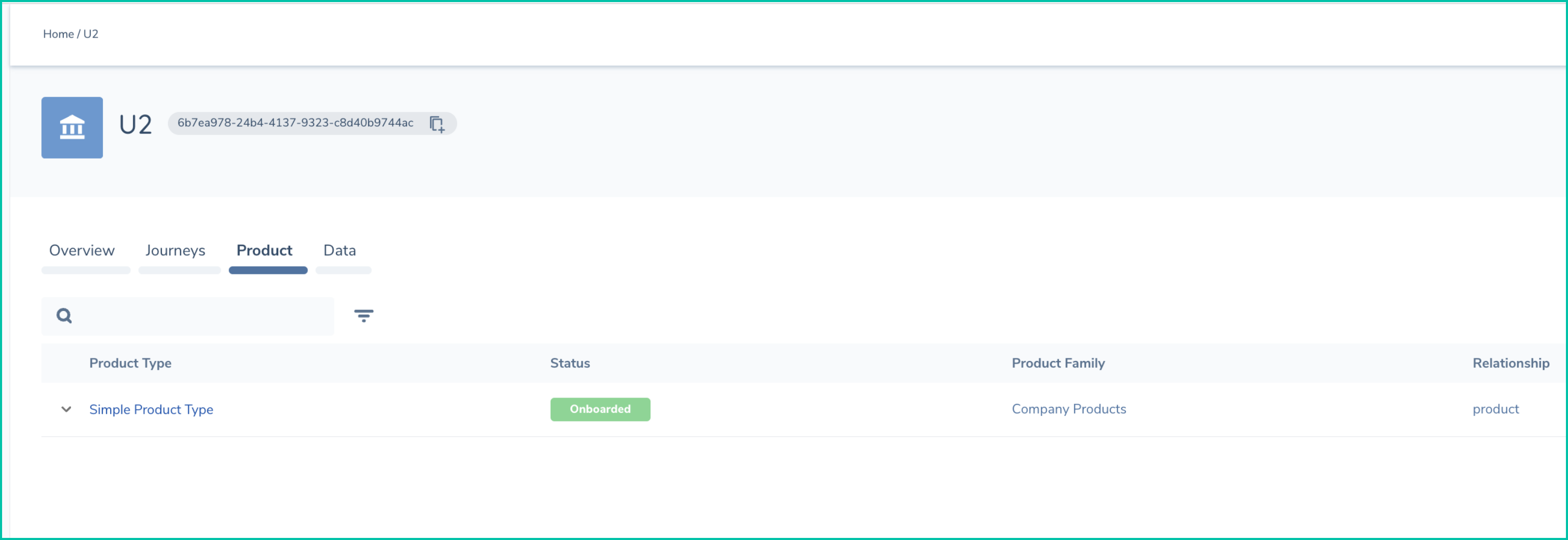
Files can be uploaded to a migration following the steps outlined in the Data Migration APi Walkthrough and once started and processed the migrated products will be displayed on the UI as per the screenshot below for migrated entities + products. By default these will be considered as Onboarded and Verified products against the verified LE Records. Setting the field isOffboarded to true in the product artifact file will result with product migrated as Offboarded and Verified.