Bulk Load Data Overview
The Data Migration functionality is intended to seed large quantities of data into the Fenergo SaaS platform (hundreds of thousands to millions of records), Bulk Load (referred to as Bulk Request in the UI) is similar but intended to load smaller volumes of data (in the low hundreds) into the SaaS platform. The Key difference with Bulk Load is the internal Business Logic executed and how data is handled for each Legal Entity loaded.
- Create Journeys: Each New Entity in a Bulk Load Job is tested for scope against configured Journeys, and where scope conditions are met, the appropriate Journey is initiated for the Entity. This will be "Client Onboarding" (if the entityId is not provided or does not exist in the tenant), or "Maintenance" (if entityId is provided and is an exact match with an Entity in the tenant).
- Creates Draft Data: Any data submitted which is part of the Basic Details category is saved directly into a Verified State for a new Legal Entity and the data for all other categories is saved into a Draft Data record against the journey created.
- Create and Update Entities: Bulk Upload supports creating new entities and updating existing entities.
- Creation of Associations: Bulk Upload can now create associations directly in the file. These can be multi-tiered, in order to build complex hierarchies.
What bulk Load does specifically different to data migration is that the Fenergo Interface allows users to create Bulk Request Jobs in the application not just the APIs. Once the functionality is enabled on a tenant, clients can create Bulk Load jobs, download the template file, upload the filled in template file and start the import process.
Bulk Upload UI flow
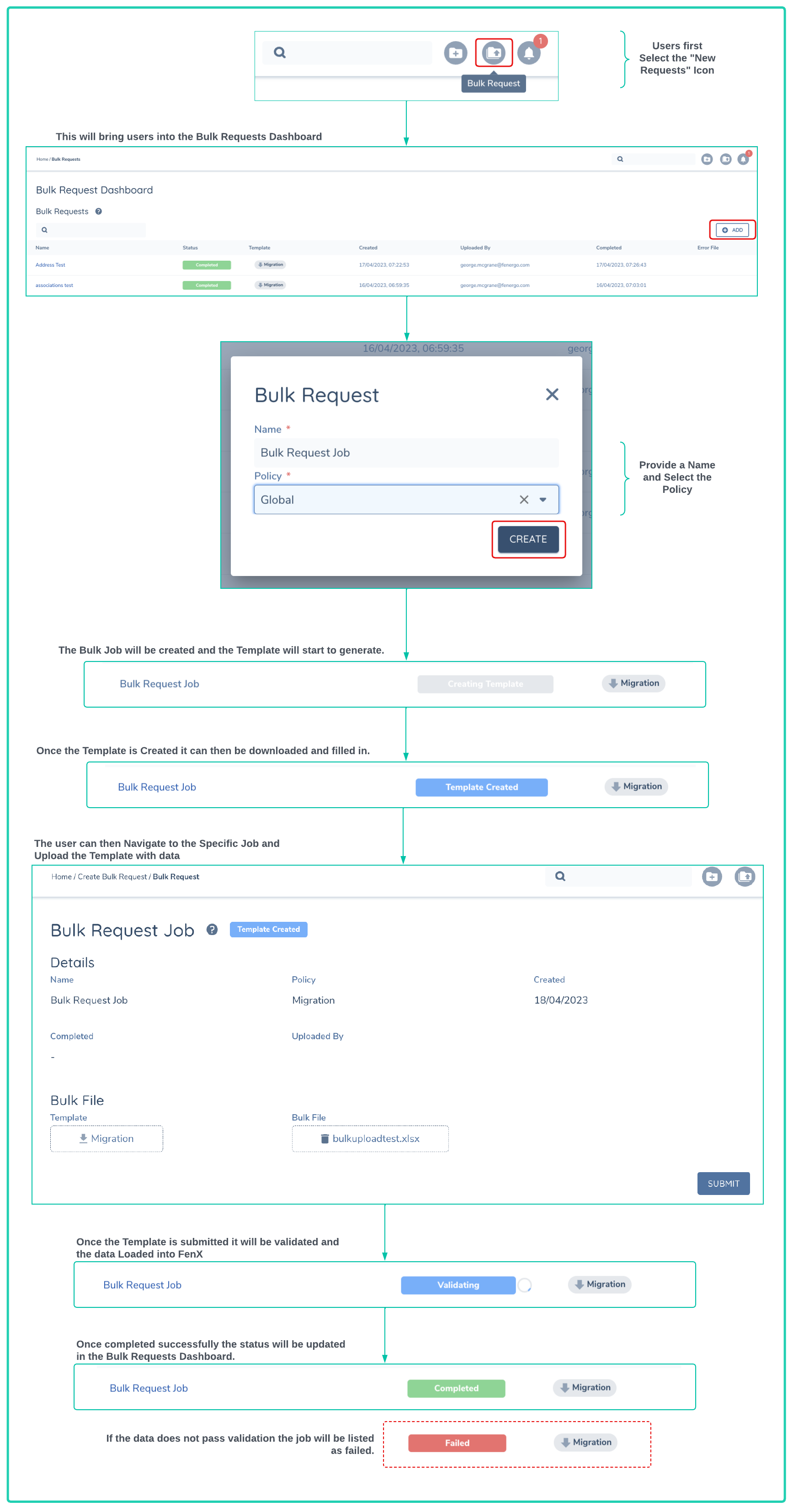
The UI process is illustrated below. From the UI take the following steps :
- Select the Bulk Request Icon: This will bring you to the Bulk request Dashboard. The dashboard will list all the outstanding, completed and failed Bulk Requests (including those created via the API).
- Select ADD: Click the ADD button to create a new Bulk Request Job.
- Give the Bulk Request a Name: This is what will be listed in the dashboard. You also select the policy to create the request against. This may be a policy specifically designed for Bulk Request jobs and contain only a sub-set of LE data and sub-groups.
- Generating Template: Once you select Create, the new job will be created and will automatically create a template for the job.
- Template is Available: Once the status changes to Template Created you can use the Policy Name icon with the down arrow to download the Excel Template that has been generated against the policy.
- Upload the Source Data: When the template is filled in, you can select the Name of the Job and then in the next screen use the Bulk Load File button to select and upload the file. As soon as the file is uploaded it will begin validation.
- Validation Passes: If the validation passes, the data will be loaded into FenX.
- Validation Fails: If the validation fails it will be listed as failed and users can then download an Error file which will identify where the validation failed.
Bulk Upload API flow
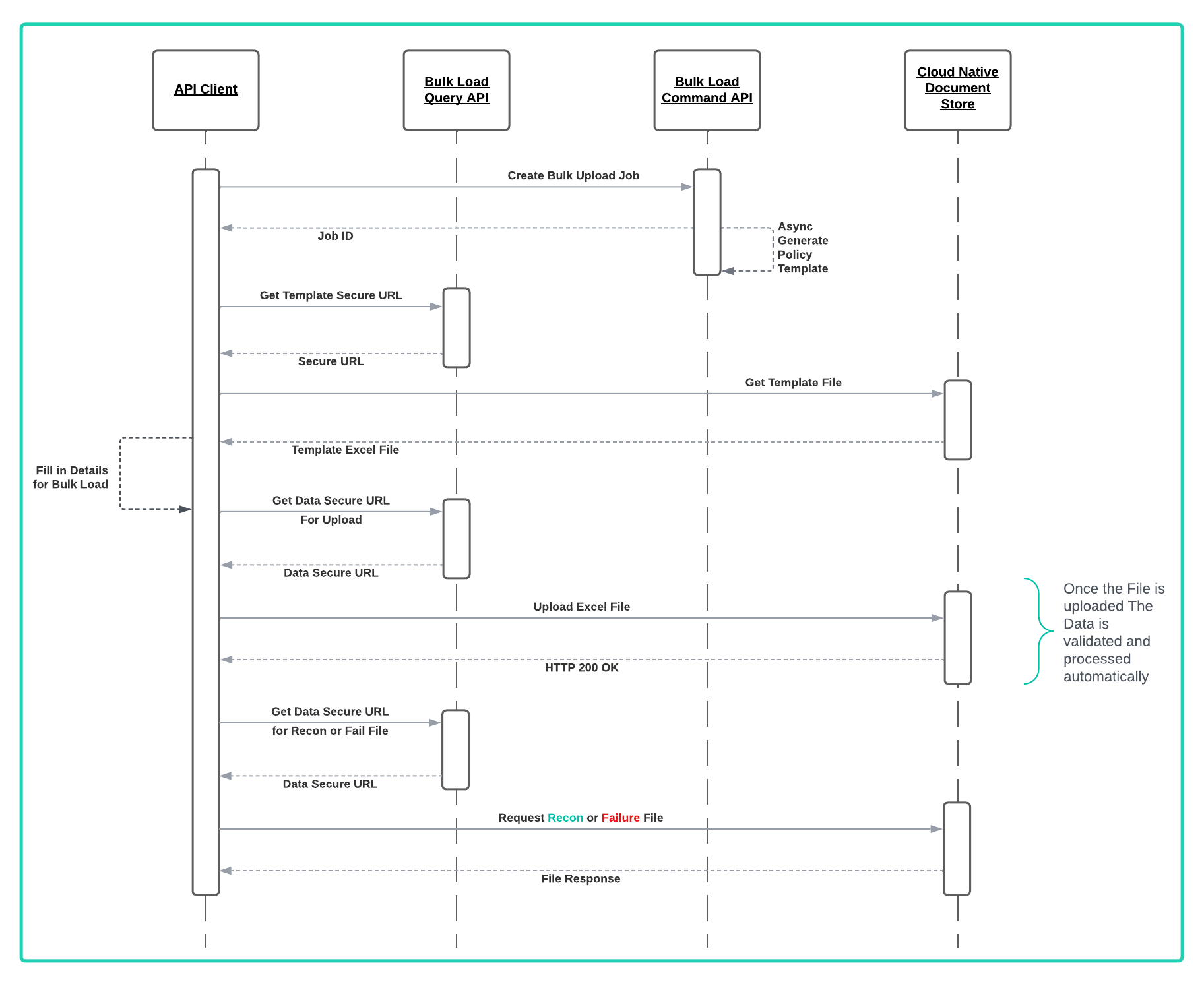
The API process for creating and initiating a bulk load job is straightforward and consists of making a number of API calls to create and execute the job. The steps are outlined below and illustrated in the sequence diagram.
- Call to Create a Bulk Load Job First call to the Command API which will Create the Bulk Load Job.
- Get the Template Once the job is submitted, it may take some time to generate the template, once it is available you can call the Query API to get the Secure URL to the template.
- Use the Secure URL to retrieve the Excel Template File.
- Populate the Template Populate the template with the data to upload.
- Get the Secure URL for the Data File Use the Query API to retrieve the Secure URL for uploading the data file.
- Use the Secure URL to upload the Excel data File.
- Wait for the Job to finish once the Bulk Job has completed. it will either be "complete" or "failed" (due to validation errors).
- Get the Secure URL for the Reconciliation or Failure File Use the Query API to retrieve the Secure URL for uploading the data file.
- Use the Secure URL to retrieve the Reconciliation File.
Currently the max QTY of LE data that can be uploaded via Bulk Load is 1000 Legal Entities. If you submit a file with more than this qty it will fail. If these limits cause an issue please reach out to Fenergo Support and we can examine the limits in place for your tenant.