Supergraph using Postman and Test Harness
Working with Supergraph
In the same way that tractional REST APIs are intended to be called by system integrations programmatically, a GraphQL API is no different. The format and structure of the calls accepts JSON requests but there is a language notation closely coupled to the published Schema which uses GraphQL conventions. This allows developers to create very specific and granular requests that meet their use cases and requirements.
Using Postman
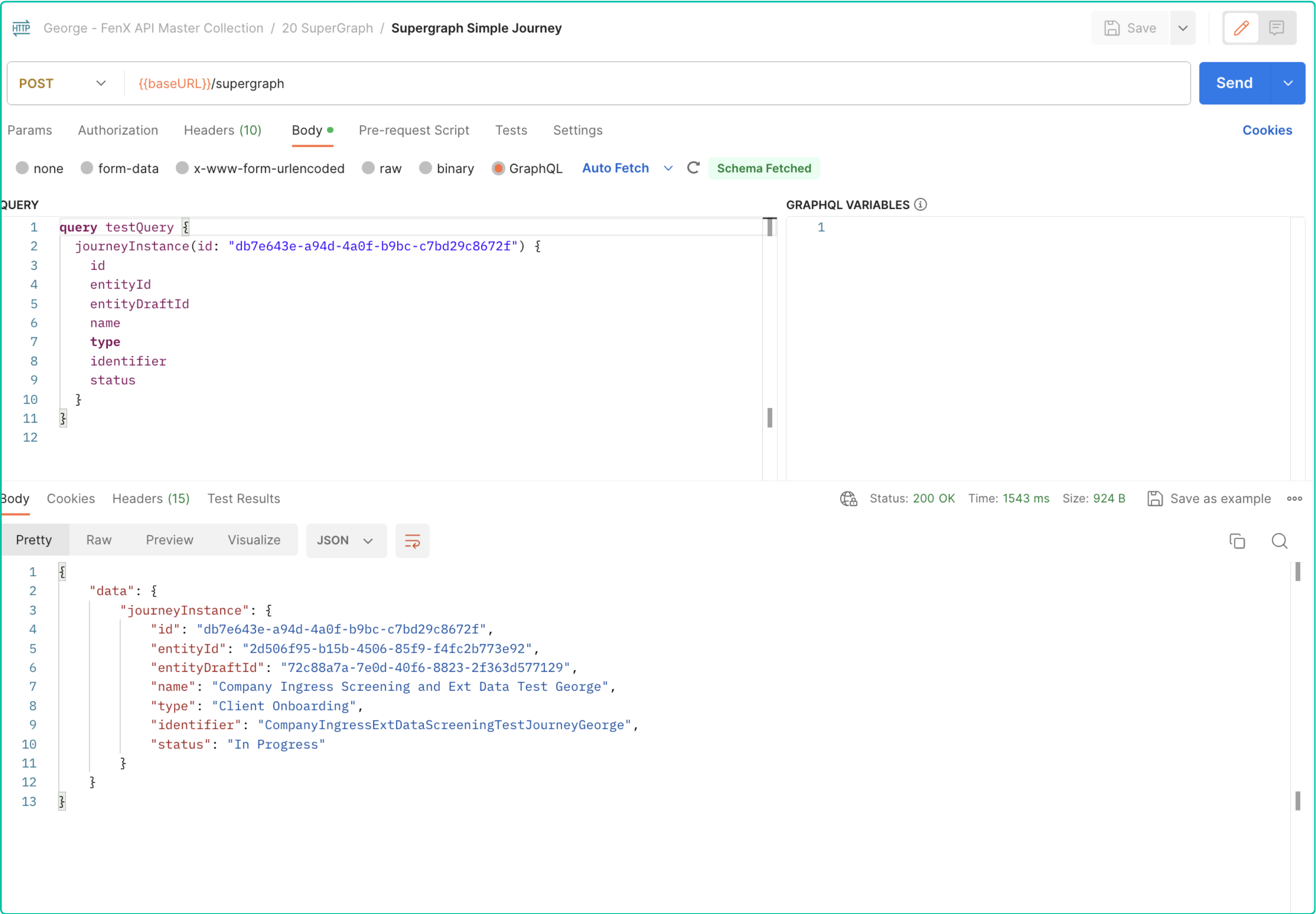
Users can use Postman to call the Supergraph API as illustrated below. The calls are all HTTP POST calls to the target URL of https://{{baseURL}}/supergraph. Under the Body tab in postman, users can select GraphQL and the UI will be rendered as below. There is an extra window on the right hand side which allows for Variables to be specified which can then be referenced in the query (Not using variables in this example).
Once Send is clicked the Query is sent to the Supergraph endpoint and the results returned.
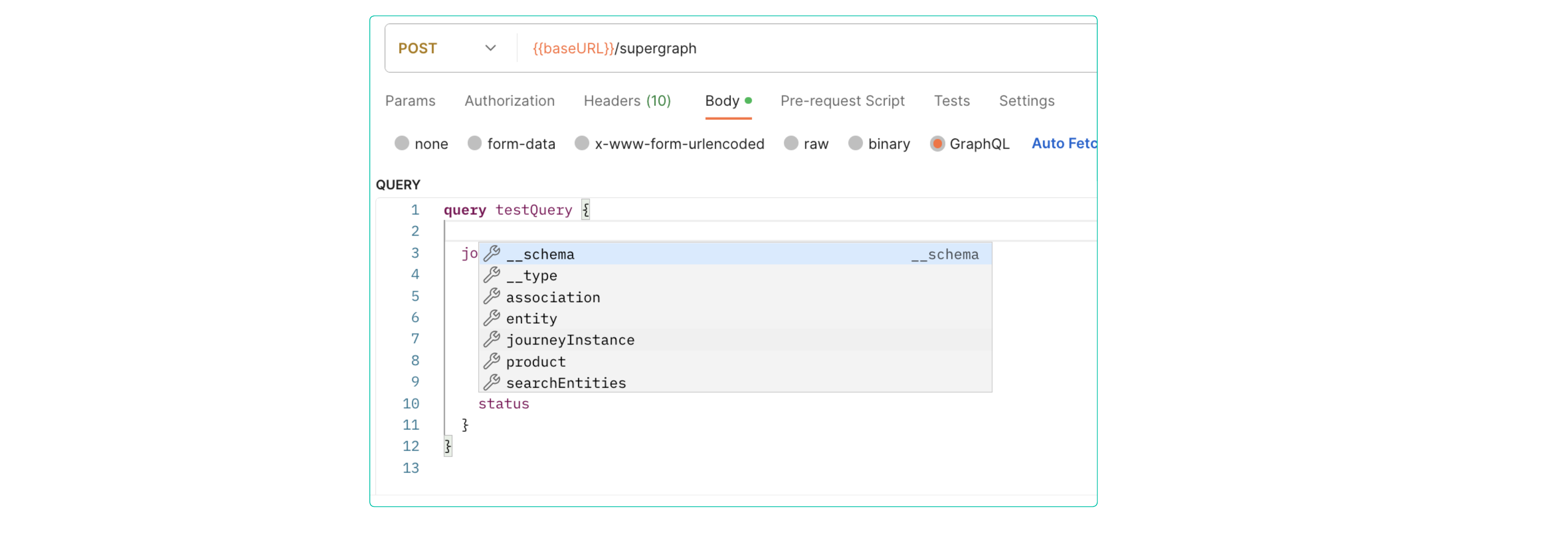
A convenience available with postman is the ability to interact with the published Schema when writing queries. Holding down the "CTRL" key and pressing "space" will bring up the context menu with the schema options as illustrated below.
Using Supergraph Editor
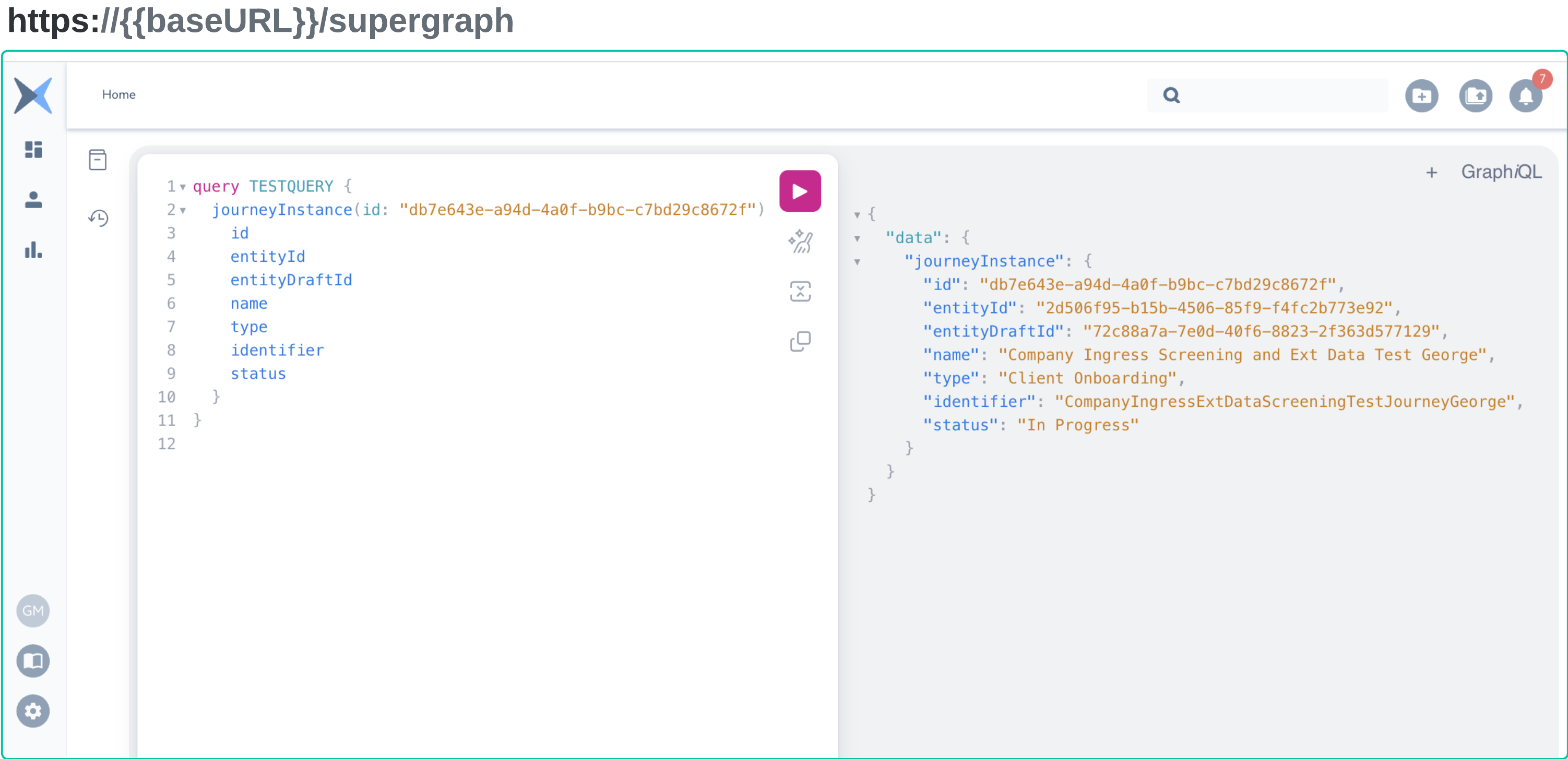
Fenergo has also provided a query editor directly in the SaaS platform User Interface which can be used to test and make GraphQL calls. This has the added benefit of displaying the full schema so users can identify types and data points. Correct permissions will be required for UI users to use Supergraph and users of the UI will only have access to the data they are allowed to access based on the team security configuration.
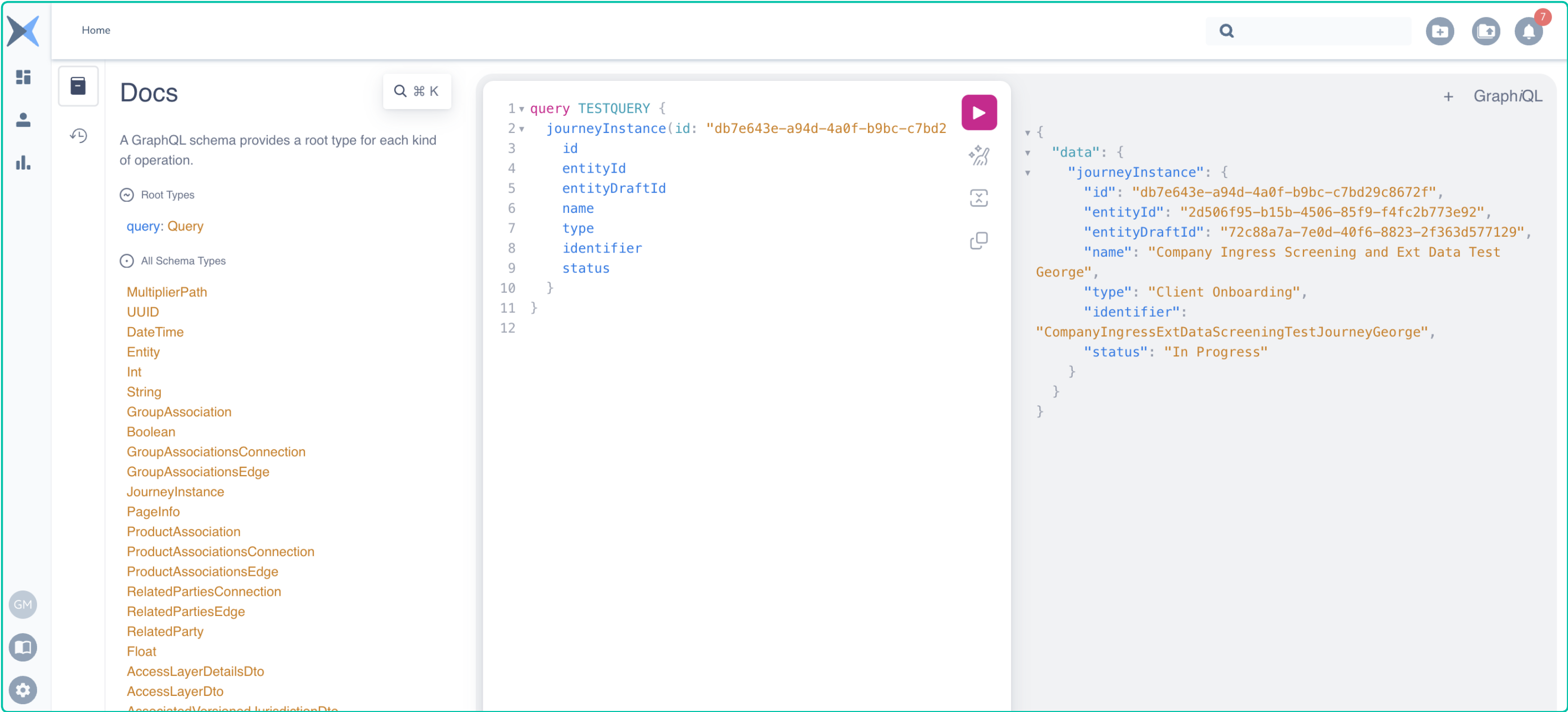
Clicking on the book icon on the top left of the test harness will bring up the schema and the same "CTRL" & "Space" key combination works when using the harness.
Using C# to make a Supergraph Call
Users can use a programming language like C# to make this GraphQL call to the Supergraph api using the code below.
using System;
using System.Net.Http;
using System.Threading.Tasks;
using Newtonsoft.Json;
using Newtonsoft.Json.Linq;
class Program
{
    static async Task Main(string[] args)
    {
        string apiUrl = "https://baseURL/supergraph";
        string graphqlQuery = @"
            query testQuery {
                journeyInstance(id: ""db7e643e-a94d-4a0f-b9bc-c7bd29c8672f"") {
                    id
                    entityId
                    entityDraftId
                    name
                    type
                    identifier
                    status
                }
            }";
        try
        {
            // Set up the GraphQL request
            var requestData = new
            {
                query = graphqlQuery
            };
            string jsonString = JsonConvert.SerializeObject(requestData);
            using (HttpClient httpClient = new HttpClient())
            {
                // Set the Supergraph API endpoint URL
                httpClient.BaseAddress = new Uri(apiUrl);
                // Set the required headers for a GraphQL request
                httpClient.DefaultRequestHeaders.Add("Accept", "application/json");
                httpClient.DefaultRequestHeaders.Add("Content-Type", "application/json");
                httpClient.DefaultRequestHeaders.Add("Authorization", "Bearer{ REPLACE WITH YOUR ACCESS TOKEN}");
                httpClient.DefaultRequestHeaders.Add("X-TENANT-ID", "{ REPLACE WITH YOUR TENANT ID}");
                // Make the GraphQL API call
                HttpResponseMessage response = await httpClient.PostAsync("", new StringContent(jsonString));
                // Check if the request was successful
                if (response.IsSuccessStatusCode)
                {
                    // Read and parse the response content
                    string responseContent = await response.Content.ReadAsStringAsync();
                    JObject jsonResponse = JObject.Parse(responseContent);
                    // Process the GraphQL response data as needed
                    Console.WriteLine("GraphQL API Response:");
                    Console.WriteLine(jsonResponse.ToString(Formatting.Indented));
                }
                else
                {
                    Console.WriteLine($"Error: {response.StatusCode} - {response.ReasonPhrase}");
                }
            }
        }
        catch (Exception ex)
        {
            Console.WriteLine($"Exception: {ex.Message}");
        }
    }
}