Multi Field External Search and Details API
Clients can configure a multi cardinality data group in their policy which will invoke a client hosted adapter when the user types into a search box. When no data group fields are configured as part of the search criteria, we use a search box to obtain the results from the provider. The content from the search box will be sent in a call to that adapter and the implementation can search a repository or data store for matching results and return an ordered list of formatted data back. The result set is sent back Real-Time and the response will be displayed as a list of options on the UI. The user can then select one of the matching items and the ID of the selected item is sent to a second endpoint to retrieve the details mapped to the configured fields.
| APIs Referenced |
|---|
| External Policy Provider Query |
| External Policy Provider Command |
| Adapter Implementation Contract |
Sample Use Case for External Policy Provider - Multi-Field Search and Details
  AS: a FenX consumer:

      GIVEN: Our organization has functionality to to support suggestions for a collection of policy fields in a Data Group

      AND: We want to present those suggestions to a UI user as they are filling in the User Interface

      WHEN: a user selects to add a result from the presented list

 THEN: I want FenX to call an external service which can populate the details into a Data Group Instance.
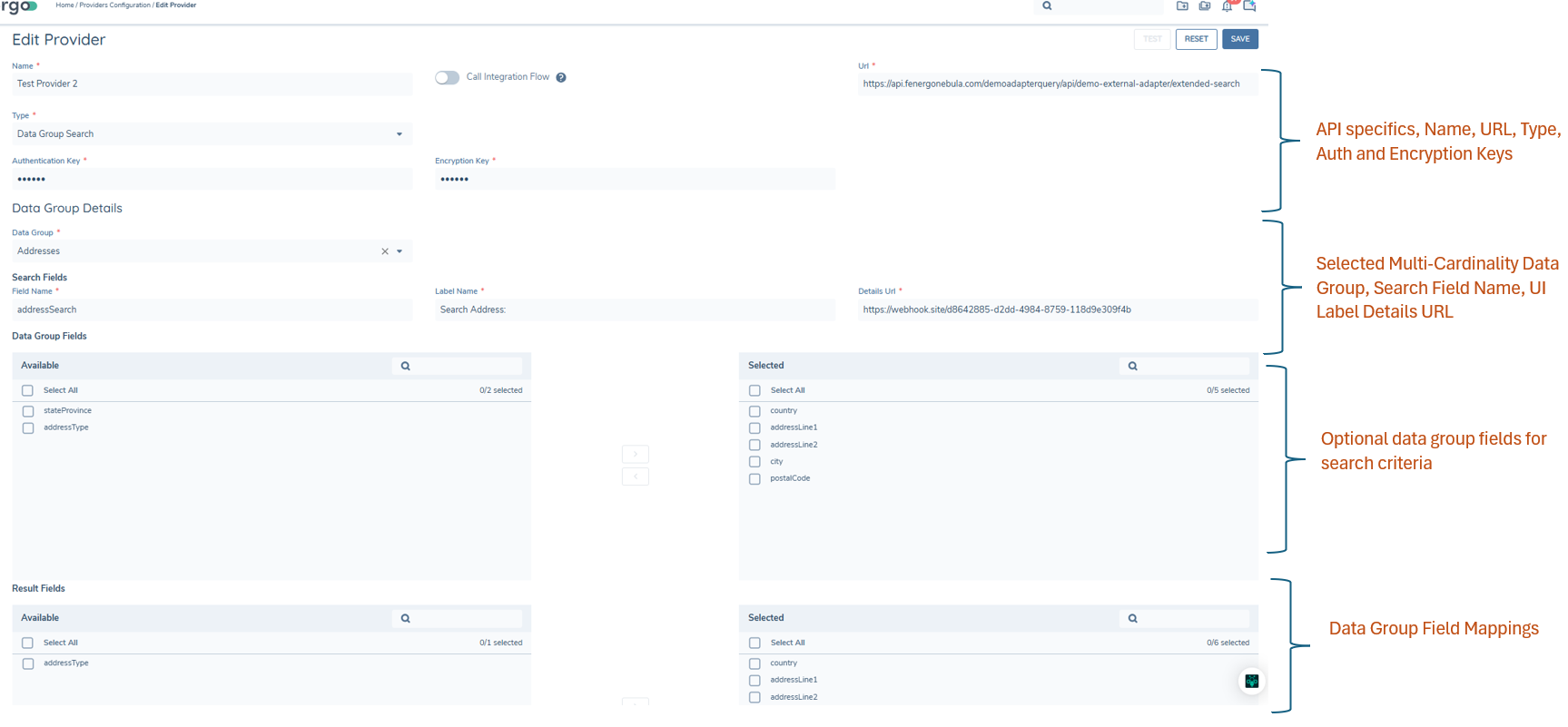
Create External Policy Provider - Multi-Field Search and Details UI
For comparison with the API look at the screen in the Admin Section of the Fenergo UI. You can see the elements that need to be set, along with the two URLs to both the Search and Details endpoints.
Create External Policy Provider - Multi-Field Search and Details API
The API can be used to create the provider above for multi field Search and Details by sending a POST to the following API Endpoint {{baseURL}}/policyproviderscommand/api/provider with the below body. In the below example, a multi-cardinality Data Group that allows a user to search for addresses is selected (it must already exist and the dataGroupId must be known).
{
    "data": {
        "name": "External Address Search",
        "serviceUrl": "https://webhook.site/9589ac93-0713-4062-b6ea-ee83d68a69ca",
        "type": "DataGroupSearch",
        "encryptionKey": "{32 character Base64 Key}",
        "authenticationKey": "{32 character Base64 Key}",
        "dataGroupId "xxxxxxxxxx",
         "resultFieldsConfig": [
            {
                "dataKey": "addressLine3"
            },
            {
                "dataKey": "addressLine1"
            },
            {
                "dataKey": "addressLine2"
            },
            {
                "dataKey": "country"
            }
        ],
        "searchFieldsConfigs": [
             {
                "name": "addressSearch",
                "label": "Start Typing to Find Address"
            }
        ],
        "detailsUrl": "https://webhook.site/2c37f678-bbbe-42a3-b870-16c3c7b24289"
    }
}
Understanding the Create Multi Field Provider Requests
The above configuration request contains the details required to add a new custom adapter to your Tenant Configuration. Once Added you should receive a HTTP 202 Accepted response.
"name"is the name of the Adapter."serviceUrl"is the URL where your adapter is located. This URL will be called by Fenergo when interacting with your policy field adapter."type"is the Type of adapter. This can be search,validate or DataGroupSearch"encryptionKey"and"authenticationKey"are the Encryption and Authentication Keys used to secure and sign the messages sent to your adapter."dataGroupId"is the ID of a configured data group. An instance of this "type" of data group will need to be included in a configured policy."resultFieldsConfig"This is the mapping for the data keys inside a data group from a configured policy."searchFieldsConfigs"is the Results Field Config. FenX will put a field and a Label in the UI of the Data Group Dialog box. This field name is what will be send to your provider and the label will be displayed on the UI."detailsUrl"is the endpoint for the Details URL. This is a separate endpoint to return the Data Mapped to Fields as will be shown in the API examples further down.
Request and Response Example for Multi Field Suggestions with Text Search Only
Below is is an example of the HTTP Body of a request to the Multi-Field Suggestions service, followed by an example of what a Valid response is. In this example no data group fields are selected for the search criteria. This request is for the text search field only.
{

    "fields": [
        {
            "fieldName": "addressSearch",
            "fieldValue": "test"
        }
    ]
}
"fieldName"is the value set when creating the provider, This is not a policy field but is dynamically added to the UI and is displayed as configured in the"searchFieldsConfigs"."fieldValue"is the value entered by the user into the policy field.
{
    "Status": 0,
    "SearchSuggestions": [
        {
            "Id": "59822a61-9dd8-48c4-abb3-d932caa05f15",
            "DisplayValue": "Poland, Wroclaw, Rynek 36/37"
        },
        {
            "Id": "ed3f8007-9511-414f-b2a6-e4e293924732",
            "DisplayValue": "Spain, Alicante, Orihuela, 14, 03193"
        },
        {
            "Id": "71e56382-91f1-46b3-920d-78c912e05eed",
            "DisplayValue": "Ireland, Co Kildare, Clane, 30 Alexandra Walk"
        }
    ]
}
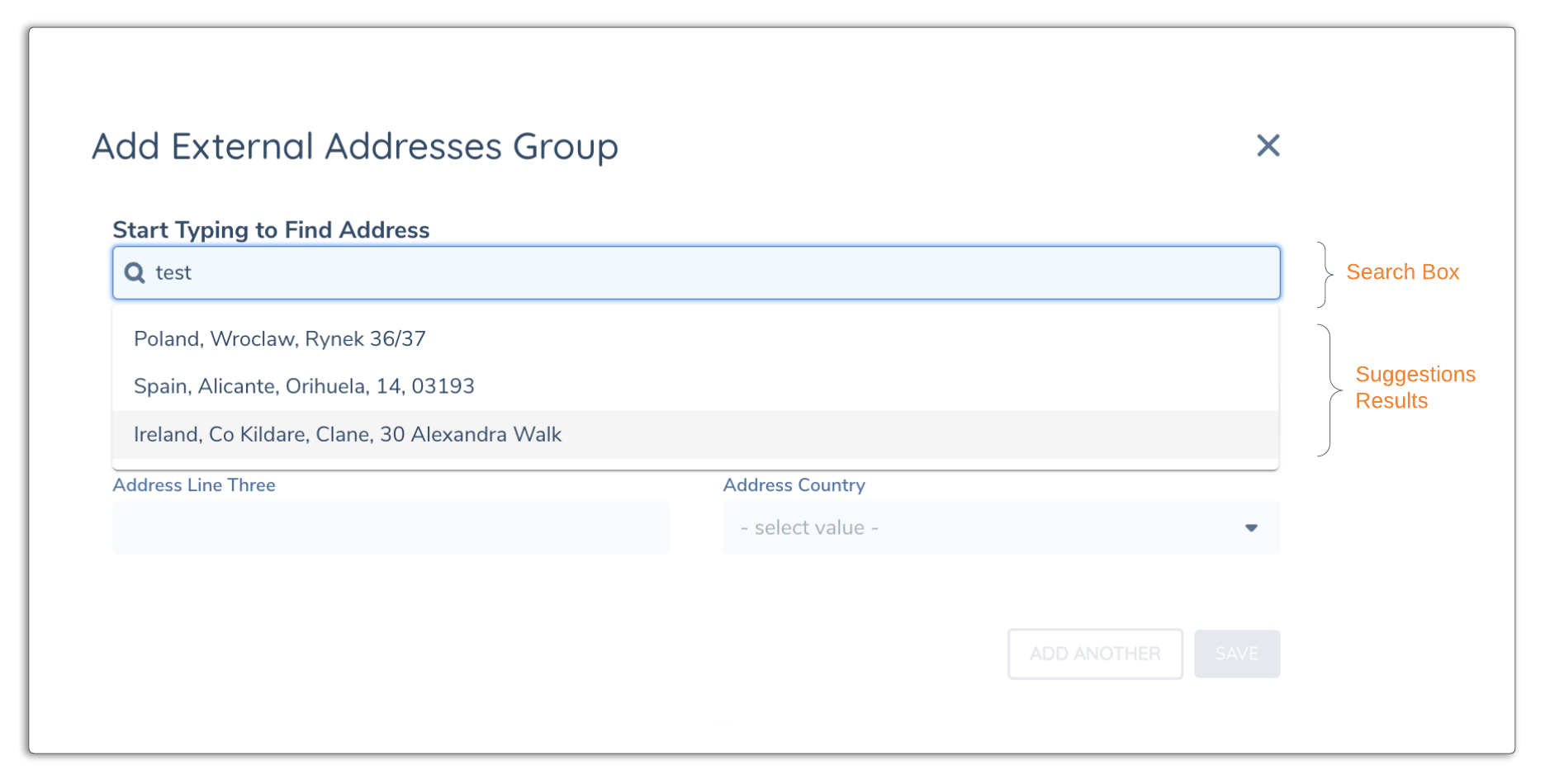
"Id"in the "Search Suggestions" "are the IDs being used by your service, In the example above GUIDs are used, but, you can use anything which makes sense to your service This is the identifier that will be sent back to retrieve the Mapped Details"DisplayValue"is the neatly formatted display value. We have some comma separated values to make an address readable on a single line, but this can be anything which makes sense for your use case.
UI Result for Multi-Field Suggestions
Once the adapter is configured, the UI will display the multi-field suggestions as below.
Request and Response Example for Multi Field Details
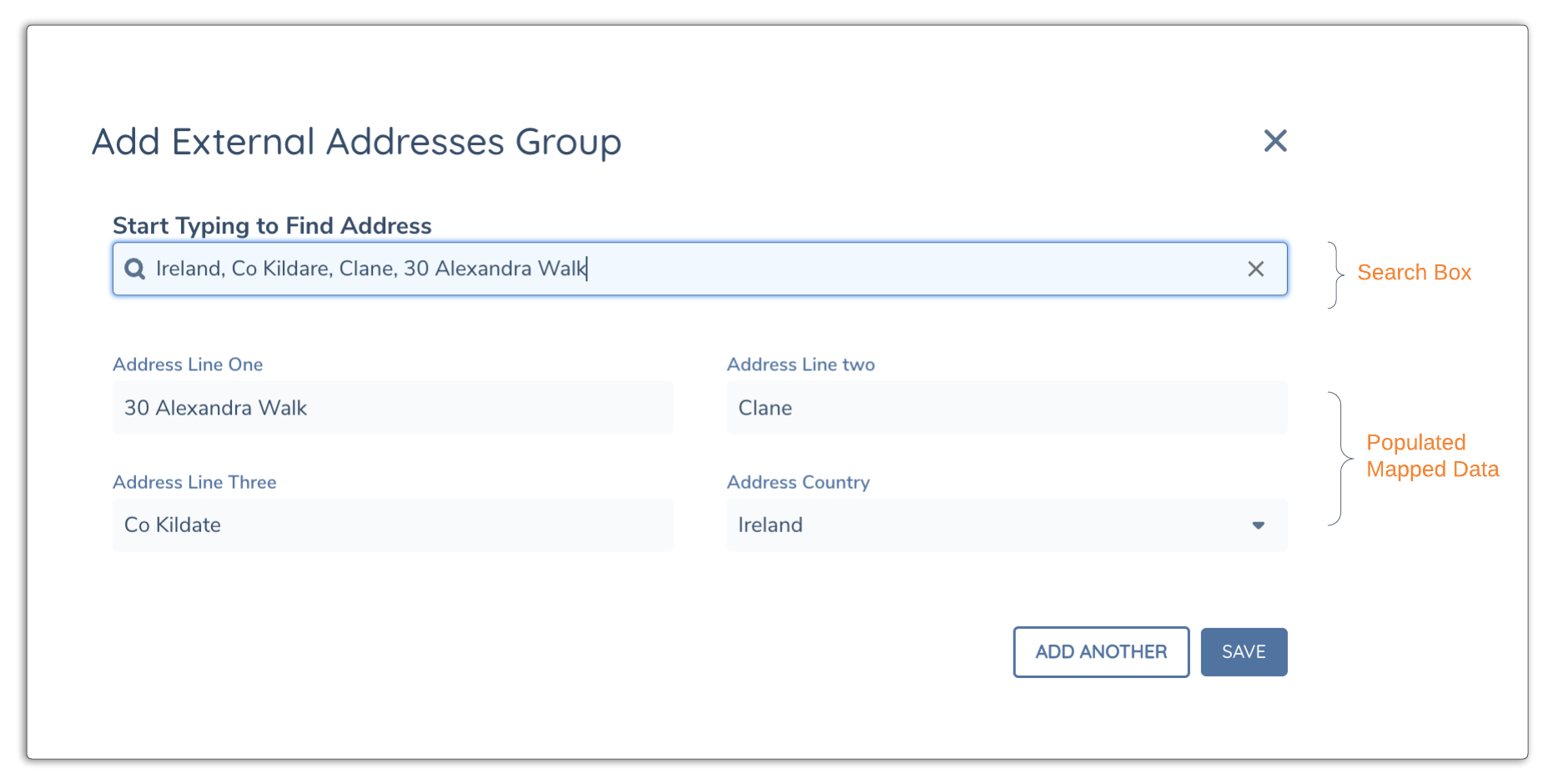
Below is is an example of the HTTP Body of a request to the Multi-Field Details service, followed by an example of a response which contains the mappings to the fields inside the data group. As can be seen, the request to your adapter will only contain the suggestionId selected from the dropdown list. This method uses a single text box for initiating the search. The search results are displayed in a drop down list and when selected, will populate the data group fields on the same page.
{
    "suggestionId": "71e56382-91f1-46b3-920d-78c912e05eed"
}
"suggestionId"is the identifier sent to your adapter. This example is using GUIDs but this could be the Primary Key from a database or whatever way your data is structured.
{
    "Status": 0,
    "Values": [
        {
            "FieldName": "addressCountry",
            "FieldValue": "Ireland"
        },
        {
            "FieldName": "addressLineThree",
            "FieldValue": "Co Kildate"
        },
        {
            "FieldName": "addressLineTwo",
            "FieldValue": "Clane"
        },
        {
            "FieldName": "addressLineOne",
            "FieldValue": "30 Alexandra Walk"
        }
    ]
}
"FieldName"are the field names as they correlate to the field names within the data group. These must match the dataKeys in the data group configuration."FieldValue"are the values which will be populated into the the data group fields.
UI Result for Multi-Field Details
After a user selects from the drop down list, the details will be populated into the data group as below. Simply need to click on save to save the data into the LE Record.
Request and Response Example for Multi Field Suggestions with Text and Data Group Search Criteria
Below is an example of the HTTP Body of a request to the Search Results Service where multiple search criteria are used. This includes the text search box and any data group fields that are configured to be a part of the search, followed by an example of what a valid response is.
{
    "data":{
        "providerId": "1111cc04-02c7-4c11-ae11-f85e1101c111",
        "searchFields": [
            {
                 "fieldName": "city",
                 "fieldValue": "Wroclaw"
            },
             {
                 "fieldname": "country",
                "fieldValue": "Poland"
             }
    ]
}
}
"fieldName"is the value set when creating the provider, This is not a policy field but is dynamically added to the UI and is displayed as configured in the"searchFieldsConfigs"."fieldValue"is the value entered by the user into the policy field.
Below is an example of the HTTP Body of the response from the adapter.
{
    "Status": "ok",
    "results": [
        {
            "Id": "11111a61-9dd8-48c4-abb3-d932caa05f11",
            "DisplayValue": "Poland, Wroclaw, Rynek 36/37, 50-101"
            "fields": [
                {"fieldName": "city", "fieldValue": "Wroclaw" },
                {"fieldName": "country", "fieldValue": "Poland"},
                {"fieldName": "addressLine1", "fieldValue": "Rynek 36/37"},
                {"fieldName": "postalCode", "fieldValue": "50-101"}
            ]
        },
        {
            "Id": "ed1f1111-9511-414f-b2a6-e4e293924732",
            "DisplayValue": "Spain, Alicante, Orihuela 14, 03193"
            "fields": [
                {"fieldName": "city", "fieldValue": "Alicante" },
                {"fieldName": "country", "fieldValue": "Spain"},
                {"fieldName": "addressLine1", "fieldValue": "Orihuela 14"},
                {"fieldName": "postalCode", "fieldValue": "03193"}
            ]
        },
        {
            "Id": "11e11111-91f1-46b3-920d-78c912e05eed",
            "DisplayValue": "Ireland, Co Kildare, C12 PR34, 30 Alexandra Walk"
            "fields": [
                {"fieldName": "city", "fieldValue": "Co Kildare" },
                {"fieldName": "country", "fieldValue": "Ireland"},
                {"fieldName": "addressLine1", "fieldValue": "30 Alexandra Walk"},
                {"fieldName": "postalCode", "fieldValue": "C12 PR34"}
            ]
        }
    ]
}
"Id"in the "Search Suggestions" "are the IDs being used by your service, In the example above GUIDs are used, but, you can use anything which makes sense to your service This is the identifier that will be sent back to retrieve the Mapped Details"DisplayValue"is the neatly formatted display value. We have some comma separated values to make an address readable on a single line, but this can be anything which makes sense for your use case.
Below is an example of the HTTP Body of the response from Fenergo side API.
{
    "Status": "Ok",
    "results": [
        {
            "id": "11111a61-9dd8-11c1-abb1-d932caa05f11",
            "displayValue": "Poland, Wroclaw, Rynek 36/37, 50-101",
            "fields": [
                {"fieldName": "country",
                "fieldValue": "Poland"
                },
                {"fieldName": "city",
                "fieldValue": "Wroclaw"
                },
                {"fieldName": "addressLine1",
                "fieldValue": "Rynek 36/37"
                },
                {"fieldName": "postalCode",
                "fieldValue": "50-101"
                }
            ]
        }
    ]
},
"messages": null
UI Search Modal
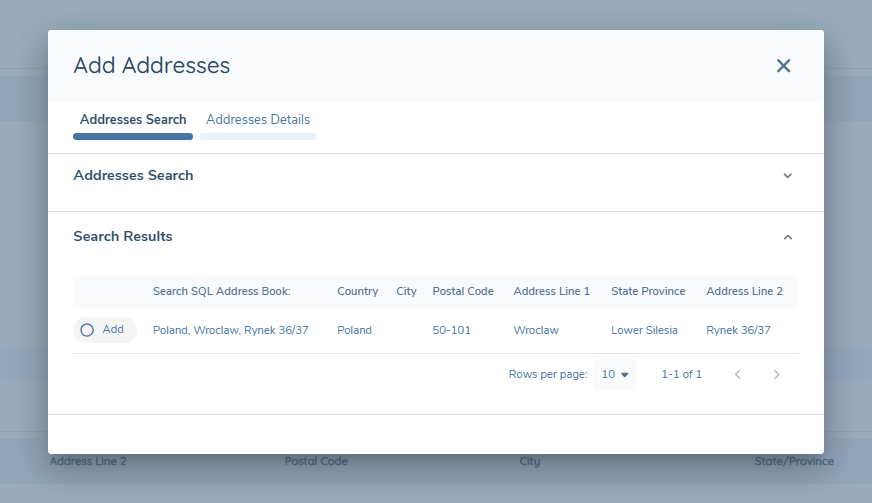
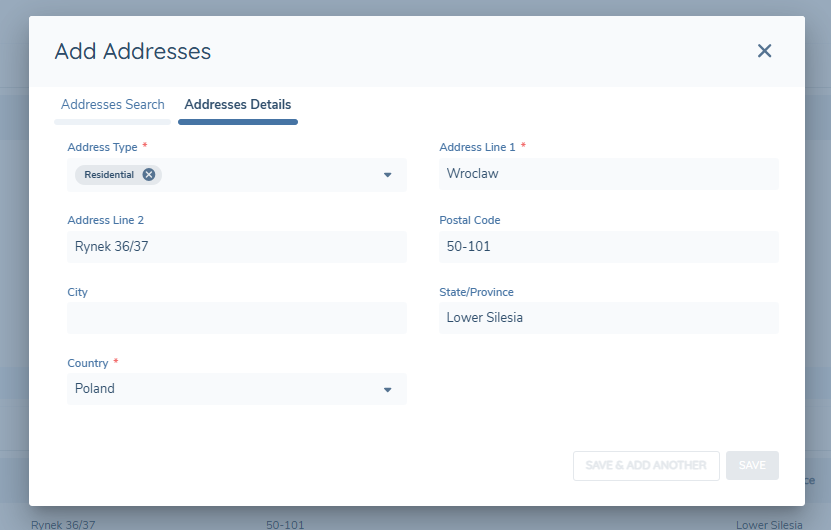
Where data group fields are configured to be a part of the search, the modal for search will change to a 2-step modal. Either the search text field can be used or the fields in the data group. Then the user will click “search” button which will direct them to the Search Results Grid. When a result is selected, they will automatically be brought to the Details tab where they can fill in any missing mandatory fields and click Save to save the final address record.
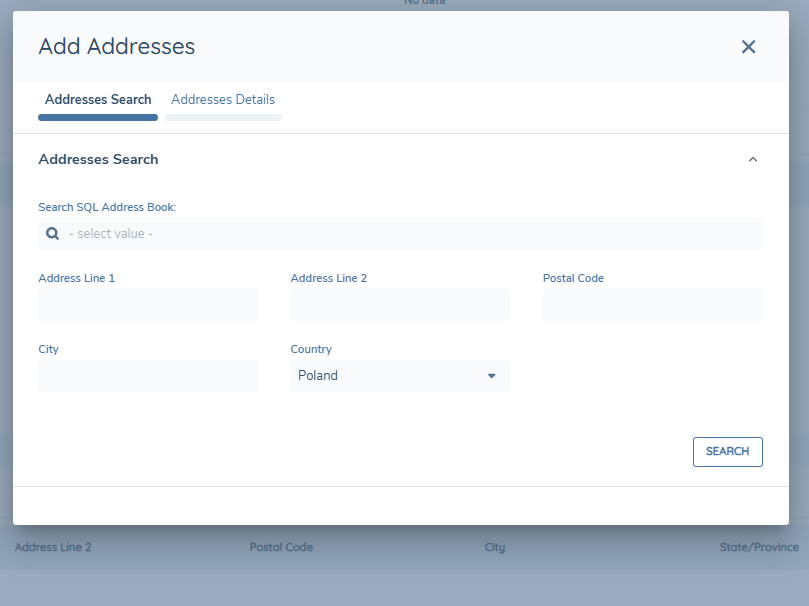
Below is an example where a data group field was used to trigger the search.
Below is the Details tab, where the selected result can be edited or saved.
Behaviour To Note
Results in the grid have been limited to 100. If over 100 results are detected, a message will be displayed to inform the user that they should refine their search criteria to see more refined results.
Where more than one provider is set up for the same data group, they will need to both follow the same search method. If you switch only 1 provider over to the method of using data group fields in the search criteria, then a warning banner message will display to tell them that one of the set up providers is missing data group fields and therefore will not be available until it is reconfigured.
